ExplorerPatcher vs Start11
We installed Start11 3.0.0.3, Stardock's paid Start menu and taskbar replacement, on a Windows Server 2025 test machine. Its installer is signed, it put 94.2 MB in 295 files in Program Files, and it loaded a DLL into Explorer. The 30 day trial needs an email address and we did not give one, so we never saw a Start11 menu. Styles and Taskbar Islands are documented only.
Checked against ExplorerPatcher 71.1 (26100.9711.71.1) on Windows Server 2025 (24H2 shell) 26100.33674 · Nov 6, 2026On this page
- The verdict in one box
- How we tested, and what we did not read
- What the trial asks for
- Side by side on the same machine type
- Taskbar
- Start menu
- File Explorer and the context menu
- Feature table
- Price, licence and signing
- Install, uninstall and footprint
- What Stardock says Start11 does
- Using both together
- When to choose which
- What would change this page
- Common questions
- Related guides
The verdict in one box
ExplorerPatcher, by comparison, is free, its main program is open source (GPL-2.0), its setup files are not signed, and it gave us a 40 px Windows 10 taskbar, a Windows 10 Start menu, Alt+Tab styles and File Explorer options that we photographed.
How we tested, and what we did not read
- Permission. We installed Start11 on the owner’s explicit permission, as an owner-approved trial. We did not read its licence text. Stardock’s licence pages returned HTTP 503 when we tried, and our script ticked “I agree” in the installer so that setup could continue. Read Stardock’s licence yourself before you install it.
- The installer.
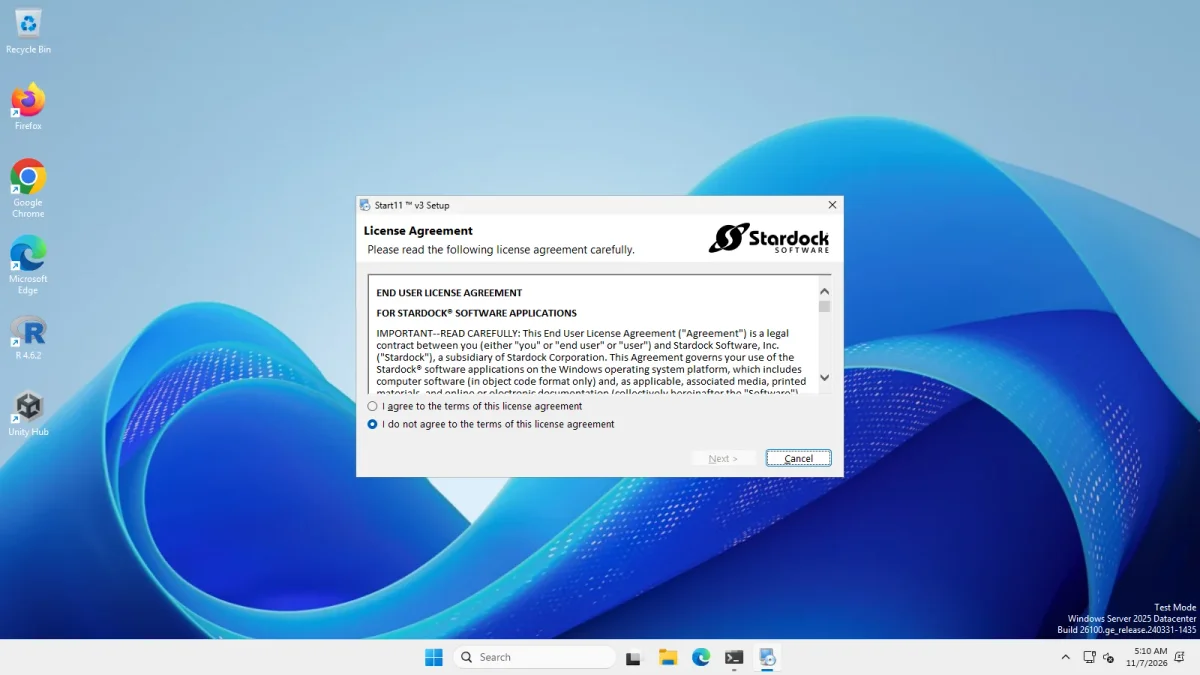
Start11v3_Setup.exe, file version 3.0.0.3, 119.7 MB (119,689,480 bytes), Authenticode signature Valid, signer STARDOCK SYSTEMS, INC., Plymouth, Michigan. It is a wizard that ignores silent switches, so we drove it through its window: licence agreement, install folderC:\Program Files (x86)\Stardock\Start11, finish. - The machine. The same Windows Server 2025 image type as our ExplorerPatcher run. A server is not a Windows 11 client PC, see how we test. The raw files are in the Start11 evidence folder.
- What stopped us. After install, Start11’s configuration window opened with a first-run box in front of it. In our first run the script pressed none of the box’s buttons (
start11Pressedis empty in that result file). In the re-run on 7 Nov 2026 we clicked “Start 30 Day Trial” and Start11 asked for an email address. We did not enter one: signing up at a third party with a personal address is not something our test harness may do on its own. The “Windows 7”, “Windows 10” and “Windows 11” style screenshots we took afterwards show Windows’ own Start menu behind Start11’s configuration window, with the email prompt on top. They are not Start11 menus and we do not publish them as three styles.
What the trial asks for
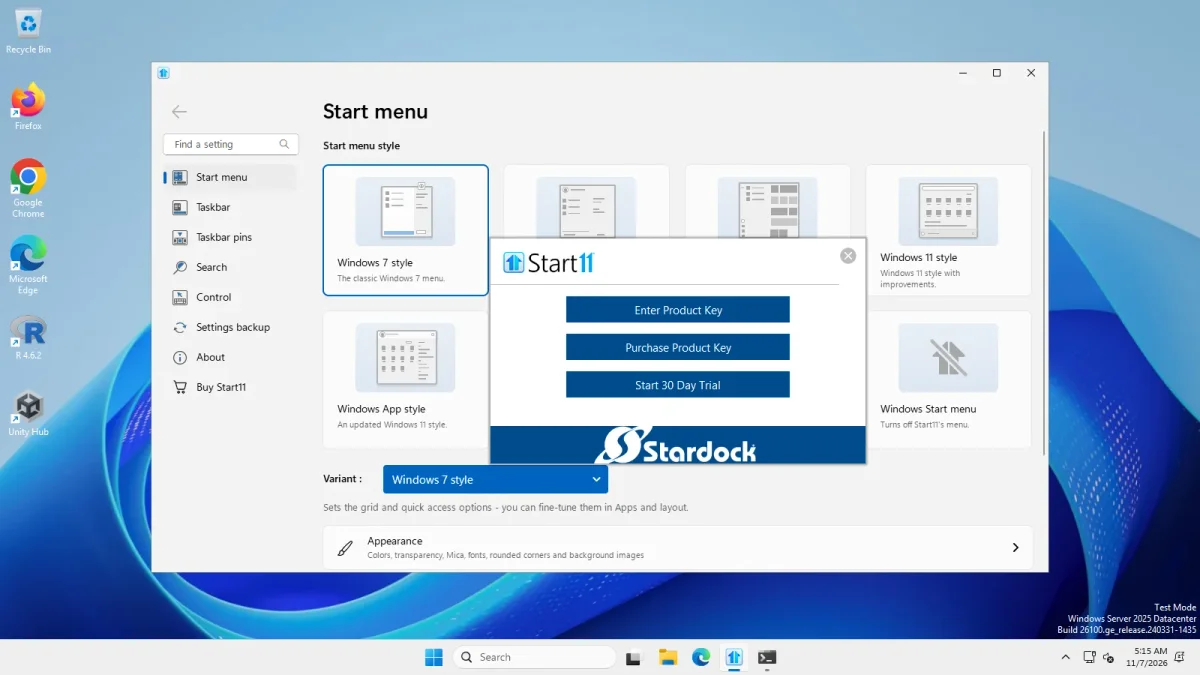
After the install, Start11’s configuration window shows a first-run box with three buttons: Enter Product Key, Purchase Product Key and Start 30 Day Trial. The box is invisible to Windows’ UI Automation, so on the re-run (Windows Server 2025, build 26100.33674, 7 Nov 2026) we clicked the trial button by its position on the screen.
Start11 then asked: “Please enter a valid email address to start your 30 day trial.” The prompt has an Email field, a Privacy Policy link, and Back and Continue buttons.
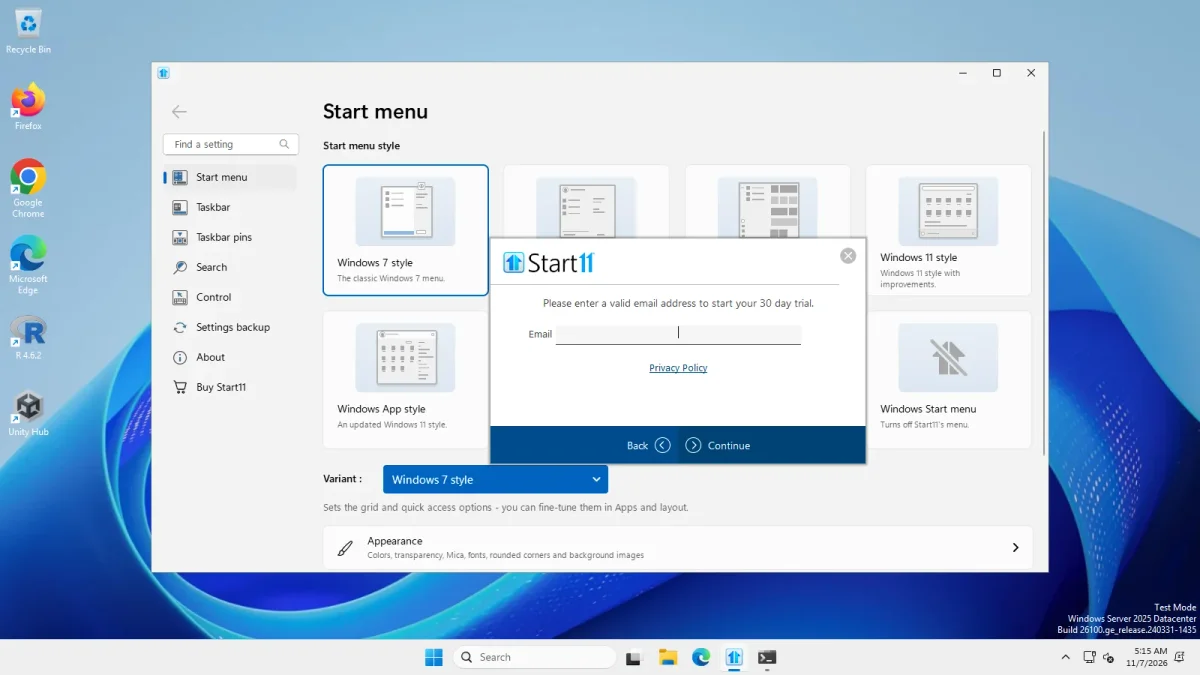
So the trial length is 30 days (from the button’s label) and starting it requires an email address. We did not enter one and did not press Continue. We have not read Stardock’s Privacy Policy, so we cannot tell you what it does with the address. What happens after Continue, including whether a key or a confirmation email follows, is untested. Decide for yourself whether you want to give Stardock an address before you install it.
Side by side on the same machine type
Left: Windows 11 after the Start11 install, with the Windows 11 taskbar still 48 px high. Right: ExplorerPatcher’s “Windows 10 (ExplorerPatcher)” taskbar style, 40 px high, on the same image type the day before. The extra taskbar icon on the left is Start11’s configuration window, which was open.
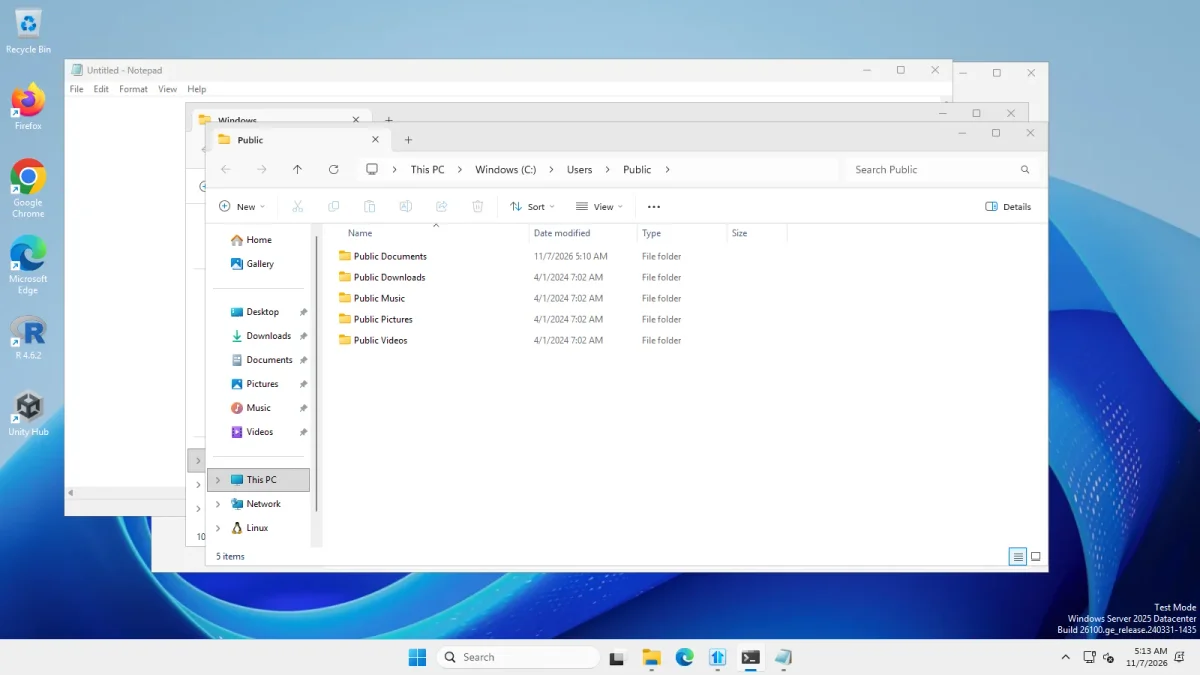
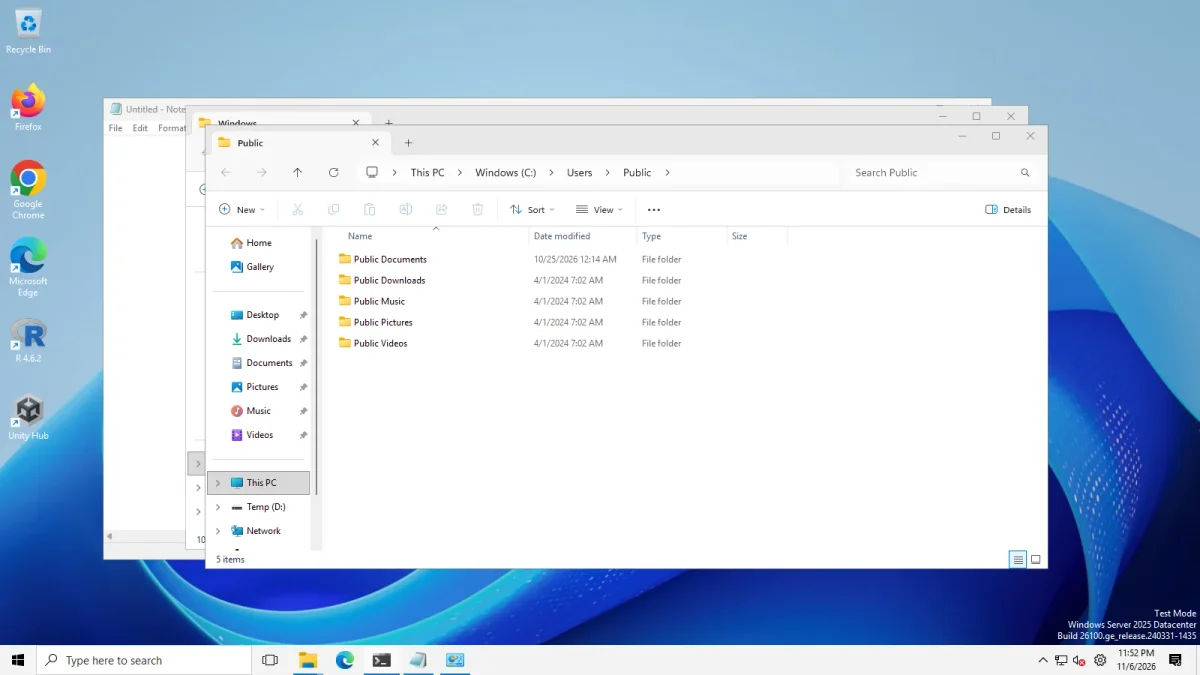
Drag the slider to see what the Start11 install changed. The visible differences are the Start11 icon in the taskbar and its window behind the others. The taskbar and File Explorer did not change.
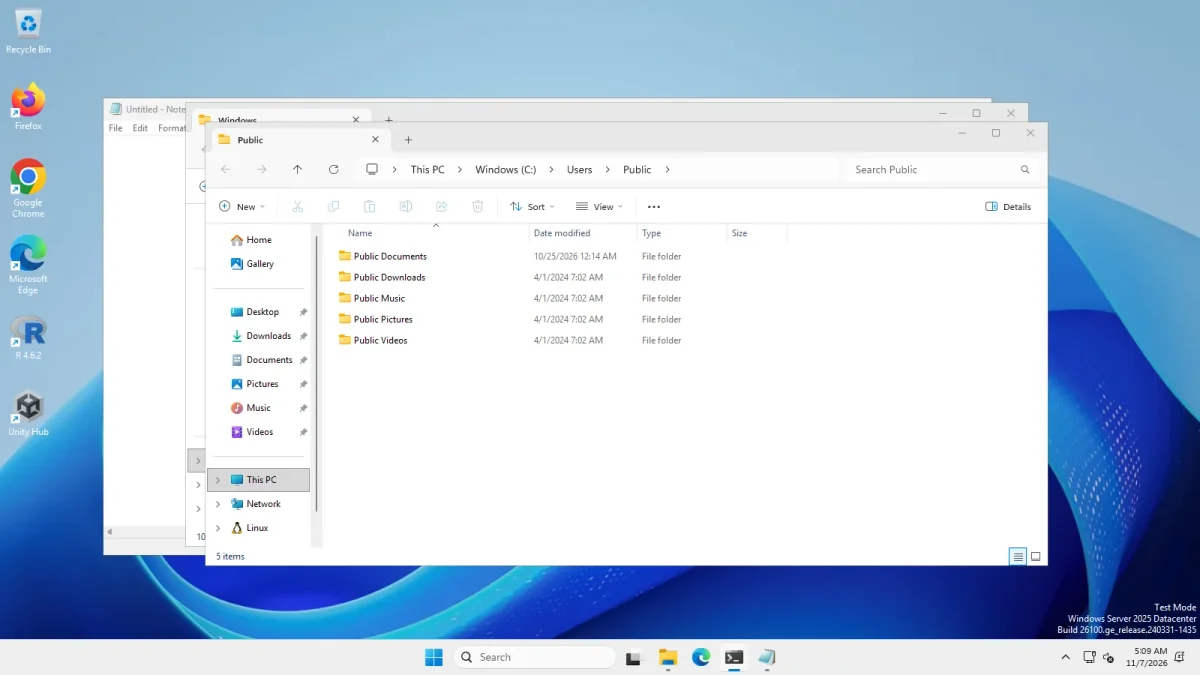 After installing Start11Before Start11
The same machine before and after the Start11 install · Windows Server 2025 (24H2 shell), x64 26100.33674 · EP 71.1
Taskbar
| Windows 11 as shipped | Start11 3.0.0.3 (our run) | ExplorerPatcher 71.1 | |
|---|---|---|---|
| Taskbar height | 48 px | 48 px after install | 40 px |
| Start button | Centred | Centred | Left |
| After uninstall attempt | Stock | 48 px (taskbar measured at 301 s) | 48 px again (Windows 11 taskbar back) |
Start11’s configuration window opens on its Start menu page and has separate Taskbar and Taskbar pins pages that we did not open. Stardock’s pages describe “Taskbar Islands”, a vertical island taskbar, grouping, workspaces and toolbars. We tested none of them, so we make no claim about Start11’s taskbar features.
Start menu
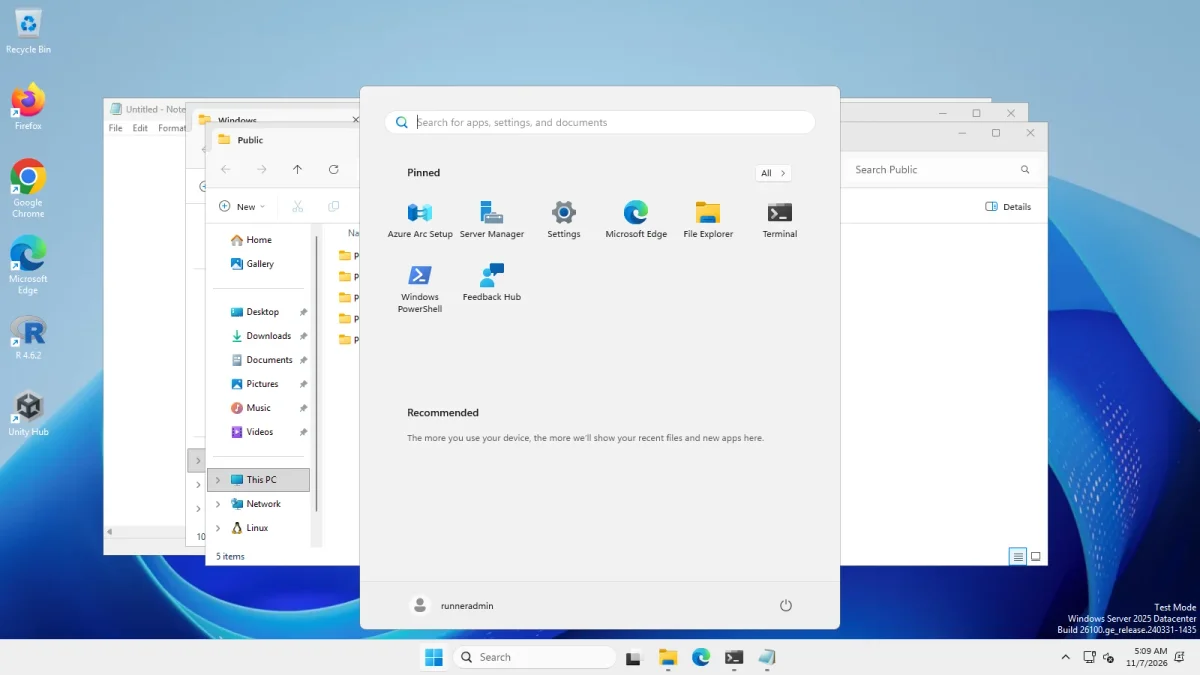
The Start menu we photographed after the install is Windows’ own, because the trial was never activated. It matches the one before the install, with one difference: Start11 appears under “Recommended” as “Recently added”.
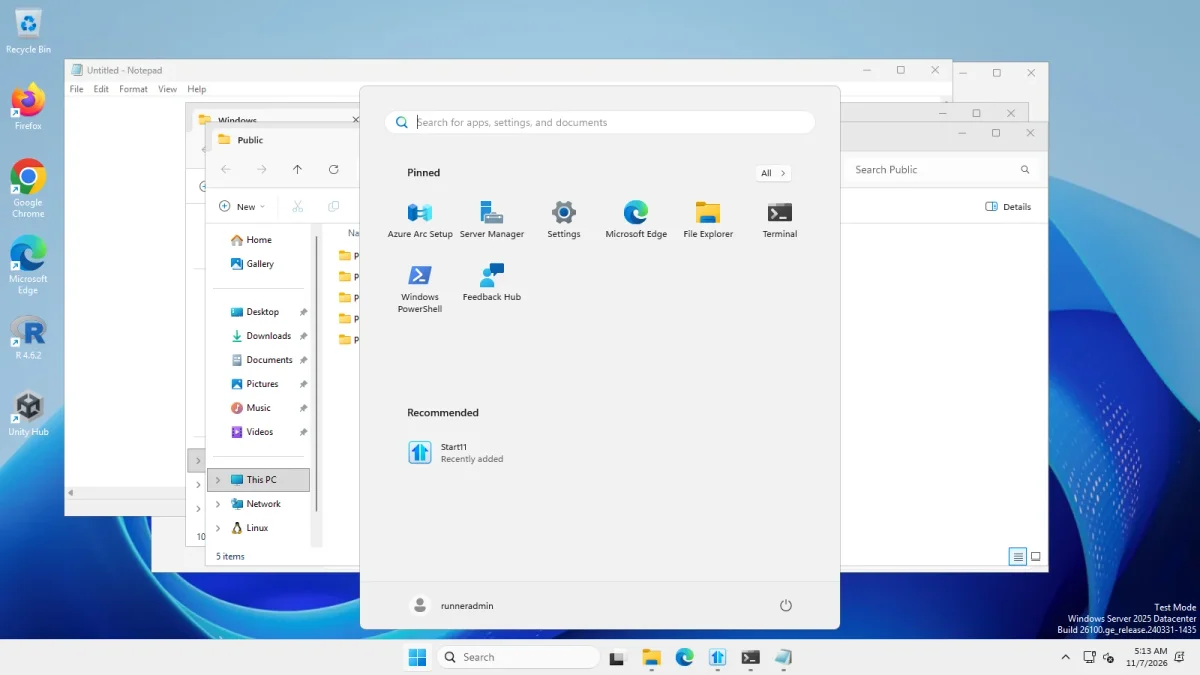
Start11’s configuration window lists these Start menu styles: Windows 7, Modern, Windows 10, Windows 11, Windows App, Windows Pro, Windows Launcher and “Windows Start menu”, which it describes as turning off Start11’s menu. The window we saw had “Windows 7 style” selected as the variant. Its left column has Start menu, Taskbar, Taskbar pins, Search, Control, Settings backup, About and Buy Start11. We read these names off the screenshot. We did not select a style and we did not see any of them render, because the email prompt was in front of the window and we did not answer it.
ExplorerPatcher’s Windows 10 Start menu, which we did photograph, is on Windows 10 Start menu on Windows 11 and in Start menu settings.
File Explorer and the context menu
With Start11 installed and its trial not activated, File Explorer showed the same Windows 11 command bar as before, and the empty-area right-click menu was still the short Windows 11 menu with “Show more options”.
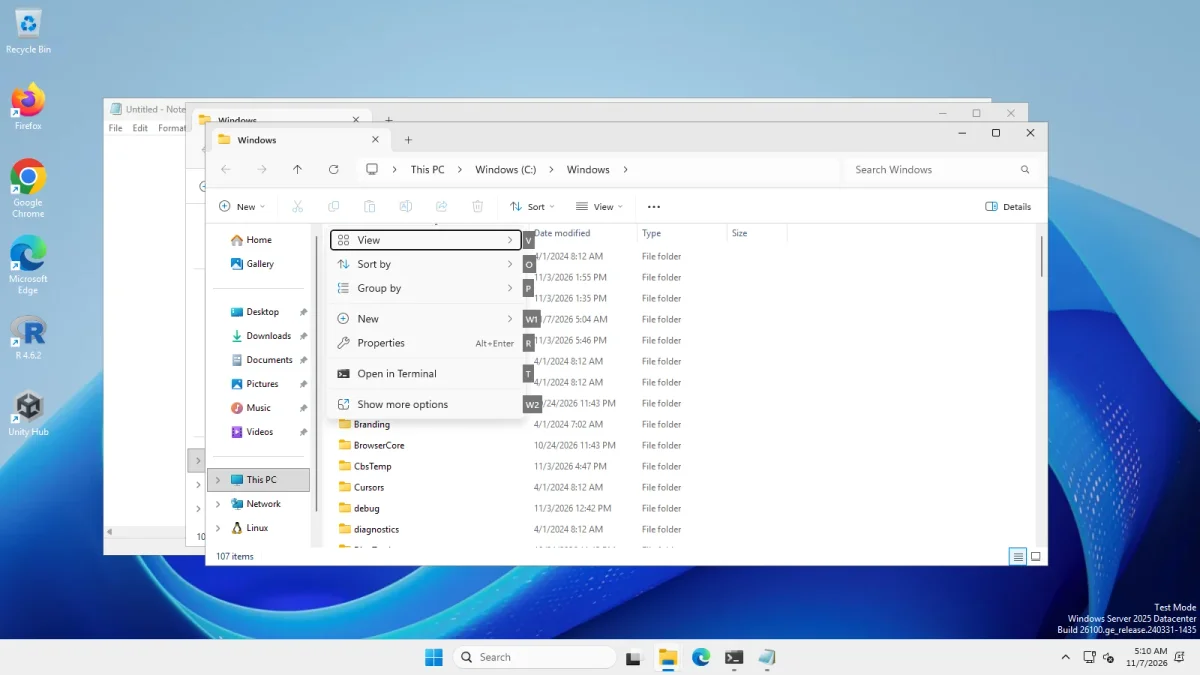
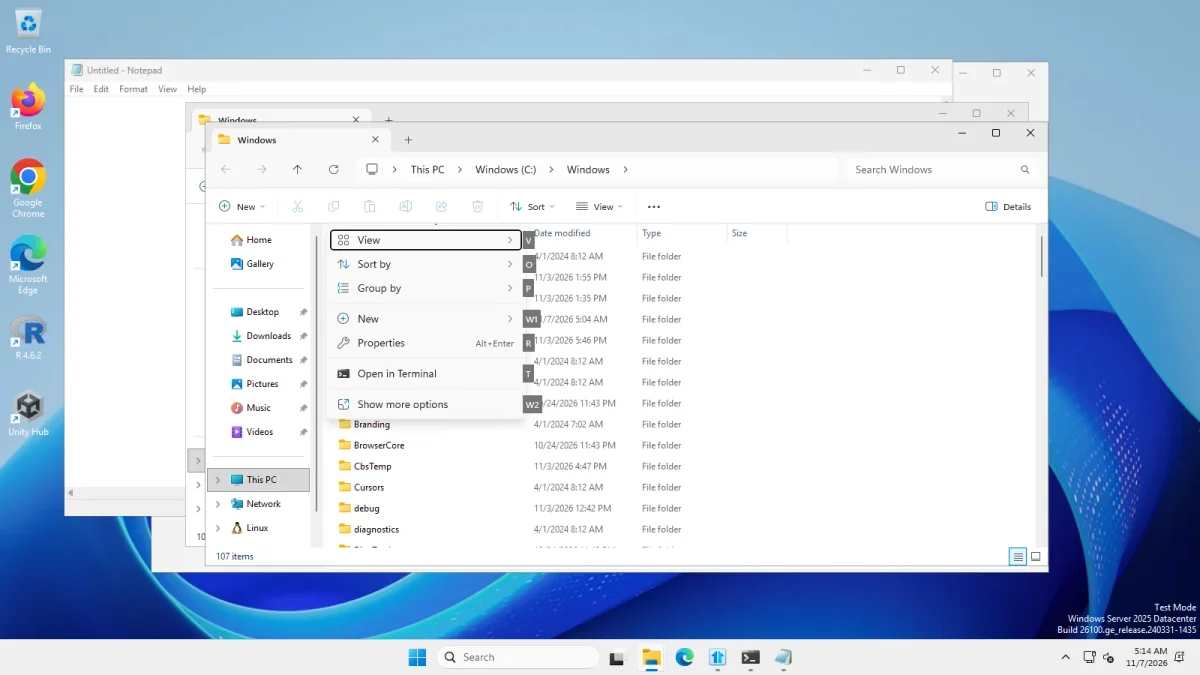
This is a result for our default install, not a statement that Start11 cannot change File Explorer. Stardock’s pages we read do not mention File Explorer or the classic context menu either. ExplorerPatcher gave us the Windows 10 ribbon, a Windows 7 command bar and the classic menu through File Explorer settings.
Feature table
“Tested” means we saw it ourselves. “Documented” means Stardock’s pages say it and we did not test it. “Not stated” means the pages we read do not mention it.
| ExplorerPatcher 71.1 | Start11 3.0.0.3 | |
|---|---|---|
| Start menu styles | Windows 10 menu with tiles (tested) | Eight choices listed in its window (tested: we saw the list). Windows 7, Windows 10, Pro and “App Style with Tabs” styles documented. None seen rendering |
| Taskbar | Windows 10 taskbar, 40 px (tested) | Stayed 48 px after install (tested). “Taskbar Islands”, vertical taskbar, workspaces, toolbars documented, not tested |
| Taskbar position and size | Top, left, right; small icons 30 px (tested) | Not stated |
| Never combine, labels | Yes (tested) | Not stated |
| File Explorer ribbon or command bar | Windows 10 ribbon, Windows 7 command bar (tested) | Unchanged in our default install (tested). Not stated by Stardock |
| Classic context menu | Yes (tested) | Unchanged in our default install (tested). Not stated by Stardock |
| Alt+Tab | Windows 10 style, Simple Window Switcher (tested) | Not stated, not tested |
| Windows versions | Tested: 24H2 shell, 25H2 on Arm64, Windows 10 shell | Ran on our 24H2 shell server (tested). “Windows 10/11” documented, no build named |
| Windows 11 client PC | Windows 11 25H2 on Arm64 only | Not tested |
ExplorerPatcher’s options by area are in Settings: Taskbar.
Price, licence and signing
| ExplorerPatcher | Start11 | |
|---|---|---|
| Price | Free | Paid (Stardock). We did not confirm a current price, check Stardock’s page |
| Licence | GPL-2.0 for the main program; the taskbar DLL ships as a binary | Closed source; annual or permanent, 5 active installs per key (documented) |
| Trial | Not applicable, it is free | 30 days, from the “Start 30 Day Trial” button (seen). Starting it asks for an email address (seen). We did not enter one, so the trial was never activated |
| Code signing | Not signed (we checked every setup file) | Signature Valid, signer STARDOCK SYSTEMS, INC., Plymouth, Michigan, US (tested) |
| Installer size | 11.8 MB (x64) | 119.7 MB |
| Licence text | In the repository | Not read by us (Stardock’s licence pages returned HTTP 503) |
A valid signature shows the file has not changed since it was signed and names who signed it. It does not tell you the program is safe or unsafe, and we did not audit Start11. ExplorerPatcher’s wiki says Start11 reimplemented the whole Windows 11 Start menu itself so that it does not depend on Microsoft’s symbol files. That is a statement from EP’s side about a competitor and we did not verify it. How ExplorerPatcher works is on how it works, and its risks on Is ExplorerPatcher safe?.
Install, uninstall and footprint
| Measured on Windows Server 2025 | Start11 3.0.0.3 | ExplorerPatcher 71.1 |
|---|---|---|
| Install | A wizard, 45.2 s from start to exit, including our clicks through the window | 5 to 9 s, one setup run |
| Files on disk | 295 files, 94.2 MB in C:\Program Files (x86)\Stardock, plus about 1,050 small files (0.4 MB) in %LOCALAPPDATA%\Stardock |
About 20 files, about 23 MB in C:\Program Files\ExplorerPatcher |
| Other folders | 0 files in C:\ProgramData\Stardock |
dxgi.dll in Windows and two system app folders |
| Loaded into Explorer | Start10_64.dll from the install folder |
EP’s DLL under the name dxgi.dll |
| Explorer memory (single samples) | 145 MB working set before, 153 MB after the install and our window checks (threads 57 to 63) | 145 MB before, 153 MB with the Windows 11 taskbar, 111 MB with EP’s taskbar |
| Uninstall | Not verified (see below) | 15 to 22 s, Windows 11 taskbar back, settings key left behind |
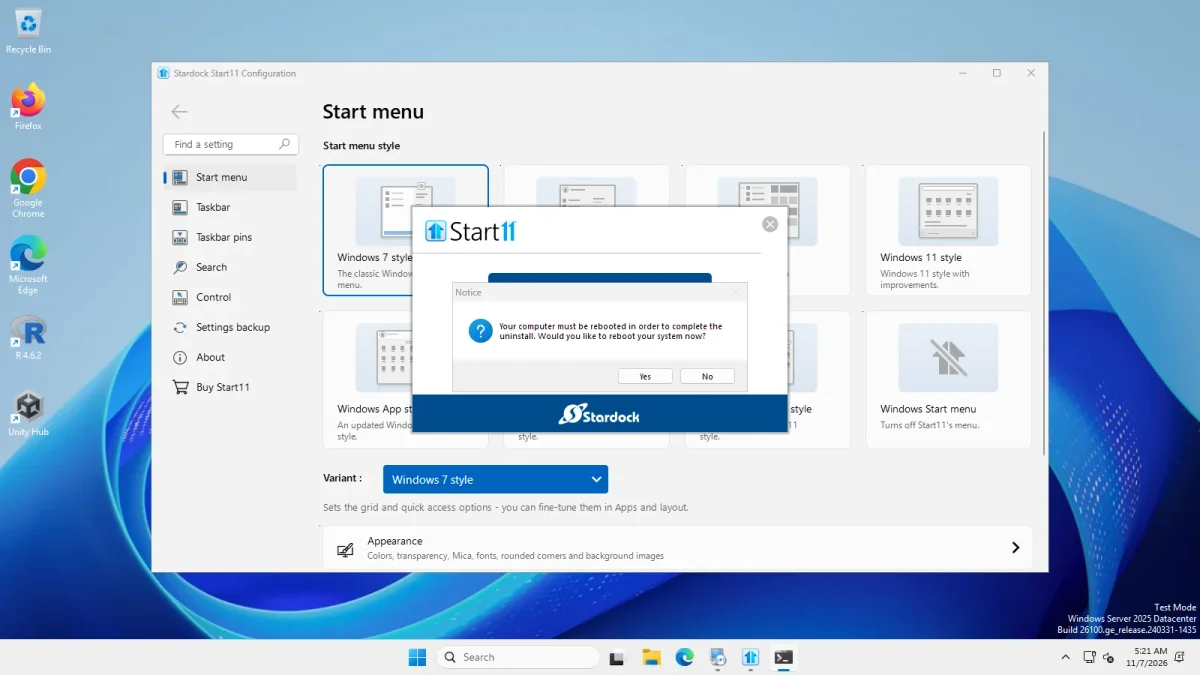
Uninstall, what we saw. The Apps entry is “Stardock Start11” and runs uninstall.exe "/U:...\Uninstall\uninstall.xml". It opens a wizard: Next, a “Remove Settings” page, Finish. Afterwards a Stardock feedback page opened in Microsoft Edge, and our last screenshot shows a notice: “Your computer must be rebooted in order to complete the uninstall.” Our script’s timer ran out at 301 s with the Start11 configuration window still detected. We did not verify that all files were removed, and our script did not answer the reboot notice. Do not read this as a clean or an unclean uninstall.
Explorer memory is a single sample on a virtual machine and the “after” sample was taken after Start11’s window had been open for some minutes. It shows no large cost, and we cannot rank the two tools from it.
What Stardock says Start11 does
From the pages we read on 7 Nov 2026, before we installed it (documented, not tested):
- Version. The product page headline was “Start11 v3 Beta” and a blog post dated 4 Nov 2026 called it a release preview. The installer we ran is version 3.0.0.3.
- Start menu. Several styles, including a Windows 7 style, a Windows 10 style on Windows 11, a “Pro” style and an “App Style with Tabs”, plus widgets, Everything search integration and a style gallery.
- Taskbar. “Taskbar Islands” with a centred or left-aligned Start button, a vertical island taskbar, grouping of apps, workspaces and toolbars.
- Requirements. “Windows 10/11”. No 24H2, 25H2 or 26H1 statement on the pages we read. A blog title from 7 Jul 2026 mentions preparing for Windows 11 26H2.
- Licence. Annual and Permanent listings, 5 active installs, one key.
What we did not find on those pages: taskbar position, taskbar size, never combine or labels, File Explorer changes and a classic context menu. That is not proof Start11 lacks them.
Using both together
Not tested. We installed Start11 on its own, without ExplorerPatcher on the machine, and we found nothing about ExplorerPatcher compatibility on Stardock’s pages. ExplorerPatcher’s wiki lists compatible tweak programs (TranslucentTB, T-Clock Redux, TaskbarX and some Windhawk mods) and does not name Start11. Our advice, not a test result: both tools take over the Start menu and the taskbar, and both load a DLL into Explorer, so run one at a time and uninstall one before trying the other.
When to choose which
Start11 may suit you if you want a supported, paid product with a signed installer and many Start menu styles, and you are happy to read Stardock’s licence and changelog first. Check that your Windows build is supported, because we could only try one server build and never saw a style render.
ExplorerPatcher may suit you if you want the Windows 10 shell back for free, with the options we tested on the taskbar, Start menu, Alt+Tab and File Explorer. Accept an unsigned installer and a risk that a Windows update breaks it until a new release arrives. Learn the black screen recovery first, avoid it on work PCs, and download only from GitHub.
If paying is fine, the StartAllBack comparison is the one where we saw the paid tool change the taskbar, Start menu and Explorer. The alternatives page covers every tool we looked at.
What would change this page
Not tested: any Start11 menu or style rendering (the trial needs an email address and we gave none), what happens after the trial’s Continue button, Taskbar Islands and taskbar options, File Explorer and context menu features after configuring it, Alt+Tab, a Windows 11 client PC, a complete uninstall with a reboot, and running it beside ExplorerPatcher. A run with an activated trial or a licence key would let us fill those in. If anything above is wrong or out of date, tell us on the corrections page.
Common questions
Did you test Start11 against ExplorerPatcher?
Partly. We installed the Start11 3.0.0.3 trial on Windows Server 2025 and measured the install, footprint and signing, and photographed Explorer. We did not activate the trial, so we saw none of its Start menu styles and those parts are documented only. We did not run it together with ExplorerPatcher.
Is Start11 free?
No. Start11 is paid software from Stardock, sold as an annual or a permanent licence for up to 5 active installs on a single key. It offers a 30 day trial. When we clicked Start 30 Day Trial it asked for an email address, and we did not enter one, so the trial was never activated.
What does the Start11 trial ask for?
An email address. After we clicked Start 30 Day Trial, Start11 asked us to enter a valid email address to start the trial, with a Privacy Policy link and Back and Continue buttons. We did not sign up with an address, so we cannot say what happens after Continue.
Can I use Start11 and ExplorerPatcher together?
We have not tested it. We found nothing about compatibility on Stardock's pages or in ExplorerPatcher's wiki. Both replace parts of the Start menu and the taskbar, so use one at a time and uninstall the first before trying the other.
Does Start11 uninstall cleanly?
We could not confirm it. The uninstall wizard ran and asked for a reboot, but our script stopped after 301 seconds with the Start11 window still open. We did not check whether every file and registry entry was removed, so treat it as unknown.
Does Start11 work on Windows 11 24H2 or 25H2?
It installed and loaded into Explorer on Windows Server 2025, which uses the 24H2 shell. We did not test a Windows 11 client PC. Stardock's requirements page says Windows 10 or 11 and names no build, so check its changelog for yours.