Black screen after ExplorerPatcher: how to get your desktop back
Press Ctrl+Shift+Esc, choose Run new task, type explorer.exe, then hold Ctrl+Alt+Shift while you press Enter and keep holding until the taskbar appears. This starts Explorer without ExplorerPatcher. A crash dialog will appear and that is expected. We tested this method on three machines; the other three methods below come from upstream's documentation.
Checked against ExplorerPatcher 71.1 (26100.9711.71.1) on Windows Server 2025 (24H2 shell) 26100.33674 and Windows 11 Enterprise 25H2 26200.9725 and Windows Server 2022 (Windows 10 21H2 shell) 20348.5773 · Nov 6, 2026On this page
What do you see?
Pick the closest match. Everything here works from the keyboard.
Method 1: start Explorer without ExplorerPatcher (Ctrl+Alt+Shift)
This is the method in the project’s FAQ. It starts explorer.exe with ExplorerPatcher switched off for that session, so you can fix the cause.
- Press Ctrl+Shift+Esc to open Task Manager. If nothing happens, press Ctrl+Alt+Del and choose Task Manager.
- Choose Run new task at the top. In the old Task Manager use File, then Run new task.
- Type
explorer.exe. - Hold Ctrl+Alt+Shift, press Enter, and keep holding all three keys until you see the taskbar.



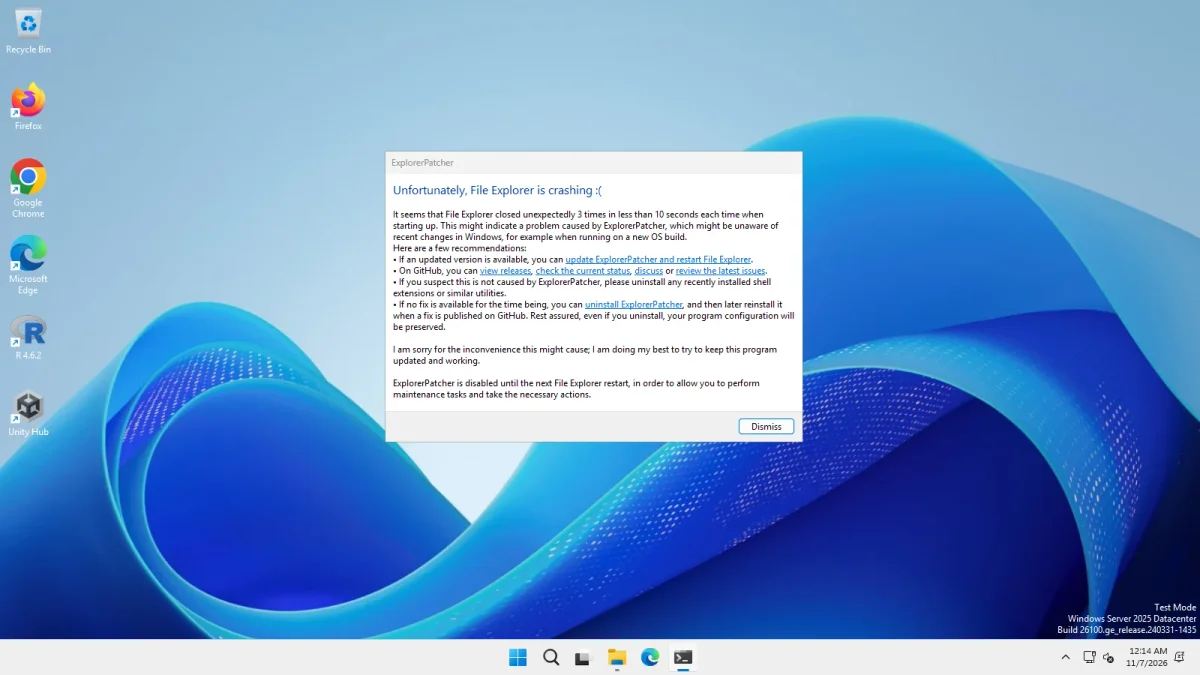
Why the dialog appears. In ExplorerPatcher’s source, the function that counts Explorer crashes (CrashCounterHandleEntryPoint) also checks whether Ctrl, Shift and Alt are all down when Explorer starts. If they are, it resets the counter, shows the dialog and does not load ExplorerPatcher. The dialog offers links to update ExplorerPatcher, view releases, check the project’s status thread, discuss, review issues and uninstall. The last line of the dialog says ExplorerPatcher is disabled until the next File Explorer restart. Upstream’s FAQ does not mention the dialog.
If it does not work:
- Keep all three keys down until the taskbar appears. If you let go early, ExplorerPatcher may start normally, because the source checks the keys at the moment Explorer starts.
- If Task Manager shows “Windows Explorer” still running and you have no taskbar, ending that task first is our own idea. Upstream does not say it and we did not test it.
- The hidden registry value
CrashCounterDisabledset to 1 turns the crash protection off, and then the key combination does nothing (source). Normal installs do not set it.
Method 2: switch back to the Windows 11 taskbar
Do this once Explorer runs (Method 1). Search Start for Properties (ExplorerPatcher), open Taskbar, and set Taskbar style to Windows 11 (default). Then press Restart File Explorer at the bottom of the window.
If the window will not open, run this in Task Manager’s Run new task box. The value is OldTaskbar, and 0 means the Windows 11 taskbar:
reg add "HKCU\Software\ExplorerPatcher" /v OldTaskbar /t REG_DWORD /d 0 /fWe tested the style change and Explorer restart in normal use: style 0 gave the 48 px Windows 11 taskbar on Server 2025 and on the 25H2 Arm64 machine, with the restart taking 2 to 3.7 seconds. We did not use it as part of a recovery. ExplorerPatcher stays installed with this method, so Windows updates can still trigger the problem if another part is at fault. Upstream’s FAQ suggests exactly this step (“reverting the Taskbar style to the default one”).
Method 3: uninstall from Task Manager or Safe Mode
If the settings window will not open, or updating does not help, remove ExplorerPatcher.
-
With Task Manager open (Ctrl+Shift+Esc), choose Run new task and run:
"C:\Program Files\ExplorerPatcher\ep_setup.exe" /uninstallOn Arm64 the file is
ep_setup_arm64.exe. Upstream’s crash dialog uses this same command for its uninstall link. Two dialogs appear (“Are you sure you want to remove ExplorerPatcher from your PC?” and “Uninstall completed”). It took 15 to 22 seconds on our machines. -
If you cannot reach the desktop at all, start Safe Mode: on the sign-in screen hold Shift, click the power button and choose Restart, then Troubleshoot, Advanced options, Startup Settings, Restart, and press 4. ExplorerPatcher avoids loading itself in Safe Mode (upstream’s release 64 notes, and a check in its source), so Explorer should start. Run the command above there.
We tested the uninstall command in normal Windows, not in Safe Mode. Your settings stay in the registry after an uninstall (we saw this three times). See the uninstall guide to remove them.
Method 4: rename dxgi.dll from Windows Recovery (last resort)
-
Start Windows Recovery: three failed boots do it, or hold Shift while you click Restart. Choose Troubleshoot, Advanced options, Command Prompt.
-
Find your Windows drive. Recovery often shows it as D: instead of C:. Run
dir C:\Windows\dxgi.dll, and try other letters if the file is not found. -
Rename the loader:
ren C:\Windows\dxgi.dll dxgio.dll -
Close the prompt and choose Continue. Windows should start Explorer normally.
-
Uninstall ExplorerPatcher from Settings, Apps (or Control Panel, Programs and Features), as upstream describes, and then restart.
If the Start menu or notification area still fail afterwards, the other two copies sit in C:\Windows\SystemApps\Microsoft.Windows.StartMenuExperienceHost_cw5n1h2txyewy and C:\Windows\SystemApps\ShellExperienceHost_cw5n1h2txyewy. Renaming those is our inference from the installer source, not an upstream instruction.
Why it happens
ExplorerPatcher works by loading itself into explorer.exe and the Start menu host through that dxgi.dll file, and then patching code. Several things can go wrong:
- A Windows update came before an ExplorerPatcher fix. Build 26220.8474 (15 May 2026) removed the code behind the Windows 10 Start menu and sent ExplorerPatcher 69.6 into a crash loop. Version 70.1 stopped the crashes on 19 May. Check the status page.
- Smart App Control. Upstream’s release notes ask you to switch it off before installing, because otherwise “there is a risk where explorer.exe would not start up”. It cannot be turned back on after you switch it off, so decide first.
- Antivirus blocking
dxgi.dll. The same notes say that Explorer will not start if the file exists but is blocked from loading. Upstream lists folders to exclude for third-party antivirus; see antivirus. - The crash counter. After three quick Explorer exits ExplorerPatcher turns itself off for the session. If the cause stays, it shows the dialog again next time: Explorer keeps crashing.
- An interrupted installation. Upstream issue 5230 (open on 6 Nov 2026) is titled “Interrupted upgrade leaves C:\Windows\dxgi.dll zero-filled (grey screen)”. We have not reproduced it.
- A work or mission-critical PC. Upstream says not to use the reimplemented taskbar on such machines, because crashes can happen at any time.
Afterwards
Update ExplorerPatcher from GitHub, then restart Explorer normally. If the black screen returns, use Method 1 again and stay on the stock taskbar until a fix is released. Report persistent crashes upstream with your Windows build: see troubleshooting.
Common questions
Why does ExplorerPatcher say File Explorer is crashing when I use Ctrl+Alt+Shift?
The key combination runs the same code as a real crash loop, so ExplorerPatcher shows its dialog. We saw it on all three test machines, and EP's source checks the three keys in the same function that counts crashes. Click Dismiss; ExplorerPatcher stays off until the next Explorer restart.
What if Ctrl+Alt+Shift does not bring back the taskbar?
Try Safe Mode, where ExplorerPatcher avoids loading, then uninstall it. If you cannot reach Settings, upstream's last resort is to rename C:\Windows\dxgi.dll from Windows Recovery. We have not tested Safe Mode or the rename.
Will I lose my settings if I uninstall ExplorerPatcher?
No. The uninstaller keeps HKCU\Software\ExplorerPatcher on purpose, so a reinstall restores your settings. We saw this on all three test machines. The uninstall guide shows how to remove the settings as well.
Can a Windows update cause a black screen with ExplorerPatcher?
Yes. Upstream's reports show that updates such as build 26220.8474 changed code ExplorerPatcher patches and sent Explorer into a crash loop until a new release fixed it. Check the status page for your build before you update Windows.