ExplorerPatcher features
ExplorerPatcher changes the Windows 11 taskbar, Start menu, right-click menu, File Explorer toolbar, Alt+Tab switcher and tray flyouts, with 117 settings in total. In our tests on Windows Server 2025 (24H2 shell) and Windows 11 25H2 Arm64, the taskbar, Start menu, Alt+Tab (Windows 10 and Simple Window Switcher), taskbar options and the File Explorer ribbon worked on both, and the context menu worked on Server and on the client desktop. Rounded corners could not be demonstrated. The table shows Windows' own option next to each setting.
Checked against ExplorerPatcher 71.1 (26100.9711.71.1) on Windows Server 2025 (24H2 shell) 26100.33674 and Windows 11 Enterprise 25H2 26200.9725 · Nov 6, 2026On this page
ExplorerPatcher is a free, open-source program that patches Explorer so Windows 11 can look and act like Windows 10. This page lists what it changes, which Windows setting overlaps, and what we saw when we tested version 71.1 on two machines: Windows Server 2025 (24H2 shell, build 26100.33674) and Windows 11 Enterprise 25H2 (build 26200.9725, Arm64). Download only from GitHub, and read how to recover before you install.

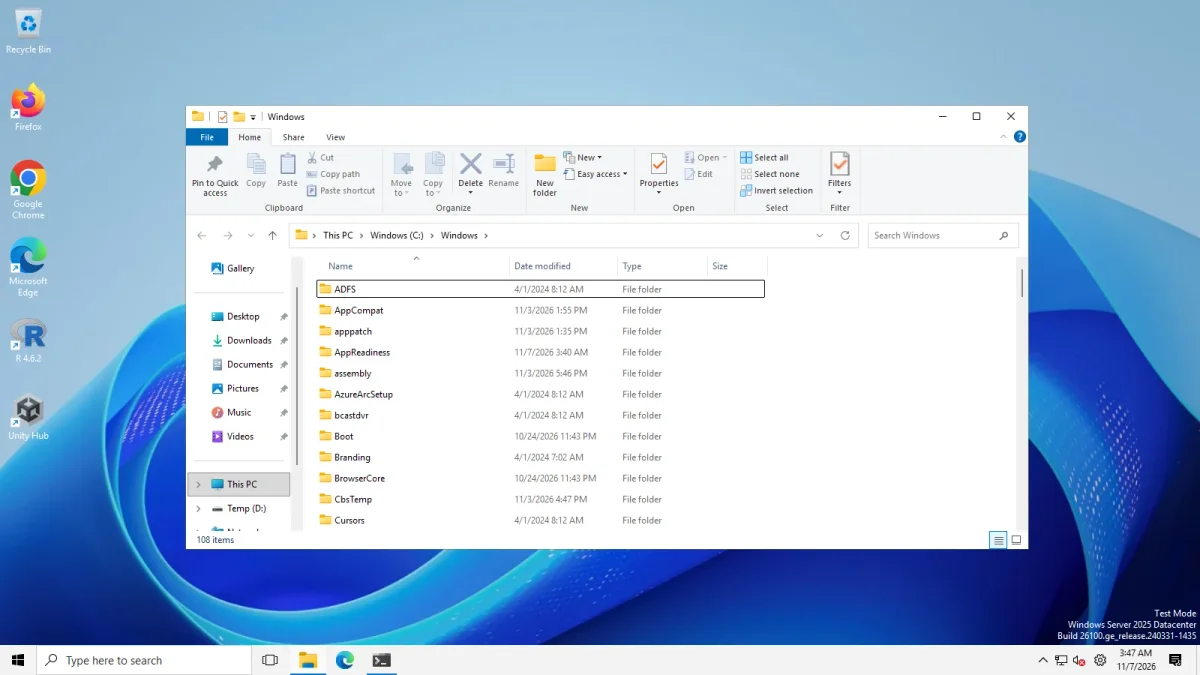
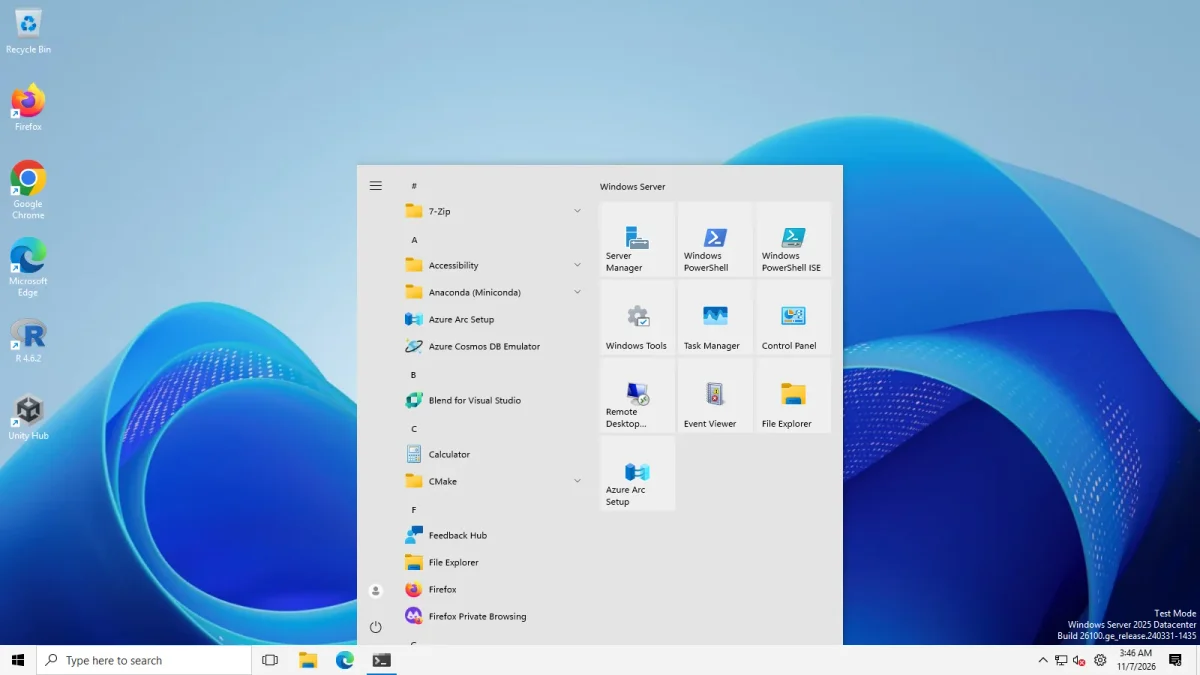
Feature, Windows option, ExplorerPatcher setting
“Native” is what Windows’ own Settings showed on the builds we photographed. Setting names are as the app labels them and link to our settings reference. “Result” is what we saw in our own photos.
| Feature | Windows’ own option on 24H2 and 25H2 | ExplorerPatcher setting | Result | Page |
|---|---|---|---|---|
| Windows 10 taskbar | None; the stock one was removed in builds 26002 and later | Taskbar style | Works with Windows 10 (ExplorerPatcher); Windows 10 does nothing | Taskbar |
| Start button icon | Windows 11 icon | Start button style | Works | Taskbar |
| Taskbar alignment | Taskbar alignment in Taskbar behaviors | Primary taskbar alignment | Centered options work | Taskbar |
| Labels, never combine | Combine taskbar buttons and hide labels (Server image) | Combine taskbar icons on primary taskbar | Works | Labels |
| Pinned apps as quick launch | None seen | Pinned items act as quick launch (don’t group with active apps) | Works | Labels |
| Taskbar position | None seen | Primary taskbar location on screen | Top, left and right work | Move |
| Small taskbar | Show smaller taskbar buttons (Server image) | Taskbar icon size | Works, 30 px | Small |
| Search on the taskbar | Search (Search box) | Search | Search box works | Taskbar |
| Task View button | Task view toggle | Show Task view button | Works | Taskbar |
| Seconds in the clock | Not photographed | Show seconds in the clock | Works | Tray |
| Windows 10 clock flyout | None | Clock | Opens | Tray |
| Windows 10 Start menu | None | Start menu style | Works on both machines | Start |
| Start opens on All apps | None | Open Start in All apps by default | Works on Server 2025; not shown on the 25H2 client, whose new Start already lists all apps | Start |
| Hide the Recommended block | Not checked | Disable the “Recommended” section | Works on Server 2025; not demonstrable on the 25H2 client | Start |
| Classic context menu | Registry command, or Show more options | Disable the Windows 11 context menu | Works on the desktop on both machines and in File Explorer on Server 2025; no File Explorer menu on screen in our Arm64 photo | Context menu |
| File Explorer ribbon | None | Control Interface | Windows 10 Ribbon and Windows 7 Command Bar work on both machines | Ribbon |
| Alt+Tab style | None | Window switcher (Alt+Tab) style | Windows 10 and Simple Window Switcher work on both machines; Windows NT shows no switcher | Alt+Tab |
| Square window corners | None found | Disable rounded corners for application windows | Not demonstrable: square corners already on both test machines | Corners |
| Weather on the taskbar | Widgets button (Windows’ own) | Show Weather on the taskbar | Works | Weather |
| Win+X shortcut to Properties | None | Add shortcut to program settings in Win+X menu | Entry appeared | Other |
| Export, import, reset settings | None | Properties, Settings and uninstall | Not tested | Settings |
| Update check | Windows Update only | When File Explorer starts | Showed an update notice | Updates |
Three switches are listed in the File Explorer settings but not in this table, because our photos did not confirm them. Disable modern search bar and Use classic drive groupings showed no visible change in our run on either machine. Hide search bar completely is inconsistent: with the Windows 10 Ribbon it removed the search box in one run and not in a re-run on Server 2025, and with the Windows 11 command bar it did nothing visible. These are not confirmed, not proven broken.
More settings
ExplorerPatcher has 117 settings in total. The sections are Taskbar, System tray, File Explorer, Start menu, Window switcher, Weather, Other, Updates, Advanced, Settings and uninstall, and About. Hidden settings that the code reads but the window does not show are listed under advanced settings.
Before you change anything, see what works on your build in compatibility and the status page. If you want everything at once, follow make Windows 11 look like Windows 10.
Common questions
What does ExplorerPatcher do?
It patches Windows Explorer so Windows 11 can use a Windows 10 style taskbar, Start menu, Alt+Tab switcher, File Explorer ribbon, context menu and tray flyouts. It is free and open source, and it has 117 settings on Windows 11.
Which features did you test?
We tested the taskbar styles and options, the Windows 10 Start menu, the context menu, the File Explorer Control Interface and the clock flyout on two machines. Some File Explorer switches showed no visible change in our run. Windows 10 and Simple Window Switcher Alt+Tab worked and Windows NT showed no switcher. Rounded corners could not be demonstrated: both test machines already show square corners.
Where are the settings?
Right-click the taskbar and choose Properties, or search Start for Properties (ExplorerPatcher). The window has sections for Taskbar, System tray, File Explorer, Start menu, Window switcher, Weather, Spotlight (Windows 11 client only), Other, Updates, Advanced, Settings and uninstall, and About.
Do I need ExplorerPatcher for each of these?
No. Windows 11 has its own options for labels, smaller buttons, left alignment and search, and a registry command restores the classic context menu. The table on this page lists the native option for each feature we could check.