How to show taskbar labels and never combine buttons
Try Windows' own setting first: Settings, Personalization, Taskbar, Taskbar behaviors, Combine taskbar buttons and hide labels. We photographed it on Windows Server 2025 (24H2 shell). ExplorerPatcher has the same choice for its Windows 10 taskbar as Combine taskbar icons on primary taskbar: Always combine, Combine when taskbar is full, or Never combine. Never combine gave one labelled button per window on both of our test machines.
Checked against ExplorerPatcher 71.1 (26100.9711.71.1) on Windows Server 2025 (24H2 shell) 26100.33674 and Windows 11 Enterprise 25H2 26200.9725 · Nov 6, 2026On this page
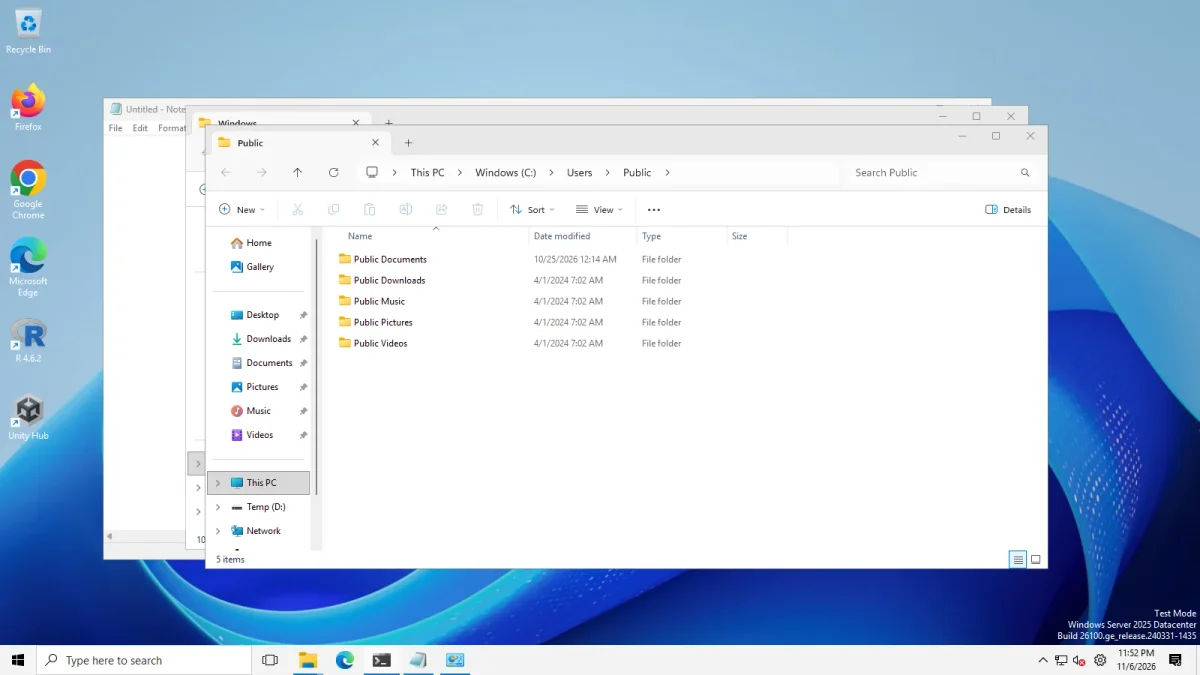 Never combineAlways combine (default)
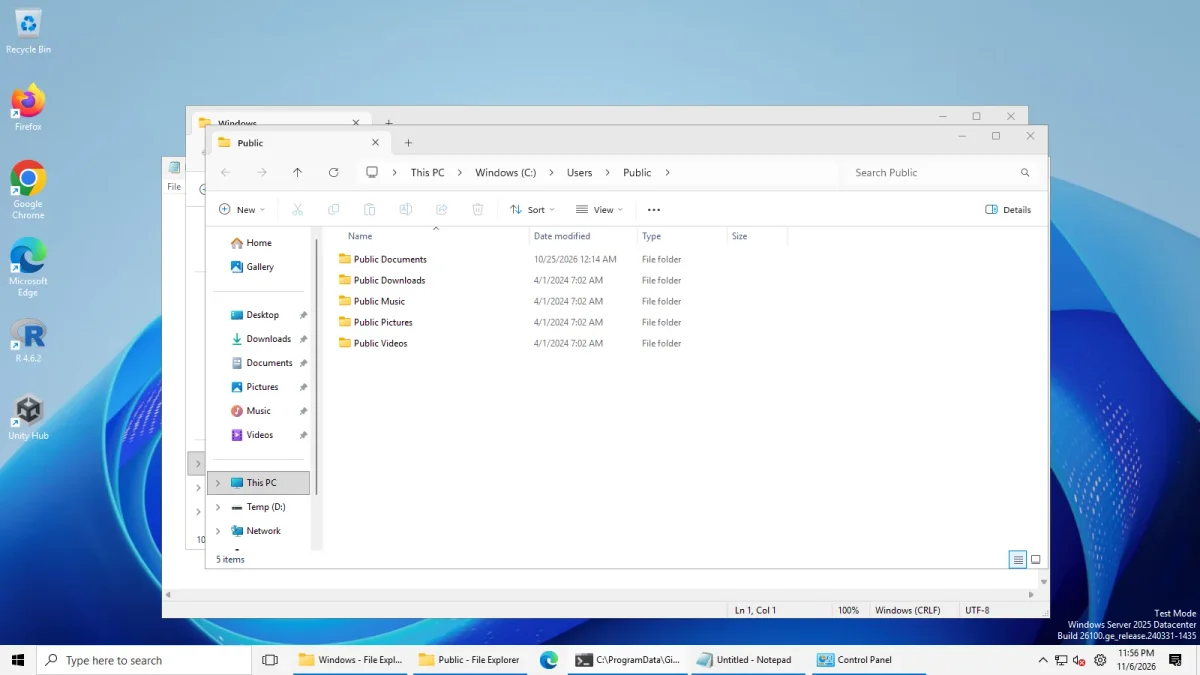
ExplorerPatcher taskbar on Windows Server 2025 with a similar set of open apps: icons only, then labels · Windows Server 2025 (24H2 shell), x64 26100.33674 · EP 71.1
What Windows 11 offers natively
Before we installed anything we opened Settings, Personalization, Taskbar and scrolled.
On Windows Server 2025 (24H2 shell, build 26100.33674) the Taskbar behaviors section had these rows, from the bottom of the screen up: Combine taskbar buttons and hide labels, a second row for other taskbars (greyed out in our photo), Show smaller taskbar buttons, plus badges, flashing, multiple displays, sharing a window from the taskbar and the show desktop corner. Combine taskbar buttons and hide labels read Always. We did not open the drop-down, so we only know that value.
On Windows 11 Enterprise 25H2 (build 26200.9725, Arm64) the Taskbar behaviors section stayed collapsed in all four of our photos, described as “Taskbar alignment, badging, automatically hide, and multiple displays”. We cannot say from our evidence what was inside on that build.
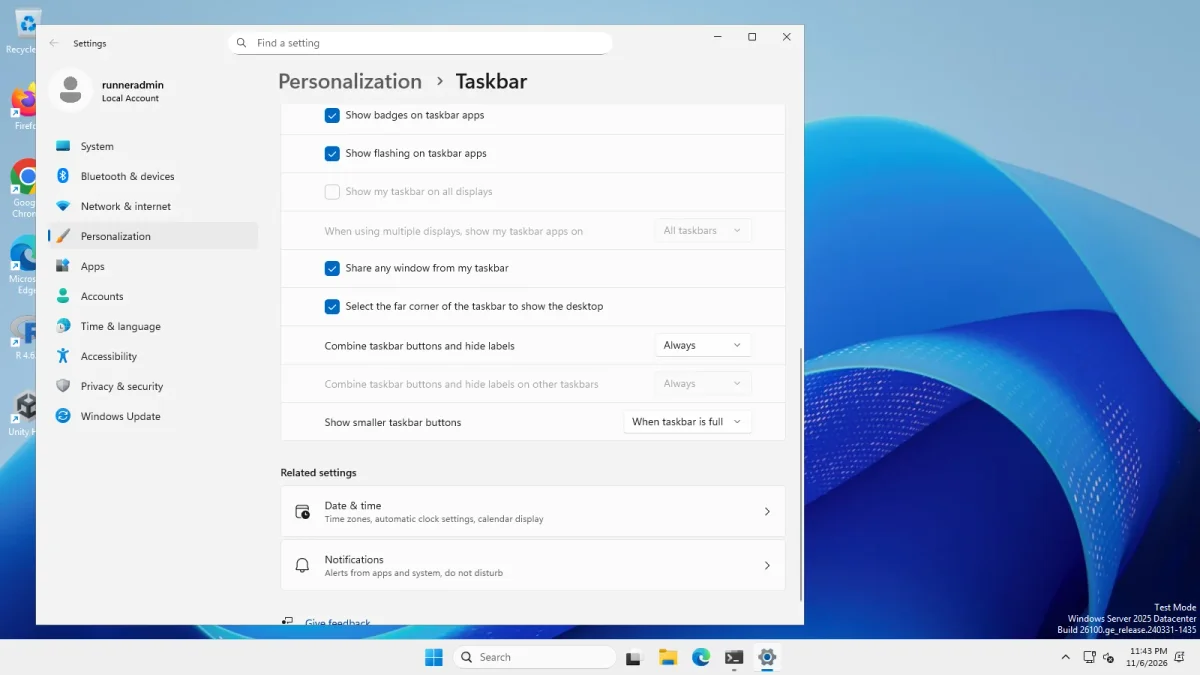
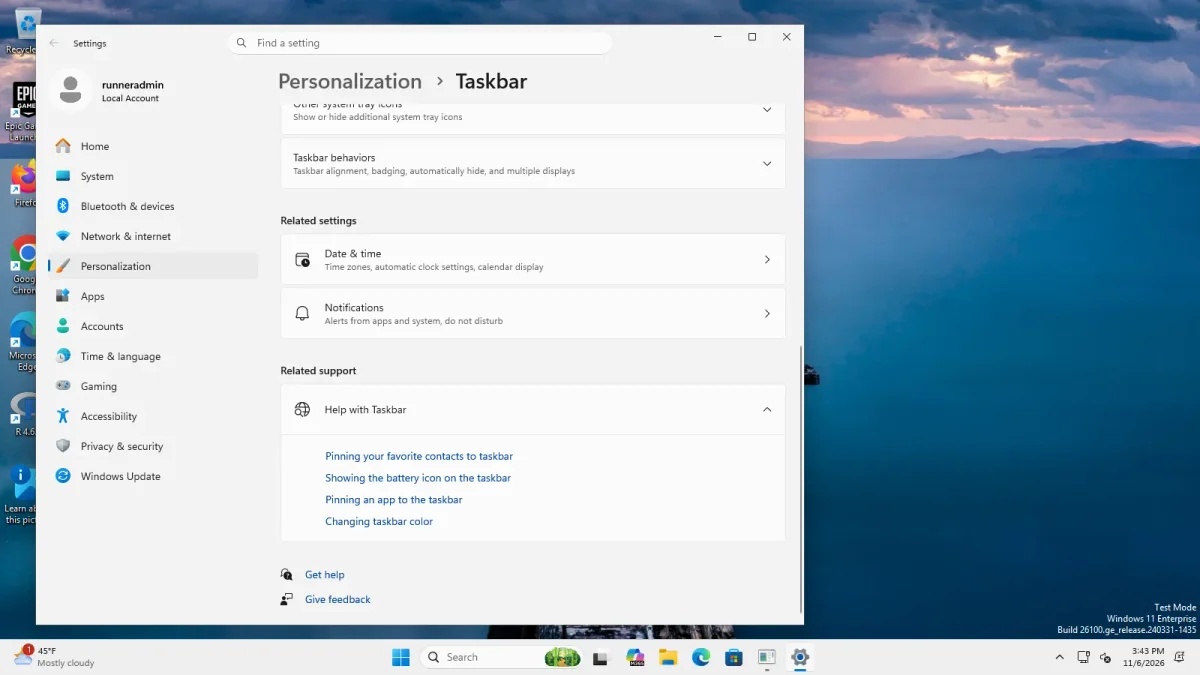
For labels alone you do not need ExplorerPatcher if Windows has the option on your build. We saw it only on the Server image, so check Settings on your own PC first.
When you still need ExplorerPatcher
- You want the whole Windows 10 taskbar, not only labels. See the Windows 10 taskbar page.
- You want pinned items to stay as separate launch buttons (below). We found no native equivalent in the rows we photographed.
- You want the labelled taskbar on the left or right, or on top. See moving the taskbar.
ExplorerPatcher’s three combine modes
On the Windows 10 (ExplorerPatcher) taskbar, Properties, Taskbar has Combine taskbar icons on primary taskbar and Combine taskbar icons on secondary taskbar(s). Both offer the same three choices, as the app labels them:
| Choice in the app | What it does | What we saw |
|---|---|---|
| Always combine (default) | One icon per app, no labels | Icons only |
| Combine when taskbar is full | Labels until the bar fills, then icons only | Looked the same as Never combine with five windows, because the bar was not full |
| Never combine | One labelled button per window | One labelled button per window on both machines |



The setting is Combine taskbar icons on primary taskbar. It is stored in Windows’ own Advanced key as TaskbarGlomLevel: 0 is Always combine, 1 is Combine when taskbar is full and 2 is Never combine. For the secondary setting see Combine taskbar icons on secondary taskbar(s); we did not test it because our machines have one monitor.
How we tested: we set the value in the registry, restarted Explorer, opened five windows and photographed. We did not click through the Properties window for these.
Pinned items as Quick Launch
The Advanced section has Pinned items act as quick launch (don’t group with active apps) (see the setting). It works on the Windows 10 taskbar styles only and needs a File Explorer restart. With it on and Never combine, our photo shows File Explorer and Edge as plain pinned icons at the left, while the open windows have their own labelled buttons.
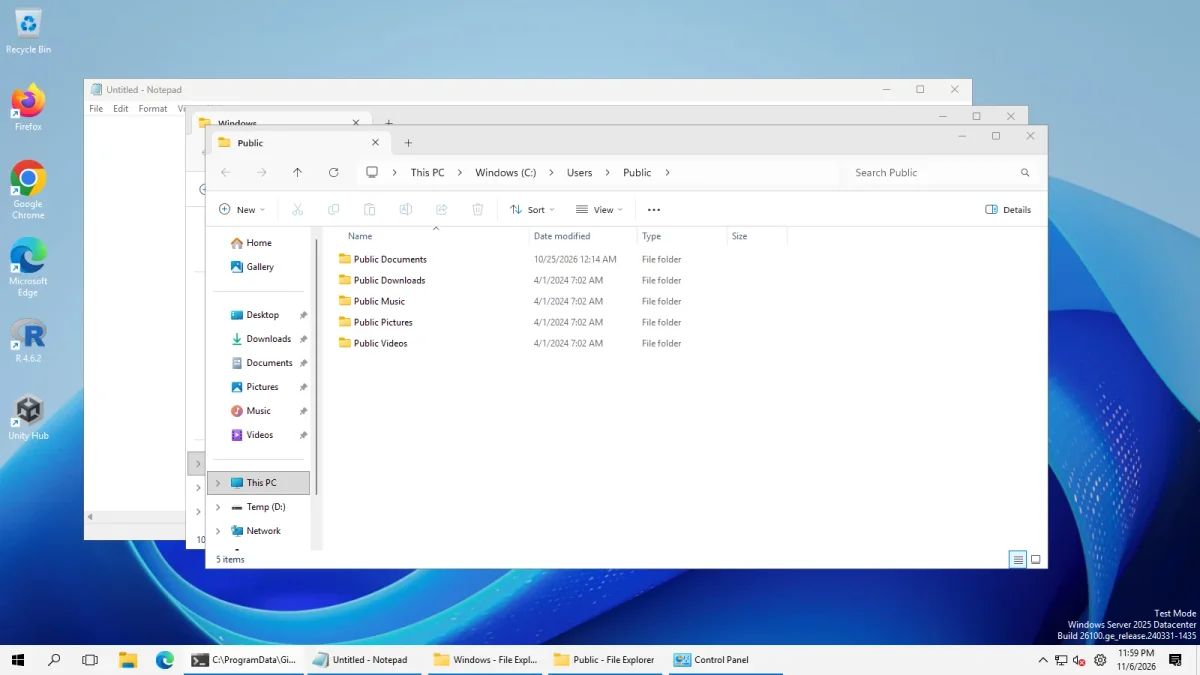
A related option, When the taskbar shows button labels, remove the extra gap around pinned items (see the setting), is also on the Advanced page. We did not test it.
Other ways
ExplorerPatcher’s wiki lists the Windhawk mod “Disable grouping on the taskbar” as compatible with its taskbar. Windhawk is free (GPL-3.0) and changes the Windows 11 taskbar itself. We have not tested the mod. See ExplorerPatcher vs Windhawk.
Common questions
Does Windows 11 have a native never combine option?
Yes on our Windows Server 2025 image (24H2 shell, build 26100.33674). Settings, Personalization, Taskbar, Taskbar behaviors lists Combine taskbar buttons and hide labels, and a second row for other taskbars. It read Always, which is the default. On our 25H2 Arm64 image the section was collapsed in our photos.
Why do Never combine and Combine when taskbar is full look the same?
Combine when taskbar is full behaves like Never combine until the taskbar runs out of room. With five windows open our taskbar was not full, so both showed labels. Icons only appear once you open enough windows to fill the bar.
What does Pinned items act as quick launch do?
It keeps pinned apps as separate buttons instead of merging them with the open window of the same app, like the old Quick Launch bar. In our photo, with labels on, the pinned File Explorer and Edge stayed as plain icons while open windows had their own labelled buttons.
Do the Windows settings work with the ExplorerPatcher taskbar?
Upstream's FAQ says that on newer Windows 11 builds the options in the Settings app also work with the re-created taskbar. We did not test that. We changed Windows' own TaskbarGlomLevel value in the registry and the ExplorerPatcher taskbar followed it.