ExplorerPatcher settings reference
ExplorerPatcher keeps its settings in HKCU\Software\ExplorerPatcher, plus a few values in Windows' own registry keys. Our data lists 119 entries, 117 of them on Windows 11, filed under nine headings. The Properties window itself has up to 12 sections: 12 on our Windows 11 client, 11 on Windows Server. Export, import and reset are under Settings and uninstall.
Checked against ExplorerPatcher 71.1 (26100.9711.71.1) on Windows 11 Enterprise 25H2 26200.9725 and Windows Server 2025 (24H2 shell) 26100.33674 and Windows Server 2022 (Windows 10 21H2 shell) 20348.5773 · Nov 6, 2026On this page
Find a setting
Looking for Explorer Patcher settings? Type a label, a registry value name or a word from the description. The table covers every entry in our data, with its default, whether it needs a File Explorer restart, and whether it exists on Windows 10. If you would rather click than read, the Shell Configurator shows the same options in a replica of the Properties window and writes the settings file for you.
Loading the settings list…
Browse by section
The Properties window groups options into sections. Each page below shows our screenshot of the section, an overview table and a card for every setting. Our data files the three Spotlight options under Other, so there is no separate Spotlight page (see the next section).
The counts are entries in our settings data, not distinct controls. A few options appear as two entries because the app shows a different version of the same item depending on the Windows build, for example “Language switcher”. Two switches are missing from our data and are described on the File Explorer and Advanced pages. The Language box sits in the section called Settings and uninstall, but we list it under Advanced.
The sections of the Properties window
The window has a list of sections down the left side. We opened it once per section on each of our three machines, with ExplorerPatcher’s taskbar and again with the Windows 11 taskbar, and photographed every section. The screenshots on the section pages come from those runs.
| Machine | Sections with the Windows 10 (ExplorerPatcher) taskbar | Count |
|---|---|---|
| Windows 11 25H2 on Arm64 (client) | Taskbar, System tray, File Explorer, Start menu, Window switcher, Weather, Spotlight, Other, Updates, Advanced, Settings and uninstall, About | 12 |
| Windows Server 2025 (24H2 shell) | The same list without Spotlight | 11 |
| Windows Server 2022 (Windows 10 shell) | The same list as Server 2025 | 11 |
With the Windows 11 taskbar selected, the Weather section is not listed on the two Windows 11 shells: we counted 11 sections on Windows 11 25H2 and 10 on Server 2025. Server 2022 kept Weather in its list with that setting.
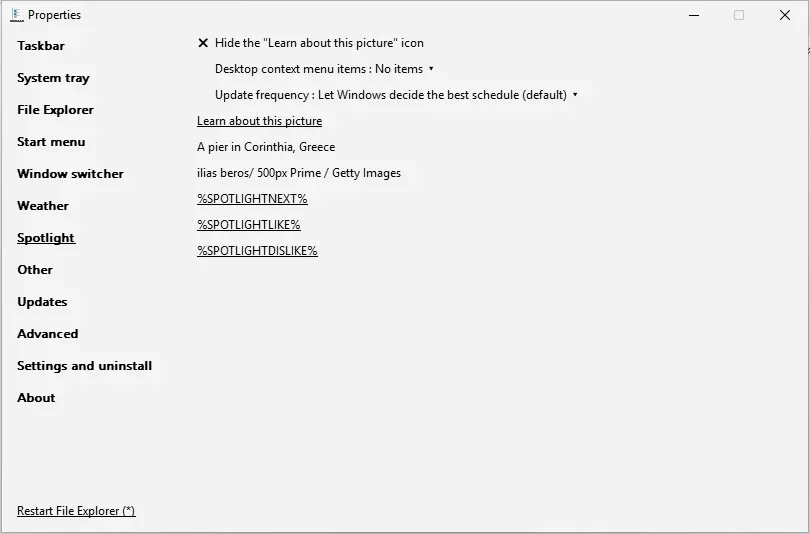
Spotlight is the section that only our Windows 11 client shows. It appears when the build supports Windows Spotlight and Spotlight is your wallpaper, and our Arm64 machine had a Spotlight wallpaper. The section holds three settings, “Hide the ‘Learn about this picture’ icon”, “Desktop context menu items” and “Update frequency”, followed by the picture’s title and credit and three links that still show their raw placeholder names in our screenshot (%SPOTLIGHTNEXT%, %SPOTLIGHTLIKE% and %SPOTLIGHTDISLIKE%). Our settings data lists those three settings under Other.
Why the list changes while you click
Do not expect to see every option at once. The Properties window hides options that cannot apply, and that depends on your taskbar style, your Start menu style, your window switcher style and your Windows build. Here is the first section with both taskbars on Windows 11 25H2 (Arm64, build 26200.9725).
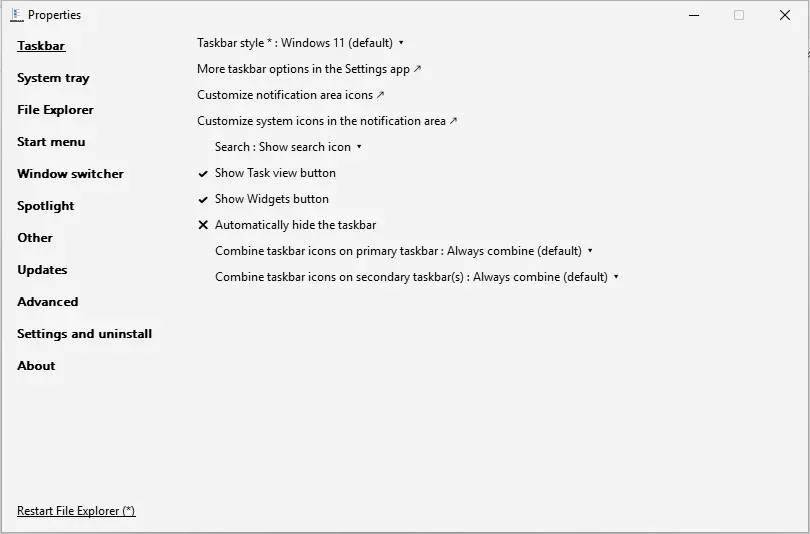
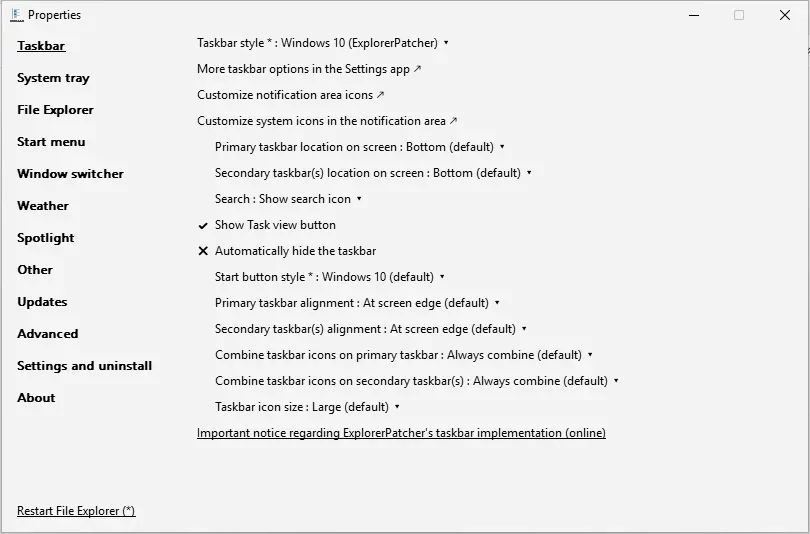
On the left, the Windows 11 taskbar offers six settings under the style box: search, Task view, Widgets, auto-hide and the two combine boxes, with no position or alignment boxes. On the right, ExplorerPatcher’s taskbar shows eleven. With “Window switcher (Alt+Tab) style” on the default, that section shows one option; the other fifteen appear only after you pick Simple Window Switcher. The “Appears when” line on each setting card tells you the rule, taken from upstream’s settings file. If an option you expect is missing, set the taskbar style first, press Restart File Explorer at the bottom left, and reopen the window.
Where settings are stored
Almost everything lives under one registry key for your user account, HKEY_CURRENT_USER\Software\ExplorerPatcher. It holds plain DWORD values such as OldTaskbar or UpdatePolicy, and a sws subkey for the Simple Window Switcher options. After install the key also gets entries EP writes for itself, such as a crash counter, a migration flag and subkeys with offsets and hashes (we saw them in the registry export from our test machine). Do not edit those.
Some options are not stored by ExplorerPatcher at all. They are Windows’ own values, and EP’s window just reads and writes them. The cards show the exact key. Examples from our data:
| What you change | Windows’ own key |
|---|---|
| Combine labels, icon size, Task view, Show desktop, clock seconds | HKCU\Software\Microsoft\Windows\CurrentVersion\Explorer\Advanced |
| Search box on the taskbar | HKCU\Software\Microsoft\Windows\CurrentVersion\Search |
| Clock, battery flyout styles | HKCU\Software\Microsoft\Windows\CurrentVersion\ImmersiveShell |
| Show weather on the taskbar | HKCU\Software\Microsoft\Windows\CurrentVersion\Explorer\Advanced\People, value PeopleBand |
| Show Windows build info on the desktop | HKCU\Control Panel\Desktop, value PaintDesktopVersion |
| Window switcher (Alt+Tab) style | HKCU\Software\Microsoft\Windows\CurrentVersion\Explorer, value AltTabSettings |
| Open Start in All apps by default | HKCU\Software\Microsoft\Windows\CurrentVersion\Explorer\StartPage, value MakeAllAppsDefault |
The weather switch is the one that surprises people: it is Windows’ PeopleBand value, not an ExplorerPatcher value. That is why the weather recovery steps tell you to set that value to 0 in Registry Editor.
The Alt+Tab style and the All apps switch are the other two to know about. Our first test run wrote both into the ExplorerPatcher key, where they do nothing, and we only noticed when the screenshots did not match the source code. See how we test for what we got wrong and how we fixed it.
Virtualised values
An export file contains lines such as ;"Virtualized_{D17F1E1A-5919-4427-8F89-A1A8503CA3EB}_TaskbarPosition"=dword:00000003. They start with a semicolon, so Registry Editor ignores them. According to upstream’s wiki and source, these are pseudo values that only ExplorerPatcher’s Properties window understands, because the setting does not map to one registry value. 14 settings in our data work this way, and each card marks them. The source shows what is behind the main ones:
| Pseudo value | What the window really does |
|---|---|
TaskbarPosition, MMTaskbarPosition |
Asks the running taskbar, or reads the taskbar position data in StuckRectsLegacy / MMStuckRectsLegacy (the position is a byte array shared with other data) |
AutoHideTaskbar |
Asks Windows through its app bar interface, no ExplorerPatcher value |
PeopleBand |
Reads and writes Windows’ PeopleBand value shown above |
ForceStartSize, NoStartMenuMorePrograms |
Windows policy values under HKCU\Software\Policies\... |
RegisterAsShellExtension |
Registers a COM class under HKLM, so it needs administrator rights |
DisableRoundedCorners |
Starts or stops a helper service that restores square corners, so it needs administrator rights |
DisableModernSearchBar |
Adds or removes a COM redirect under HKCU\Software\Classes |
The practical rule: change these through Properties or the Import button, not by hand. DisableRoundedCorners shows why: according to the source the window creates and starts the service with elevation, so a registry value alone is not the whole change. We could not demonstrate the corner change on our machines (see the rounded corners page).
Export, import and reset
All three buttons are in the section called Settings and uninstall, at the bottom of the left-hand list. Upstream’s wiki still says “About”, but in 71.1 that section only shows the version and credits. The same section holds the Language box and the Uninstall link.
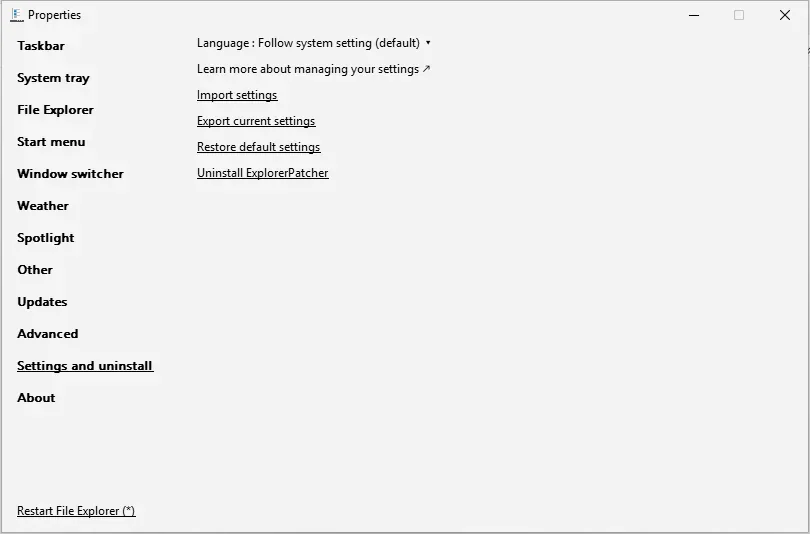
What each one does. We label what comes from upstream; what we tested is described below the list:
- Export current settings opens a Save dialog and writes a
.regfile. According to upstream’s source the window records every value it reads while it builds, so the file covers the options that window shows for your current setup, plus the pseudo-value lines. In our test the file starts with anImportOKmarker value. - Import settings asks you to pick a
.regfile and merges it through Windows’ own Registry Editor, which shows two prompts (confirm, then “successfully added”). Afterwards the window applies the pseudo-value lines. According to upstream, Windows may also ask for administrator approval, once for registering the shell extension and once for the rounded-corners helper. We saw no such prompt, but our accounts are administrators. - Restore default settings merges the defaults that are built into ExplorerPatcher, again through Registry Editor, so you confirm it once (according to upstream). We have not clicked it in a test.
What we tested: an import and an export
On 7 Nov 2026 we opened Settings and uninstall on Windows Server 2025 (build 26100.33674) and Windows Server 2022 (build 20348.5773), clicked Import settings, typed the path of a small sample .reg file and answered Registry Editor’s prompts. The file held TaskbarGlomLevel=2, ToolbarSeparators=1, an ImportOK marker and one ;"Virtualized_ line for the Control Interface. Read back from the registry on both machines: the two values were set, ExplorerPatcher had removed the ImportOK marker, and the Windows 10 Ribbon’s COM key that Properties creates had appeared, so the pseudo-value line was applied. Registry Editor showed two windows. The full walkthrough with the import dialogs is on the Configurator page.
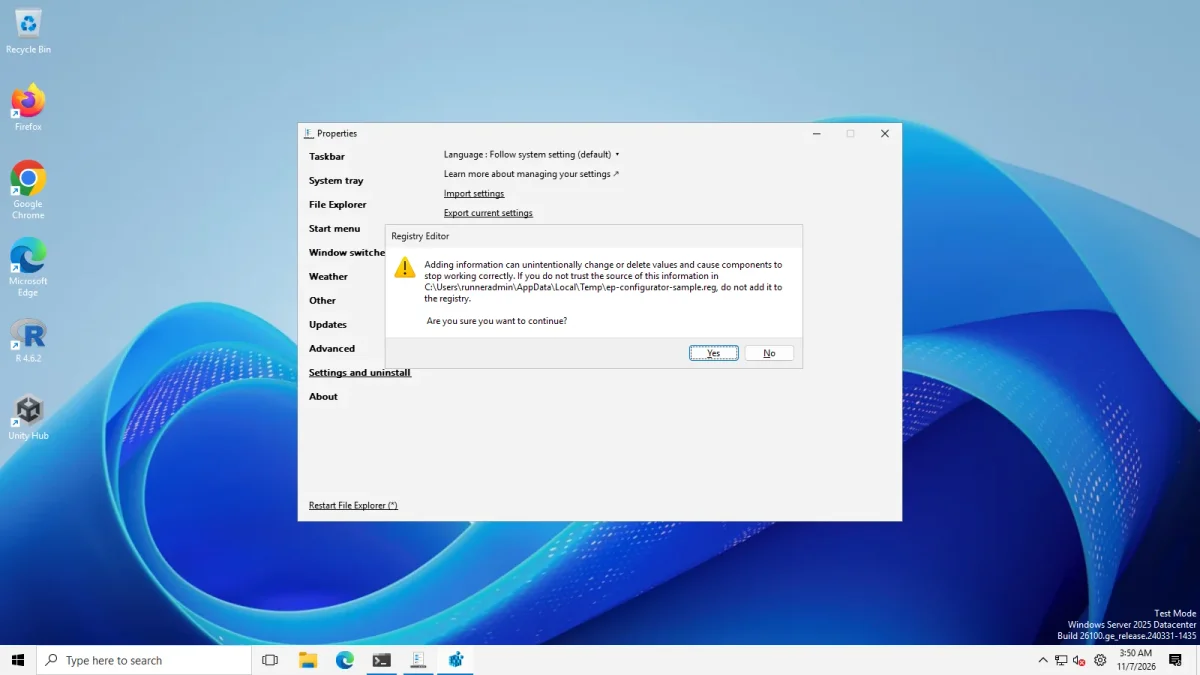
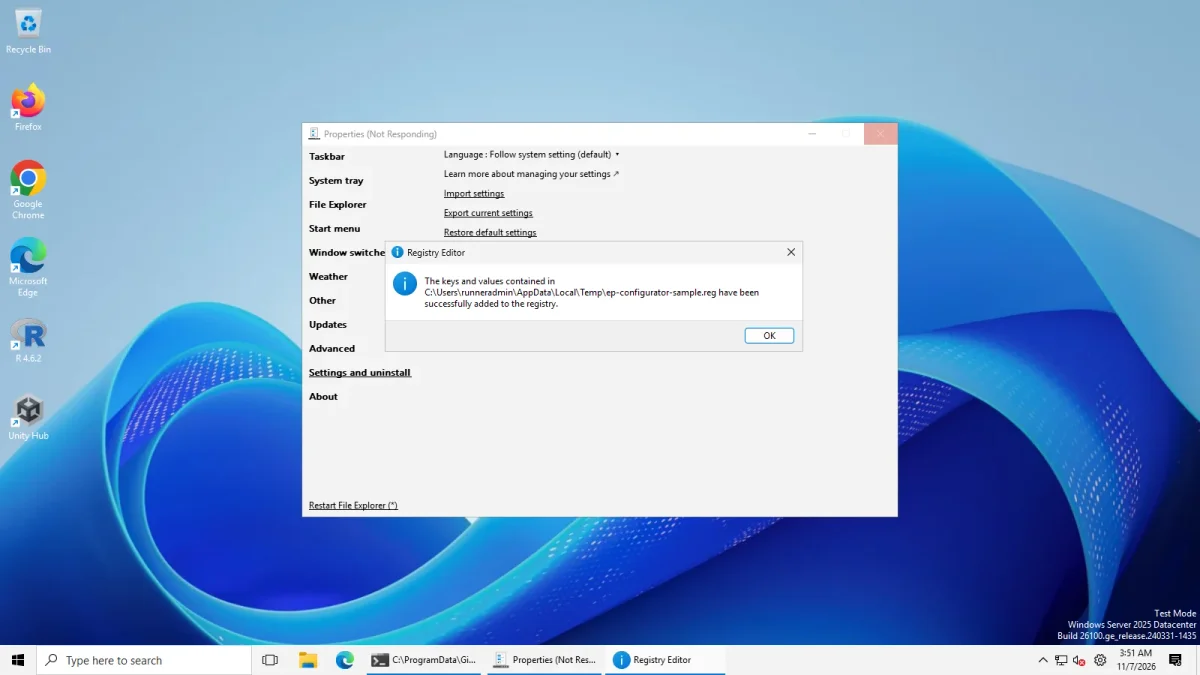
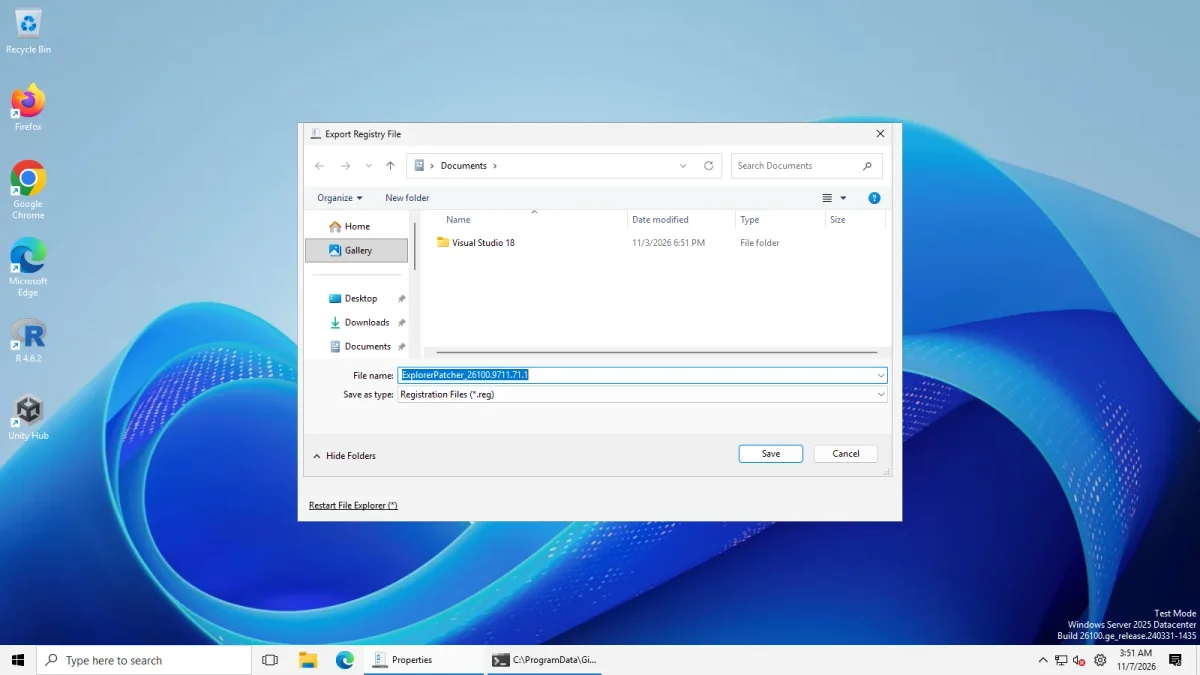
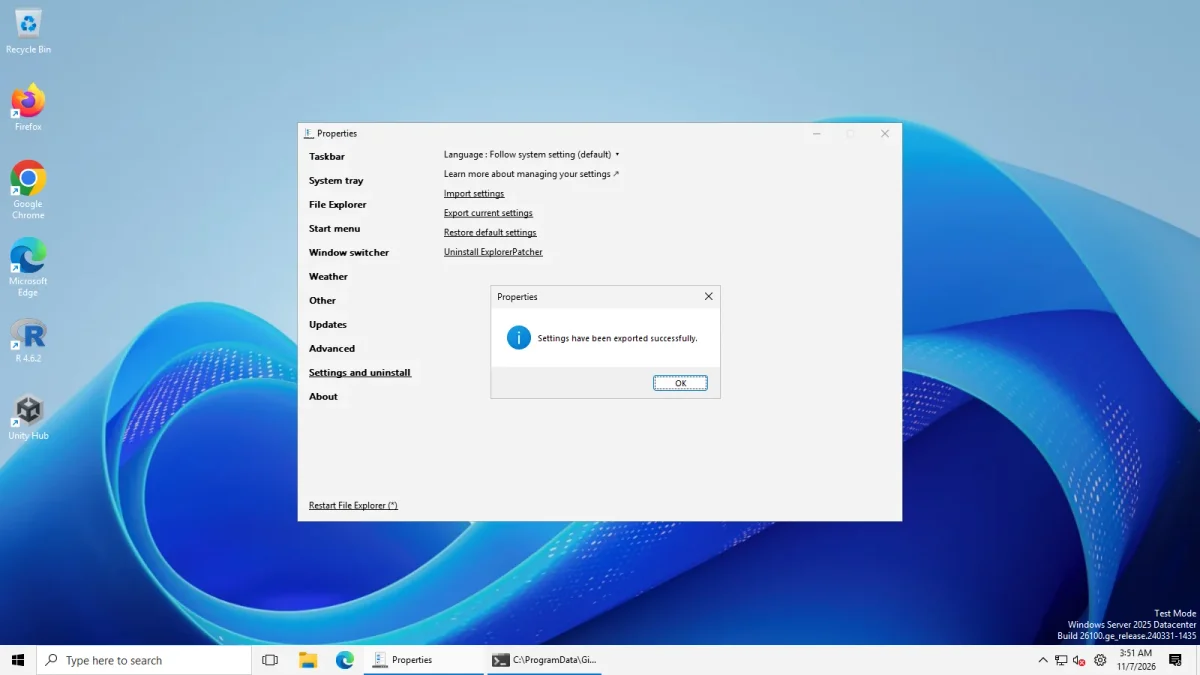
We then saved ExplorerPatcher’s own export on both machines: 7.8 KB on Server 2025 and 7.2 KB on Server 2022. It is plain ASCII, begins with Windows Registry Editor Version 5.00 and an ImportOK line, has one [HKEY_CURRENT_USER\...] header per value, and holds ten ;"Virtualized_{CLSID}_Name"=dword:... comment lines. You can read it: ExplorerPatcher’s own export and the sample we imported. The results are in import of the Server 2025 and Server 2022 result files.
What this does not show: we imported three plain values and one pseudo value, not a full export, and we did not import the file we had just exported. Our sample put its plain values under HKEY_CURRENT_USER\Software\ExplorerPatcher, whereas TaskbarGlomLevel normally lives in Windows’ own Explorer\Advanced key, so we do not claim the taskbar grouping changed. We did not run it on Windows 11 25H2 on Arm64, and we have not tested what an import does across versions or after a restart of File Explorer.
Upstream recommends restarting File Explorer after an import or a reset. It also says it cannot guarantee that exported files work between versions, although it expects they usually will. Importing overwrites your current values, so export first if you might want them back. If a bad setting hides the taskbar or crashes Explorer, use the black screen steps first and reset afterwards.
Because the exported file is plain text, you can read it, diff it against defaults and keep one per machine. The Configurator builds the same kind of file from a form: open the Configurator. Our own raw registry dump of the key after installing 71.1 is available as a test file; it is a Registry Editor export, not the file the Export button writes.
Settings that differ on Windows 10
Windows 10 does not have the Windows 11 taskbar, Start menu or context menu, so the Properties window leaves out the options that only make sense there. In our data, 21 entries do not appear on Windows 10, and two appear only on Windows 10. This comes from upstream’s separate settings file for Windows 10. Our Windows Server 2022 machine (Windows 10 shell) agrees in the places we looked: its Taskbar section has a Cortana button, its Start menu section has no style box, and its Other section has the Command Prompt option, as the next lists say. It showed 11 sections and no Spotlight. Some entries are two variants of one item, so the number of distinct controls is a little lower.
Not shown on Windows 10
- Taskbar (2): Extra button should be; Show Widgets button
- System tray (4): Control Center button; Hidden icons popup style; Language switcher (two entries)
- File Explorer (2): Disable the Windows 11 context menu; Title bar
- Start menu (4): Start menu style; Disable the “Recommended” section; Open Start in All apps by default; Show more tiles
- Window switcher (1): Corner preference
- Weather (1): Corner preference
- Spotlight (3): Hide the “Learn about this picture” icon; Desktop context menu items; Update frequency
- Other (4): Add shortcut to program settings in Win+X menu; Disable rounded corners for application windows; Disable quadrants when snapping windows; Snap Assist style
Shown only on Windows 10
- Taskbar: Show Cortana button
- Other: Show Command Prompt instead of PowerShell in Win+X menu
The search table above has a Windows 10 column, so you can see the same information per setting. For what works on Windows 10 in general, see ExplorerPatcher on Windows 10, and for the build-by-build support table see compatibility.
Common questions
Where do I open the ExplorerPatcher settings?
Right-click the taskbar and choose Properties. If you hid that item, press Win+R and run rundll32 C:\Windows\dxgi.dll,ZZGUI, which is the command upstream's FAQ gives for opening the window by hand.
Do ExplorerPatcher settings survive an update or an uninstall?
An update keeps them: in our test two values we had set survived the move from 70.3 to 71.1. An uninstall does not remove them: HKCU\Software\ExplorerPatcher was still there after we uninstalled, so a later reinstall picks them up again.
Can I edit the settings in Registry Editor?
Most values can be edited there, but 14 are pseudo values that only the Properties window understands, so a plain .reg merge may restore only part of your setup. Use Export and Import in Properties for backups.
Why is an option I read about missing from my Properties window?
Many options only appear when another choice is active, or on certain Windows builds. In our screenshots the Taskbar section lists six settings with the Windows 11 taskbar and eleven with ExplorerPatcher's taskbar. The search below says when each option appears.
How many sections does the Properties window have?
Up to 12. On Windows 11 25H2 with ExplorerPatcher's taskbar we counted 12, including Spotlight and Weather. On Windows Server 2025 and Server 2022 we counted 11, because Spotlight is missing. With the Windows 11 taskbar the Weather section disappears on the two Windows 11 shells.