How to change the Alt+Tab style in Windows 11
In ExplorerPatcher, open Properties, go to Window switcher and set Window switcher (Alt+Tab) style to Windows 10 or Simple Window Switcher, then restart File Explorer. We tested both on Windows 11 25H2 (Arm64) and Windows Server 2025 (24H2 shell) and both worked. The Windows NT style shows no switcher at all on those builds, so do not choose it.
Checked against ExplorerPatcher 71.1 (26100.9711.71.1) on Windows Server 2025 (24H2 shell) 26100.33674 and Windows 11 Enterprise 25H2 26200.9725 and Windows Server 2022 (Windows 10 21H2 shell) 20348.5773 · Nov 6, 2026On this page
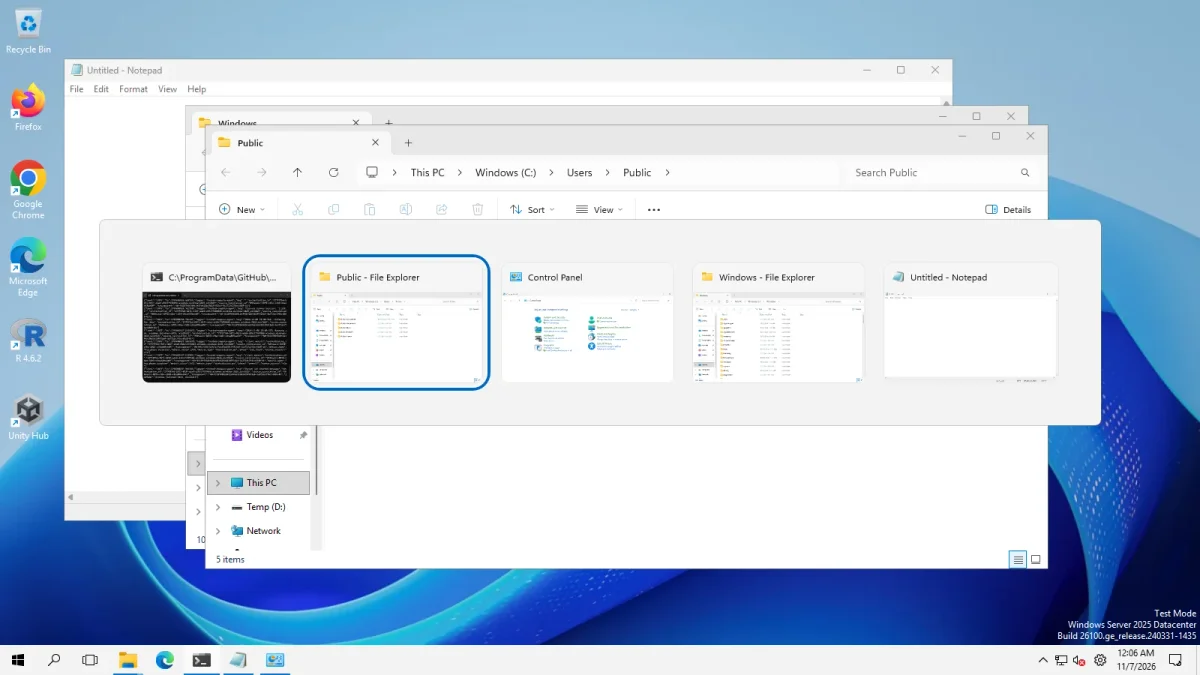 Windows 10 (ExplorerPatcher)Windows 11 (default)
Alt+Tab with five windows open, Windows Server 2025 (24H2 shell) · Windows Server 2025 (24H2 shell), x64 26100.33674 · EP 71.1
An earlier run of ours wrote the value into the wrong registry key and every photo showed the Windows 11 switcher. We redid it. The setting lives in Windows’ own key, HKCU\Software\Microsoft\Windows\CurrentVersion\Explorer, not in ExplorerPatcher’s key.
What each style looks like
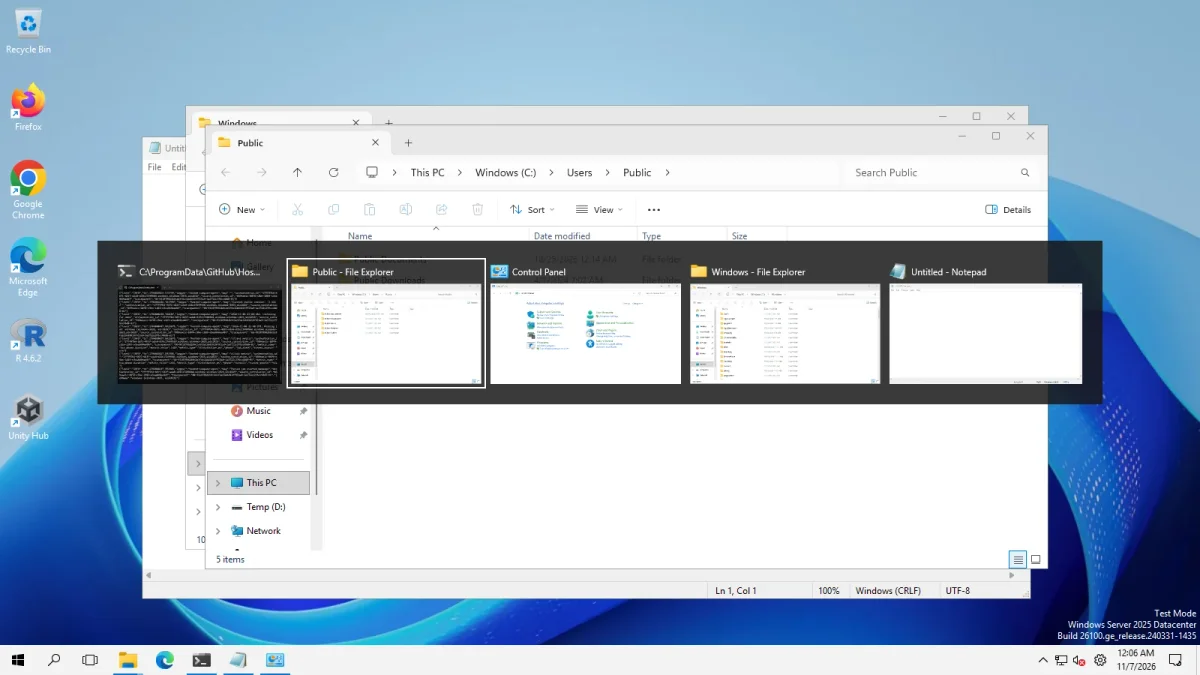
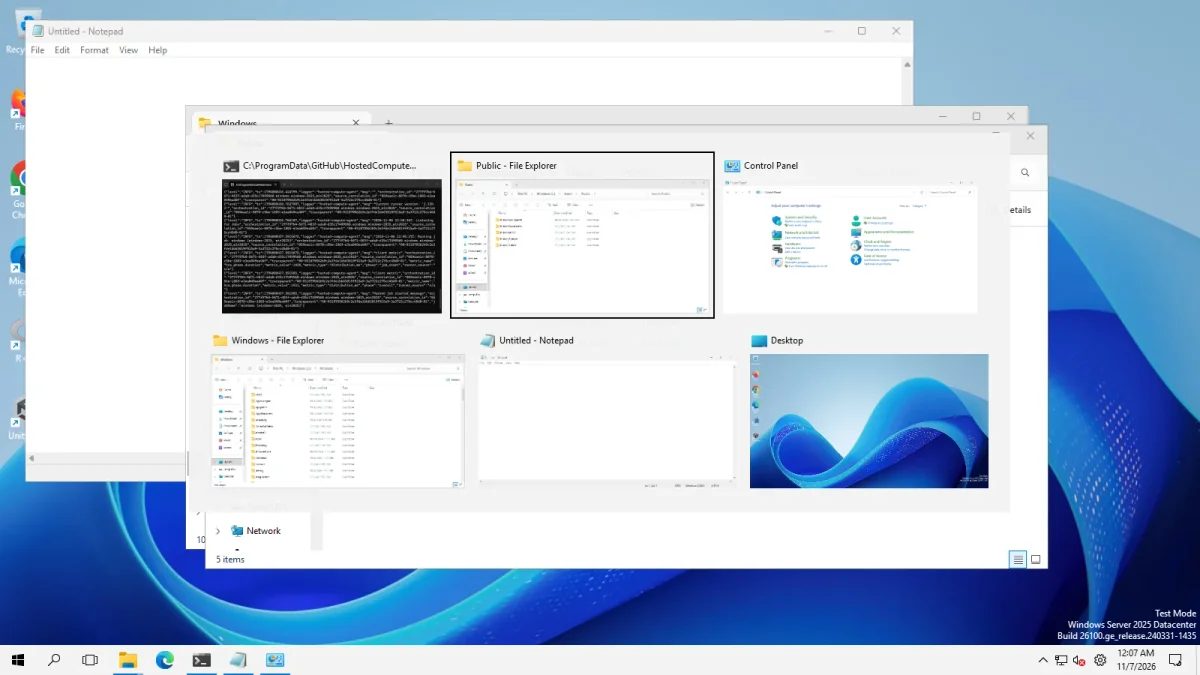
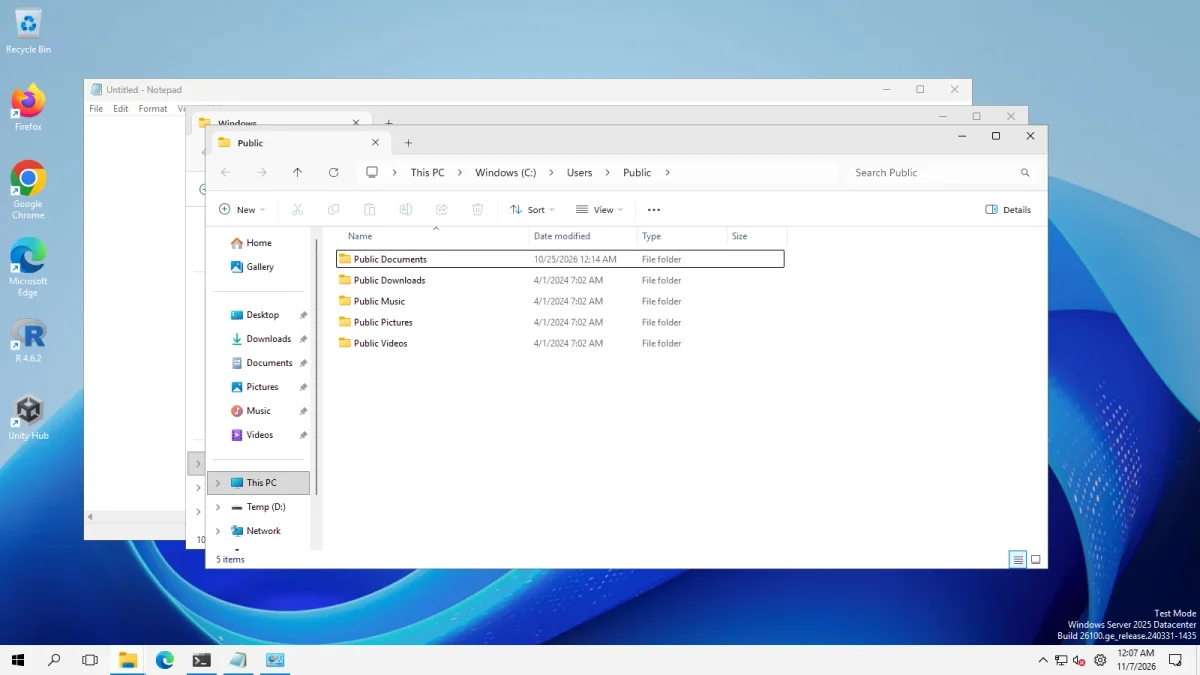
On Windows 11 25H2 on Arm64 the results matched on both machines, style for style. The Windows 11 default is the same light card with a blue frame on the selected window. The Windows 10 style is the dark bar with a white frame. The Simple Window Switcher is the grid of large thumbnails, again in two rows with the Desktop as the last tile. The Windows NT style again showed no switcher: the photo is just the windows, with no Alt+Tab overlay.
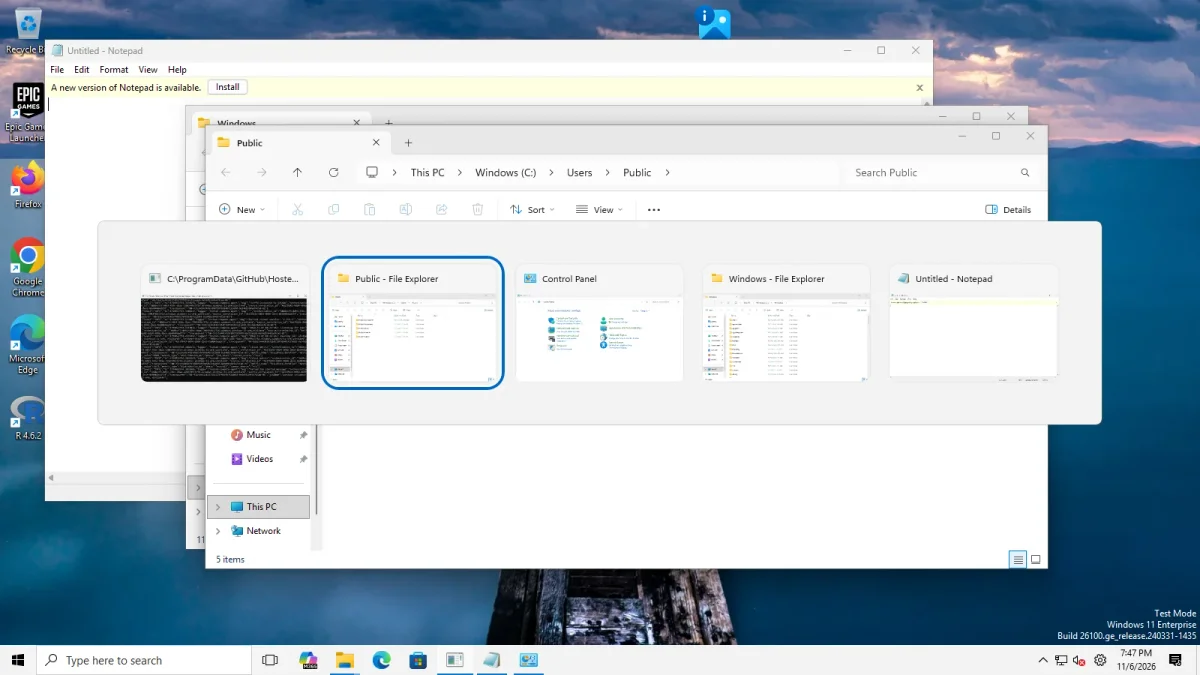
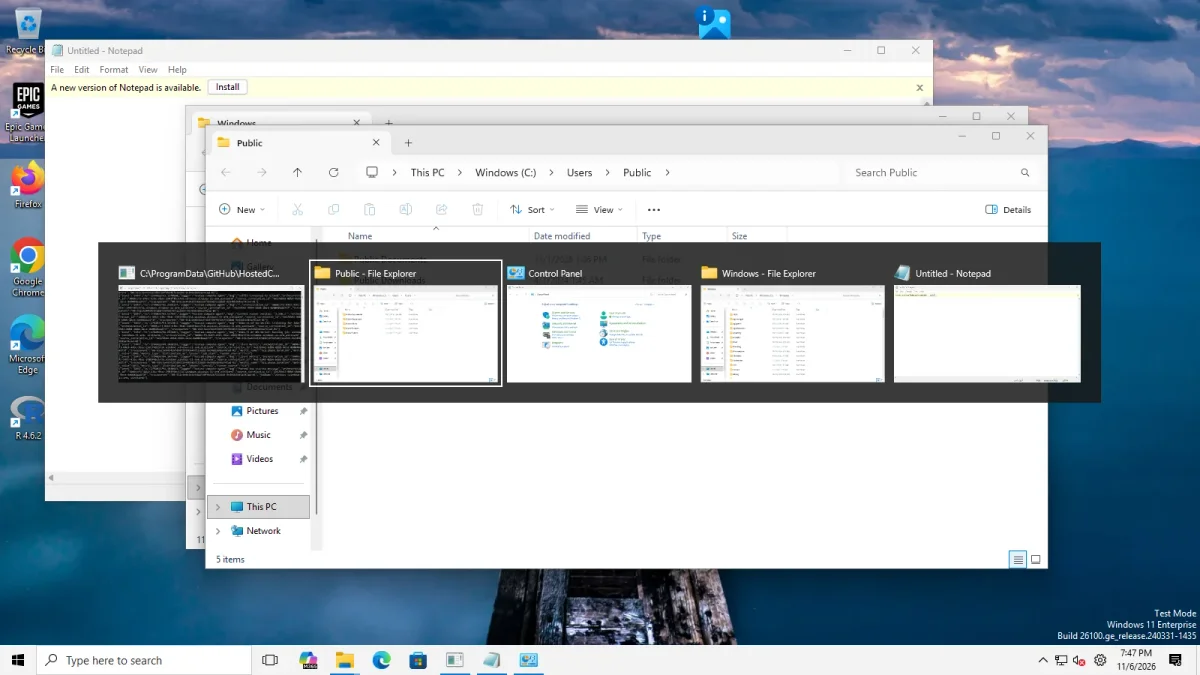
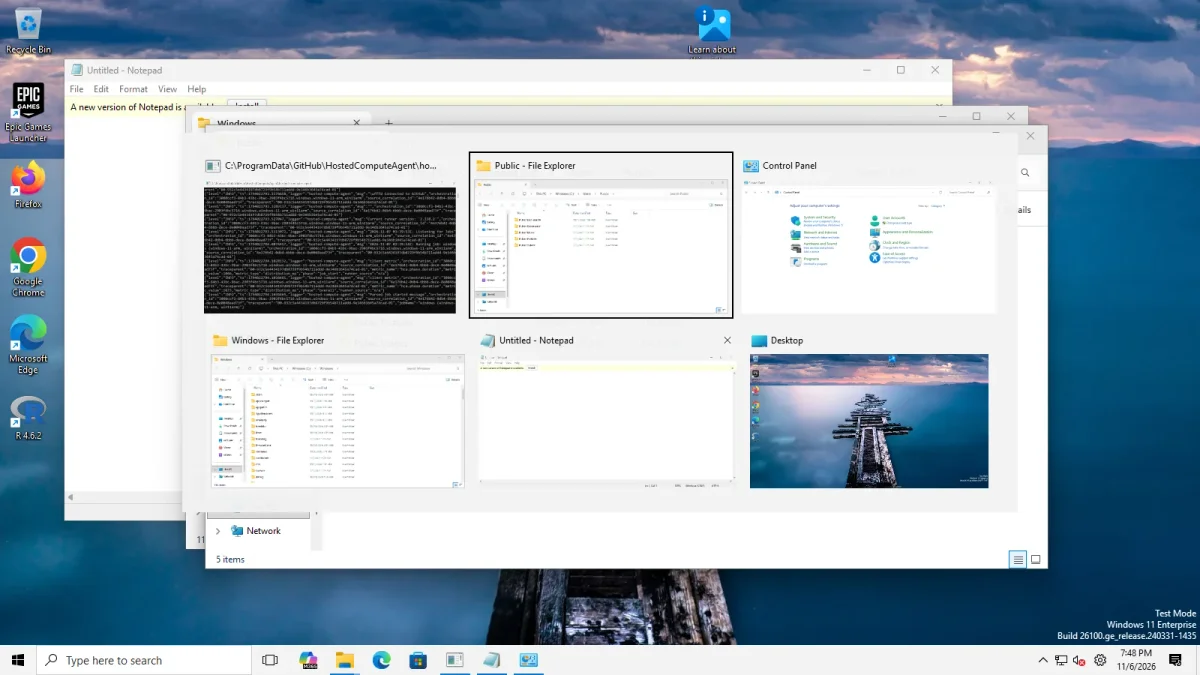
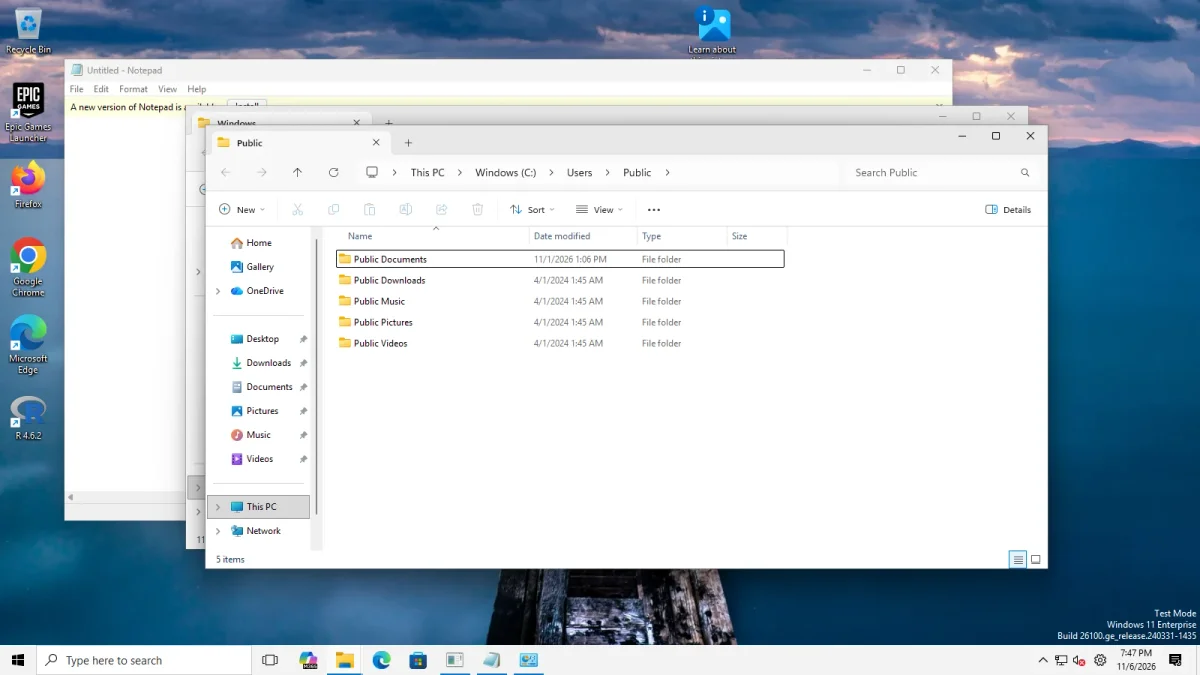
For comparison, this is a machine with a real Windows 10 shell (Windows Server 2022). There the default style already looks like the Windows 10 switcher, because the shell is Windows 10. Windows NT showed no switcher here either in our photo, and we did not look into why.
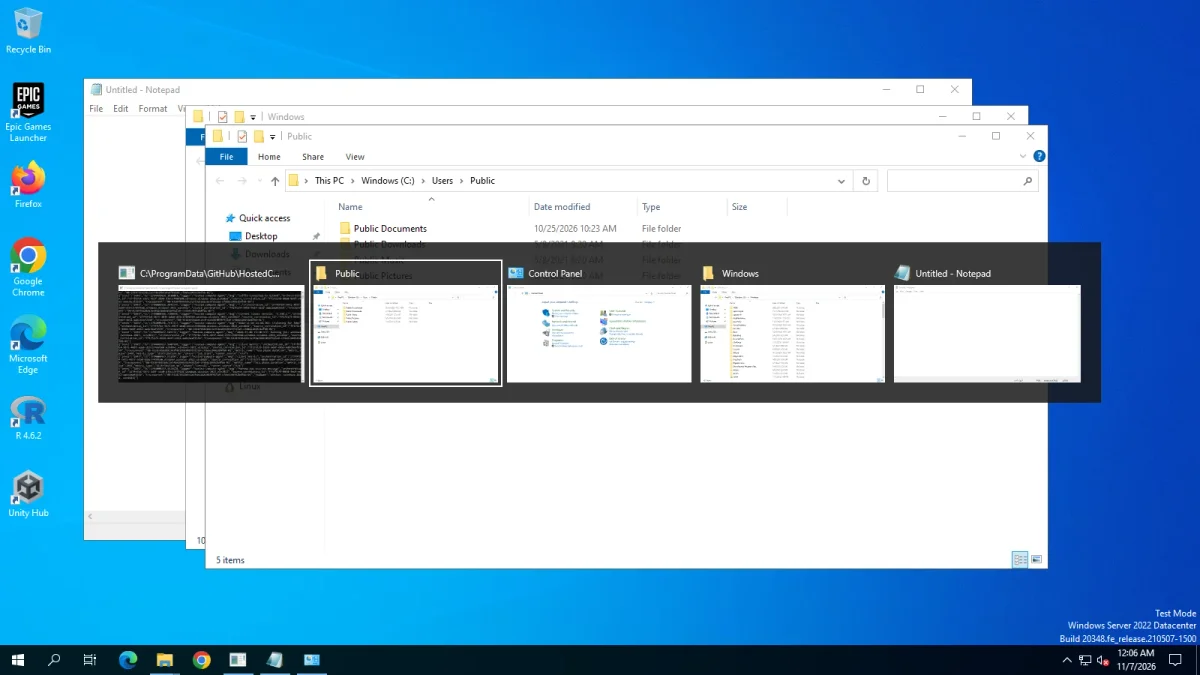
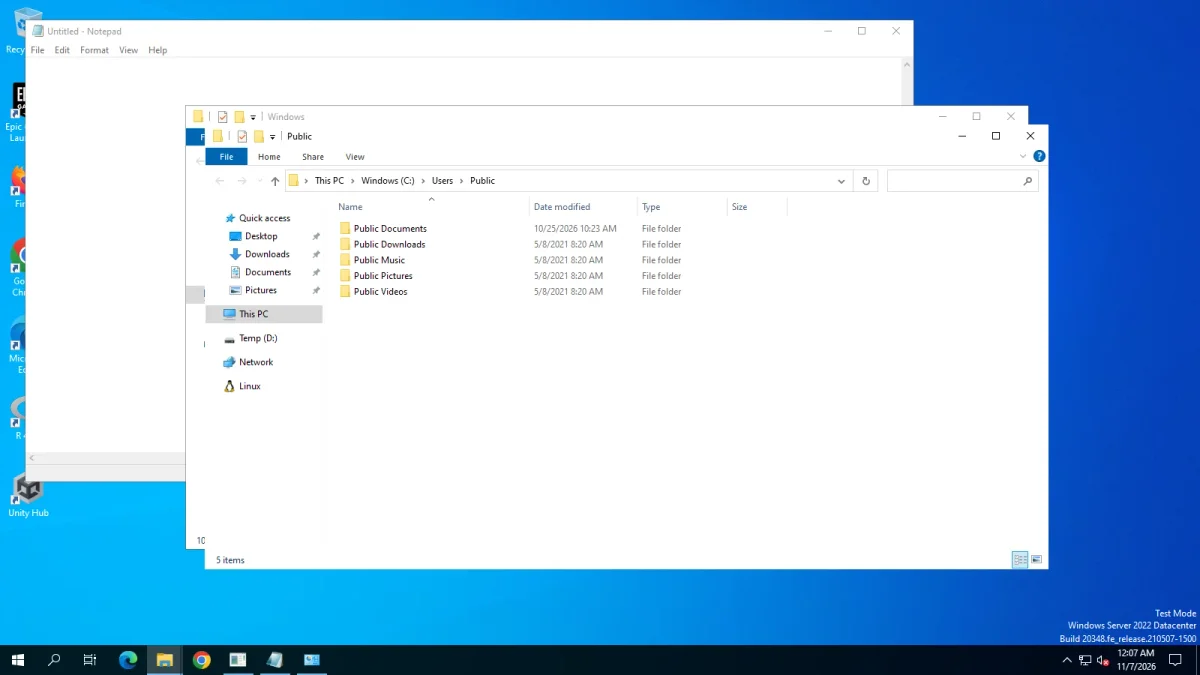
The four styles
The setting is Window switcher (Alt+Tab) style. It restarts File Explorer when you change it (the asterisk in the app).
| Choice in the app | What it is | State on 24H2 and 25H2 |
|---|---|---|
| Windows 11 (default) | The switcher that ships with Windows 11 | Default; we photographed it on both machines |
| Windows 10 | The Windows 10 switcher | Worked in our tests on both machines |
| Windows NT | The old icon-based list | No switcher appeared in our tests. Upstream: Microsoft removed it in 24H2. |
| Simple Window Switcher | ExplorerPatcher’s own switcher with many options | Worked in our tests on both machines; upstream added 24H2 support in version 68.2 (May 2025) |
The value is stored as a number in AltTabSettings: 0 for Windows 11, 3 for Windows 10, 1 for Windows NT and 2 for Simple Window Switcher.
On the “Windows NT” style, upstream’s FAQ says: “In 24H2, Microsoft removed the legacy Windows NT window switcher so instead of showing a classic themed menu it displays nothing.” It adds that selecting the option reverts to the Windows 3.1 behaviour, with no switcher window. Our photos agree. Do not choose it on 24H2 or later.
Switch the style
- Install ExplorerPatcher from GitHub only (download, install).
- Open Properties from the taskbar menu, or search Start for Properties (ExplorerPatcher).
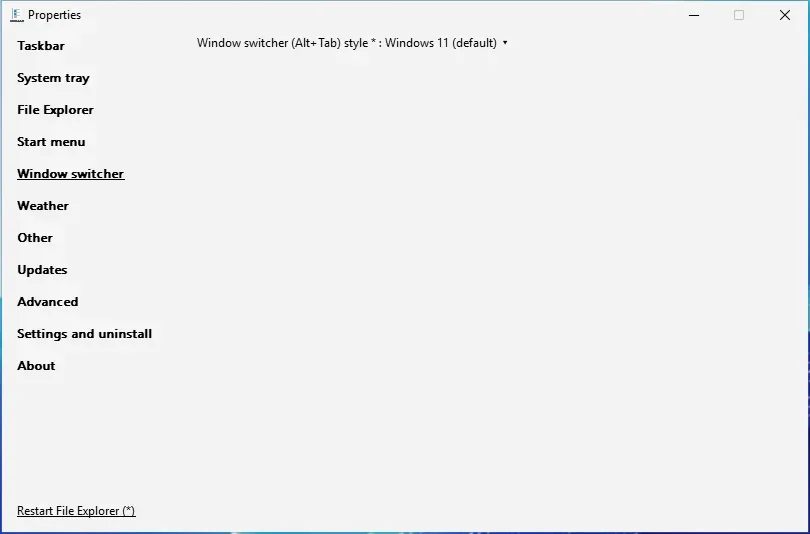
- Choose Window switcher. With the default style the section shows one line.
- Set Window switcher (Alt+Tab) style to Windows 10 or Simple Window Switcher.
- Restart File Explorer and test with two or three windows open.
Simple Window Switcher options
When you choose Simple Window Switcher, the section shows these options. Names and defaults come from ExplorerPatcher’s own data. We photographed the switcher with its default options only and have not tested the individual options. Each links to our window switcher settings list.
| Setting | Choices | Default |
|---|---|---|
| Show the desktop as the last window in the interaction list | On, Off | On |
| Always display switcher on primary monitor | On, Off | Off |
| Display windows only from the monitor containing the cursor | On, Off | Off |
| Group windows of the same app | On, Off | Off |
| Disable the interaction list for individual apps (Alt + the key above Tab) | On, Off | Off |
| Theme | Default, Acrylic, Mica (always opaque) | Default |
| Opacity | Opaque down to 30 % | 95 % |
| Color scheme | Follow system setting, Light, Dark | Follow system setting |
| Corner preference | Rounded, Small rounded, Not rounded (Windows 11 only) | Rounded |
| Row height | 330 pt down to 140 pt | 230 pt |
| Maximum width (percentage of screen width) | 100 % (not recommended) down to 55 % | 80 % |
| Maximum height (percentage of screen height) | 100 % (not recommended) down to 55 % | 80 % |
| Window padding | 50 pt down to None | 20 pt |
| Show delay | None up to 500 ms | 100 ms |
| Use the scroll wheel to change selection | Never, When cursor is over the switcher, Always | Never |
That is 15 options. The Simple Window Switcher also keeps its settings in ExplorerPatcher’s registry key under sws.
Known problems reported upstream
We have not reproduced these. Issue 4982 (closed, 13 comments) was titled “Simple Window Switcher with Windows 11 taskbar broken since ExplorerPatcher v26100.8457.70.1”. Issue 5214 (open, 25 Oct 2026) reports that Alt+Tab hangs in the Simple Window Switcher when it refers to a window that no longer exists. The 71.1 release notes list Alt+Tab fixes for Arm64. If Alt+Tab misbehaves after a Windows update, check the status page and troubleshooting.
Other ways
ExplorerPatcher’s wiki lists several Windhawk mods as compatible with its taskbar, including “Alt+Tab per monitor”, “Alt+Tab window delayer” and “Alt+Tab: Hide ghost windows”. Windhawk is free (GPL-3.0). We have not tested any of them. See ExplorerPatcher vs Windhawk.
Common questions
Does the Windows 10 Alt+Tab work on Windows 11 24H2 and 25H2?
Yes in our tests. With ExplorerPatcher 71.1 the Windows 10 style gave a dark bar with a title above each thumbnail on Windows 11 25H2 (Arm64) and on Windows Server 2025 (24H2 shell). We read the registry value back each time to be sure the style was applied.
Why does the Windows NT Alt+Tab style show nothing?
On Windows 11 25H2 and Server 2025 we pressed Alt+Tab with the NT style set and no switcher appeared. Upstream's FAQ says Microsoft removed the legacy NT switcher in 24H2, which matches what we saw. Pick another style.
What is the Simple Window Switcher?
It is ExplorerPatcher's own switcher, written by the project. In our photos it is a grid of large window thumbnails, and once you pick it the Window switcher section shows 15 more options, from theme and opacity to row height, show delay and scroll wheel behaviour.
Why do I only see one option in the Window switcher section?
The Properties window shows the extra options only after you choose Simple Window Switcher. With the default Windows 11 style we saw a single line, the style choice.