How to make Windows 11 look like Windows 10
Windows 11 alone can give you a left-aligned taskbar, labels, smaller buttons and, with one registry command, the classic right-click menu. For the Windows 10 taskbar, Start menu and File Explorer ribbon you need ExplorerPatcher or a paid tool such as StartAllBack. We tested ExplorerPatcher 71.1 on Windows Server 2025 (24H2 shell) and Windows 11 25H2 Arm64: taskbar, Start menu, Alt+Tab styles and the ribbon worked on both, and the context menu on Server and on the client desktop. We could not demonstrate square corners.
Checked against ExplorerPatcher 71.1 (26100.9711.71.1) on Windows Server 2025 (24H2 shell) 26100.33674 and Windows 11 Enterprise 25H2 26200.9725 · Nov 6, 2026On this page
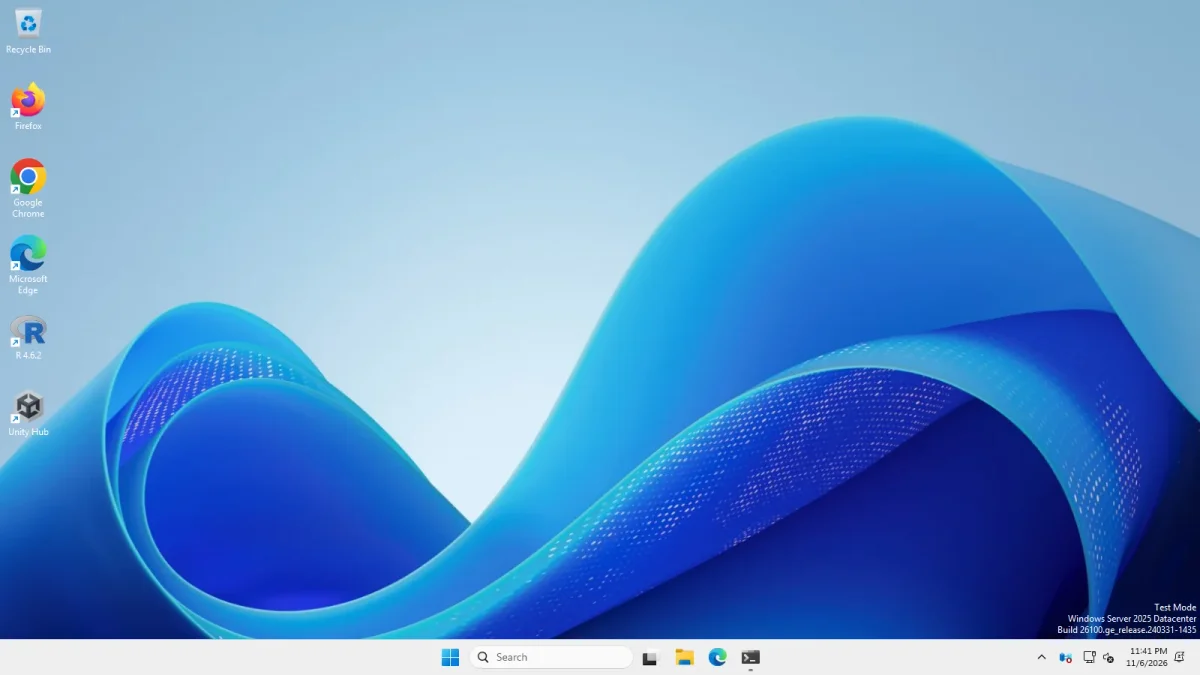 With ExplorerPatcherWindows 11 as shipped
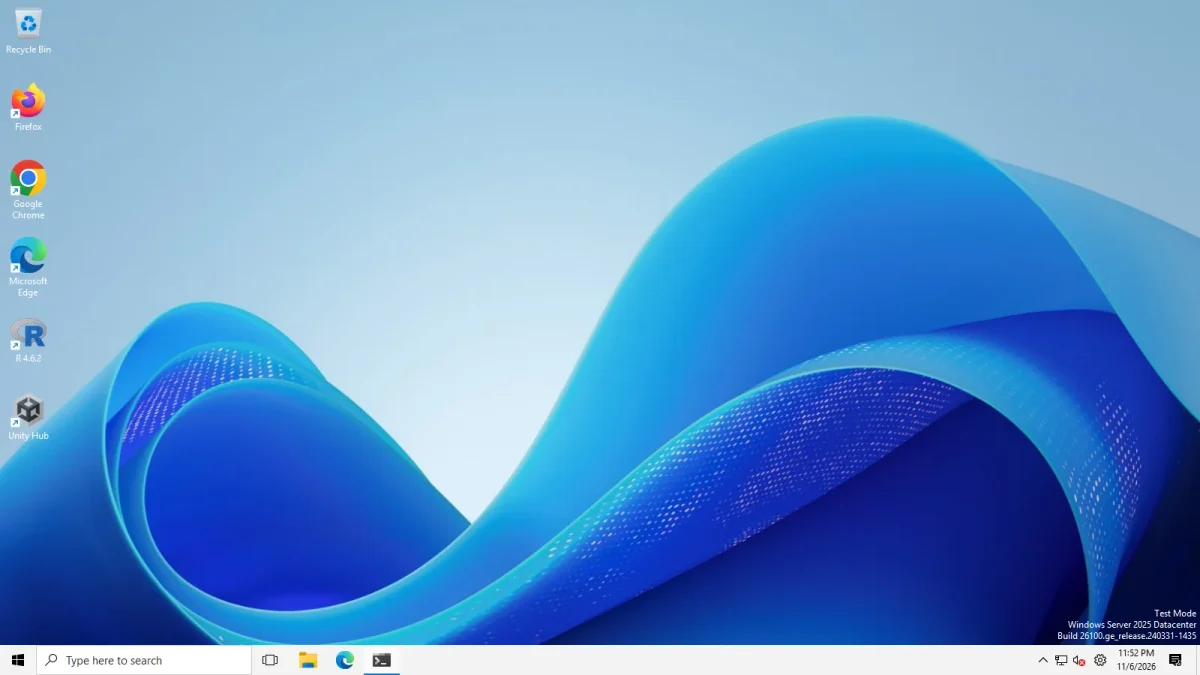
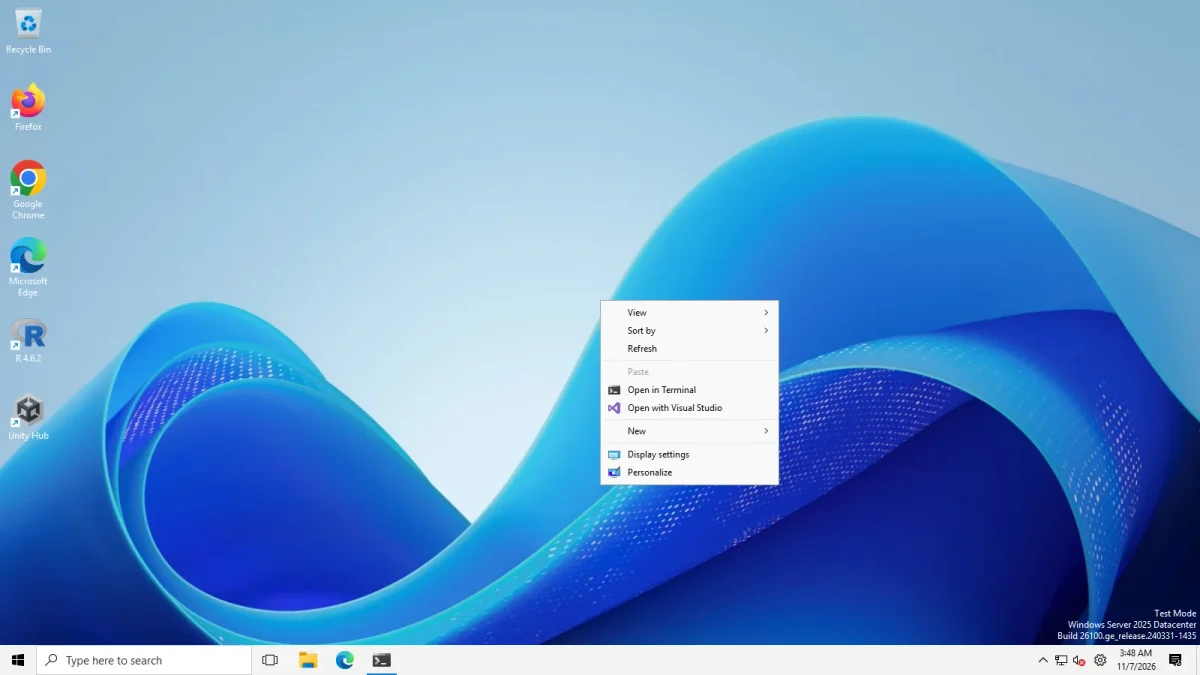
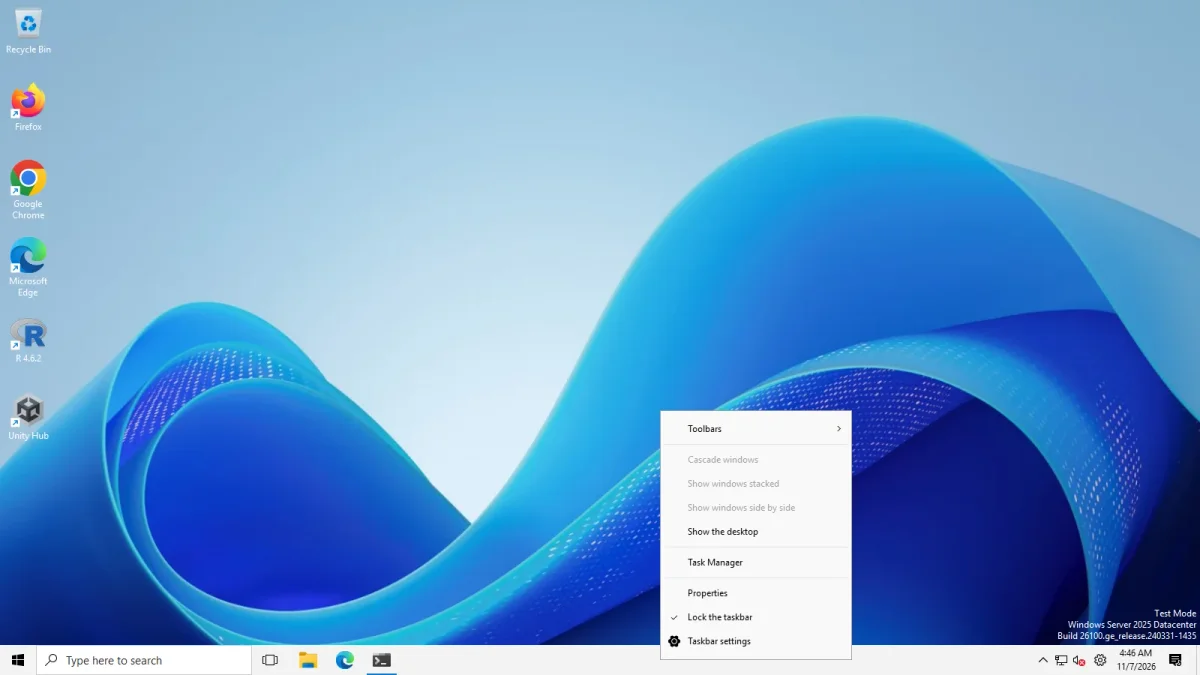
Desktop on Windows Server 2025 (24H2 shell) before and after installing ExplorerPatcher 71.1 · Windows Server 2025 (24H2 shell), x64 26100.33674 · EP 71.1
Drag the handle. The notification in the corner of the right picture is ExplorerPatcher’s own update message. The taskbar is the main visible change in this pair. The sections below show the rest.
Component checklist
“Native” means Windows’ own Settings on the builds we photographed. Names are exactly as the app shows them. “Verified” means we saw it in our own photos.
| Component | Windows 11 itself (24H2, 25H2) | ExplorerPatcher setting | Our result | Page |
|---|---|---|---|---|
| Taskbar look | No Windows 10 taskbar on 24H2 and later | Taskbar style: Windows 10 (ExplorerPatcher) | Verified, 40 px instead of 48 px | Taskbar |
| Start button | Windows 11 icon only | Start button style: Windows 10 (default) or Windows 11 | Verified | Taskbar settings |
| Labels, never combine | Combine taskbar buttons and hide labels (seen on the Server image) | Combine taskbar icons on primary taskbar | Verified | Labels |
| Smaller taskbar | Show smaller taskbar buttons (seen on the Server image) | Taskbar icon size: Small | Verified, 30 px | Small taskbar |
| Taskbar position | None in the rows we photographed | Primary taskbar location on screen | Verified top, left, right | Move taskbar |
| Search box, Task view | Search (Search box) and Task view are in Settings | Search, Show Task view button | Verified | Taskbar settings |
| Clock and tray flyouts | None | Clock: Windows 10 flyout; Network; Hidden icons popup style | Clock and network flyouts opened; volume untested | Tray settings |
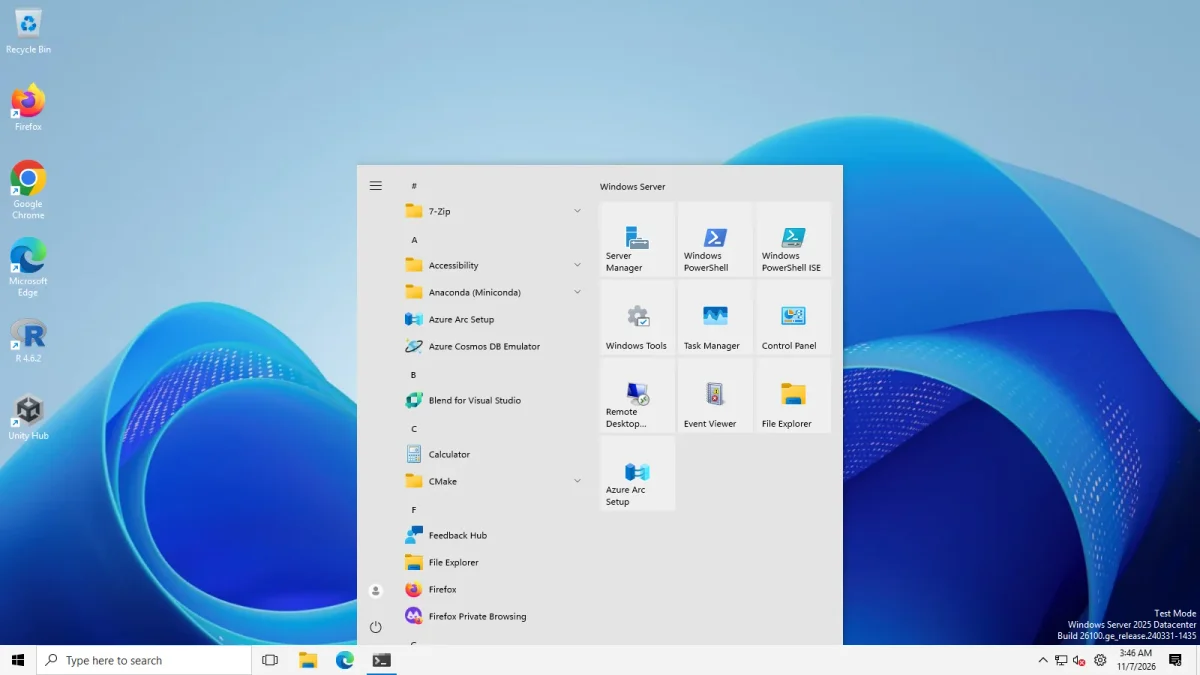
| Start menu with tiles | None | Start menu style: Windows 10 | Verified on both machines | Start menu |
| Classic context menu | Registry command, or Show more options | Disable the Windows 11 context menu | Verified on Server 2025 (files and desktop); on the Arm64 client the desktop only | Context menu |
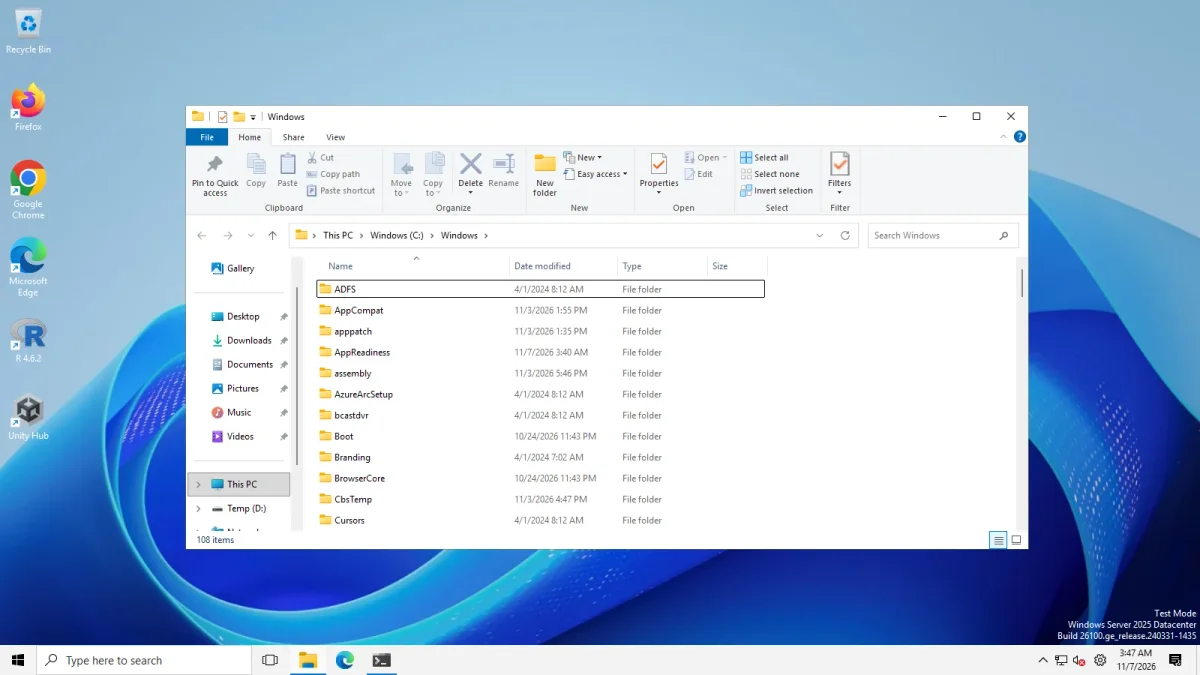
| File Explorer ribbon | None | Control Interface: Windows 10 Ribbon | Verified on both machines | Ribbon |
| Alt+Tab | None | Window switcher (Alt+Tab) style | Windows 10 and Simple Window Switcher worked; Windows NT shows no switcher | Alt+Tab |
| Square window corners | None found | Disable rounded corners for application windows | Not demonstrable: both test machines already show square corners | Rounded corners |
| Weather on the taskbar | Widgets button (Windows’ own) | Show Weather on the taskbar | Verified on all three machines: icon, temperature and description shown | Weather settings |
| Control Panel links | Open the Settings app | System / About page, Programs and Features, Adjust date/time, Customize notification icons | Not tested | Other settings |
Recipe A: without software
Only Windows’ own options and one registry command. We photographed these on a throwaway Windows Server 2025 image, not a physical PC.
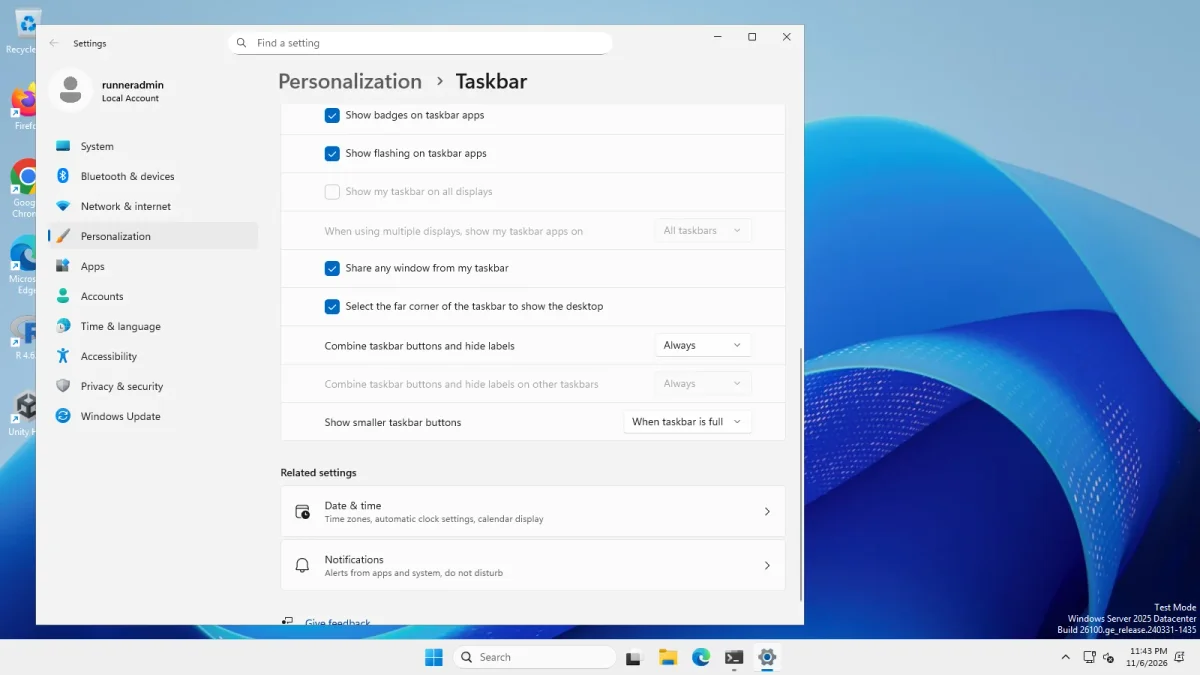
- Left-align the taskbar. Settings, Personalization, Taskbar, Taskbar behaviors lists taskbar alignment. We did not photograph that row, but we set the matching value, and the Start menu moved to the left edge on both machines.
- Show labels. In the same section, Combine taskbar buttons and hide labels. See the labels page.
- Make the buttons smaller. Show smaller taskbar buttons. See the small taskbar page.
- Show the search box. In Taskbar items, set Search to Search box.
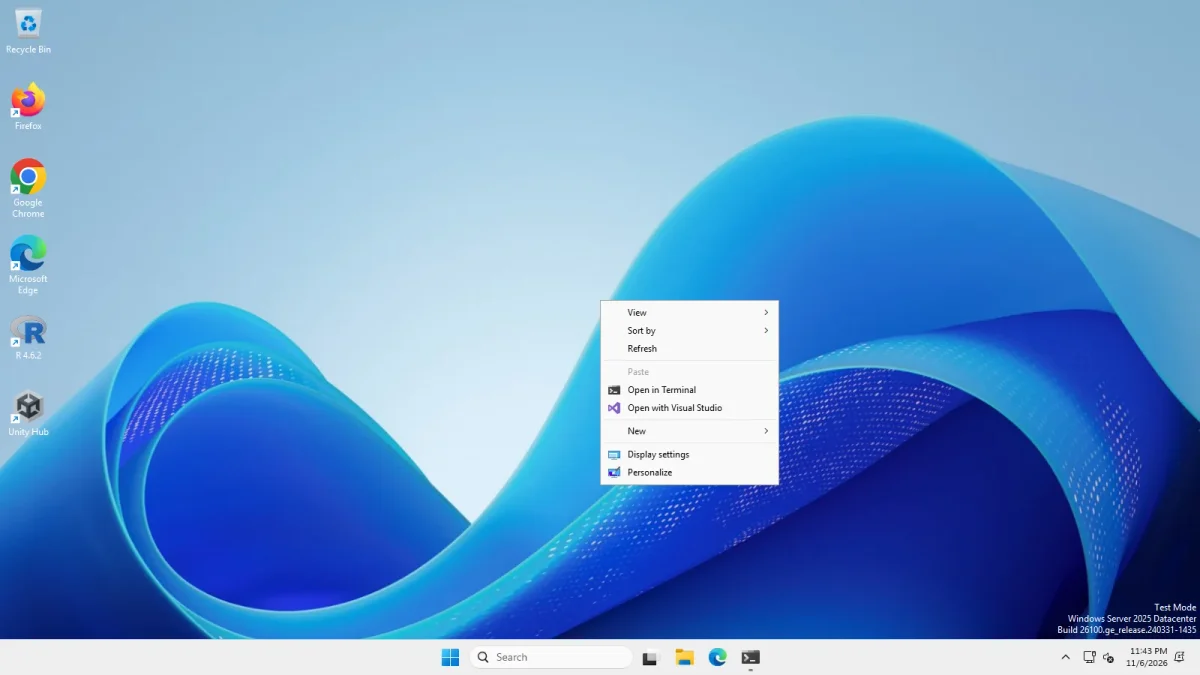
- Restore the classic right-click menu with
reg add "HKCU\Software\Classes\CLSID\{86ca1aa0-34aa-4e8b-a509-50c905bae2a2}\InprocServer32" /f /veand an Explorer restart. Undo withreg delete "HKCU\Software\Classes\CLSID\{86ca1aa0-34aa-4e8b-a509-50c905bae2a2}" /f. Details and photos: classic context menu.
What Recipe A cannot do: the Windows 10 flag Start button, the Windows 10 Start menu with tiles, the ribbon, Windows 10 flyouts and a taskbar on any edge but the bottom.
Recipe B: ExplorerPatcher
Free and open source (GPL-2.0). Current version 26100.9711.71.1.
- Install it. Download from GitHub only, check the hash, read the install guide and turn Smart App Control off first. The setup took 5.2 to 8.6 seconds on our machines.
- Open Properties from the taskbar menu, or search Start for Properties (ExplorerPatcher). See how to use it.
- Taskbar. The default after install is the Windows 10 (ExplorerPatcher) taskbar. Then set Start button style, Primary taskbar alignment, Combine taskbar icons on primary taskbar, Search and Taskbar icon size to taste (taskbar settings).
- Start menu. Set Start menu style to Windows 10 (Start menu settings).
- File Explorer. Set Control Interface to Windows 10 Ribbon and tick Disable the Windows 11 context menu (File Explorer settings).
- System tray. In Properties, System tray, choose the Windows 10 clock and network flyouts (tray settings).
- Restart File Explorer with the link at the bottom of the window.
The Shell Configurator can help you pick these settings.
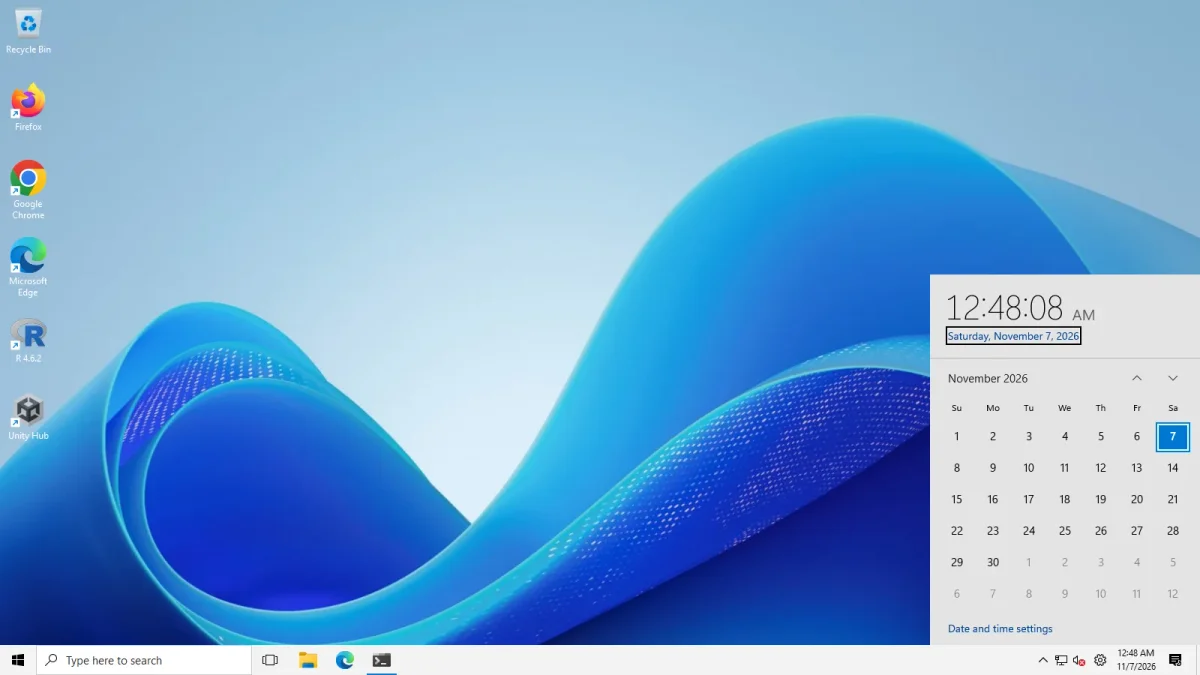
Changes we saw on both machines: the taskbar went from 48 px to 40 px, the Windows 10 Start menu opened with either taskbar, and the classic menu opened on the desktop on both. The ribbon and Windows 7 command bar replaced the Windows 11 command bar on both. The classic menu opened in File Explorer on Server 2025, but on the Arm64 machine no File Explorer menu was on screen in our photo, so we do not claim that part for the client.
Recipe C: paid, StartAllBack
According to our alternatives list (checked 6 Nov 2026), StartAllBack is closed source, version 3.9.28 (12 Oct 2026) and paid; third-party reviews quote about $5 per PC, which we did not verify. It “restores a Windows 10 or Windows 7 style taskbar, Start menu, File Explorer ribbon and classic context menus on Windows 11, with explicit 25H2 support since 3.9.15.” We have not tested it on our machines. Do not run it together with ExplorerPatcher: an upstream issue titled “ExplorerPatcher is likely to conflict with StartAllBack” (4984) is closed, but the title says enough. Compare them on ExplorerPatcher vs StartAllBack and the alternatives chooser.
What cannot be done
- The stock Windows 10 taskbar. Microsoft removed it from builds 26002 and later. ExplorerPatcher’s taskbar is a re-creation, and a Windows update can break it until a fix ships.
- Square corners. Upstream documents a service for it, but both of our test machines already show square corners, so we could not demonstrate the change. The Windows NT Alt+Tab style is also no use on 24H2 and later: it shows no switcher.
- The Windows 10 Settings app and Control Panel design. ExplorerPatcher can send four links to the old Control Panel pages (System / About page, Programs and Features, Adjust date/time, Customize notification icons). We did not test them.
- Anything on a work PC. Upstream says not to use the re-created taskbar on work or mission-critical machines.
- Volume flyout. Our runners have no audio device, so we could not test it.
- What we did not test at all: physical PCs, Windows 11 x64 client editions, multiple monitors, Smart App Control turned on, third-party antivirus.
To undo everything ExplorerPatcher did, see uninstall. For what works on each Windows build, see compatibility.
Common questions
Can I make Windows 11 look like Windows 10 without software?
Partly. Settings can left-align the taskbar and, on our Server 2025 image, offered labels and smaller buttons. One registry command brings back the classic context menu. The Windows 10 taskbar, Start menu with tiles and the ribbon need extra software.
What is the safest way to get the Windows 10 look?
Start with the native options and the registry context menu, which change only your user. If you add ExplorerPatcher, use a personal PC, download only from GitHub, and learn the recovery keys first. Upstream says not to use its taskbar on work or mission-critical machines.
Which parts of Windows 10 cannot be brought back?
The stock Windows 10 taskbar is gone from builds 26002 and later, so ExplorerPatcher re-creates it. The Windows 10 and Simple Window Switcher Alt+Tab styles worked in our tests on 24H2 and 25H2, but we could not demonstrate square window corners. The Settings app and Control Panel keep their Windows 11 design, apart from a few links ExplorerPatcher can send to the old Control Panel pages.
Is there a free option that does everything?
ExplorerPatcher is free and covers the most, but it is not a complete copy of Windows 10 and a Windows update can break it. Open-Shell is free and replaces only Start. StartAllBack covers more of the shell but is paid.