ExplorerPatcher Configurator
Pick your Windows version, choose settings in the copy of the Properties window, and download a .reg file. Open ExplorerPatcher's Properties, go to Settings and uninstall, choose Import settings and select the file. We tested this import with a file of the same shape on Windows Server 2025 and 2022, and it worked there.
Checked against ExplorerPatcher 71.1 (26100.9711.71.1) on Windows Server 2025 (24H2 shell) 26100.33674 and Windows Server 2022 (Windows 10 21H2 shell) 20348.5773 · Nov 6, 2026Loading the settings…
What this tool is
The Configurator is a working copy of ExplorerPatcher’s Properties window. Its settings list comes from the same settings.reg files the program uses (version 71.1), and its labels from the program’s English strings. Choose a Windows version first, because the real window shows different options on Windows 10, on Windows 11 22H2 and 23H2, and on Windows 11 24H2 and later.
What you can do:
- Pick a preset or change single settings. The sections on the left only show settings that apply to your choices. A number next to a section name counts the visible settings.
- Watch the preview. The tabs Taskbar, Start menu, Alt+Tab, File Explorer and Context menu show one of our real screenshots for what you picked, taken on Windows Server 2025 with the 24H2 shell and ExplorerPatcher 71.1. If we did not photograph a combination, the tool says so and shows one of your changes instead. A mock-up is never shown as real.
- Export. Download .reg saves
ExplorerPatcher-settings.reg. Copy text copies it, and Show the .reg file displays it. Copy link makes a web address that holds your choices, so you can share a setup. - Load a file. Load an exported file reads an export from ExplorerPatcher or a file the Configurator made.
- Reset all returns everything to the defaults.
How to import the file
- Download the file with Download .reg.
- Open ExplorerPatcher’s Properties window (right-click the taskbar, then Properties; the how to use page has other ways).
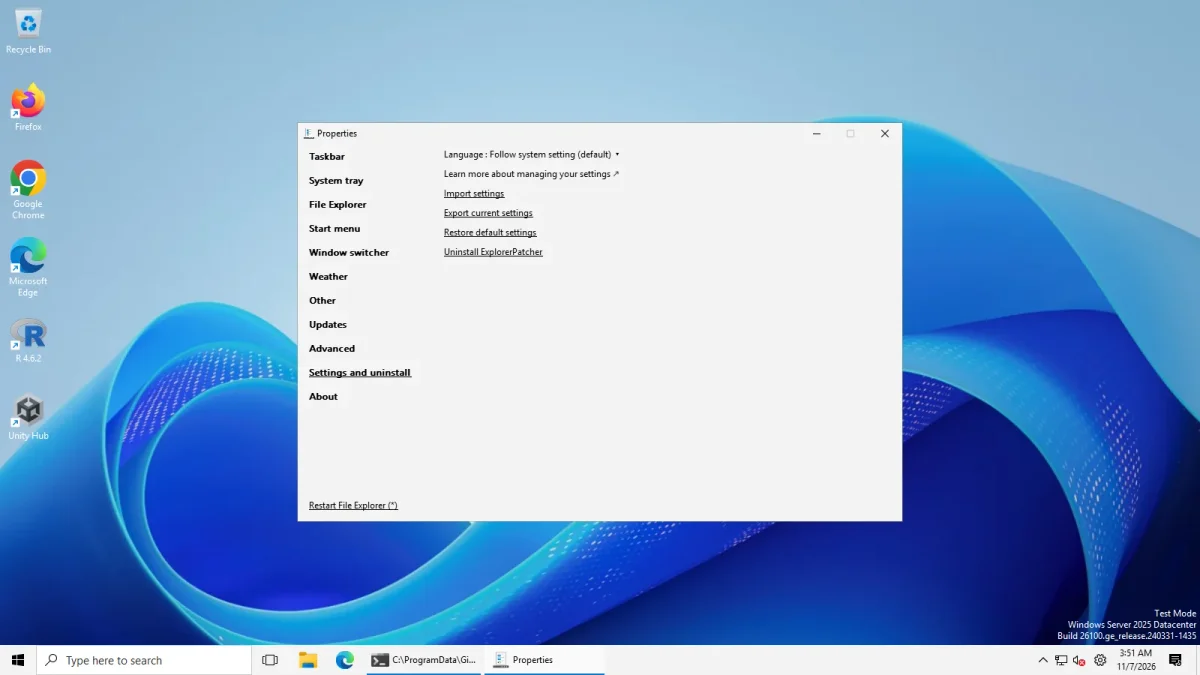
- Click Settings and uninstall in the list on the left.
- Click Import settings and choose your file.
- Confirm the prompt that asks whether to merge the file.
- Click Restart File Explorer (*) at the bottom left, or restart Explorer yourself.
- Open Properties again and set any lines the file listed as “set by hand”.
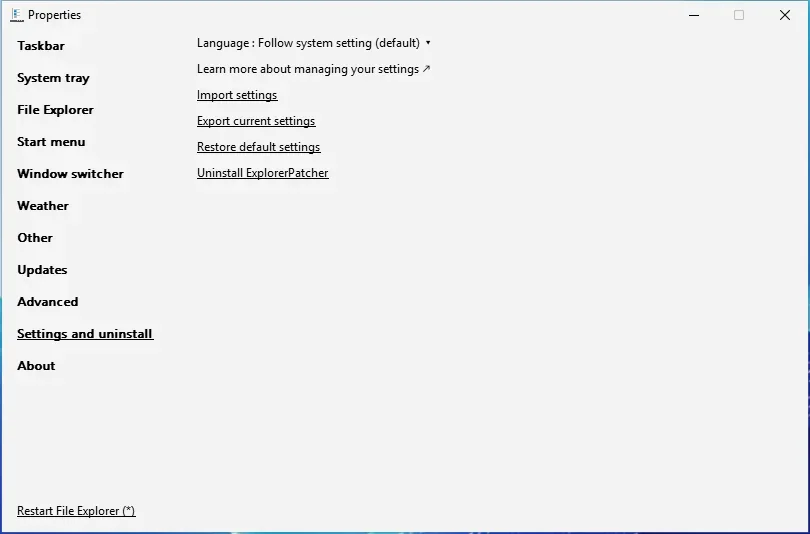
The wiki still says the buttons are under “About”. In 71.1 they are in Settings and uninstall, as our screenshot shows, and the Configurator’s own file header says the same.
Behind the button, according to the source: ExplorerPatcher removes a marker value (ImportOK), starts regedit.exe with your file, and checks that the marker came back. The Configurator writes the marker at the top of its file, so a confirmed merge sets it. If you cancel Registry Editor, the marker is missing and ExplorerPatcher treats the import as failed (our reading of the code). Upstream’s wiki adds that you may see an admin prompt for the helper that registers ExplorerPatcher as a shell extension, or for the one that sets rounded corners. We saw no UAC prompt in our test, but our runner accounts are administrators. After an import upstream recommends restarting Explorer.
What happens when you import
This is what we saw on 7 Nov 2026 on Windows Server 2025 with the 24H2 shell and ExplorerPatcher 71.1. A script did the clicking, and we read the registry before and afterwards. The file was a hand-made sample with CRLF line endings, the header Windows Registry Editor Version 5.00, a comment line ;"Virtualized_{D17F1E1A-5919-4427-8F89-A1A8503CA3EB}_FileExplorerCommandUI"=dword:00000001 and, under [HKEY_CURRENT_USER\Software\ExplorerPatcher], the values ImportOK=1, TaskbarGlomLevel=2 and ToolbarSeparators=1. You can read it: the file we imported.
- Click Import settings. A standard Windows file window titled “Import Registry File” opens and lists
.regfiles. We typed the full path of our file into the File name box and pressed Open. - Answer the first Registry Editor prompt. It warns that adding information can change or delete values, names the file, and asks “Are you sure you want to continue?” We pressed Yes.
- Press OK on the second prompt. Registry Editor says the keys and values in the file “have been successfully added to the registry”. In our photo the Properties title bar reads “(Not Responding)” while this box is open, and the window was normal again after OK.
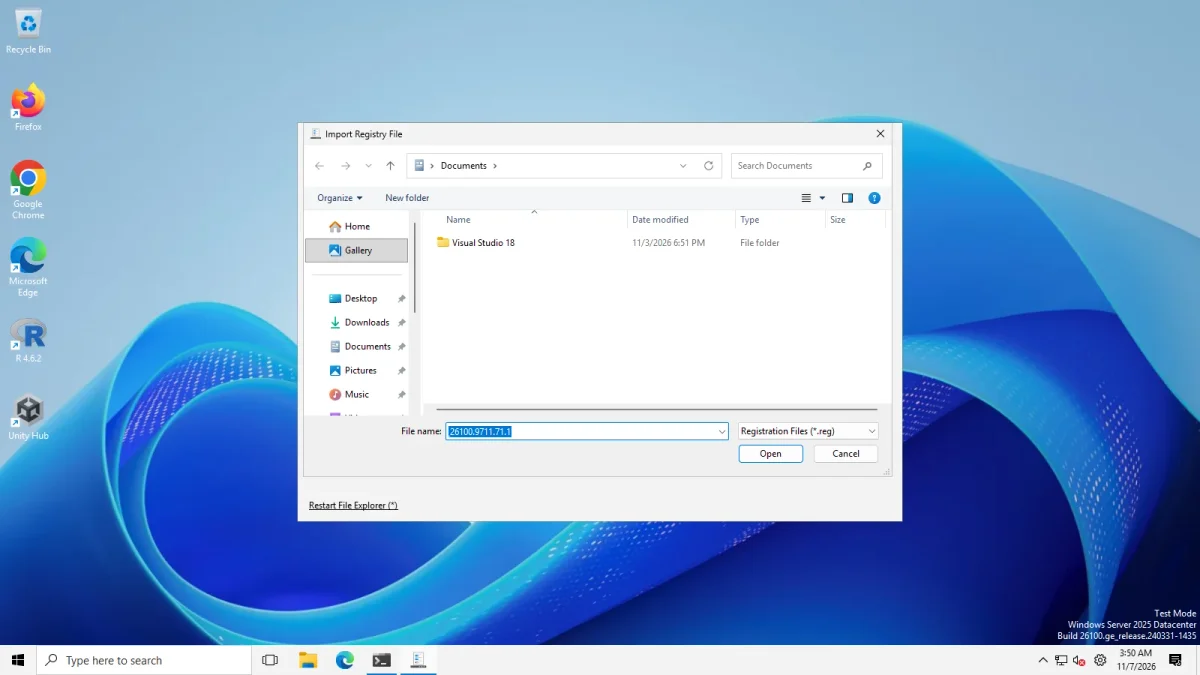
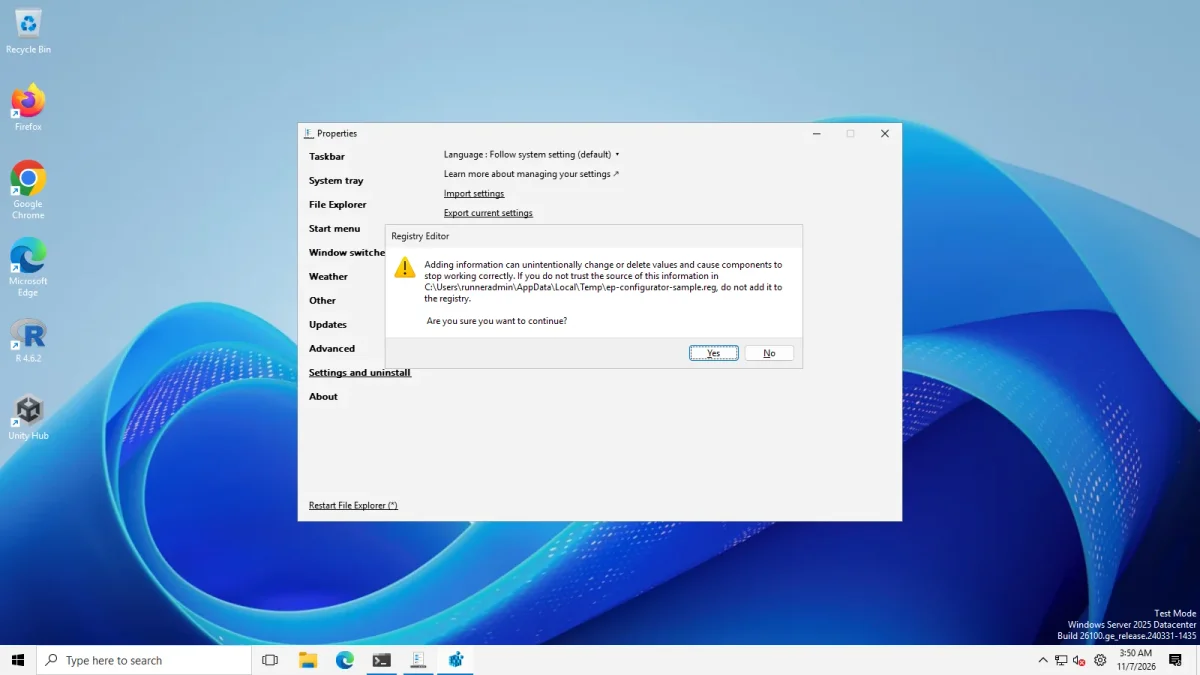
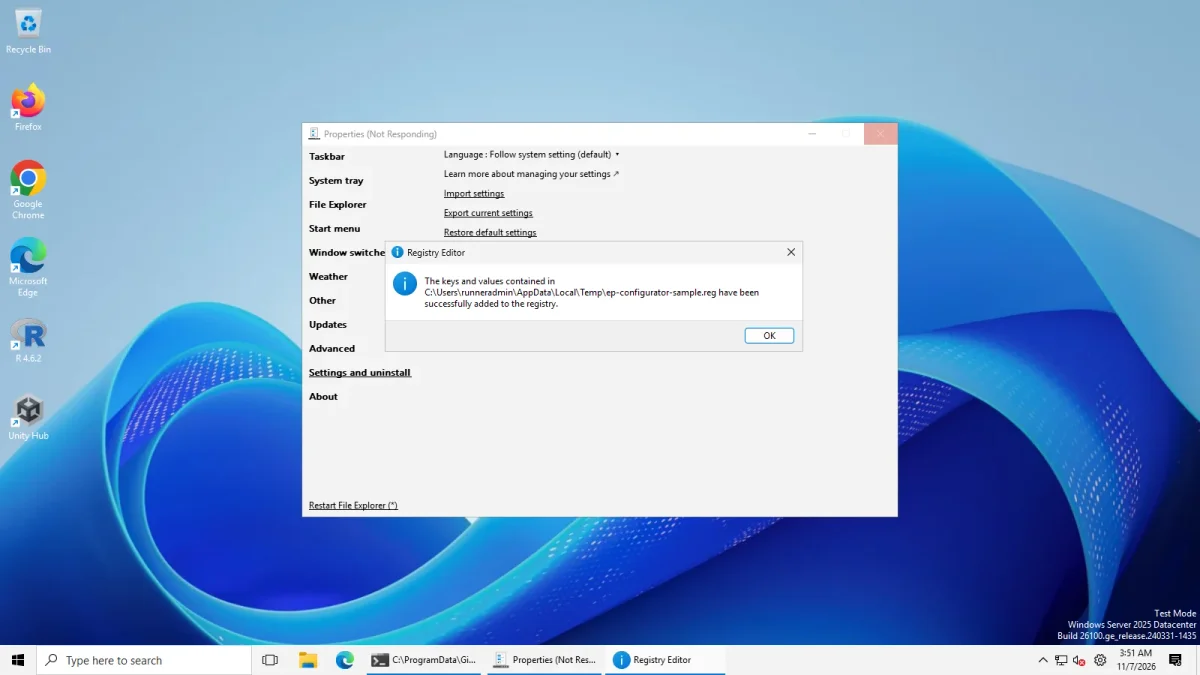
Afterwards we read the registry on both servers. The result file has the key import: Server 2025 and Server 2022.
| Check | Before | After (both servers) |
|---|---|---|
TaskbarGlomLevel |
0 | 2 |
ToolbarSeparators |
not recorded | 1 |
ImportOK marker |
not recorded | gone, ExplorerPatcher removed it |
COM key HKCU\Software\Classes\CLSID\{d93ed569-3b3e-4bff-8355-3c44f6a52bb5}\InProcServer32 |
absent | present |
| Registry Editor windows | none | 2 (confirmation and result) |
The last COM key is the one the Properties window creates when Control Interface is set to the Windows 10 Ribbon. It appeared after the import, so ExplorerPatcher applied the ;"Virtualized_ line from our file, which Registry Editor itself ignores as a comment. We did not open File Explorer afterwards to look at the ribbon.
We then clicked Export current settings and saved ExplorerPatcher’s own file (7.8 KB on Server 2025, 7.2 KB on Server 2022). It is plain ASCII with the same header, an ImportOK line, one [HKEY_CURRENT_USER\...] header per value, and ten ;"Virtualized_{CLSID}_Name"=dword:... comment lines for the virtualised settings. That is the format the Configurator writes: same header, same marker, same comment lines. The Configurator only differs in listing just the values you changed and grouping them under one key header. Read it here: ExplorerPatcher’s own export. The settings reference shows the export dialogs.
What each preset does
The three presets only set the values listed. They are starting points, and we tested each setting on its own, not the presets as combinations.
| Preset | What it sets | Tested on its own |
|---|---|---|
| Windows 10 look (recommended start) | Taskbar style: Windows 10 (ExplorerPatcher). Start menu style: Windows 10. Window switcher: Windows 10. File Explorer Control Interface: Windows 10 Ribbon. Disable the Windows 11 context menu: on. Combine taskbar icons: Never combine. | The taskbar, Start menu and Alt+Tab settings worked on Windows Server 2025 and Windows 11 25H2 Arm64, and the Ribbon and classic menu worked on Server 2025. The Windows 10 Start menu opened with both taskbars. |
| Windows 11 with a few fixes | Keeps the Windows 11 taskbar. Disables the Windows 11 context menu, sets the Windows 10 Ribbon and turns off the Recommended section of Start. | The classic menu appeared for files and on the desktop. The Recommended switch showed no visible change in our run, so that part is not confirmed. |
| Small, labelled Windows 10 taskbar | EP taskbar with small icons, Never combine and seconds in the clock. | Small icons gave a 30 px taskbar; Never combine gave one labelled button per window; the clock showed seconds. |
Three details:
- The taskbar style “Windows 10 (ExplorerPatcher)” is already the default value, so the Configurator does not write it into the file. It still shows in your list of choices.
- The first two presets include settings that the Configurator cannot write as plain registry values (see the next section), so the file lists them as hand steps: the Ribbon, and for the second preset also the Recommended section.
- The preset names describe the look, not a promise. On Windows 11 24H2 and later the stock “Windows 10” taskbar style does nothing, which is why the presets use the EP taskbar. See taskbar not changing.
Settings you must set by hand
ExplorerPatcher stores most settings as registry values. Fourteen are “virtualized”: the Properties window turns them into other actions, for example moving the taskbar live, or registering a shell extension with admin rights. ExplorerPatcher’s own export writes them as comment lines starting with ;"Virtualized_, which its import reads after the Registry Editor merge. The Configurator does the same for choices that are numbers, so the file carries the line and the import applies it (we tested one such line, the Control Interface, on two servers). For a choice that is not a number it writes a plain comment such as “set to … in Properties” and you set it by hand.
The 14 are, by their labels in Properties: the primary and secondary taskbar location, Automatically hide the taskbar, Register as shell extension, Control Interface, Disable modern search bar, Maximum number of frequent apps, Disable the “Recommended” section, Show more tiles, the Start corner preference, Start display mode, the Start App list option, Disable rounded corners for application windows and Show Weather on the taskbar. The weather switch is the exception: the Configurator writes it as Windows’ own People\PeopleBand value, which is where it lives.
Limits
- Previews come from one machine. Windows Server 2025 (24H2 shell), ExplorerPatcher 71.1. With “Windows 10” selected the previews are still Windows 11 pictures, and the tool says so.
- We photographed single settings. Where you stack several taskbar options, the picture shows only one of them and lists the rest as not photographed.
- Visibility rules are a copy. The Configurator evaluates the conditions the real window uses on your choices. A few conditions depend on your actual PC and are assumed true, for example that the Windows 10 Start menu exists.
- The import test was narrow. We imported three plain values and one virtualised value, not every Configurator preset and not a file made by the Configurator itself. Our sample put all three plain values under
HKEY_CURRENT_USER\Software\ExplorerPatcher. The Configurator writesTaskbarGlomLevelunder Windows’ ownExplorer\Advancedkey, as ExplorerPatcher’s export does, so we make no claim that the taskbar button grouping changed. - Where we ran it. Windows Server 2025 and Windows Server 2022 only. We did not run it on Windows 11 25H2 on Arm64. Importing needs the Properties window, and Registry Editor shows its two prompts. No UAC prompt appeared, but the runner accounts are administrators, so you may see one.
- Not tested. Importing every preset, the rounded corners option, multiple monitors and physical PCs.
- Windows can change. A Windows update can remove an option. Check the status page and the settings reference, which says what we tested for each setting.
Frequently asked questions
Is this the real Properties window?
No. It copies the settings and their visibility rules. The real window is part of ExplorerPatcher and runs only on your PC.
What if a setting is not in the Configurator?
The tool uses the 117 settings of ExplorerPatcher on Windows 11 (97 on Windows 10) from settings.reg and settings10.reg. The code also reads some values that are not in the window; see advanced settings.
Can I use the file on another PC?
Yes, if that PC runs a Windows version that shows the same options. Import it with the same steps. Upstream says it cannot guarantee that exports are portable between versions, though it is very likely to work.
How do I undo an import?
Use Restore default settings in the same section, or import the export you made before. Both are in Properties, Settings and uninstall.
Common questions
Where do I import the file the Configurator makes?
In ExplorerPatcher's Properties window, open the section Settings and uninstall and click Import settings. Registry Editor then asks you to confirm and reports that the keys were added. Restart File Explorer afterwards so every value loads.
Why do some settings say to set them by hand?
Fourteen settings, such as the taskbar position and the File Explorer Control Interface, are not plain registry values. For most the file carries a comment line that ExplorerPatcher applies after the import (we tested one on two servers). Any it cannot write that way are listed for you to set in Properties.
Does the Configurator send my choices to a server?
No. It runs in your browser. The Copy link button stores your choices in the part of the address after the hash sign, which your browser does not send to the server.
Can I load a file I exported from ExplorerPatcher?
Yes, open Load an exported file and choose the .reg or paste its text. Values the Properties window does not know are listed and ignored. We saved ExplorerPatcher's own export on two servers and compared its format with the file the Configurator writes.