Window switcher (Alt+Tab) settings in ExplorerPatcher
The Window switcher section has 16 entries, but only one is visible at first: Window switcher (Alt+Tab) style. The other 15 appear after you choose Simple Window Switcher. The Windows 10 style and Simple Window Switcher worked in our tests on 24H2 and 25H2, and the Windows NT style showed no switcher at all.
Checked against ExplorerPatcher 71.1 (26100.9711.71.1) on Windows Server 2025 (24H2 shell) 26100.33674 and Windows 11 Enterprise 25H2 26200.9725 and Windows Server 2022 (Windows 10 21H2 shell) 20348.5773 · Nov 6, 2026On this page
What the section looks like
We photographed the section on Windows 11 25H2 on Arm64 (build 26200.9725) with ExplorerPatcher 26100.9711.71.1. It looked the same with the Windows 11 taskbar and with ExplorerPatcher’s taskbar, and the same on Windows Server 2025 (24H2 shell).
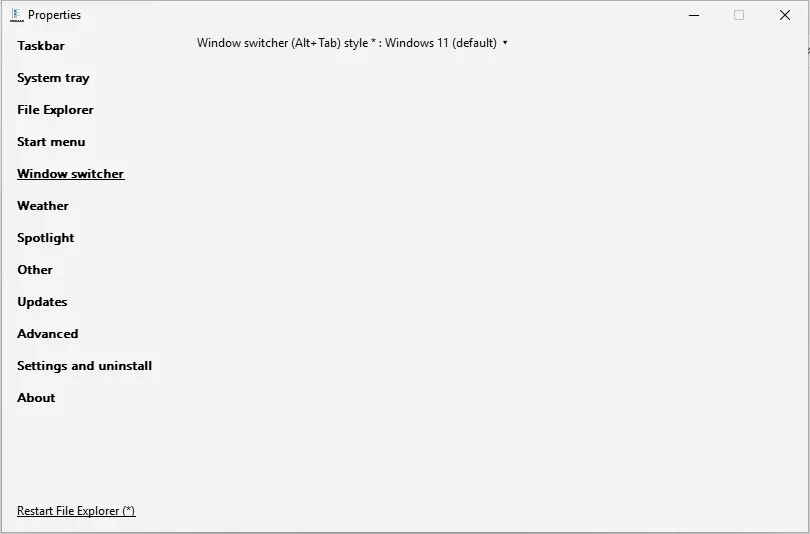
The style box is the only row, and it reads “Windows 11 (default)”. Everything else on this page belongs to Simple Window Switcher (SWS), a separate switcher that ExplorerPatcher includes. According to the rules in upstream’s settings file, the fifteen SWS options only show while the style is Simple Window Switcher. We did not photograph the expanded list, but the cards below list each option with the rule.
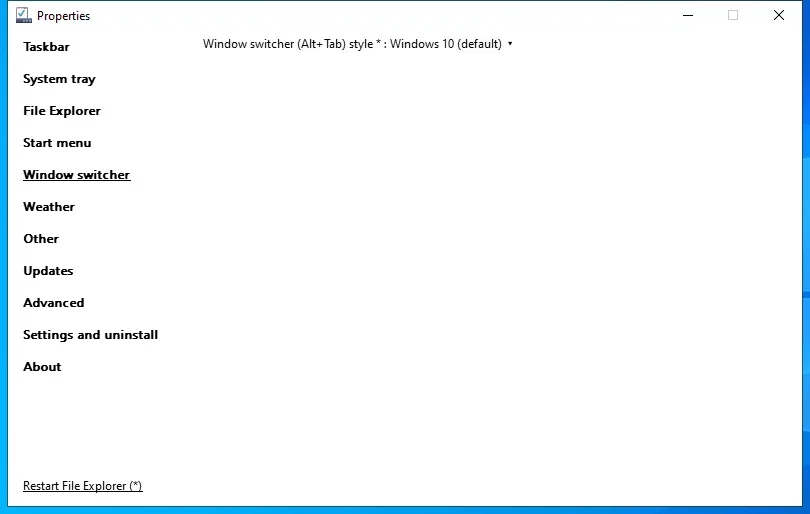
On Windows Server 2022, which has a Windows 10 shell, the same box reads “Windows 10 (default)”, because there the stock switcher is already the Windows 10 one.
What each style looked like
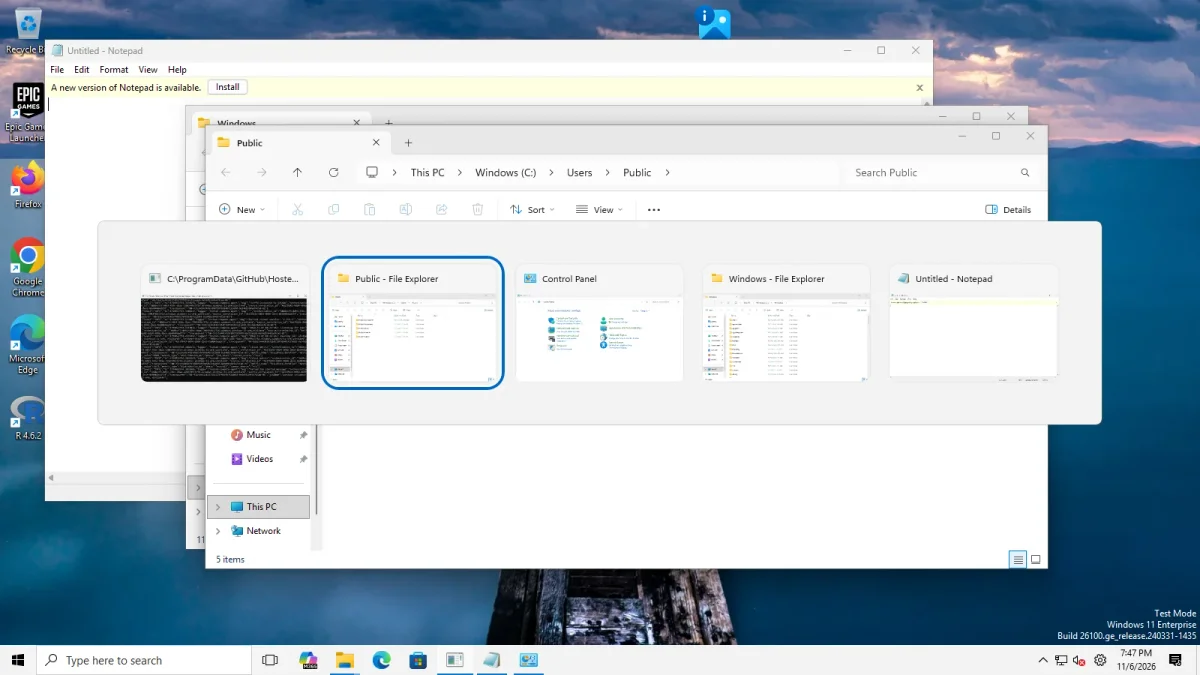
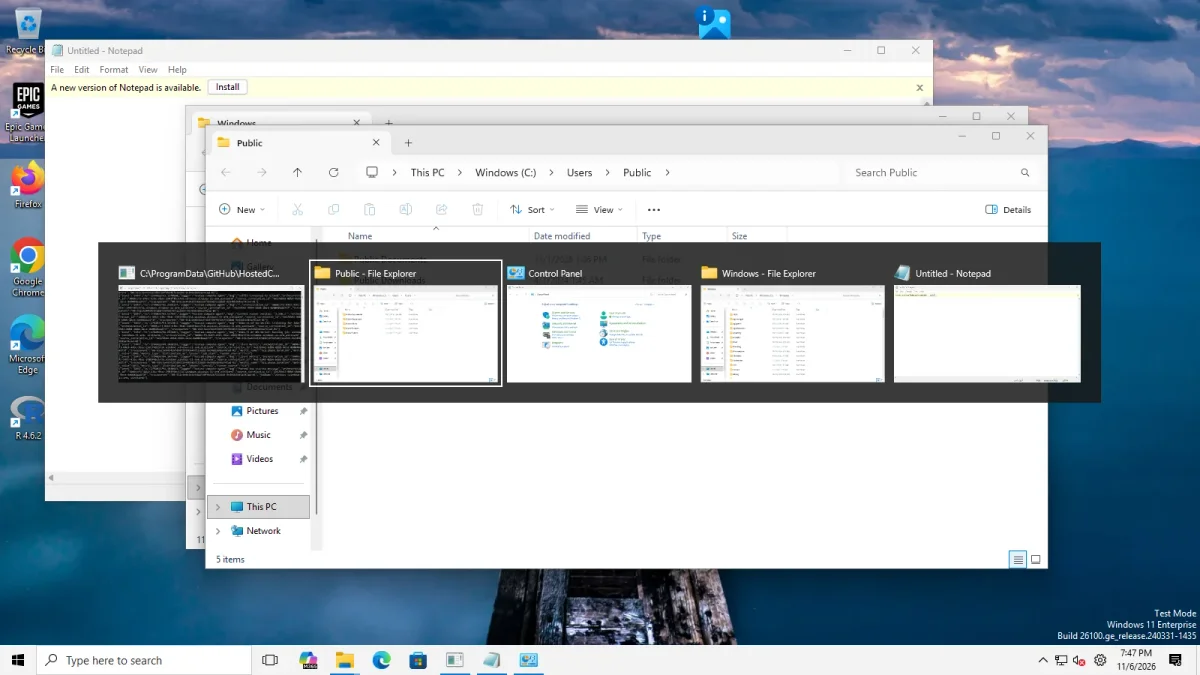
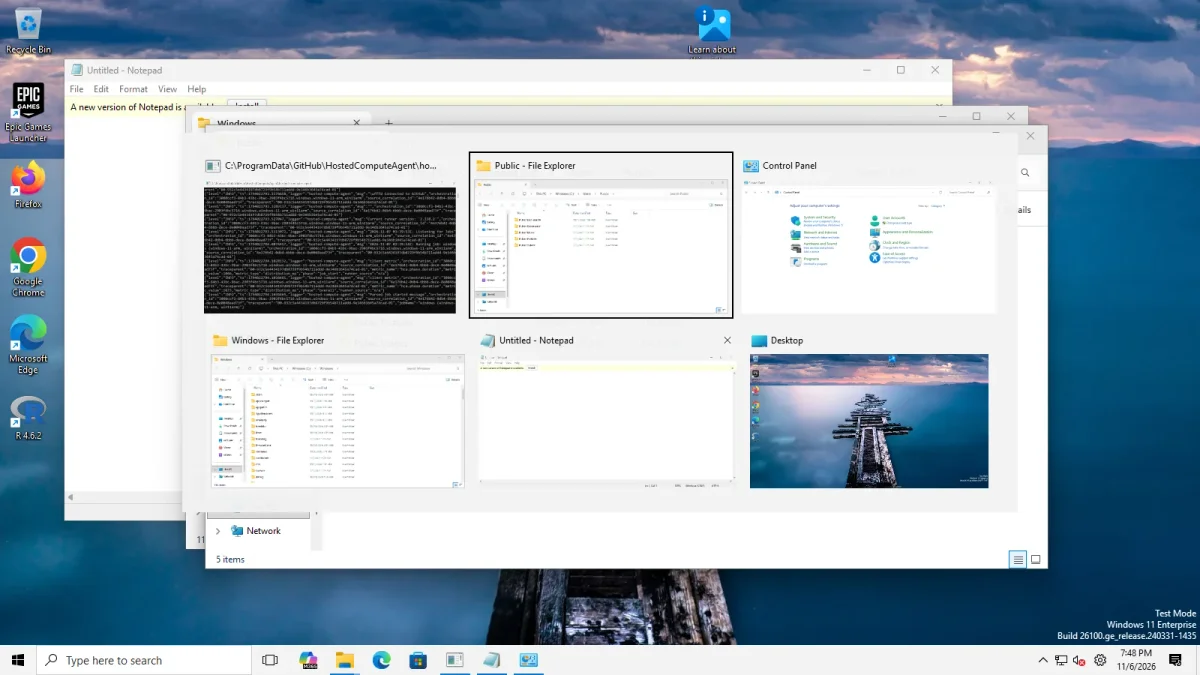
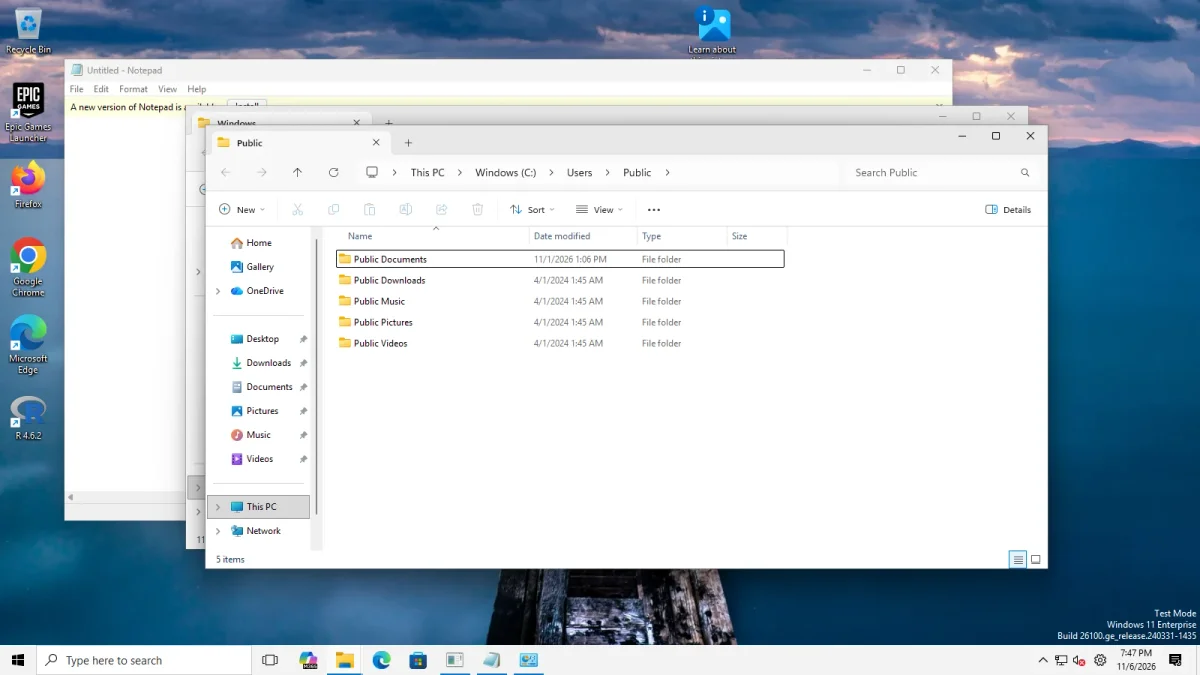
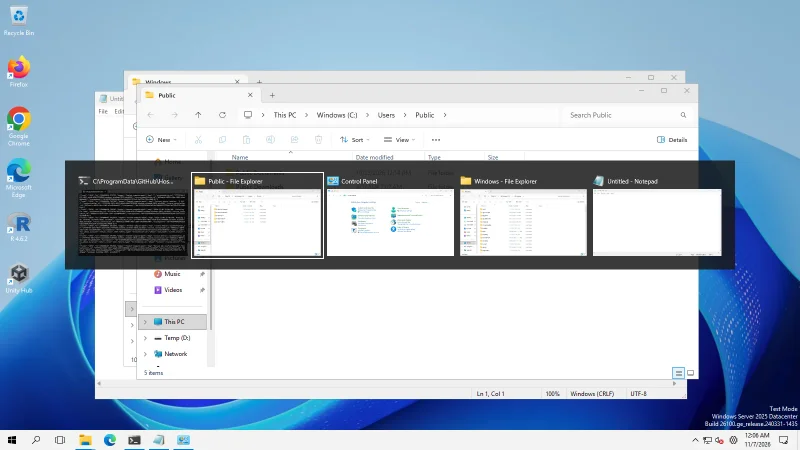
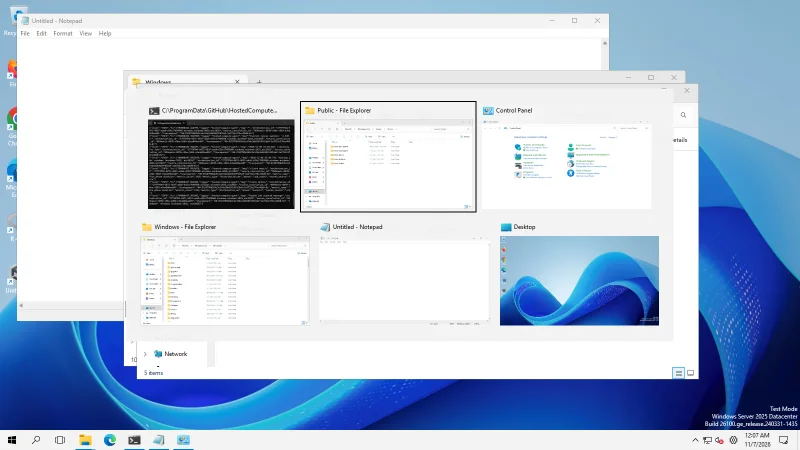
We set each style through its value, restarted File Explorer, read the value back and pressed Alt+Tab with five or six windows open, on Windows Server 2025 and on Windows 11 25H2 (Arm64). The step-by-step version with more pictures is on the Alt+Tab page.
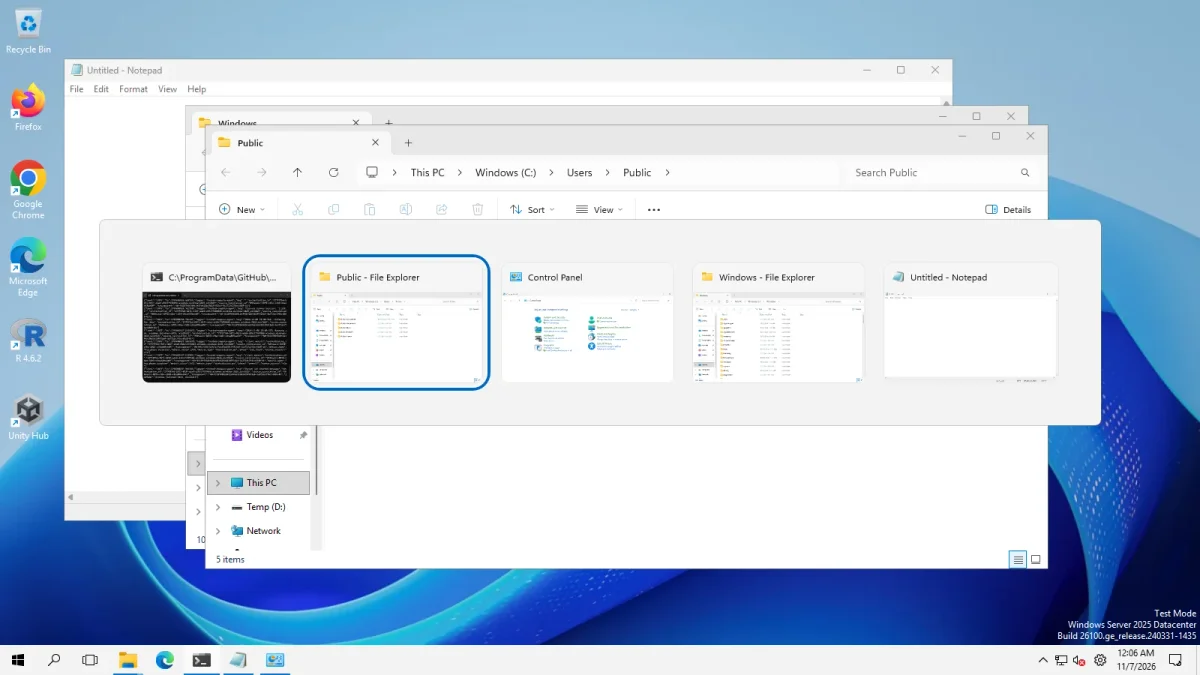
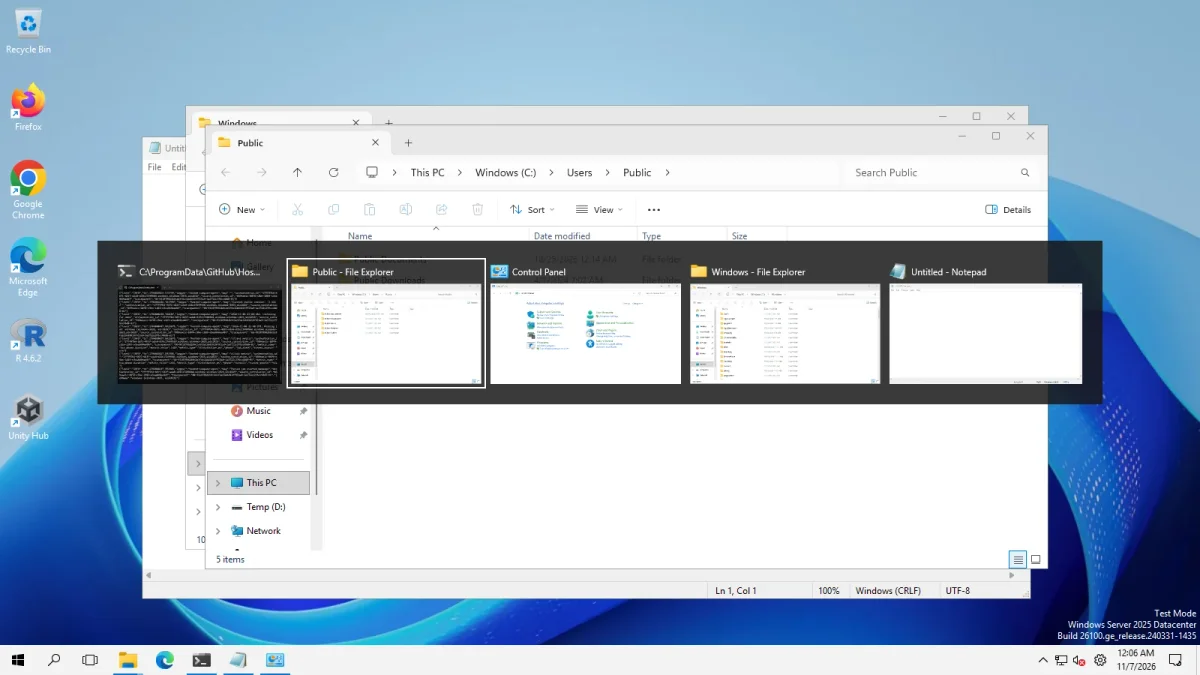
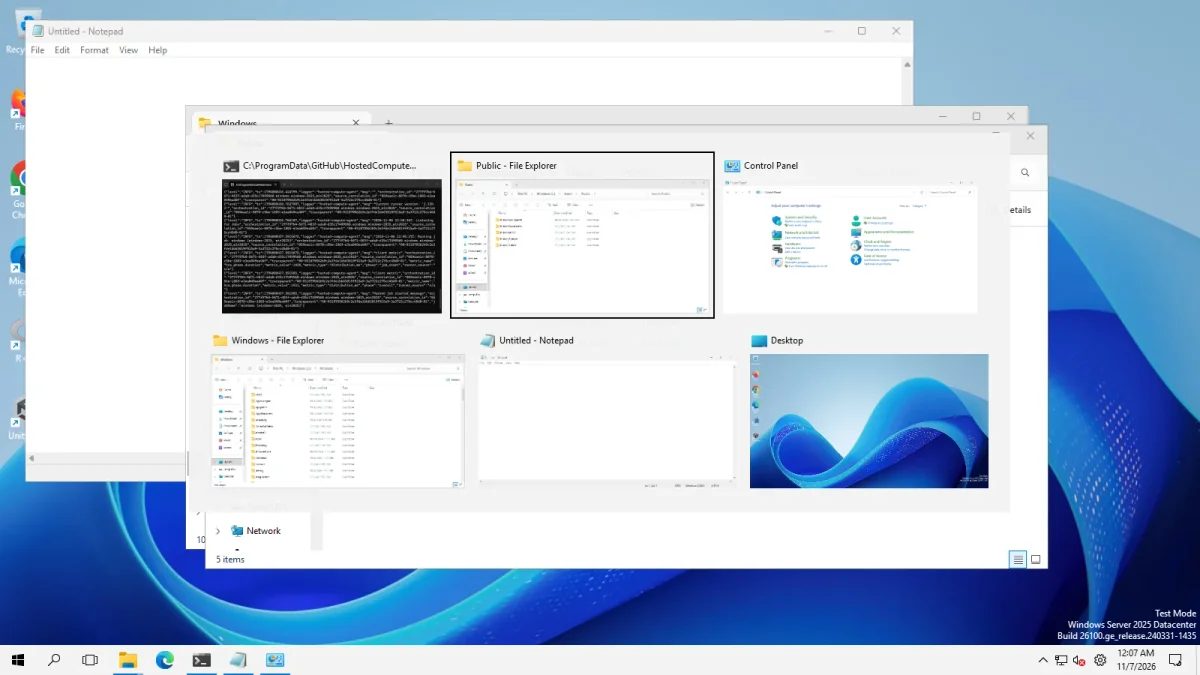
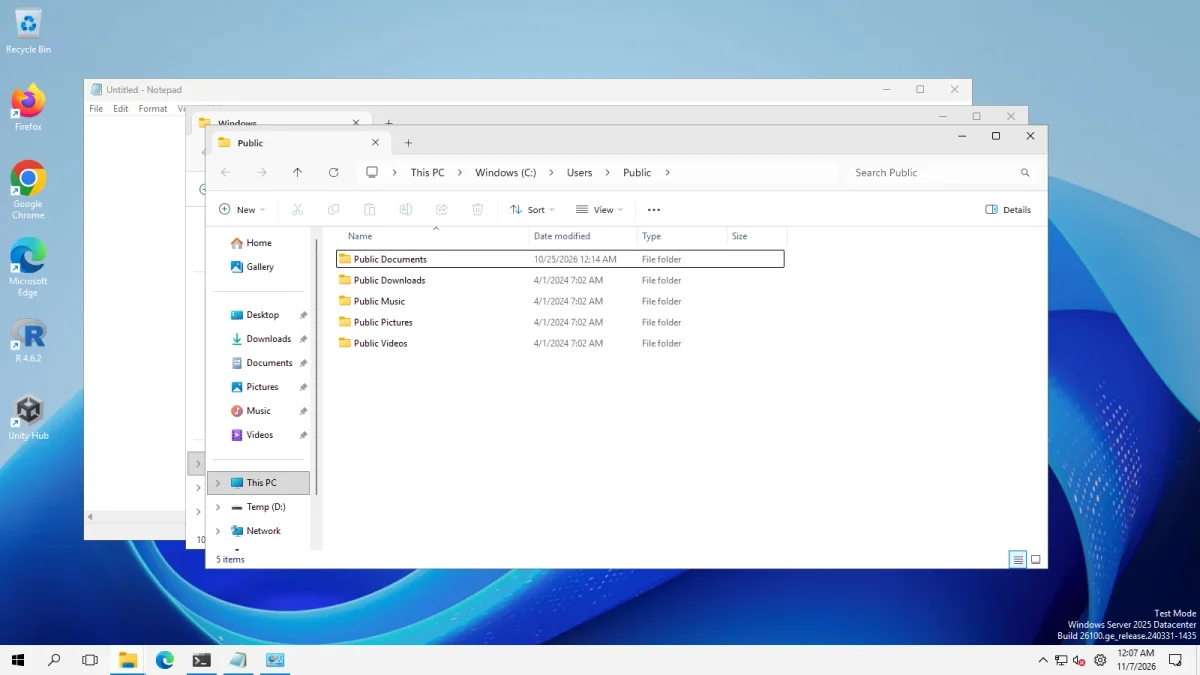
The results on Windows 11 25H2 (Arm64) matched. These pictures come from our 7 Nov re-capture, after the harness learned to close Windows’ first-run privacy page: the Windows 10 style gave the dark bar, Simple Window Switcher gave the grid, the Windows NT style showed nothing and the Windows 11 style showed the light card.
Overview
| Setting | Default | Restart | Windows 10 |
|---|---|---|---|
| Window switcher (Alt+Tab) style | Windows 11 (default) | yes | yes |
| Show the desktop as the last window in the interaction list | On | no | yes |
| Always display switcher on primary monitor | Off | no | yes |
| Display windows only from the monitor containing the cursor | Off | no | yes |
| Group windows of the same app | Off | no | yes |
| Disable the interaction list for individual apps (Alt + the key above Tab) | Off | no | yes |
| Theme | Default | no | yes |
| Opacity | 95 % (default) | no | yes |
| Color scheme | Follow system setting (default) | no | yes |
| Corner preference | Rounded (default) | no | no |
| Row height | 230 pt (default) | no | yes |
| Maximum width (percentage of screen width) | 80 % (default) | no | yes |
| Maximum height (percentage of screen height) | 80 % (default) | no | yes |
| Window padding | 20 pt (default) | no | yes |
| Show delay | 100 ms (default) | no | yes |
| Use the scroll wheel to change selection | Never (default) | no | yes |
All window switcher settings
Window switcher (Alt+Tab) style Choice list
The Alt+Tab window switcher: the Windows 11 switcher, the Windows 10 switcher, the old Windows NT list, or ExplorerPatcher's own Simple Window Switcher, which has many extra options (shown below once it is selected).
- Default
- Windows 11 (default)
- Registry
HKCU\Software\Microsoft\Windows\CurrentVersion\ExplorervalueAltTabSettings- Section
- Window switcher
Options and stored values (4)
| Option in the app | Stored value |
|---|---|
| Windows 11 (default) | 0 |
| Windows 10 | 3 |
| Windows NT | 1 |
| Simple Window Switcher | 2 |
Our test: Windows Server 2025 (24H2 shell) and Windows 11 25H2 (Arm64): Windows 10 gave the dark Windows 10 switcher and Simple Window Switcher gave a grid of large thumbnails. Windows NT showed no switcher at all, which matches upstream's FAQ that Microsoft removed it in 24H2. The value is stored under Windows' own Explorer key, and our first test run wrote it to the wrong key, so earlier screenshots on this site were wrong and have been replaced.
Show the desktop as the last window in the interaction list Switch
Simple Window Switcher: adds the desktop as the last entry in the list.
Appears when: the window switcher style is Simple Window Switcher.
- Default
- On
- Registry
HKCU\Software\ExplorerPatcher\swsvalueIncludeWallpaper- Section
- Window switcher
Always display switcher on primary monitor Switch
Simple Window Switcher: always opens on the primary monitor.
Appears when: the window switcher style is Simple Window Switcher.
- Default
- Off
- Registry
HKCU\Software\ExplorerPatcher\swsvaluePrimaryOnly- Section
- Window switcher
Display windows only from the monitor containing the cursor Switch
Simple Window Switcher: lists only the windows on the monitor that contains the pointer.
Appears when: the window switcher style is Simple Window Switcher.
- Default
- Off
- Registry
HKCU\Software\ExplorerPatcher\swsvaluePerMonitor- Section
- Window switcher
Group windows of the same app Switch
Simple Window Switcher: groups windows of the same app into one entry.
Appears when: the window switcher style is Simple Window Switcher.
- Default
- Off
- Registry
HKCU\Software\ExplorerPatcher\swsvalueSwitcherIsPerApplication- Section
- Window switcher
Disable the interaction list for individual apps (Alt + the key above Tab) Switch
Simple Window Switcher: turns off the per-app list that Alt plus the key above Tab opens.
Appears when: the window switcher style is Simple Window Switcher.
- Default
- Off
- Registry
HKCU\Software\ExplorerPatcher\swsvalueNoPerApplicationList- Section
- Window switcher
Theme Choice list
Simple Window Switcher: the surface of the switcher: default, acrylic, or Mica (always opaque).
Appears when: the window switcher style is Simple Window Switcher.
- Default
- Default
- Registry
HKCU\Software\ExplorerPatcher\swsvalueTheme- Section
- Window switcher
Options and stored values (3)
| Option in the app | Stored value |
|---|---|
| Default | 0 |
| Acrylic | 1 |
| Mica (always opaque) | 2 |
Opacity Choice list
Simple Window Switcher: how opaque the switcher background is, from 100 % (opaque) downwards. Default 95 %.
Appears when: the window switcher style is Simple Window Switcher.
- Default
- 95 % (default)
- Registry
HKCU\SOFTWARE\Microsoft\Windows\CurrentVersion\Explorer\MultitaskingView\AltTabViewHostvalueGrid_backgroundPercent- Section
- Window switcher
Options and stored values (19)
| Option in the app | Stored value |
|---|---|
| Opaque | 100 |
| 98 % | 98 |
| 96 % | 96 |
| 95 % (default) | 95 |
| 94 % | 94 |
| 92 % | 92 |
| 90 % | 90 |
| 85 % | 85 |
| 80 % | 80 |
| 75 % | 75 |
| 70 % | 70 |
| 65 % | 65 |
| 60 % | 60 |
| 55 % | 55 |
| 50 % | 50 |
| 45 % | 45 |
| 40 % | 40 |
| 35 % | 35 |
| 30 % | 30 |
Color scheme Choice list
Simple Window Switcher: follow the system light/dark setting, or force light or dark.
Appears when: the window switcher style is Simple Window Switcher.
- Default
- Follow system setting (default)
- Registry
HKCU\Software\ExplorerPatcher\swsvalueColorScheme- Section
- Window switcher
Options and stored values (3)
| Option in the app | Stored value |
|---|---|
| Follow system setting (default) | 0 |
| Light | 1 |
| Dark | 2 |
Corner preference Choice list
Simple Window Switcher: rounded, small rounded or square corners.
Appears when: the window switcher style is Simple Window Switcher.
- Default
- Rounded (default)
- Registry
HKCU\Software\ExplorerPatcher\swsvalueCornerPreference- Section
- Window switcher
Options and stored values (3)
| Option in the app | Stored value |
|---|---|
| Rounded (default) | 2 |
| Small rounded | 3 |
| Not rounded | 1 |
Row height Choice list
Simple Window Switcher: height of each thumbnail row in points. Default 230.
Appears when: the window switcher style is Simple Window Switcher.
- Default
- 230 pt (default)
- Registry
HKCU\Software\ExplorerPatcher\swsvalueRowHeight- Section
- Window switcher
Options and stored values (20)
| Option in the app | Stored value |
|---|---|
| 330 pt | 330 |
| 320 pt | 320 |
| 310 pt | 310 |
| 300 pt | 300 |
| 290 pt | 290 |
| 280 pt | 280 |
| 270 pt | 270 |
| 260 pt | 260 |
| 250 pt | 250 |
| 240 pt | 240 |
| 230 pt (default) | 230 |
| 220 pt | 220 |
| 210 pt | 210 |
| 200 pt | 200 |
| 190 pt | 190 |
| 180 pt | 180 |
| 170 pt | 170 |
| 160 pt | 160 |
| 150 pt | 150 |
| 140 pt | 140 |
Maximum width (percentage of screen width) Choice list
Simple Window Switcher: the widest the switcher may grow, as a percentage of the screen width. Default 80 %.
Appears when: the window switcher style is Simple Window Switcher.
- Default
- 80 % (default)
- Registry
HKCU\Software\ExplorerPatcher\swsvalueMaxWidth- Section
- Window switcher
Options and stored values (10)
| Option in the app | Stored value |
|---|---|
| 100 % (not recommended) | 100 |
| 95 % | 95 |
| 90 % | 90 |
| 85 % | 85 |
| 80 % (default) | 80 |
| 75 % | 75 |
| 70 % | 70 |
| 65 % | 65 |
| 60 % | 60 |
| 55 % | 55 |
Maximum height (percentage of screen height) Choice list
Simple Window Switcher: the tallest the switcher may grow, as a percentage of screen height. Default 80 %.
Appears when: the window switcher style is Simple Window Switcher.
- Default
- 80 % (default)
- Registry
HKCU\Software\ExplorerPatcher\swsvalueMaxHeight- Section
- Window switcher
Options and stored values (10)
| Option in the app | Stored value |
|---|---|
| 100 % (not recommended) | 100 |
| 95 % | 95 |
| 90 % | 90 |
| 85 % | 85 |
| 80 % (default) | 80 |
| 75 % | 75 |
| 70 % | 70 |
| 65 % | 65 |
| 60 % | 60 |
| 55 % | 55 |
Window padding Choice list
Simple Window Switcher: padding around the window thumbnails in points. Default 20.
Appears when: the window switcher style is Simple Window Switcher.
- Default
- 20 pt (default)
- Registry
HKCU\Software\ExplorerPatcher\swsvalueMasterPadding- Section
- Window switcher
Options and stored values (11)
| Option in the app | Stored value |
|---|---|
| 50 pt | 50 |
| 45 pt | 45 |
| 40 pt | 40 |
| 30 pt | 35 |
| 30 pt | 30 |
| 25 pt | 25 |
| 20 pt (default) | 20 |
| 15 pt | 15 |
| 10 pt | 10 |
| 5 pt | 5 |
| None | 0 |
Show delay Choice list
Simple Window Switcher: how long you must hold Alt+Tab before it appears, in milliseconds. Default 100.
Appears when: the window switcher style is Simple Window Switcher.
- Default
- 100 ms (default)
- Registry
HKCU\Software\ExplorerPatcher\swsvalueShowDelay- Section
- Window switcher
Options and stored values (11)
| Option in the app | Stored value |
|---|---|
| None | 0 |
| 25 ms | 25 |
| 50 ms | 50 |
| 75 ms | 75 |
| 100 ms (default) | 100 |
| 125 ms | 125 |
| 150 ms | 150 |
| 200 ms | 200 |
| 300 ms | 300 |
| 400 ms | 400 |
| 500 ms | 500 |
Use the scroll wheel to change selection Choice list
Simple Window Switcher: whether the scroll wheel moves the selection: never, only over the switcher, or always.
Appears when: the window switcher style is Simple Window Switcher.
- Default
- Never (default)
- Registry
HKCU\Software\ExplorerPatcher\swsvalueScrollWheelBehavior- Section
- Window switcher
Options and stored values (3)
| Option in the app | Stored value |
|---|---|
| Never (default) | 0 |
| When cursor is over the switcher | 1 |
| Always | 2 |
What to change first
- Alt+Tab style. Windows 11 is the default. Windows 10 gives the older look, Simple Window Switcher gives the customisable one, and Windows NT is the classic list that Microsoft removed in 24H2 (upstream’s FAQ), so it shows nothing. Press Restart File Explorer (*) after you change it.
- Reopen Properties. If you chose Simple Window Switcher, the extra options now appear.
- Look first, behaviour second. Theme (default, Acrylic, Mica), Color scheme and Corner preference change how it looks. “Group windows of the same app”, “Show the desktop as the last window” and the monitor options change what it lists.
Combinations and traps
Windows NT is not a working choice on new Windows. On Windows Server 2025 and on Windows 11 25H2 we chose Windows NT and pressing Alt+Tab showed no switcher at all. That matches upstream’s FAQ: Microsoft removed the NT switcher in 24H2, so the option displays nothing. Our Windows Server 2022 photo of the NT style also shows no switcher, and we did not look into why. Keep another style selected if Alt+Tab matters to you.
Opacity and Theme interact. “Mica (always opaque)” is the app’s own name for one theme, so an opacity value should not matter with it. Use the default or Acrylic theme if you want to tune opacity. Maximum width and maximum height offer 100 % but the app labels it “not recommended”, and the defaults are 80 %. Row height, padding and show delay are numbers in steps; defaults are 230 pt, 20 pt and 100 ms.
Corner preference is Windows 11 only. It is hidden on Windows 10.
Dark by default on Windows 10. On our Windows Server 2022 machine (Windows 10 21H2 shell) the Simple Window Switcher appeared with a dark surface even though the colour scheme was on its default, which follows the system setting. Set Color scheme if you want it light.
Hidden values. ExplorerPatcher also reads a few switcher values that Properties never shows, for example ScrollWheelInvert, MaxWidthAbs and MaxHeightAbs under the sws registry key. We list them, without recommending any, in hidden settings.
For the step-by-step version of getting a Windows 10 style Alt+Tab, see Windows 10 Alt+Tab on Windows 11. The build-by-build table is on the compatibility page, and the Configurator can build the matching settings file.
Common questions
Why does the Window switcher section show only one option?
The other 15 options belong to Simple Window Switcher and the window hides them until you choose that style. Pick it in the style box, restart File Explorer, then reopen Properties. Our screenshot of the section shows one option with the default style.
Why does the Windows NT Alt+Tab style not work?
Upstream's FAQ says Microsoft removed the Windows NT switcher in 24H2, so the style shows no switcher at all. That is what we saw: on Windows Server 2025 and Windows 11 25H2 we pressed Alt+Tab with the NT style set and nothing appeared. It is not a usable style on those builds.
Do I need to restart File Explorer after changing the style?
Yes. The style box is marked with an asterisk in the window, which means a File Explorer restart is needed. The other Simple Window Switcher options carry no asterisk, so they should apply the next time you press Alt+Tab.
Can the switcher stay on one monitor?
There are two Simple Window Switcher options for this: Always display switcher on primary monitor, and Display windows only from the monitor containing the pointer. We have not tested multiple monitors, so we cannot say how they behave in practice.