How to get the File Explorer ribbon back in Windows 11
In ExplorerPatcher, open Properties, go to File Explorer and set Control Interface to Windows 10 Ribbon or Windows 7 Command Bar, then restart File Explorer. Both worked on Windows Server 2025 (24H2 shell) and on Windows 11 25H2 on Arm64. The option Windows 11 Command Bar (classic Address Bar) looked exactly like the default on both machines, which matches upstream's FAQ.
Checked against ExplorerPatcher 71.1 (26100.9711.71.1) on Windows Server 2025 (24H2 shell) 26100.33674 and Windows 11 Enterprise 25H2 26200.9725 · Nov 6, 2026On this page
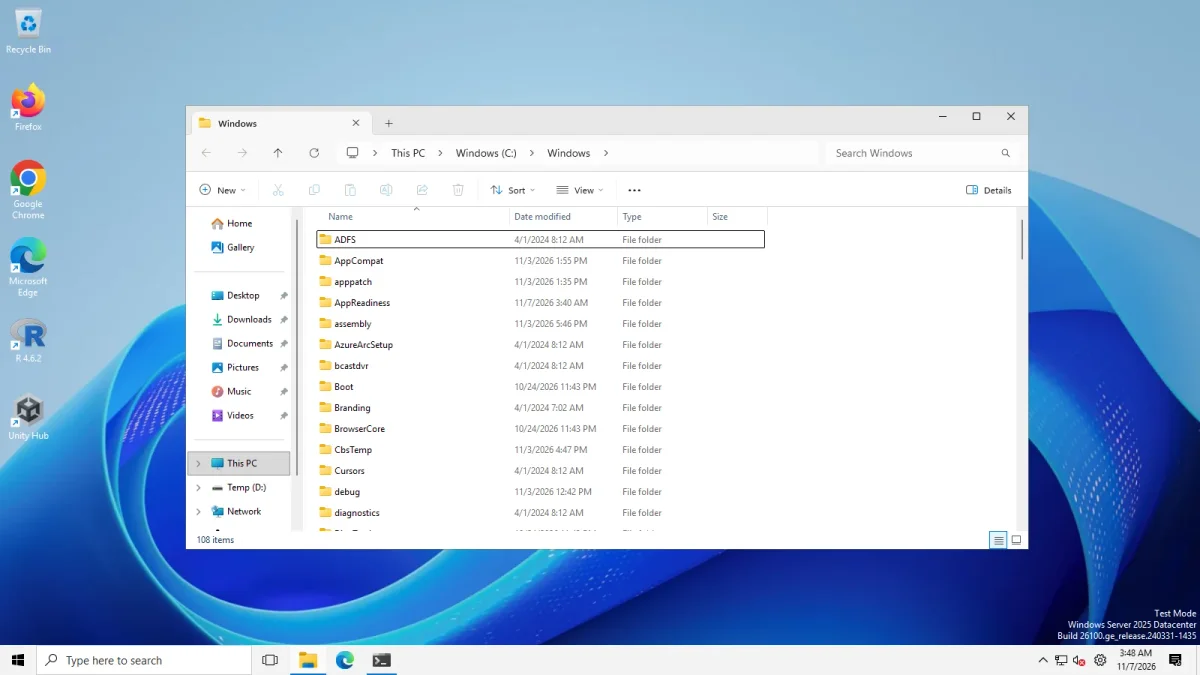
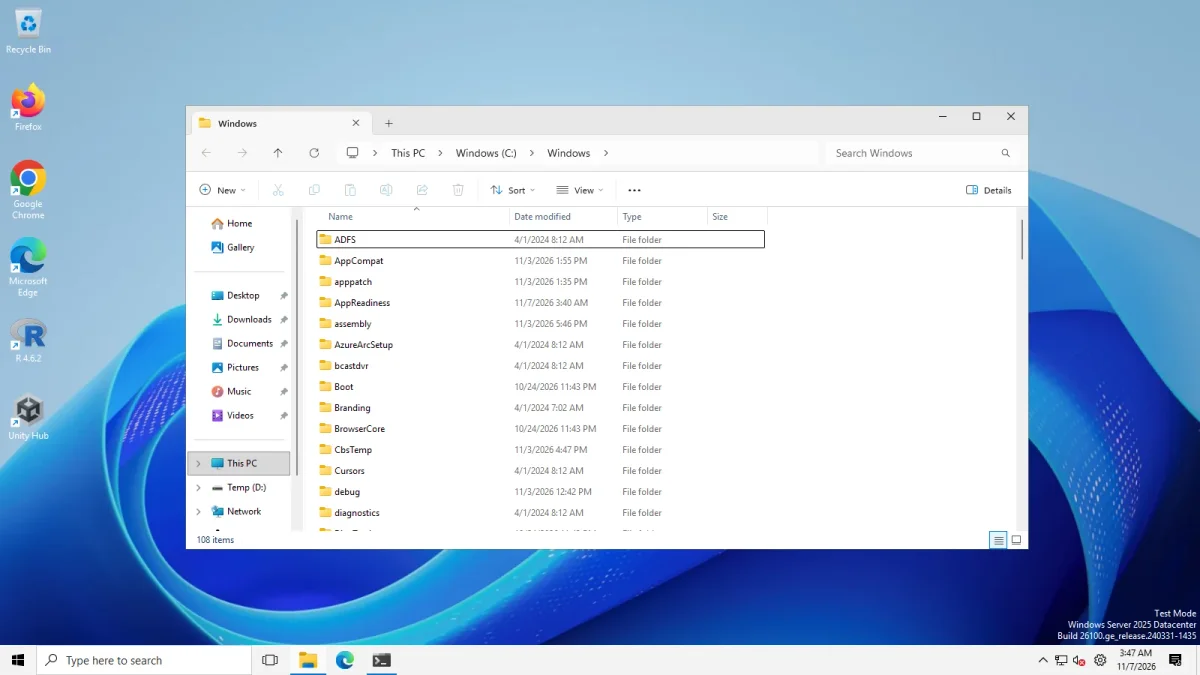 Windows 10 ribbonWindows 11 command bar
File Explorer on Windows Server 2025 (24H2 shell), Control Interface default and Windows 10 Ribbon · Windows Server 2025 (24H2 shell), x64 26100.33674 · EP 71.1
The same switch on Windows 11 25H2 on Arm64 gave the same change. Drag to compare.
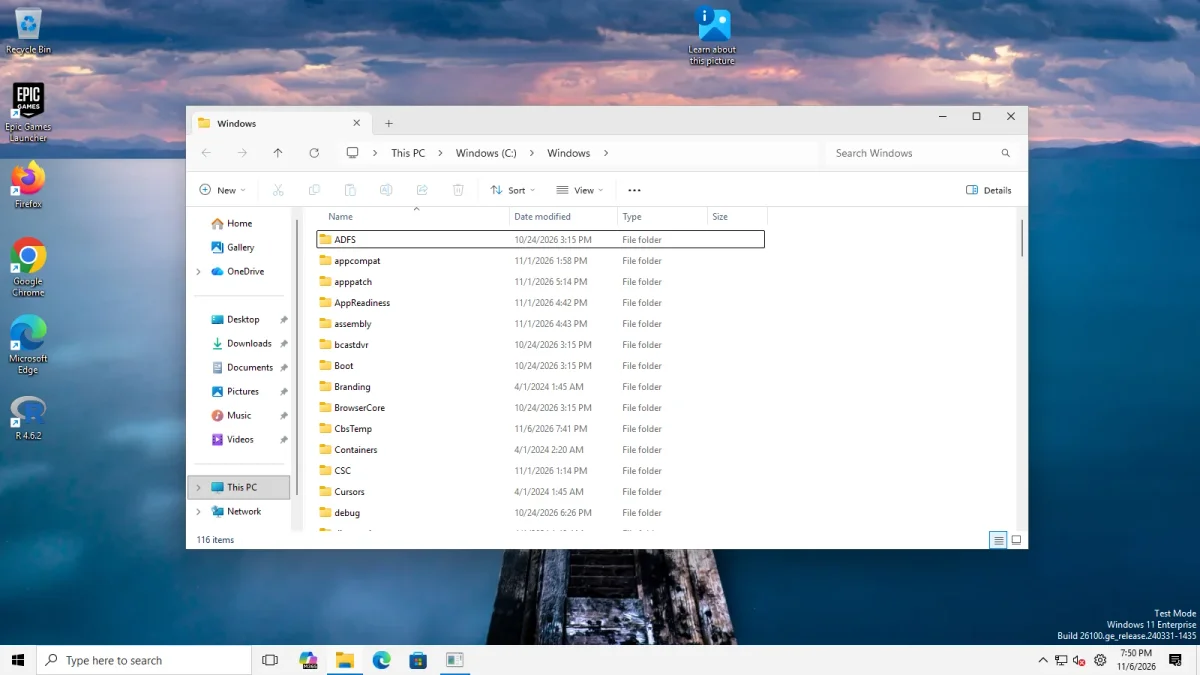
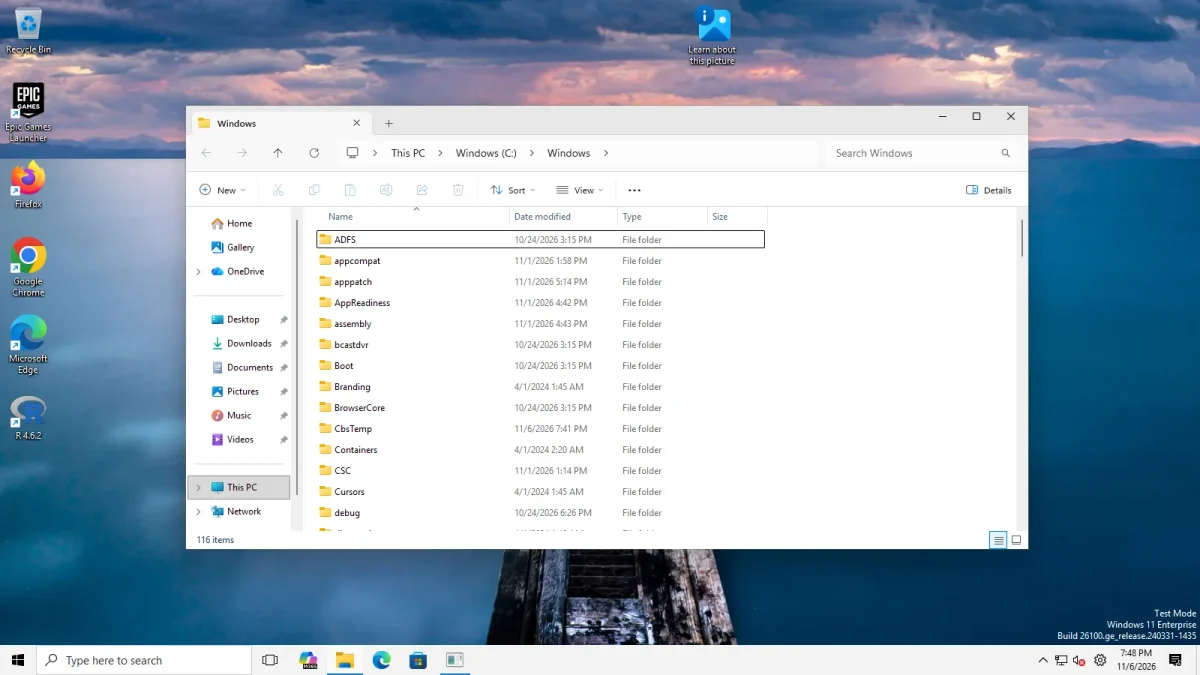 Windows 10 ribbonWindows 11 command bar
File Explorer on Windows 11 Enterprise 25H2 on Arm64, Control Interface default and Windows 10 Ribbon · Windows 11 Enterprise 25H2, Arm64 26200.9725 · EP 71.1
The four Control Interface options
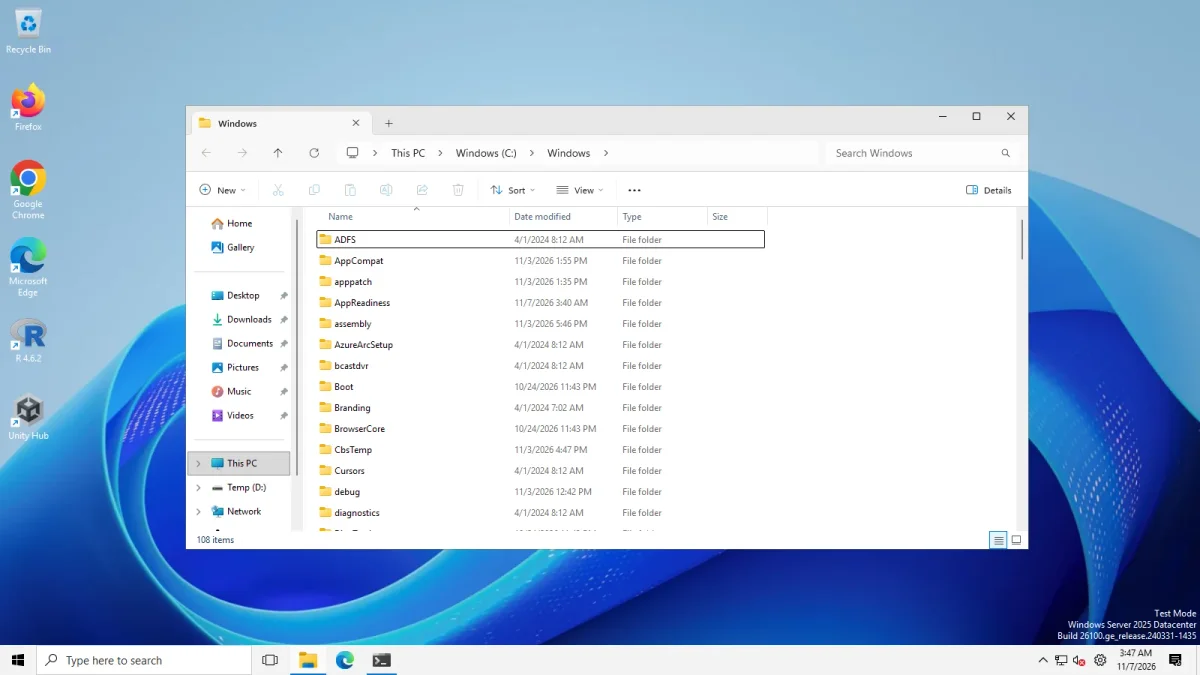
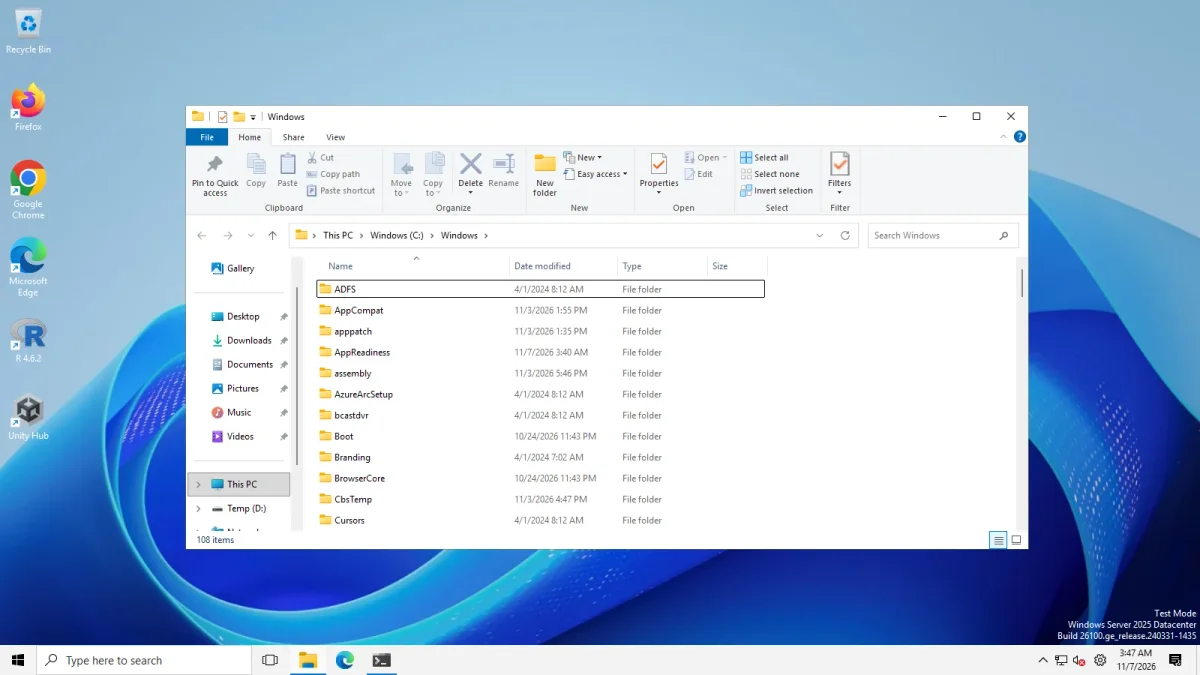
These are the four choices of Control Interface * as the app labels them. On both machines we set each one, restarted Explorer, opened C:\Windows in File Explorer and took a photo.
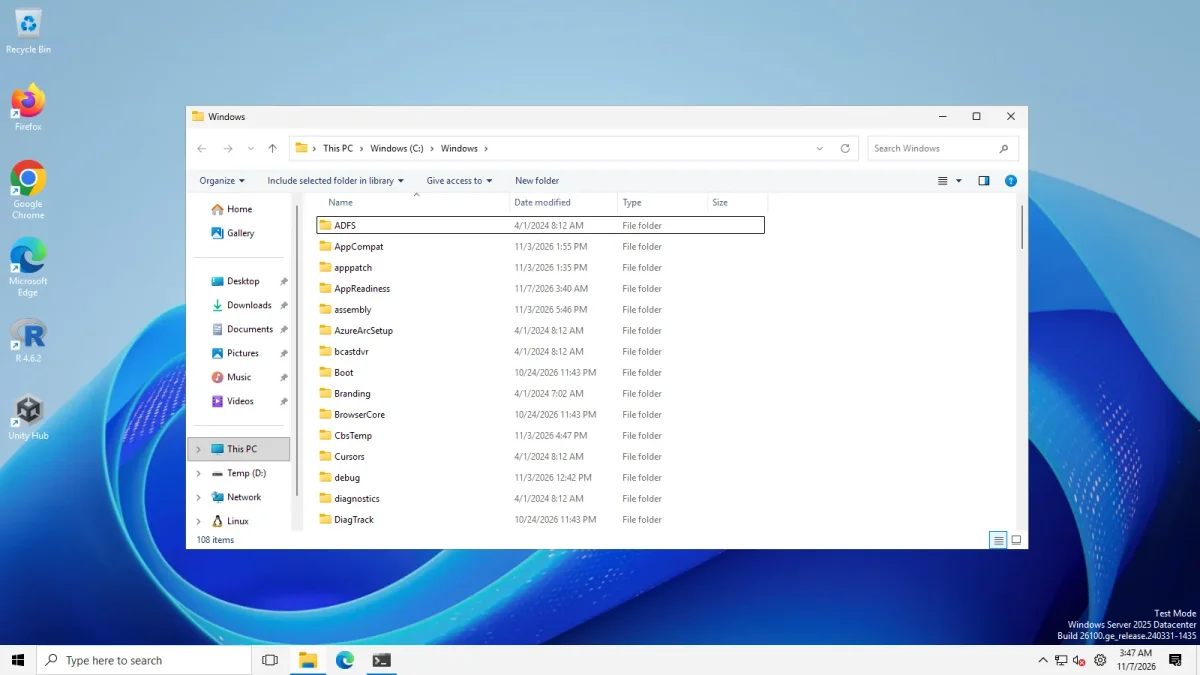
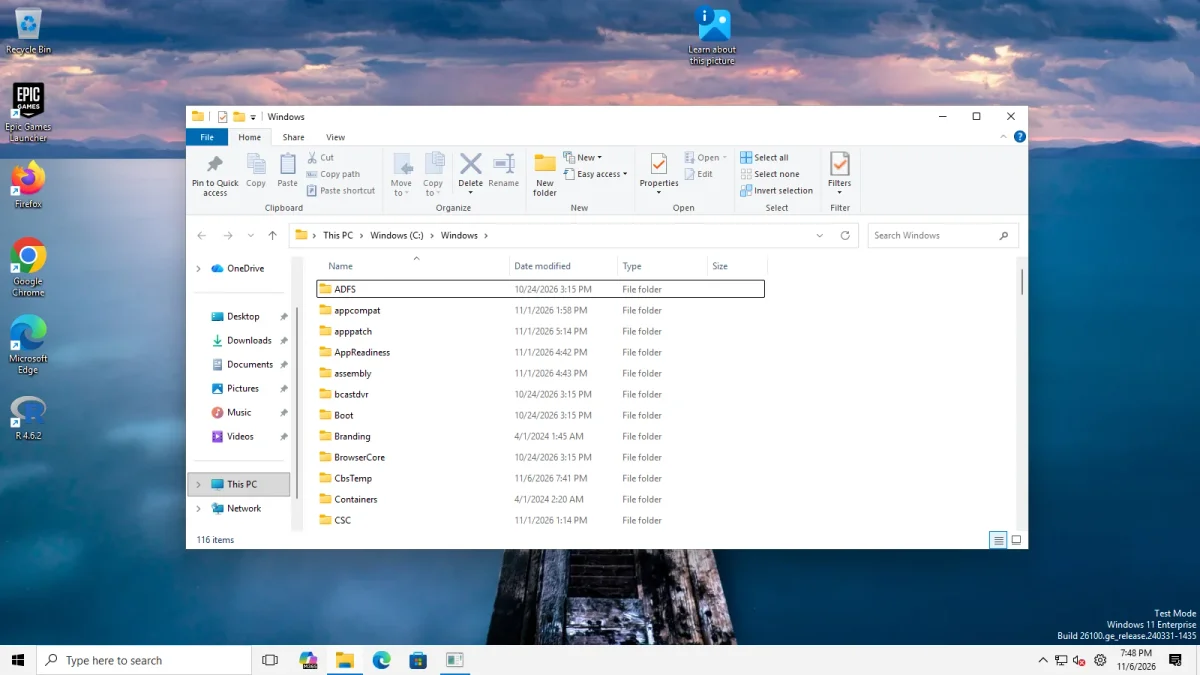
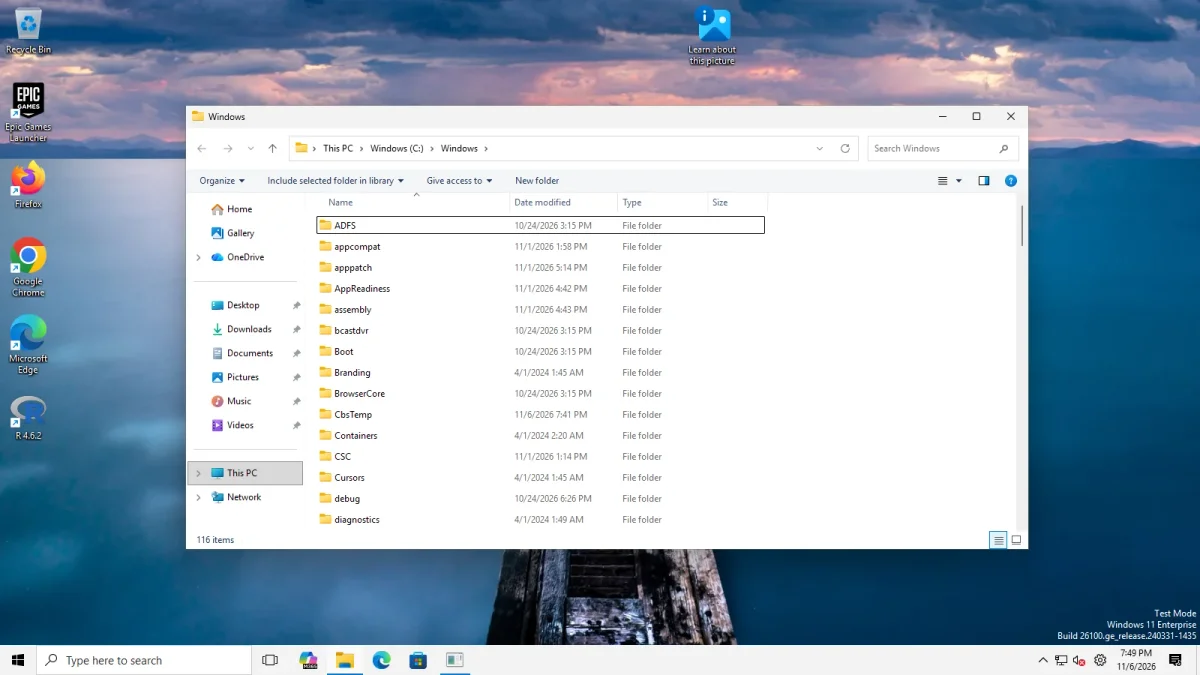
| Choice in the app | What it shows | Our result on both machines |
|---|---|---|
| Windows 11 Command Bar (default) | Tabs, address bar, then New, Sort, View and a menu | The default |
| Windows 11 Command Bar (classic Address Bar) | Meant to keep the Windows 11 bar with the old address bar | Looks the same as the default in both photos |
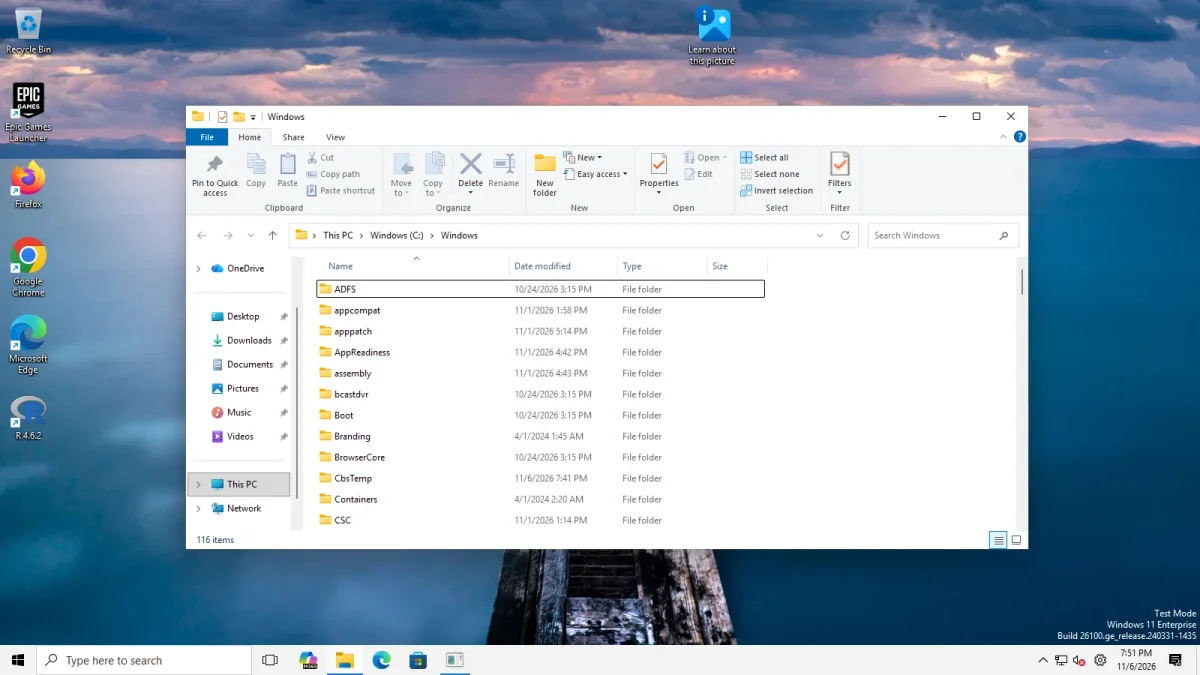
| Windows 10 Ribbon | File, Home, Share and View tabs and ribbon groups: Clipboard, Organize, New, Open, Select, Filter | Worked |
| Windows 7 Command Bar | Organize, Include selected folder in library, Give access to, New folder, no ribbon | Worked |
The Arm64 machine is Windows 11 Enterprise 25H2 (build 26200.9725). Its Arm64 photos show the real File Explorer window: the Windows 10 Ribbon with the File, Home, Share and View tabs and the Clipboard, Organize, New, Open, Select and Filter groups, and the Windows 7 Command Bar with Organize, Include selected folder in library, Give access to and New folder. The photos from the two machines differ in small details, such as the OneDrive and Home entries in the navigation pane and the drives in This PC.
Switch the Control Interface
- Install ExplorerPatcher from GitHub only. See download and install.
- Open Properties. Right-click the taskbar and choose Properties, or search Start for Properties (ExplorerPatcher).
- Choose File Explorer in the list on the left.
- Click Control Interface and pick Windows 10 Ribbon or Windows 7 Command Bar.
- Restart File Explorer with the link at the bottom, then open a new window.
The setting is Control Interface. It is stored as a pseudo value, which means the Properties window maps it onto Windows’ own storage. In our test we wrote the value in ExplorerPatcher’s registry key and restarted Explorer, and File Explorer changed. We did not click the Properties window for this one, so use the window when you change it yourself.
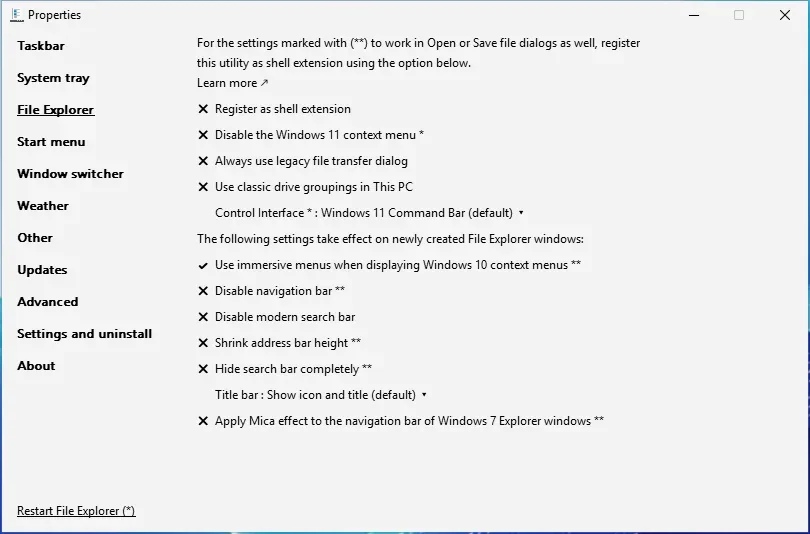
Other File Explorer options
The same Properties page has more switches. Names are as the app shows them. Each links to our File Explorer settings list.
| Setting | Our result |
|---|---|
| Disable the Windows 11 context menu * | Worked on the desktop on both machines and in File Explorer on Server 2025. On the Arm64 machine no File Explorer menu was on screen in our photo. See classic context menu |
| Disable modern search bar | No visible change in our run on either machine, not confirmed: the photos look the same as the default, with the command bar and with the ribbon |
| Hide search bar completely ** | Command bar: the search box stayed on both machines. Ribbon: inconsistent, not confirmed (see below) |
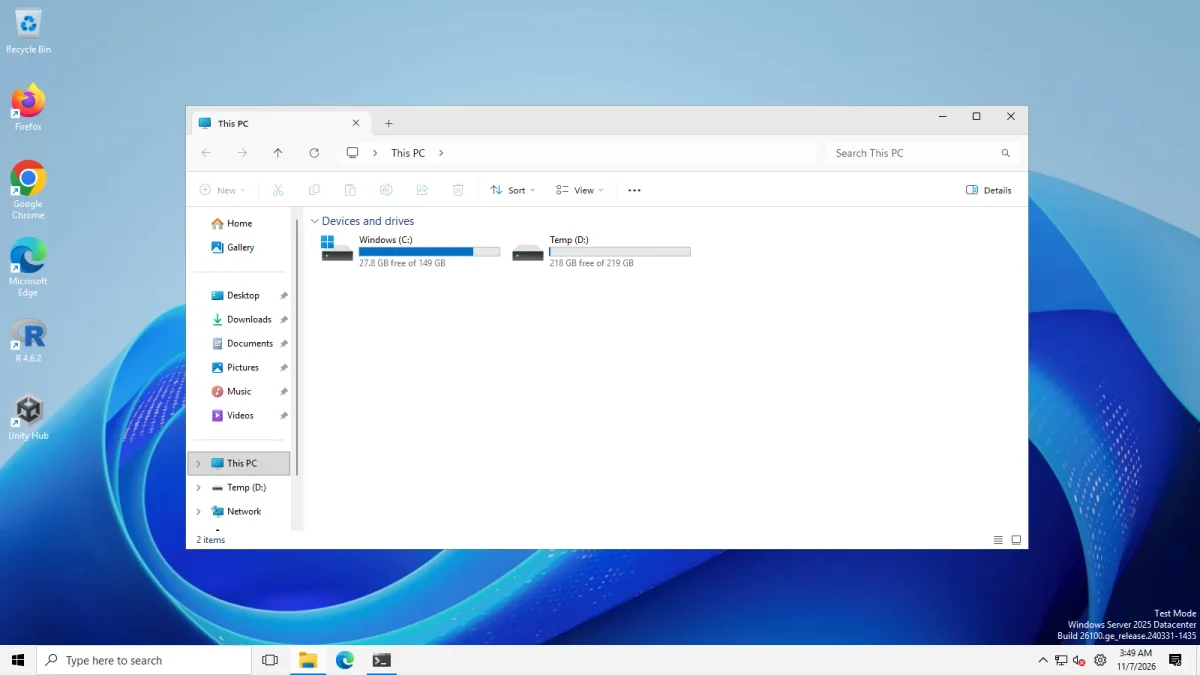
| Use classic drive groupings in This PC | No visible change in our run on either machine, not confirmed: This PC shows the heading Devices and drives, which is the default grouping |
| Apply Mica effect to the navigation bar of Windows 7 Explorer windows ** | Photographed with the Windows 7 bar on both machines. The effect is faint at best: comparing pixels against the plain Windows 7 bar photo, the navigation bar area is a few brightness levels darker, and nothing stands out to the eye |
| Shrink address bar height **, Title bar, Always use legacy file transfer dialog, Use immersive menus when displaying Windows 10 context menus ** | Not tested |
| Disable navigation bar ** | Shown in the app; not in our settings data yet and not tested |
| Register as shell extension | Not tested. It asks for administrator rights and loads ExplorerPatcher into Open and Save dialogs; upstream warns that this can make recovery harder if a Windows update breaks it. |
One asterisk means the change needs a File Explorer restart. Two asterisks mean it applies to newly opened File Explorer windows and, if you register the shell extension, to Open and Save dialogs.
We set these values in ExplorerPatcher’s registry key (the correct one for these options), restarted Explorer and photographed File Explorer. We did not click them in the Properties window. Treat “no visible change” as unproven rather than broken: we do not claim the switches work or fail in general.
Disable modern search bar. This switch is not a plain value. It is a COM redirection: ExplorerPatcher writes a TreatAs entry on the class {1d64637d-31e9-4b06-9124-e83fb178ac6e}, in both the 64-bit and the 32-bit registry view (from the upstream source, GUI.c). We set it that way. With the Windows 11 command bar and with the Windows 10 Ribbon, on both machines, the search box looked the same as the default. We cannot confirm that the switch does anything on these builds, and we do not claim it fails.
Hide search bar completely. With the Windows 11 command bar the search box stayed on both machines. With the Windows 10 Ribbon our results are inconsistent. In the photos below the search box is gone and the address bar uses the full width, on Server 2025 and on the Arm64 machine. But when we re-ran the Server 2025 test, the box did not disappear, so one run removed it and the next did not. We did not repeat the Arm64 run. We cannot say why, and we do not count this switch as confirmed.
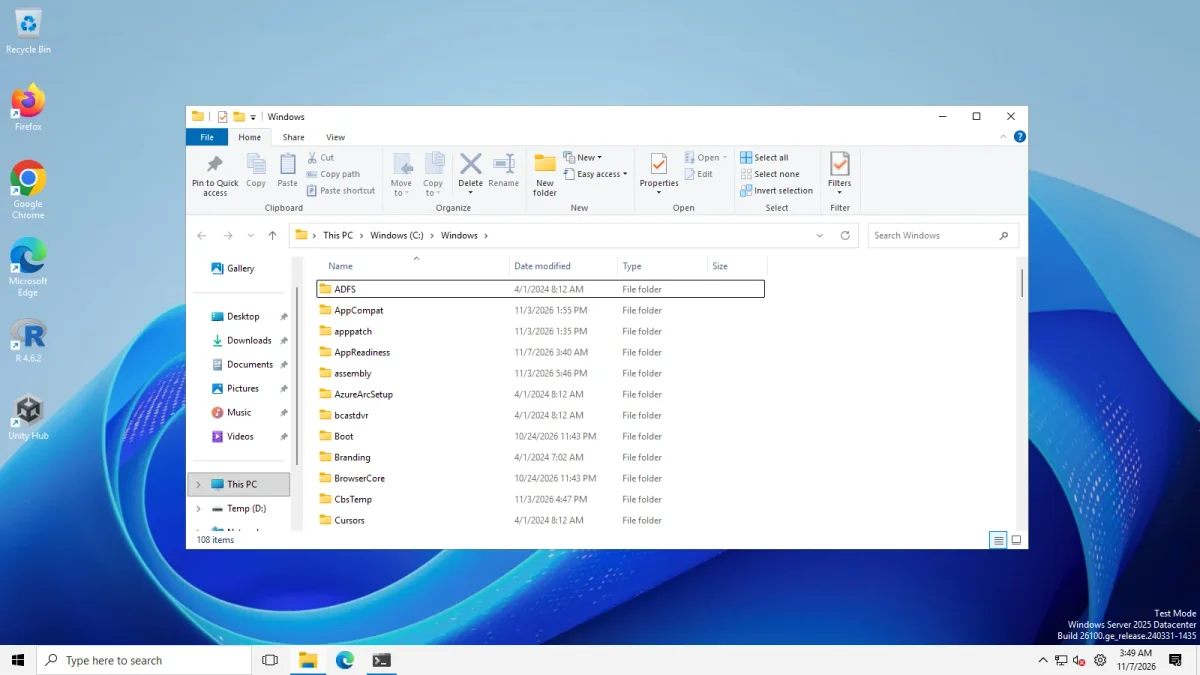 Ribbon, Hide search bar completelyRibbon, default
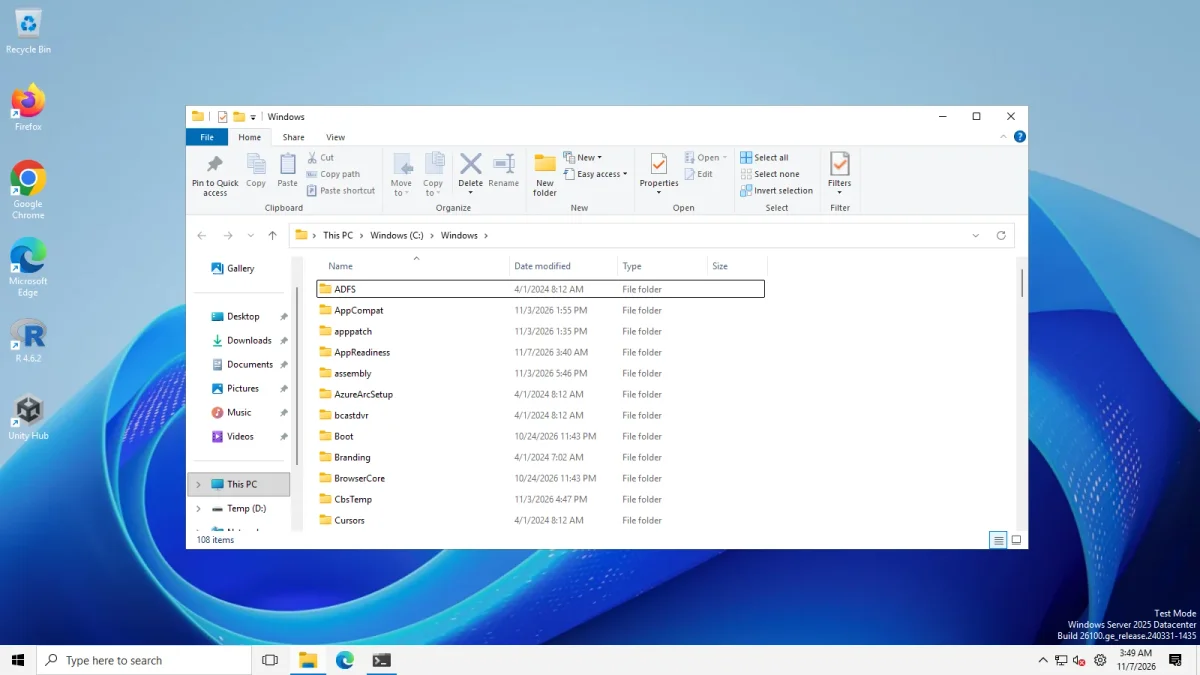
Windows 10 Ribbon on Windows Server 2025: in this run the search box is gone. A later re-run on the same machine kept it. · Windows Server 2025 (24H2 shell), x64 26100.33674 · EP 71.1
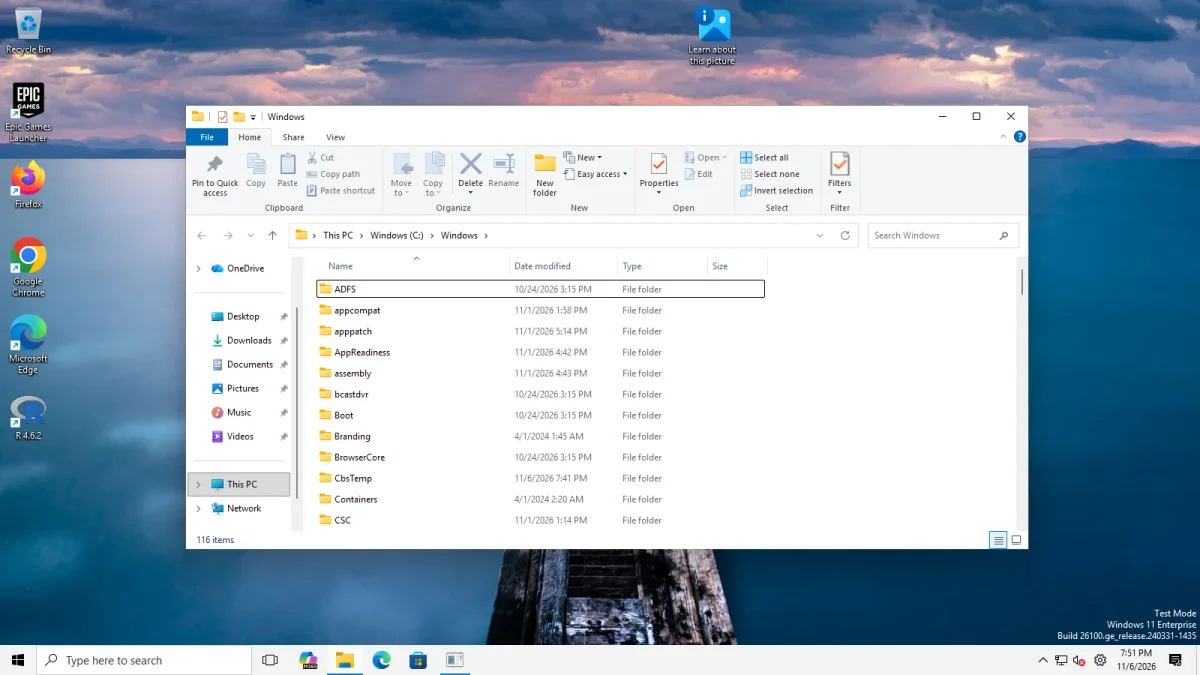 Ribbon, Hide search bar completelyRibbon, default
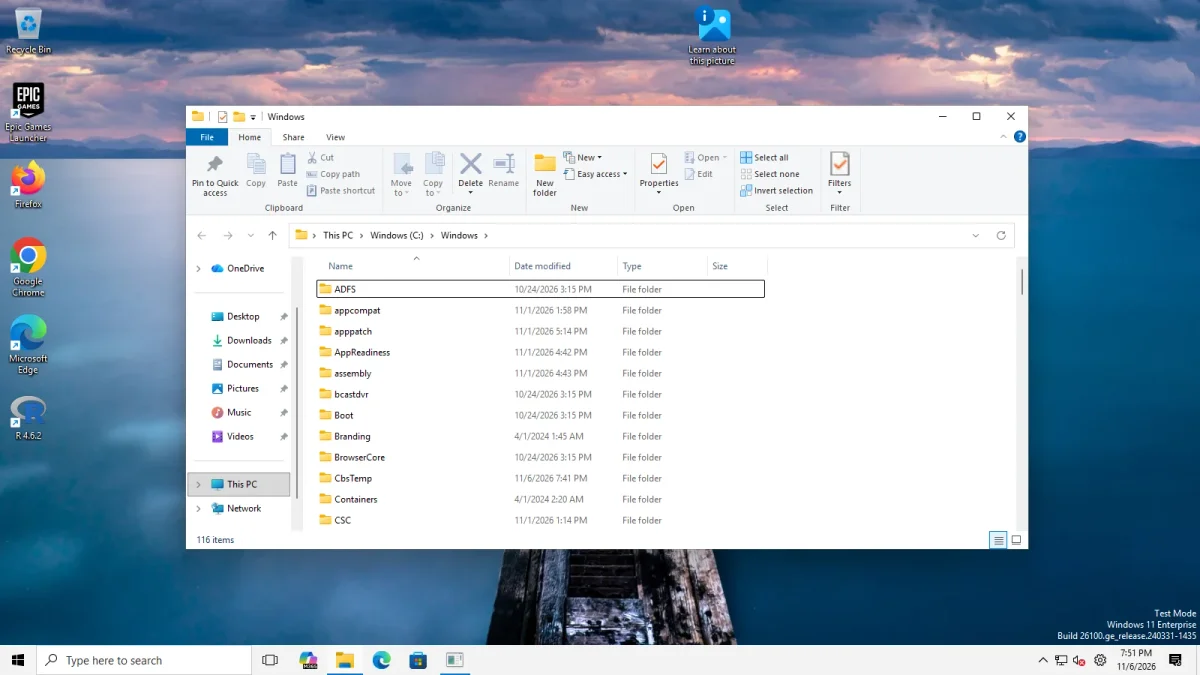
Windows 10 Ribbon on Windows 11 25H2 on Arm64: the search box is gone in this single run · Windows 11 Enterprise 25H2, Arm64 26200.9725 · EP 71.1
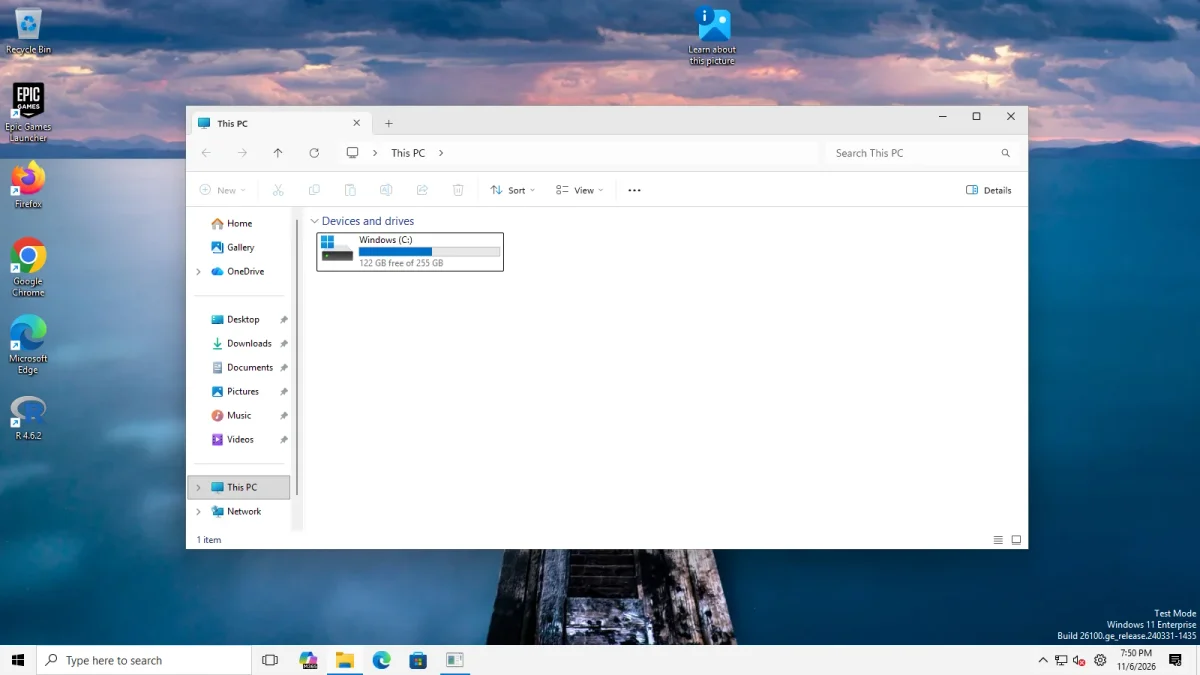
Classic drive groupings. This PC kept the heading Devices and drives on both machines. The Server image lists drives C: and D:, the Arm64 image only C:.
Why “classic Address Bar” may do nothing
Upstream’s FAQ: “In newer builds of 22H2-23H2 and 24H2, Microsoft removed the toggle of Windows 11 Command Bar with the classic Address Bar so the option in ExplorerPatcher would just revert back to the Windows 11 Command Bar (default) option.” Our photos agree on both machines (Server 2025 on build 26100, the client on build 26200): the window looks the same as the default. If you want a different look, pick Windows 10 Ribbon or Windows 7 Command Bar.
Known issues reported upstream
We have not reproduced these. Issue 5161 (closed) is titled “White persistent bar below address bar on Win11 23H2 with Windows 10 Ribbon (dark mode)”. For other File Explorer problems, check the status page and the troubleshooting guide.
Common questions
Does the Windows 10 ribbon work in File Explorer on Windows 11 25H2?
Yes, on both of our machines with ExplorerPatcher 71.1: Windows Server 2025, which uses the 24H2 shell, and Windows 11 Enterprise 25H2 on Arm64. It shows the File, Home, Share and View tabs and the Clipboard, Organize, New, Open, Select and Filter groups.
Why does Windows 11 Command Bar (classic Address Bar) do nothing?
Upstream's FAQ says Microsoft removed the toggle behind it in newer builds, so the option falls back to the default. Our photos on both machines show no difference from the default.
Can I get the Windows 7 look instead of the ribbon?
Yes. Windows 7 Command Bar replaces the toolbar with Organize, Include selected folder in library, Give access to and New folder. There is a separate option for a Mica effect on its navigation bar.
Is there a way to bring the ribbon back without ExplorerPatcher?
We found none on our test machines. Windows 11 24H2 and 25H2 ship only the command bar, and Windows 10 style ribbons come from ExplorerPatcher or other third-party tools.