How to get the classic context menu in Windows 11
Run one per-user registry command and restart Explorer, and Windows 11 shows the full classic menu straight away. No extra software is needed, and one more command undoes it. ExplorerPatcher gives the same result with its switch Disable the Windows 11 context menu. We tested the registry method on Windows Server 2025 (24H2 shell) and Windows 11 25H2 on Arm64, and the classic menu opened directly on the desktop every time. We photographed the ExplorerPatcher switch on both machines: it worked on the desktop on both and in File Explorer on Server 2025, but no File Explorer menu was on screen in our Arm64 photo.
Checked against ExplorerPatcher 71.1 (26100.9711.71.1) on Windows Server 2025 (24H2 shell) 26100.33674 and Windows 11 Enterprise 25H2 26200.9725 · Nov 6, 2026On this page
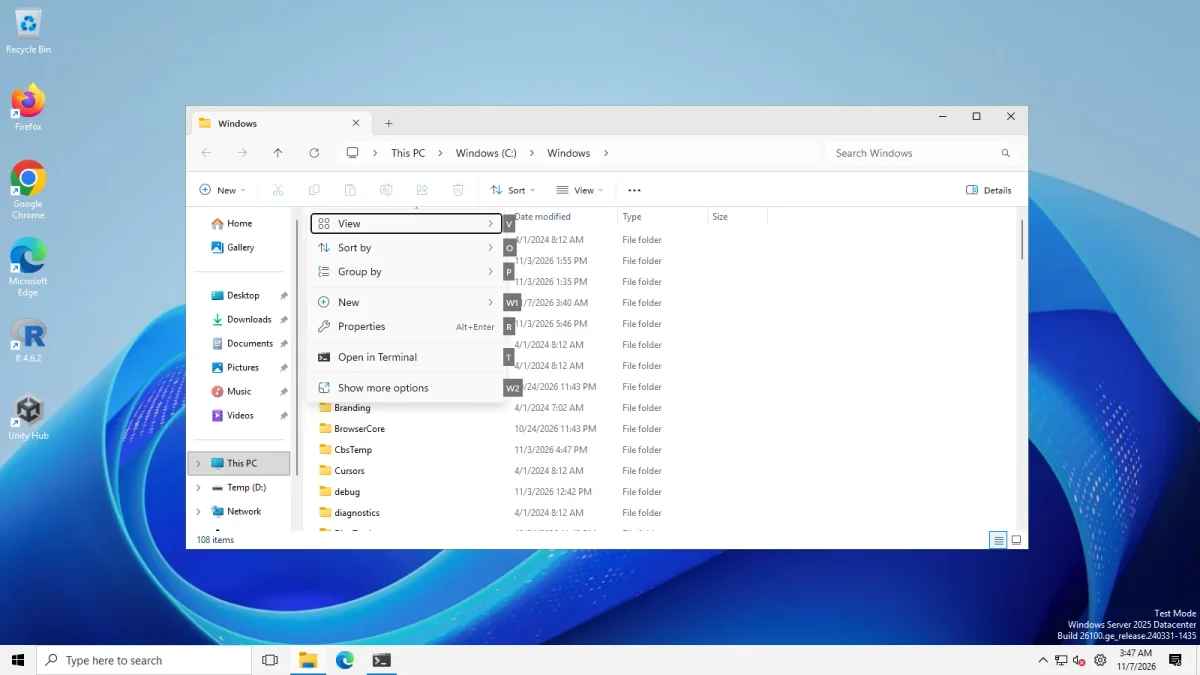 Classic menu (ExplorerPatcher)Windows 11 menu
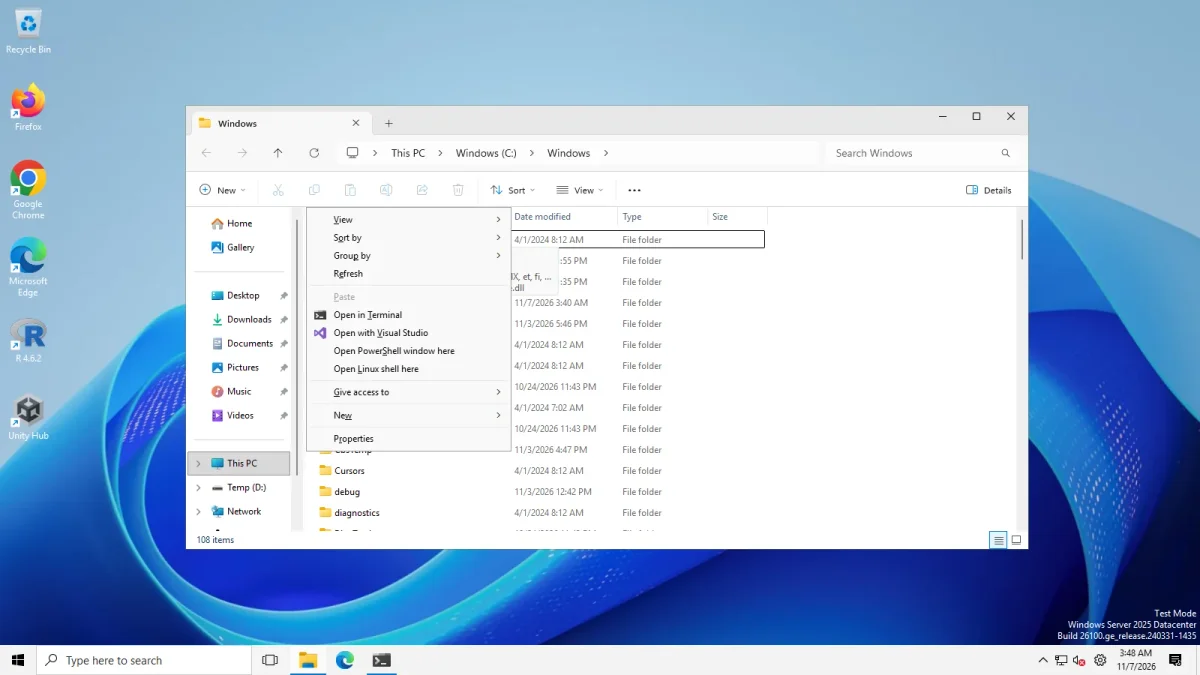
File Explorer context menu on a selected folder, Windows Server 2025 (24H2 shell) · Windows Server 2025 (24H2 shell), x64 26100.33674 · EP 71.1
Drag to compare. On the left the Windows 11 compact menu has icons across the top and Show more options at the bottom. On the right the full classic menu opens at once, with Give access to, Open PowerShell window here and Properties.
Method 1: a registry command, no extra software
This is a well-known community tweak, not a Microsoft setting. It creates an empty per-user override for the Windows 11 menu handler. It touches only your own user (HKCU).
reg add "HKCU\Software\Classes\CLSID\{86ca1aa0-34aa-4e8b-a509-50c905bae2a2}\InprocServer32" /f /ve
taskkill /f /im explorer.exe & start explorer.exe
The first line creates the key with an empty default value. The second restarts Explorer so it picks the key up. Your taskbar disappears for a few seconds. Then right-click a file or the desktop.
To undo it:
reg delete "HKCU\Software\Classes\CLSID\{86ca1aa0-34aa-4e8b-a509-50c905bae2a2}" /f
taskkill /f /im explorer.exe & start explorer.exe
What we tested, exactly
On 6 Nov 2026 we ran this before installing ExplorerPatcher on two machines. Our script created the same key through PowerShell (a new key with an empty default value, which is the result of the reg add line above), restarted Explorer, photographed, deleted the key, restarted Explorer and photographed again. We ran the commands as the runner account on throwaway GitHub-hosted machines, not on a physical PC.
| Machine | Desktop menu with the key | File Explorer menu with the key | After deleting the key |
|---|---|---|---|
| Windows Server 2025 (24H2 shell, 26100.33674, x64) | Classic menu straight away | Classic menu straight away | Compact Windows 11 menu with Show more options |
| Windows 11 Enterprise 25H2 (26200.9725, Arm64) | Classic menu straight away | No menu on screen in our photo: the File Explorer window is clear, but Shift+F10 did not show a menu in the capture | Compact Windows 11 menu with Show more options |
For File Explorer we selected the first item and pressed Shift+F10. For the desktop we right-clicked.
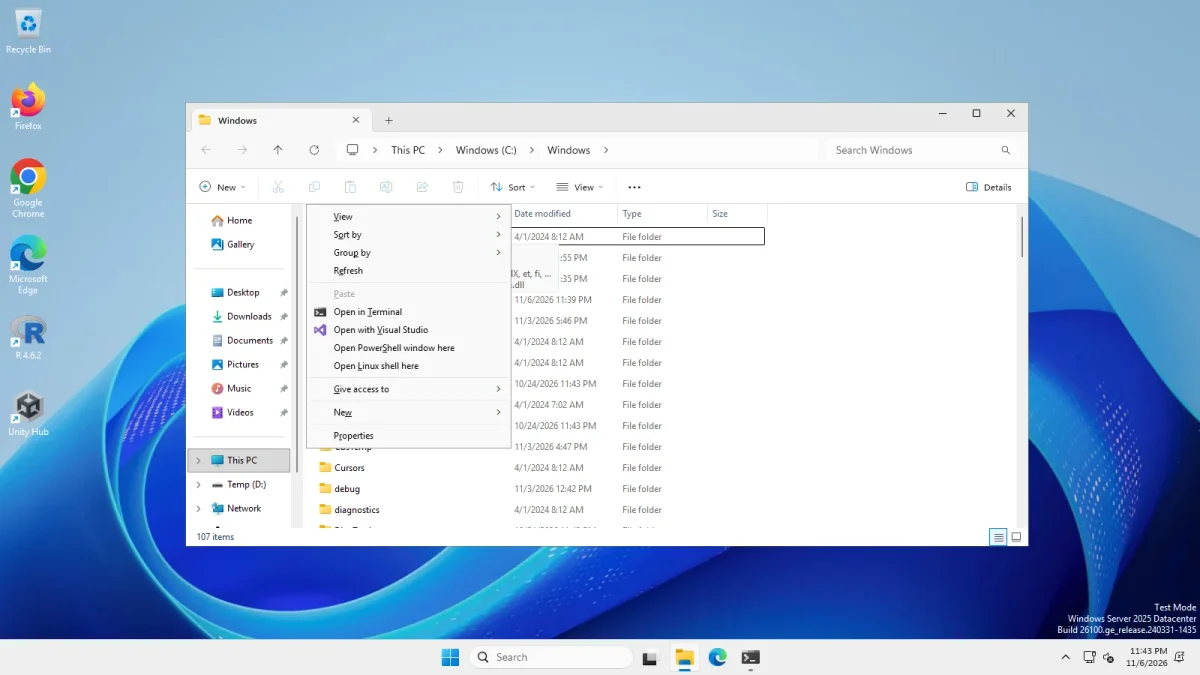
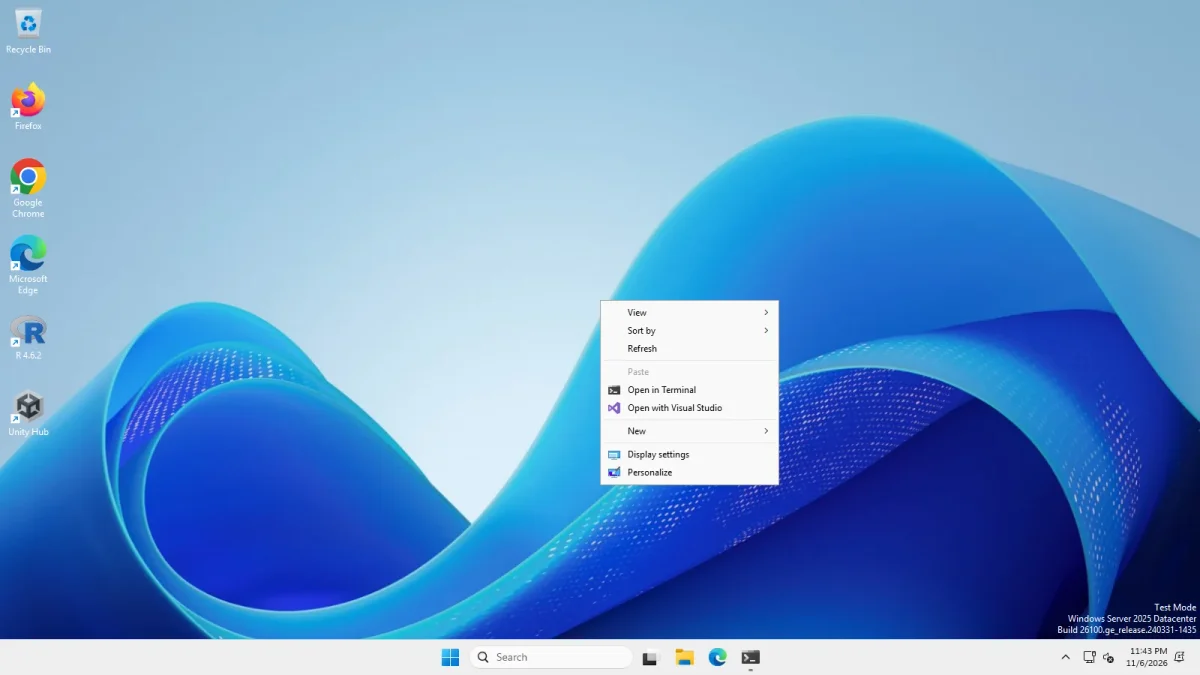
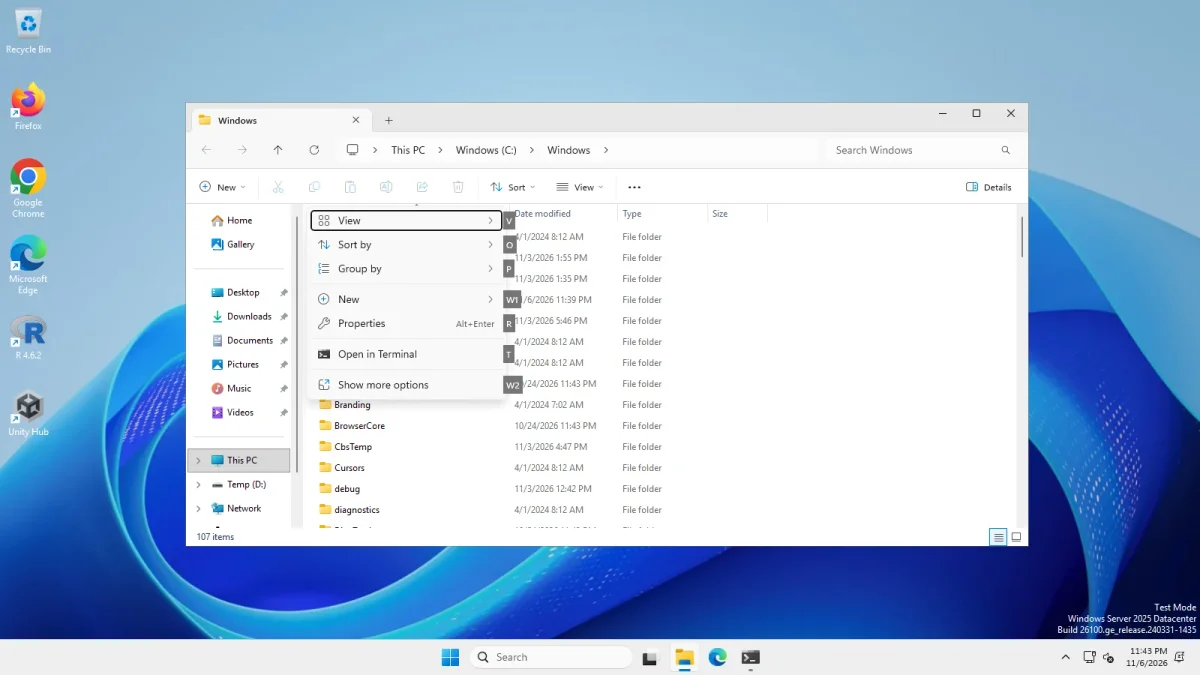
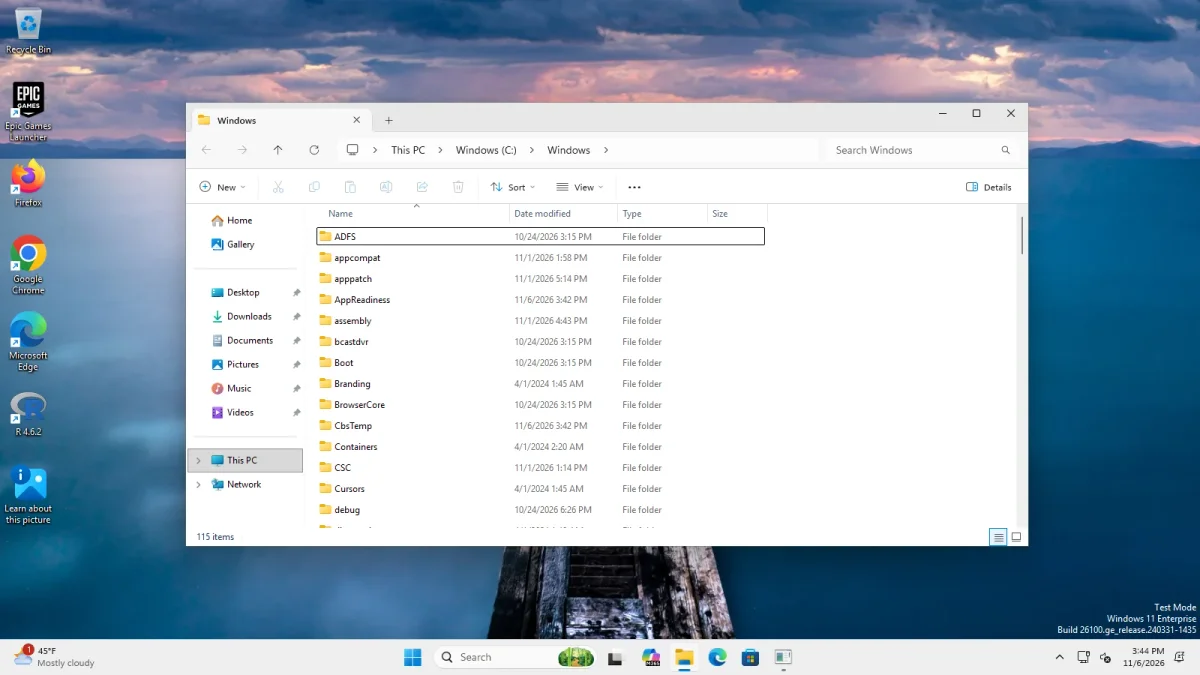
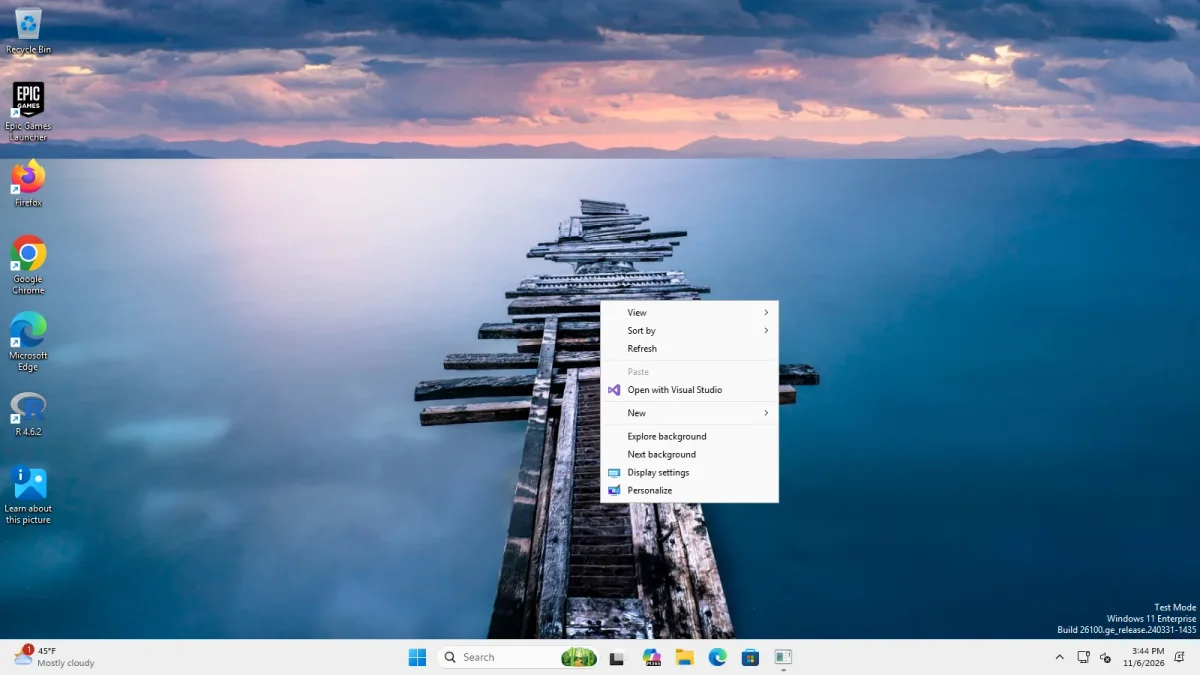
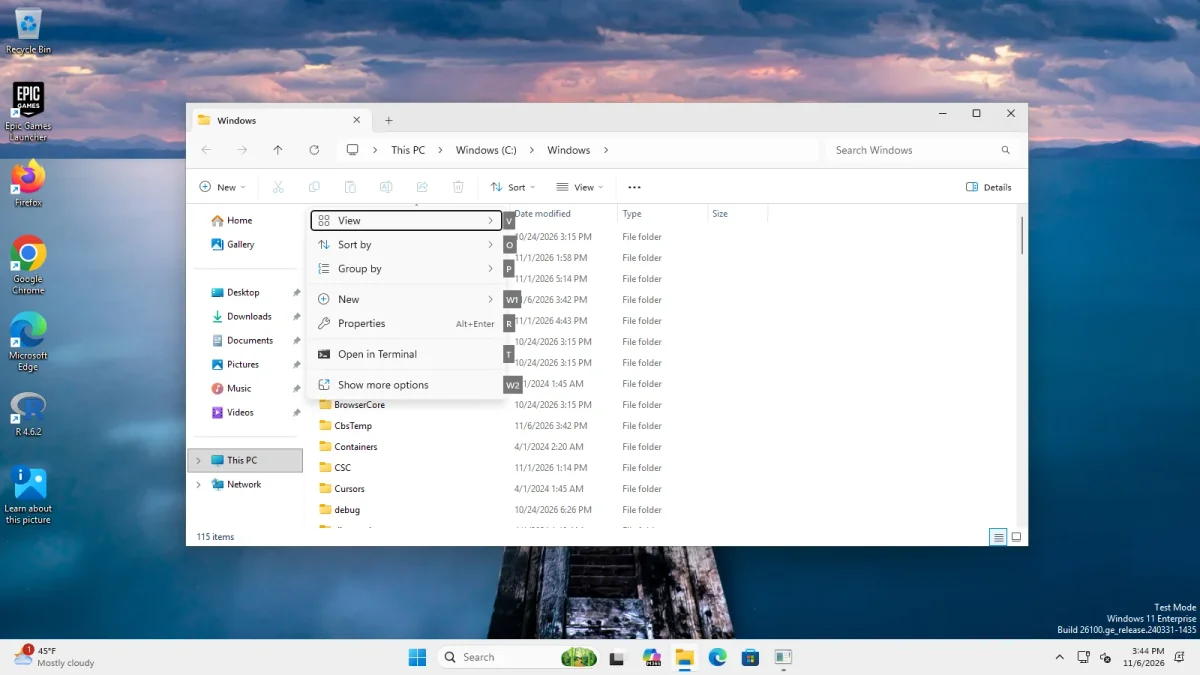
Note what this proves and what it does not. It shows the key changes the menu on these two builds. It says nothing about builds we did not test, and a future Windows update could stop honouring the key.
Method 2: ExplorerPatcher
In Properties, File Explorer, tick Disable the Windows 11 context menu *. The asterisk means the change needs a File Explorer restart. The menu then shows the full classic menu for files and for the desktop. The setting is called Disable the Windows 11 context menu in our list and is stored as the value DisableWindows11ContextMenu in ExplorerPatcher’s registry key.
It is on the File Explorer page with Register as shell extension, which is a different option: that one loads ExplorerPatcher into Open and Save dialogs and asks for administrator rights. You do not need it for the context menu.
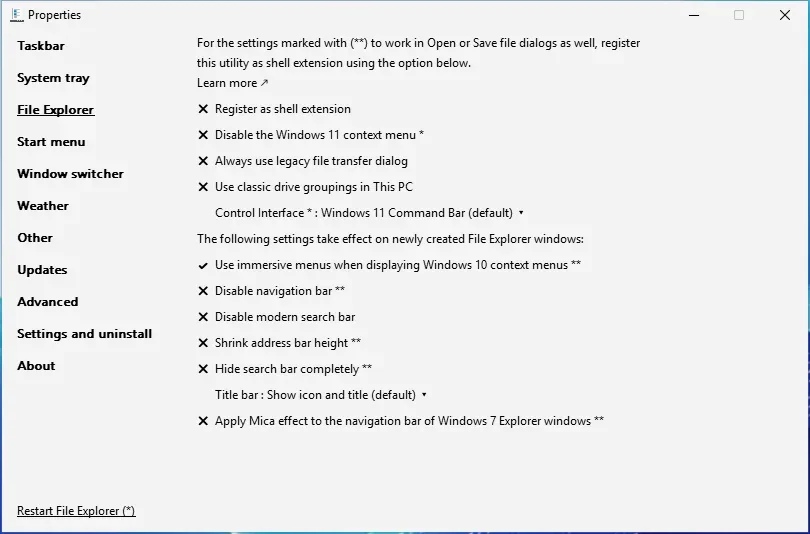
What we tested
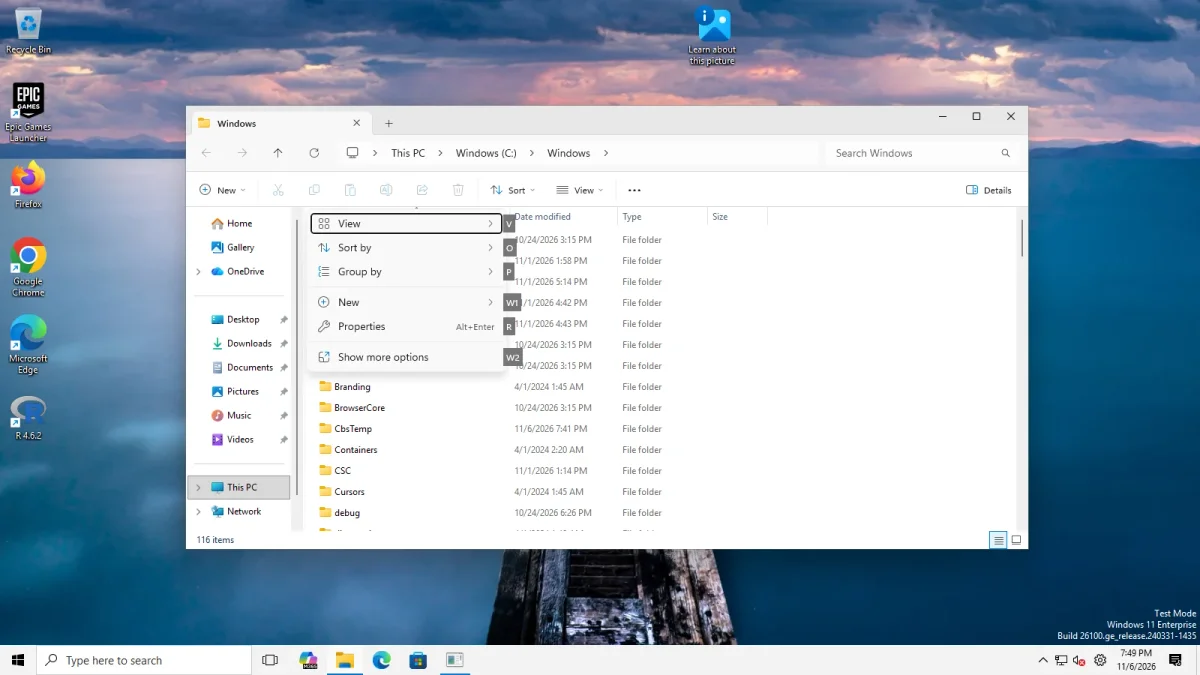
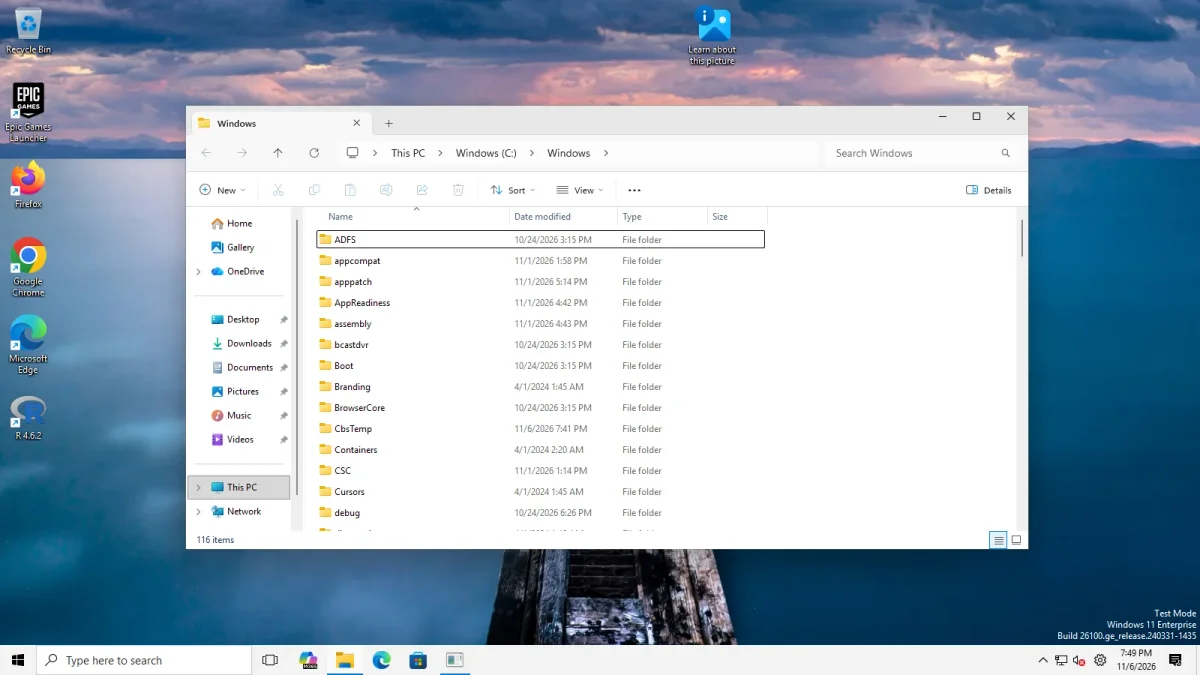
We wrote the value, restarted Explorer and photographed File Explorer (Shift+F10 on the first item) and the desktop (right-click), on both machines. On Windows Server 2025 the result matched the registry method for both. On Windows 11 25H2 Arm64 the desktop showed the classic menu. The File Explorer photo with the setting on shows the Windows folder window with the first row selected and no menu on screen, the same as in the registry-method photo above. The photo with the setting off does show a menu. We do not know why the menu is missing with the setting on: it may not have opened, or it may have closed before the capture. We do not claim the setting works for files on that machine.
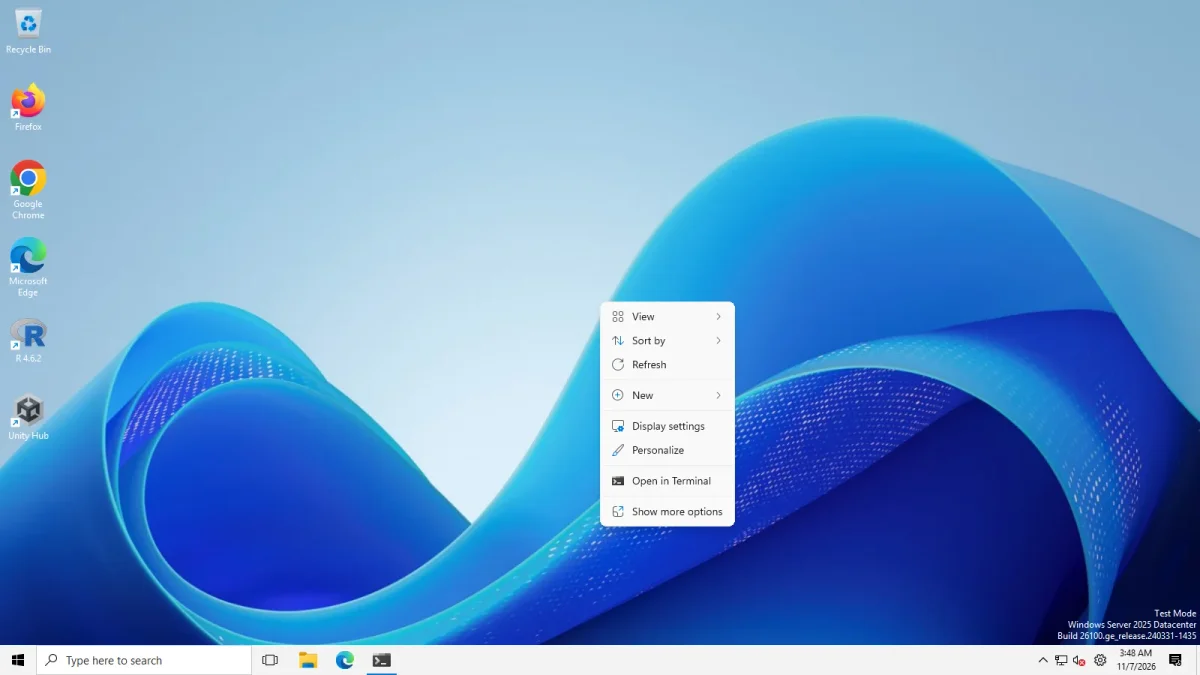
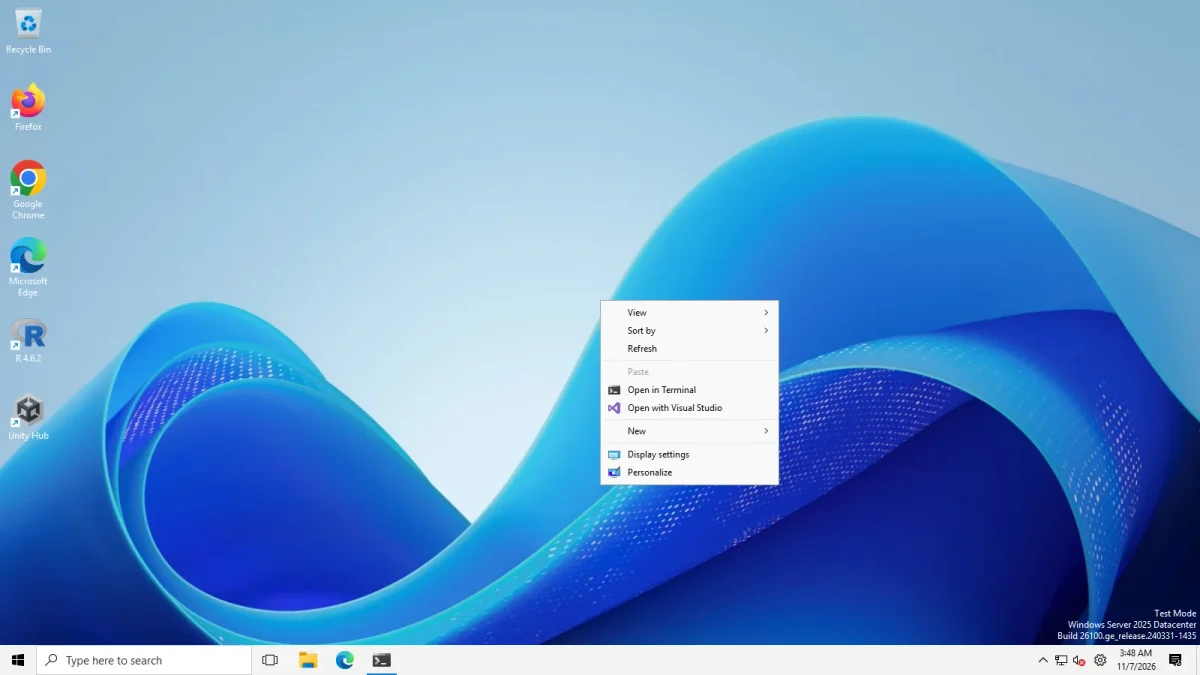
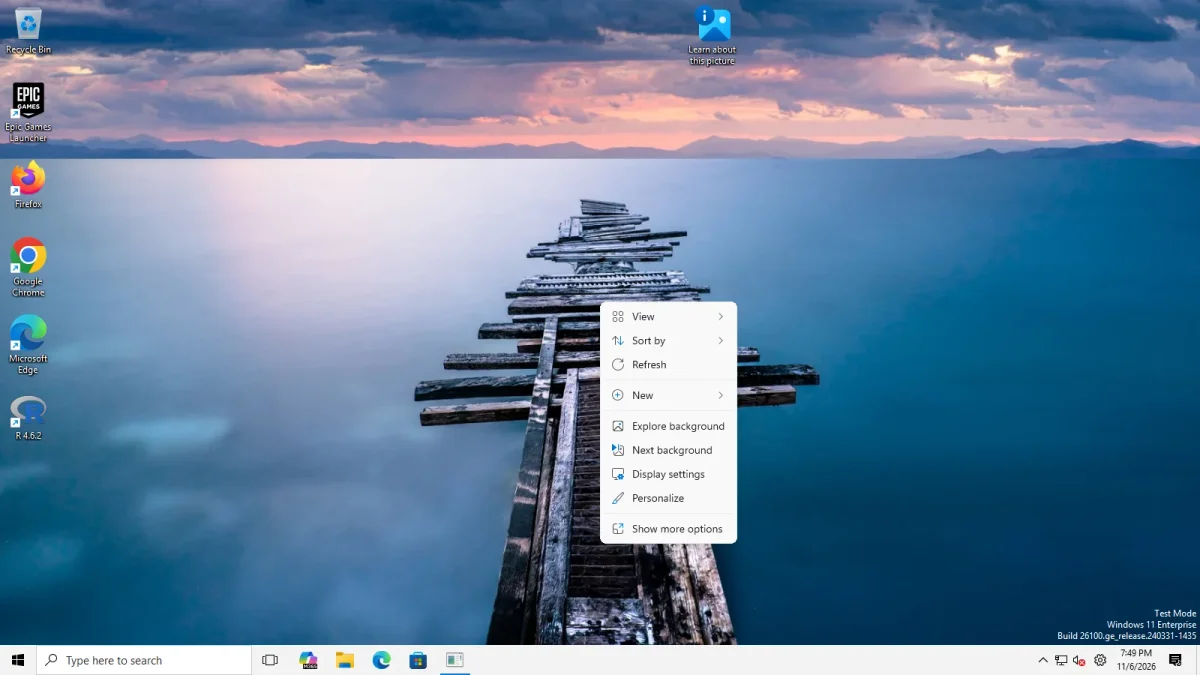
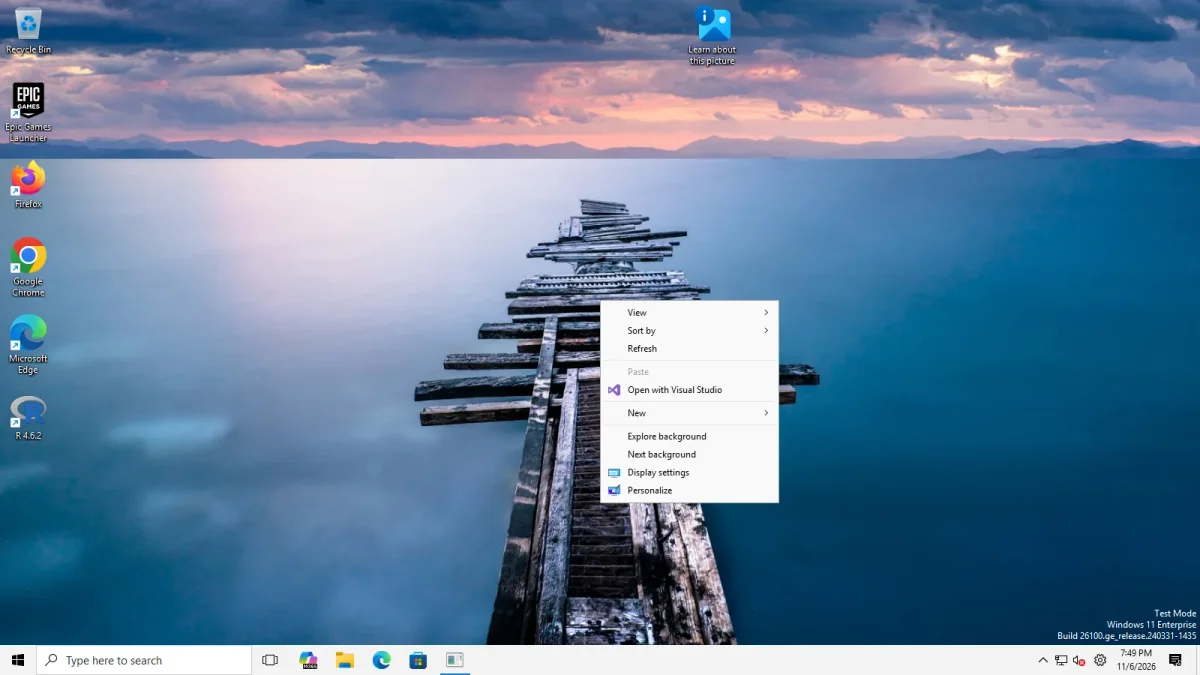
The desktop result is the same on both machines: the compact menu with icons and Show more options without the setting, and the full list with View, Sort by, Refresh, Paste, New, Display settings and Personalize with it. The Server photo also lists Open in Terminal, the Arm64 photo lists Open with Visual Studio, because the images have different software installed.
For File Explorer, the Server 2025 photos show the setting working. The Arm64 photos show the window with the setting off (a compact menu with View, Sort by, Group by, New, Properties and Show more options) and with it on (no menu on screen):
The entries Explore background and Next background appear on the Arm64 desktop with the setting off and with it on, and also in the registry-method photo, where ExplorerPatcher’s switch is not involved. They are not caused by the switch. The “Learn about this picture” icon on that desktop suggests Windows Spotlight, but we did not check.
Limits reported upstream
We have not reproduced these. Issue 5210 (open) is titled “Legacy context menu option doesn’t work with beta build 26220.9757”. Issue 5232 (closed) reported a regression on Windows 11 21H2. The 71.1 release notes say they fix the classic context menu on builds with customizable menus. If the option does nothing on your build, try the registry method above, which does not depend on ExplorerPatcher.
Method 3: open the classic menu once
You can skip any change and open the classic menu when you need it.
- Show more options. Choose it at the bottom of the compact menu. It is in our photo of the untouched menu.
- Shift+F10 does not help. On both machines, with nothing changed, Shift+F10 on a selected folder opened the compact menu with letter hints and Show more options. It did not open the classic menu.
- Shift while right-clicking. People often use this. We did not test it, so we do not claim it for these builds.
Which one to choose
| Registry command | ExplorerPatcher | Show more options | |
|---|---|---|---|
| Extra software | None | ExplorerPatcher (see install) | None |
| Scope | Your user | Your user | One menu at a time |
| Undo | reg delete and an Explorer restart |
Untick the setting and restart Explorer | Nothing to undo |
| Tested by us | Desktop on both machines, files on Server 2025 | Desktop on both machines, files on Server 2025 (no menu on screen in our Arm64 photo) | Seen in a photo, not clicked |
| Good if | You only want this one change | You also use its taskbar or Start menu | You rarely need the old menu |
If you also want the ribbon, read the File Explorer ribbon page. For all File Explorer settings see File Explorer settings, and for the whole look see make Windows 11 look like Windows 10.
Common questions
Does the registry method work on Windows 11 24H2 and 25H2?
It worked on our Windows Server 2025 machine (24H2 shell, build 26100.33674) for both File Explorer and the desktop. On Windows 11 25H2 Arm64 (build 26200.9725) it worked on the desktop. In our File Explorer photo the window is clear but no menu is on screen, so we have no proof for files on that build.
How do I undo the registry change?
Delete the key with reg delete and restart Explorer. After we did that, File Explorer showed the compact Windows 11 menu with Show more options again on both machines.
Does Shift+F10 open the classic menu?
Not in our test. With nothing changed, Shift+F10 on a selected folder opened the compact Windows 11 menu with Show more options. We did not test holding Shift while right-clicking.
Do I need ExplorerPatcher for the classic context menu?
No. The registry command does the job without installing anything. Use ExplorerPatcher if you want the switch inside its Properties window, or if you already use it for the taskbar and Start menu.