System tray settings in ExplorerPatcher
The System tray section has 17 entries in our data. Most of them only appear with a Windows 10 style taskbar, where you choose which flyout opens for the network, sound, clock and battery icons. With the Windows 11 taskbar our window showed only six options. Clock seconds and the Windows 10 clock and network flyouts worked in our tests; the volume flyout is untested.
Checked against ExplorerPatcher 71.1 (26100.9711.71.1) on Windows Server 2025 (24H2 shell) 26100.33674 and Windows 11 Enterprise 25H2 26200.9725 · Nov 6, 2026On this page
What the section looks like
Our screenshots are from Windows 11 25H2 on Arm64 (build 26200.9725) with ExplorerPatcher 26100.9711.71.1. The left photo is the Windows 10 (ExplorerPatcher) taskbar, the right one the Windows 11 taskbar.
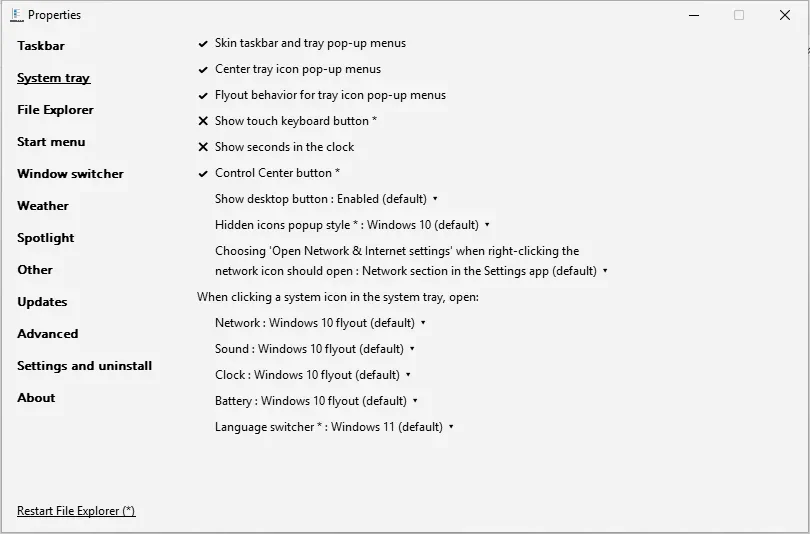
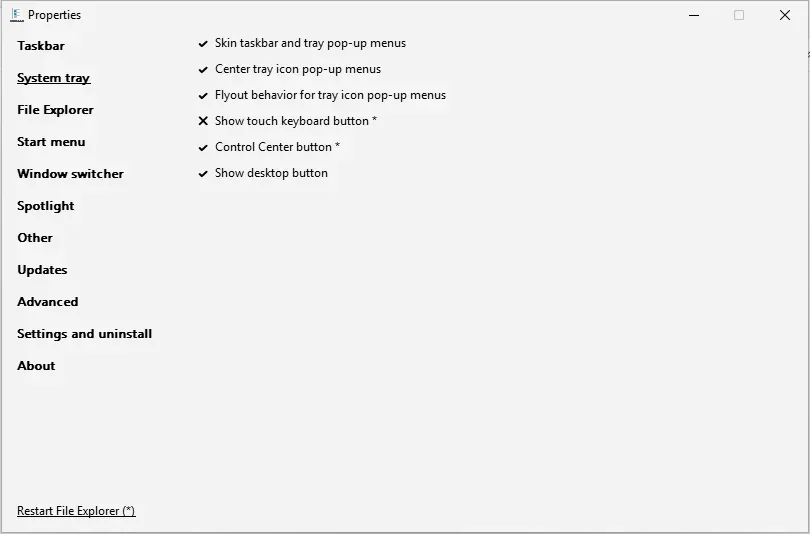
With the Windows 11 taskbar you get three menu switches (skinning, centring, flyout behaviour), the touch keyboard button, the Control Center button and a single Show desktop switch: six rows in all. With ExplorerPatcher’s taskbar the section grows: clock seconds, a three-way Show desktop box, the hidden icons pop-up style, what the network icon’s right-click opens, and a block called “When clicking a system icon in the system tray, open” with one box each for Network, Sound, Clock, Battery and Language switcher.
Overview
| Setting | Default | Restart | Windows 10 |
|---|---|---|---|
| Skin taskbar and tray pop-up menus | On | no | yes |
| Center tray icon pop-up menus | On | no | yes |
| Flyout behavior for tray icon pop-up menus | On | no | yes |
| Show touch keyboard button | Off | yes | yes |
| Show seconds in the clock | Off | no | yes |
| Control Center button | Off | yes | no |
| Show desktop button | Enabled (default) | no | yes |
| Show desktop button | On | no | yes |
| Apply Windows 11 style to system tray icons | On | yes | yes |
| Hidden icons popup style | Windows 10 (default) | yes | no |
| network icon should open | Network section in the Settings app (default) | no | yes |
| Network | Windows 10 flyout (default) | no | yes |
| Sound | Windows 10 flyout (default) | no | yes |
| Clock | Windows 10 flyout (default) | no | yes |
| Battery | Windows 10 flyout (default) | no | yes |
| Language switcher | Windows 11 (default) | yes | no |
| Language switcher | Windows 11 (default) | yes | no |
All system tray settings
Skin taskbar and tray pop-up menus Switch
Redraws taskbar and tray pop-up menus so they match the Windows theme you use. On by default.
- Default
- On
- Registry
HKCU\Software\ExplorerPatchervalueSkinMenus- Section
- System tray
Center tray icon pop-up menus Switch
Opens tray icon pop-up menus centred on the icon instead of at the mouse pointer. On by default.
- Default
- On
- Registry
HKCU\Software\ExplorerPatchervalueCenterMenus- Section
- System tray
Flyout behavior for tray icon pop-up menus Switch
Makes tray icon menus behave like flyouts (they slide in and close when you click elsewhere). On by default.
- Default
- On
- Registry
HKCU\Software\ExplorerPatchervalueFlyoutMenus- Section
- System tray
Show touch keyboard button Switch
Shows the touch keyboard button in the notification area. It writes Windows' own TabletTip setting, so it works the same without ExplorerPatcher.
- Default
- Off
- Registry
HKCU\Software\Microsoft\TabletTip\1.7valueTipbandDesiredVisibility- Section
- System tray
Show seconds in the clock Switch
Adds seconds to the taskbar clock. Available with the Windows 10 taskbars. It is Windows' own Advanced setting; on Windows 11 builds that have a native seconds option, either route works.
Appears when: you use a Windows 10 taskbar style (Windows 10 or Windows 10 (ExplorerPatcher)).
- Default
- Off
- Registry
HKCU\Software\Microsoft\Windows\CurrentVersion\Explorer\AdvancedvalueShowSecondsInSystemClock- Section
- System tray
Our test: The clock showed seconds with the ExplorerPatcher taskbar.

Control Center button Switch (inverted)
Shows or hides the Control Center button (the grouped Wi-Fi, volume and battery icons of Windows 11) on the Windows 10 taskbars. It is shown as an inverted check box: ticked means the button is visible.
- Default
- Off
- Registry
HKCU\Software\ExplorerPatchervalueHideControlCenterButton- Section
- System tray
Show desktop button Choice list
With a Windows 10 taskbar, controls the Show desktop button at the far right: enabled, disabled (the strip stays but does nothing), or hidden.
Appears when: you use a Windows 10 taskbar style (Windows 10 or Windows 10 (ExplorerPatcher)).
- Default
- Enabled (default)
- Registry
HKCU\Software\Microsoft\Windows\CurrentVersion\Explorer\AdvancedvalueTaskbarSD- Section
- System tray
Options and stored values (3)
| Option in the app | Stored value |
|---|---|
| Enabled (default) | 1 |
| Disabled | 0 |
| Hidden | 2 |
Show desktop button Switch
With the Windows 11 taskbar, turns the Show desktop corner on or off.
Appears when: you use the Windows 11 taskbar style.
- Default
- On
- Registry
HKCU\Software\Microsoft\Windows\CurrentVersion\Explorer\AdvancedvalueTaskbarSD- Section
- System tray
Apply Windows 11 style to system tray icons Switch
Draws the built-in system tray icons in the Windows 11 style on the Windows 10 taskbar. It is listed in upstream's settings file only for builds compiled with private interfaces, so the release Properties window does not show it (our Properties screenshots have no such entry).
Appears when: you use a Windows 10 taskbar style (Windows 10 or Windows 10 (ExplorerPatcher)).
- Default
- On
- Registry
HKCU\Software\ExplorerPatchervalueSkinIcons- Section
- System tray
Hidden icons popup style Choice list
Style of the hidden-icons pop-up on ExplorerPatcher's taskbar: the Windows 10 grid or the early Windows 11 style. It only exists with the Windows 10 (ExplorerPatcher) taskbar.
Appears when: you use a Windows 10 taskbar style (Windows 10 or Windows 10 (ExplorerPatcher)); you use the Windows 10 (ExplorerPatcher) taskbar style.
- Default
- Windows 10 (default)
- Registry
HKCU\Software\ExplorerPatchervalueTrayOverflowStyle- Section
- System tray
Options and stored values (2)
| Option in the app | Stored value |
|---|---|
| Windows 10 (default) | 0 |
| Windows 11 | 1 |
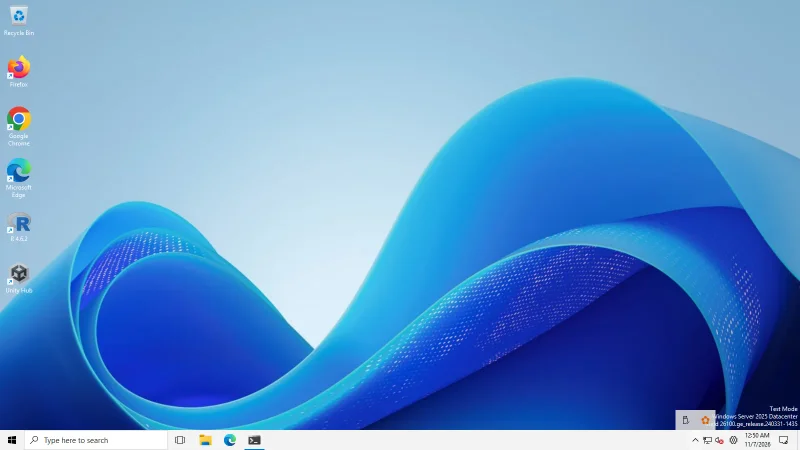
Our test: The Windows 10 style pop-up opened from the ^ button.
network icon should open Choice list
What "Open Network & Internet settings" opens when you right-click the network icon: the Settings app, Network and Sharing Center, or Network Connections.
Appears when: you use a Windows 10 taskbar style (Windows 10 or Windows 10 (ExplorerPatcher)).
- Default
- Network section in the Settings app (default)
- Registry
HKCU\Software\ExplorerPatchervalueReplaceNetwork- Section
- System tray
Options and stored values (3)
| Option in the app | Stored value |
|---|---|
| Network section in the Settings app (default) | 0 |
| Network and Sharing Center in Control Panel | 1 |
| Network Connections in Control Panel | 2 |
Network Choice list
What clicking the network icon opens on a Windows 10 taskbar: the Windows 10 flyout, the Windows 8 flyout, the Windows 11 Wi-Fi flyout, the Control Center, or one of the classic network windows.
Appears when: you use a Windows 10 taskbar style (Windows 10 or Windows 10 (ExplorerPatcher)).
- Default
- Windows 10 flyout (default)
- Registry
HKCU\Software\Microsoft\Windows\CurrentVersion\Control Panel\Settings\NetworkvalueReplaceVan- Section
- System tray
Options and stored values (7)
| Option in the app | Stored value |
|---|---|
| Control Center | 6 |
| Windows 11 Wi-Fi flyout | 5 |
| Windows 10 flyout (default) | 0 |
| Windows 8 flyout | 2 |
| Network section in the Settings app | 1 |
| Network and Sharing Center in Control Panel | 3 |
| Network Connections in Control Panel | 4 |
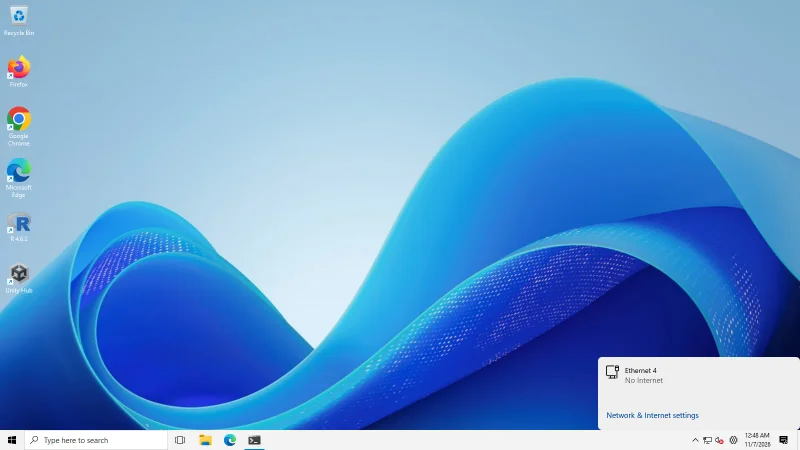
Our test: The Windows 10 network flyout opened from EP's taskbar. On the runners it shows "Ethernet … No Internet" because the machines have no real network adapter state.
Sound Choice list
Volume icon flyout: the Windows 10 slider or the Windows 7 style. We could not test it because the runners have no audio device.
Appears when: you use a Windows 10 taskbar style (Windows 10 or Windows 10 (ExplorerPatcher)).
- Default
- Windows 10 flyout (default)
- Registry
HKCU\Software\Microsoft\Windows NT\CurrentVersion\MTCUVCvalueEnableMtcUvc- Section
- System tray
Options and stored values (2)
| Option in the app | Stored value |
|---|---|
| Windows 10 flyout (default) | 1 |
| Windows 7 flyout | 0 |
Clock Choice list
Which flyout opens when you click the clock: the Windows 10 calendar flyout, the Windows 7 clock and calendar, or the Windows 11 flyout.
Appears when: you use a Windows 10 taskbar style (Windows 10 or Windows 10 (ExplorerPatcher)).
- Default
- Windows 10 flyout (default)
- Registry
HKCU\Software\Microsoft\Windows\CurrentVersion\ImmersiveShellvalueUseWin32TrayClockExperience- Section
- System tray
Options and stored values (3)
| Option in the app | Stored value |
|---|---|
| Windows 11 flyout | 2 |
| Windows 10 flyout (default) | 0 |
| Windows 7 | 1 |
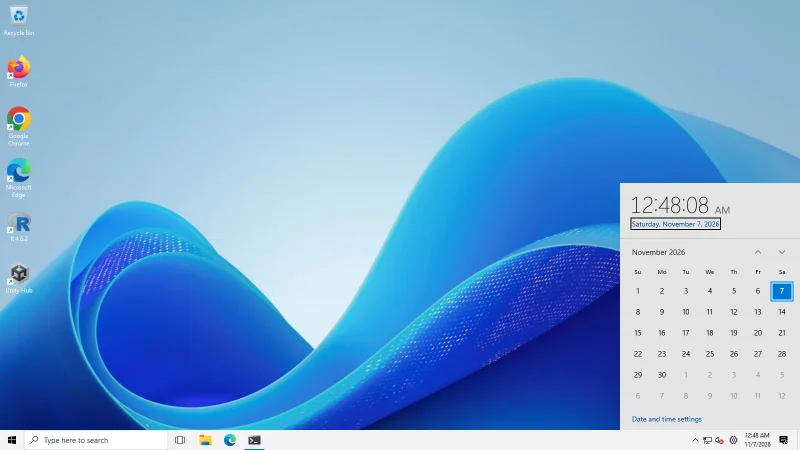
Our test: The Windows 10 flyout (large time, date, month grid) opened from the ExplorerPatcher taskbar.
Battery Choice list
Battery icon flyout: Windows 10 or Windows 7 style. Needs a battery, so we could not test it on the runners.
Appears when: you use a Windows 10 taskbar style (Windows 10 or Windows 10 (ExplorerPatcher)).
- Default
- Windows 10 flyout (default)
- Registry
HKCU\Software\Microsoft\Windows\CurrentVersion\ImmersiveShellvalueUseWin32BatteryFlyout- Section
- System tray
Options and stored values (2)
| Option in the app | Stored value |
|---|---|
| Windows 10 flyout (default) | 0 |
| Windows 7 | 1 |
Language switcher Choice list
Language switcher style on Windows 11 builds older than 22H2: Windows 11, Windows 10, or Windows 10 with the "Language Preferences" link.
Appears when: you use a Windows 10 taskbar style (Windows 10 or Windows 10 (ExplorerPatcher)); Windows 11 is older than 22H2.
- Default
- Windows 11 (default)
- Registry
HKCU\Software\ExplorerPatchervalueIMEStyle- Section
- System tray
Options and stored values (3)
| Option in the app | Stored value |
|---|---|
| Windows 11 (default) | 0 |
| Windows 10 (with link to "Language Preferences") | 1 |
| Windows 10 | 4 |
Language switcher Choice list
Language switcher style on Windows 11 22H2 and later: Windows 11, Windows 10, or Windows 10 with the "Language Preferences" link, each with or without animation.
Appears when: you use a Windows 10 taskbar style (Windows 10 or Windows 10 (ExplorerPatcher)); Windows 11 is 22H2 or newer.
- Default
- Windows 11 (default)
- Registry
HKCU\Software\ExplorerPatchervalueIMEStyle- Section
- System tray
Options and stored values (4)
| Option in the app | Stored value |
|---|---|
| Windows 11 (default) | 0 |
| Windows 10 | 7 |
| Windows 10 (with link to "Language Preferences") (no animation) | 1 |
| Windows 10 (no animation) | 4 |
Why some settings appear twice
Show desktop button and Language switcher each have two cards. The app shows a different version of the same item depending on the taskbar style (Show desktop is a three-way box on Windows 10 style taskbars and a simple switch on the Windows 11 taskbar) or on the Windows 11 build (the Language switcher has one entry for builds before 22H2 and one for 22H2 or newer). On Windows 11 24H2 and 25H2 you only ever see one of each. The cards for entries that share one registry value point to the same value.
One card does not match what 71.1 shows: Apply Windows 11 style to system tray icons. Upstream’s settings file lists it, but the file also tells the window to skip those lines in builds without private interfaces. In upstream’s source that flag sits behind a header file (ep_private.h) that is not in the public repository, and our System tray screenshot has no such line, so the option is not in the release you download. The code that would act on the SkinIcons value is behind the same flag, so we expect the value to do nothing in the release build. We did not test that.
What to change first
- Decide the taskbar first. Almost all of this section depends on the taskbar style, so set it in the Taskbar section and restart File Explorer before you look for tray options.
- Flyouts. The defaults on a Windows 10 style taskbar are the Windows 10 flyouts for network, sound, clock and battery, and the Windows 11 flyout for the language switcher. Change a box only for the icon whose look you dislike.
- Hidden icons. “Hidden icons popup style” chooses between the Windows 10 pop-up (default) and the Windows 11 style. It needs ExplorerPatcher’s own taskbar and a File Explorer restart.
What we tested and what we did not
On Windows Server 2025 and Windows 11 25H2 on Arm64 we set a Windows 10 style taskbar and then opened the tray items:
- Clock seconds appeared on the taskbar clock.
- The Windows 10 style pop-up opened from the up-arrow button.
- The Windows 10 clock flyout (large time, date, month grid) and the Windows 10 network flyout opened from ExplorerPatcher’s taskbar. The network flyout reads “Ethernet … No Internet” because the test machines have no real network state.
- We also opened the clock flyout in three styles and the network flyout in four, but we did not write up how they differ.
We could not test the volume flyout: GitHub’s Windows machines have no audio device, and the speaker icon in our screenshots carries a red cross. The battery flyout needs a laptop, which we do not have. Language switcher styles and the touch keyboard button were not tested either. The sound and battery boxes list Windows 7 style flyouts as well. Treat those as upstream’s description, not our result, and use the Configurator to export your choices before you experiment.
Traps
Missing options are not a bug. If you cannot see seconds, Show desktop with three choices, or the flyout boxes, you are on the Windows 11 taskbar. See Windows 10 taskbar on Windows 11.
The Control Center button, hidden icons style and Language switcher are Windows 11 only. They do not exist on Windows 10, because the settings file for Windows 10 leaves them out.
Show touch keyboard button is a Windows value (TabletTip\1.7), not an ExplorerPatcher one, and it is marked with an asterisk, so it needs a File Explorer restart. If a tray icon you set here keeps coming back, check Windows’ own “Customize notification area icons” link at the top of the Taskbar section, because that page decides which icons Windows shows at all.
If you change several of these at once and the taskbar misbehaves, go back one change at a time, and see taskbar not changing and the black screen guide if Explorer will not start.
Common questions
How do I show seconds in the taskbar clock?
Use a Windows 10 style taskbar, then tick Show seconds in the clock in the System tray section. It worked on the ExplorerPatcher taskbar in our test. The option is not listed with the Windows 11 taskbar.
How do I get the old Windows 10 clock and calendar flyout?
On a Windows 10 style taskbar, set Clock under When clicking a system icon to Windows 10 flyout, which is the default. We opened the large time, date and month grid from ExplorerPatcher's taskbar on both Windows 11 machines.
Can I hide the Control Center button?
Yes, untick Control Center button in the System tray section and restart File Explorer, because the option is marked with an asterisk. It is not available on Windows 10. We have not photographed the result.
Why is there no option for Windows 11 style tray icons?
The settings file describes an option called Apply Windows 11 style to system tray icons, but the release build skips it. It was not in our Properties window, and upstream's source skips those lines unless a build flag is set.