How to move the taskbar in Windows 11
In the rows we photographed, Windows 11's own taskbar settings have no position option. With ExplorerPatcher's Windows 10 taskbar, open Properties, Taskbar and set Primary taskbar location on screen to Top, Left or Right. We tested all three on Windows Server 2025 (24H2 shell) and Windows 11 25H2 on Arm64: the top taskbar measured 1600 by 40 px, and the left and right ones were 62 px wide.
Checked against ExplorerPatcher 71.1 (26100.9711.71.1) on Windows Server 2025 (24H2 shell) 26100.33674 and Windows 11 Enterprise 25H2 26200.9725 · Nov 6, 2026On this page
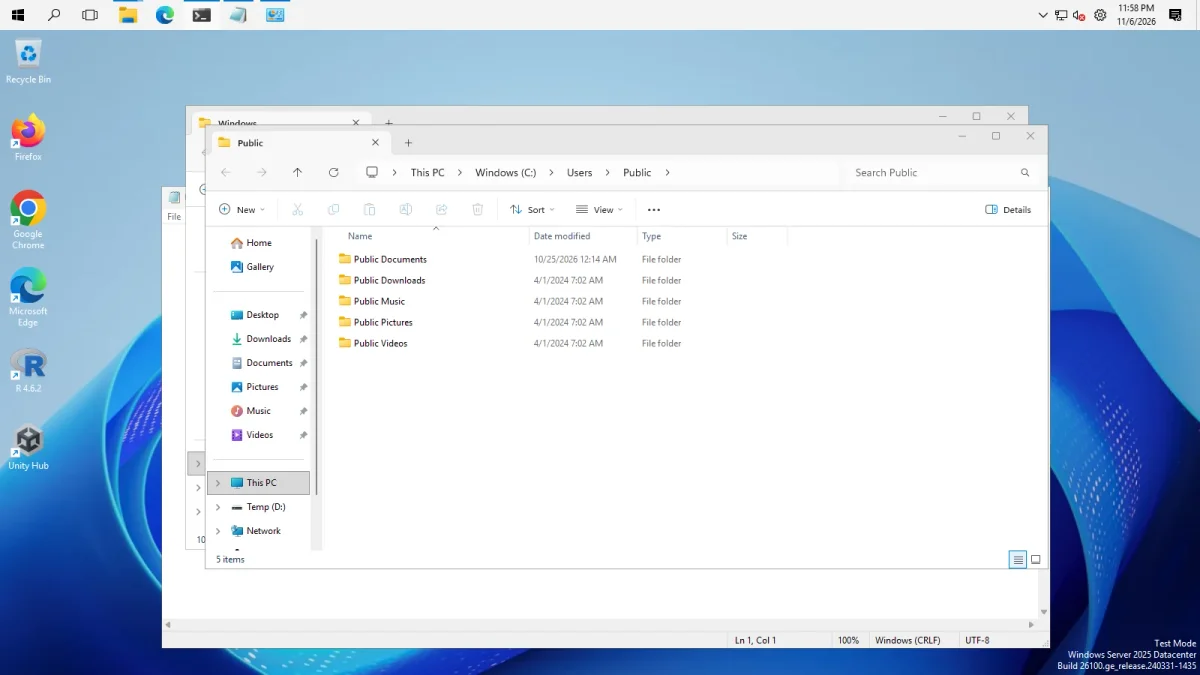
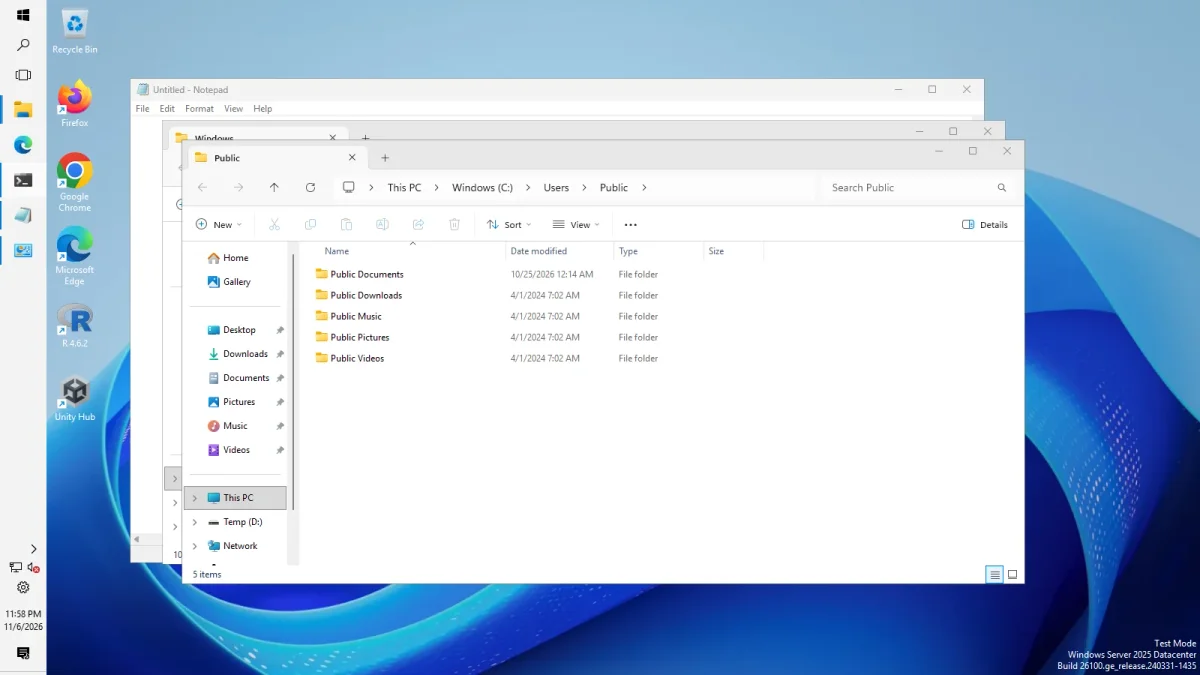
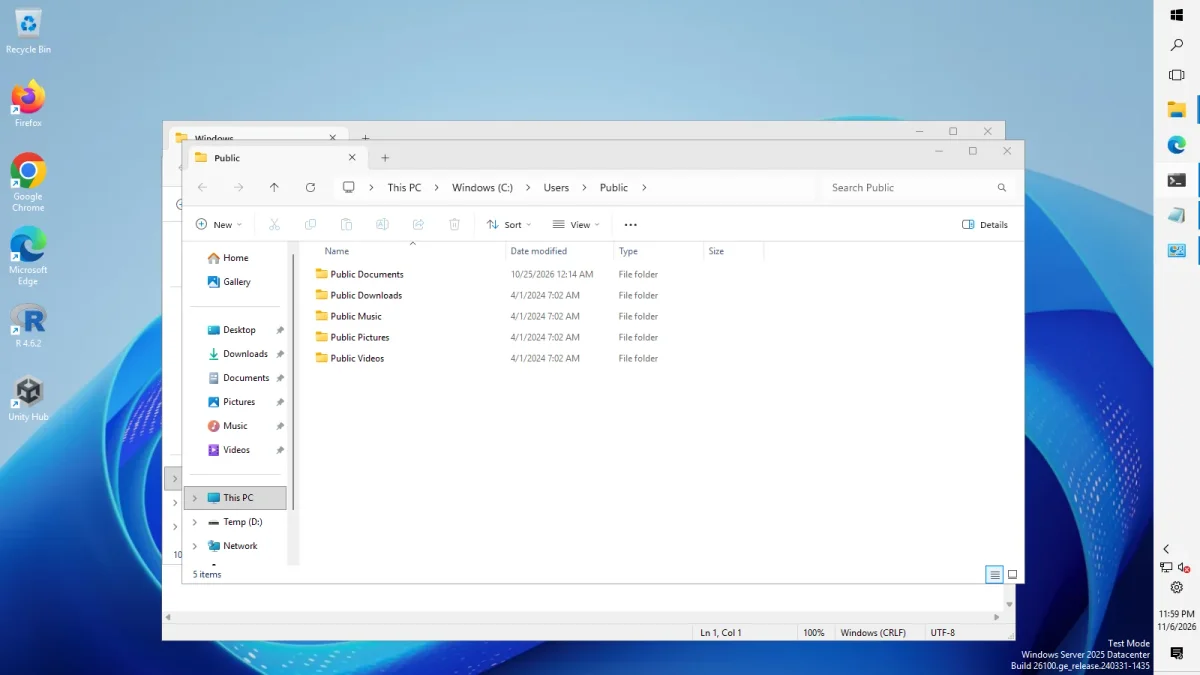
All three photos are the Windows 10 (ExplorerPatcher) taskbar on Windows Server 2025 (24H2 shell). The Arm64 machine gave the same sizes.
What Windows 11 offers natively
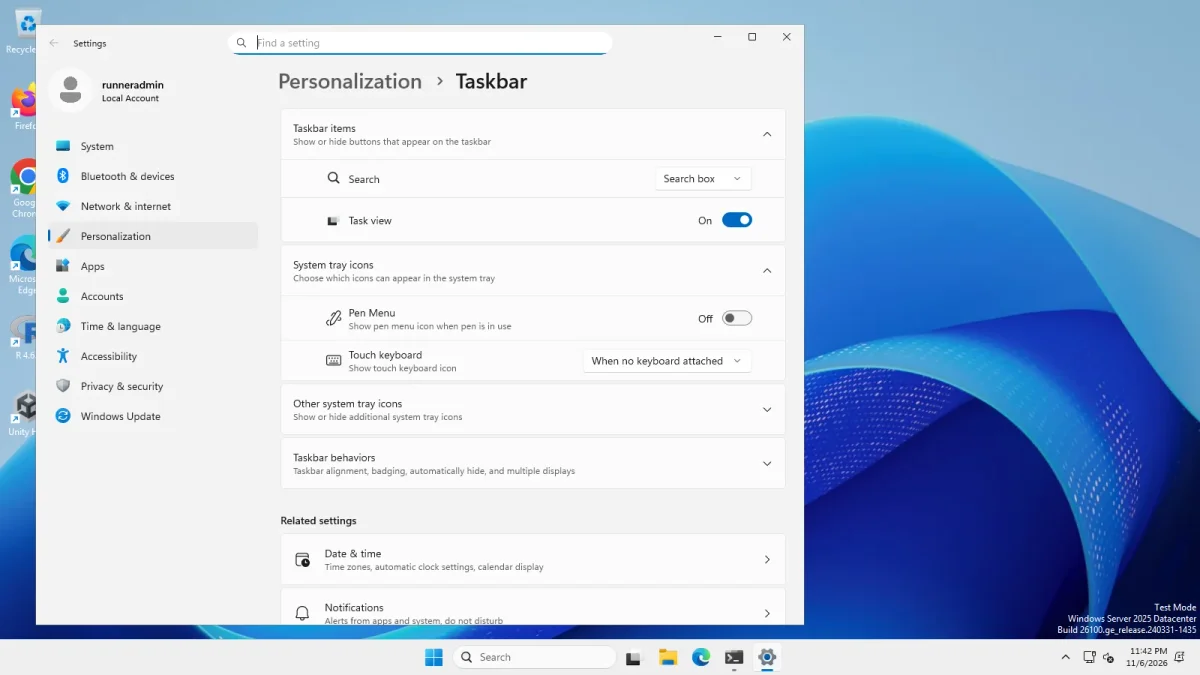
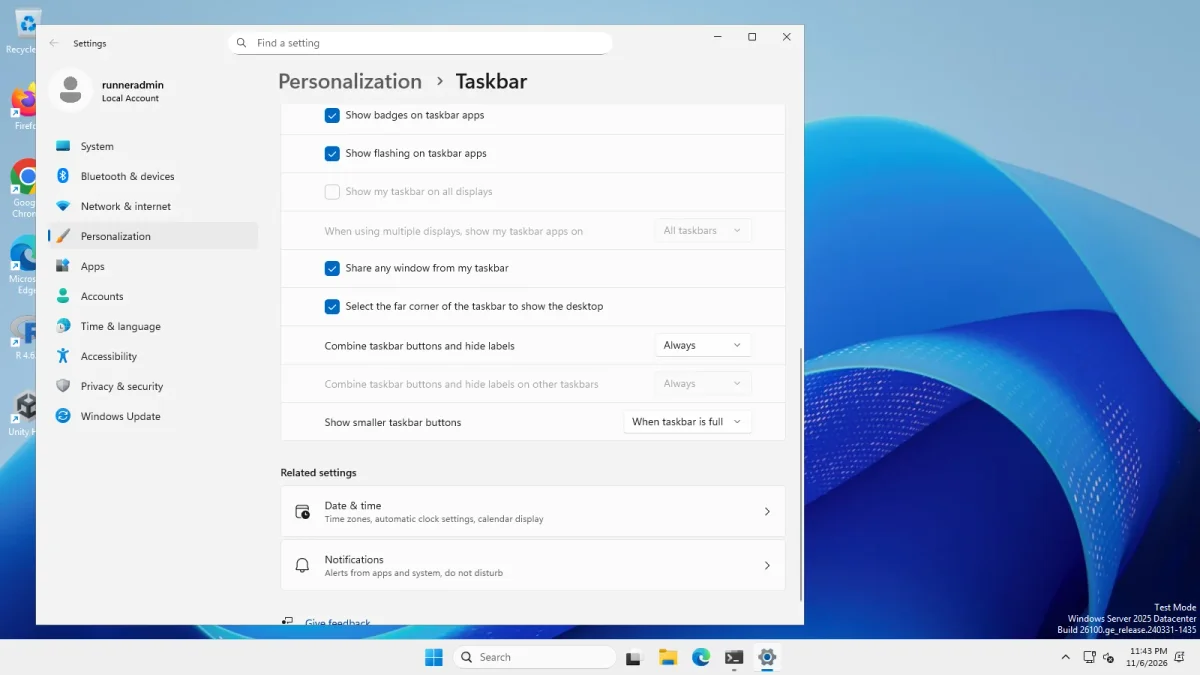
We opened Settings, Personalization, Taskbar before installing anything.
- Windows Server 2025 (24H2 shell, build 26100.33674). Taskbar behaviors showed badges, flashing, multiple displays, sharing a window, the show desktop corner, combine and small-button options. We saw no position row. The top of that section, where taskbar alignment and auto-hide would be, was scrolled out of view in our photos.
- Windows 11 Enterprise 25H2 (build 26200.9725, Arm64). The Taskbar behaviors section stayed collapsed in all four photos.
The section describes itself as “Taskbar alignment, badging, automatically hide, and multiple displays”. Alignment means left or centred icons, not the screen edge. Upstream’s wiki says ExplorerPatcher’s location setting is not available with the Windows 11 taskbar on build 22621 (22H2) and higher. So on 24H2 and 25H2 we found no way to move the Windows 11 taskbar: in everything we photographed it stays at the bottom.
Move the taskbar with ExplorerPatcher
- Install ExplorerPatcher from GitHub only. See download and install.
- Use the right taskbar style. In Properties, Taskbar, Taskbar style * must be Windows 10 (ExplorerPatcher). The location settings are hidden when you use the Windows 11 taskbar on 22H2 or later. See the taskbar page.
- Set the location. Click Primary taskbar location on screen and choose one of Bottom (default), Top, Left or Right.
- Check the result. The window moves the taskbar live. If you have a second monitor, Secondary taskbar(s) location on screen has the same four choices.
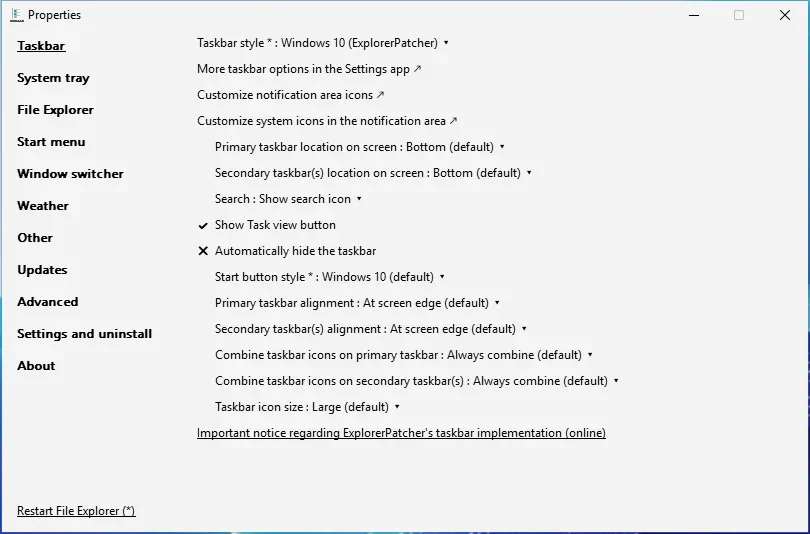
The settings are Primary taskbar location on screen and Secondary taskbar(s) location on screen. The value does not live in ExplorerPatcher’s key. It is stored in Windows’ own taskbar data, StuckRectsLegacy, which the ExplorerPatcher taskbar reads. That is why the Properties window needs to do the move for you.
Upstream’s wiki adds a second way: untick Lock the taskbar in the taskbar’s right-click menu and drag the taskbar to another edge. We saw Lock the taskbar ticked in that menu but did not try dragging.
What we measured
We moved the taskbar by writing the edge value into the taskbar position data (both StuckRectsLegacy and StuckRects3), restarting Explorer, and reading the taskbar window’s rectangle. The screen was 1600 by 900 at 100 % scaling. Both machines gave identical numbers.
| Position | Taskbar rectangle (left, top to right, bottom) | Size |
|---|---|---|
| Bottom (default) | 0, 860 to 1600, 900 | 1600 by 40 px |
| Top | 0, 0 to 1600, 40 | 1600 by 40 px |
| Left | 0, 0 to 62, 900 | 62 by 900 px |
| Right | 1538, 0 to 1600, 900 | 62 by 900 px |
For comparison the Windows 11 taskbar was 48 px high on both machines.
What the photos show on the left and right: the Start, search and Task View buttons stack at the top, pinned and open apps follow, and the tray icons and the clock sit at the bottom. Search is an icon, not a box, in our photos. The clock shows the time over the date.


Limits and known issues
- Windows 11 taskbar. ExplorerPatcher’s data says it supports only top and bottom, and the Properties window refuses left or right for it.
- Multiple monitors. We have not tested this. Upstream issue 5142 (open) is titled “Issue Positioning Secondary Monitor Taskbar to the Right - (workaround included!)”, and issue 5208 (open) reports the primary and secondary taskbars intermittently appearing on the wrong monitors after a reboot.
- Auto-hide on the left. Issue 5104 (open) says a tray pop-up is partly hidden behind a left-side auto-hidden taskbar.
- Tooltips. Issue 5102 (closed) was about taskbar tooltips staying on screen on a vertical taskbar.
If the taskbar does not change at all, read taskbar not changing. For the full list of taskbar options see taskbar settings.
Other ways
Windhawk has mods that change the Windows 11 taskbar, including a vertical taskbar. It is free (GPL-3.0). StartAllBack, a paid tool, also lists a taskbar among the things it restores. We have not tested either on our machines. See ExplorerPatcher vs Windhawk and vs StartAllBack.
Common questions
Can Windows 11 itself move the taskbar to the top or side?
We found no position option in the Settings rows we photographed on Windows Server 2025 and Windows 11 25H2. The section's own description lists alignment, badging, auto-hide and multiple displays, not a screen edge. Upstream's wiki says ExplorerPatcher's own location setting is not available with the Windows 11 taskbar on 22H2 and later.
Does the left or right taskbar work with the Windows 11 taskbar style?
No. ExplorerPatcher's data says the Windows 11 taskbar only supports top and bottom, and the Properties window refuses left and right for it. Our measurements of left and right come from the Windows 10 (ExplorerPatcher) taskbar.
Do I need to restart Explorer after moving the taskbar?
Usually not. The Properties window moves the taskbar live, and the 70.3 release notes say changes to the taskbar position apply immediately. Our photos were taken after an Explorer restart, so we did not time the live move.
Does moving the taskbar work on a second monitor?
There is a separate setting for secondary taskbars, but we have not tested it because our machines have one monitor. Upstream issue 5142 (open) is about positioning a secondary monitor taskbar to the right and includes a workaround.