How to get the Windows 10 taskbar on Windows 11
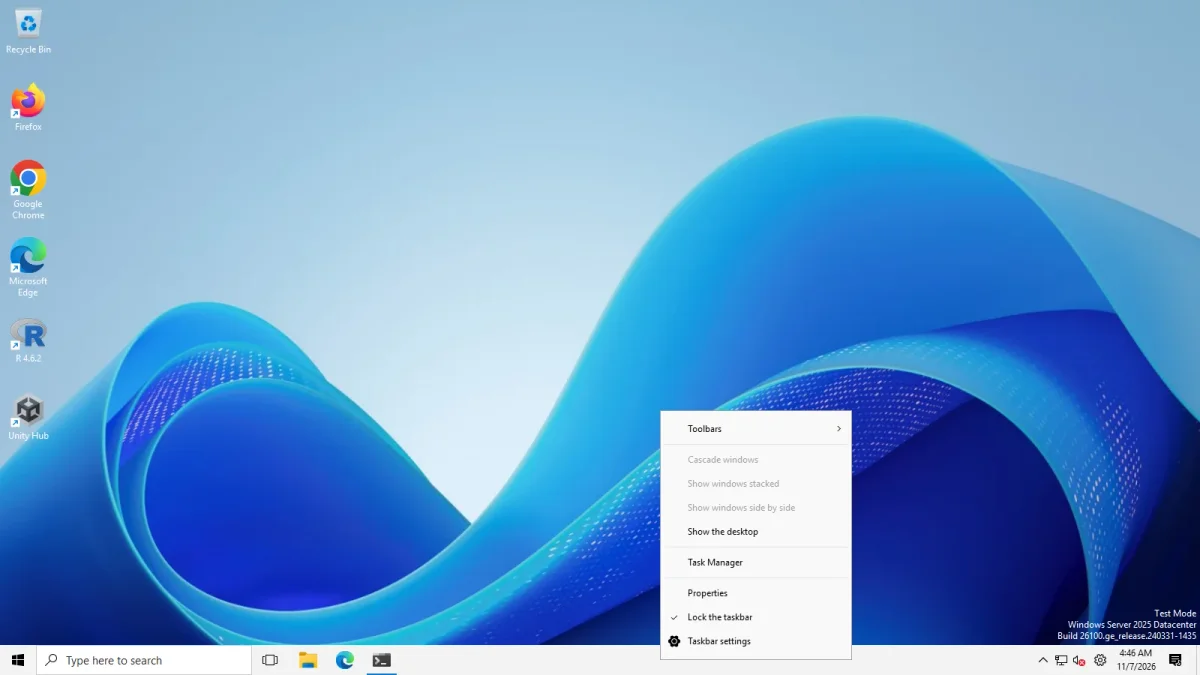
Install ExplorerPatcher from GitHub, open Properties from the taskbar menu and set Taskbar style to "Windows 10 (ExplorerPatcher)". On Windows 11 24H2 and later the plain "Windows 10" option does nothing, because Microsoft removed that taskbar. We tested version 71.1 on Windows Server 2025 (24H2 shell) and Windows 11 25H2 on Arm64: the taskbar changed from 48 px to 40 px high on both.
Checked against ExplorerPatcher 71.1 (26100.9711.71.1) on Windows Server 2025 (24H2 shell) 26100.33674 and Windows 11 Enterprise 25H2 26200.9725 · Nov 6, 2026On this page
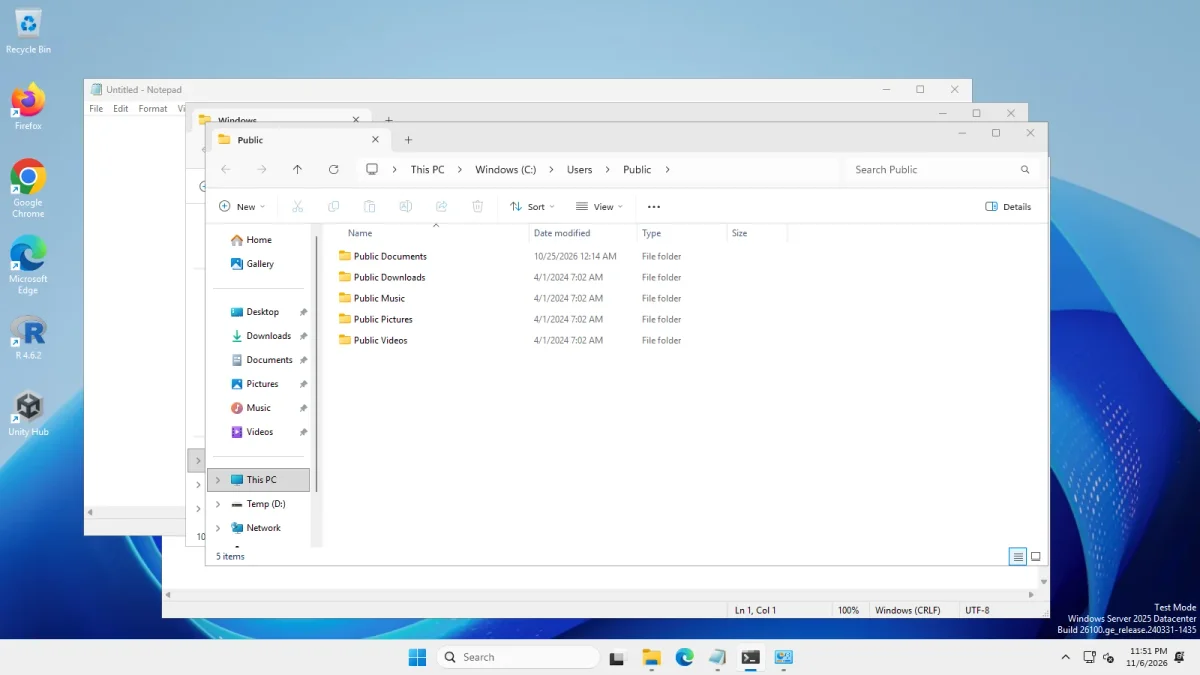 Windows 10 (ExplorerPatcher)Windows 11 taskbar
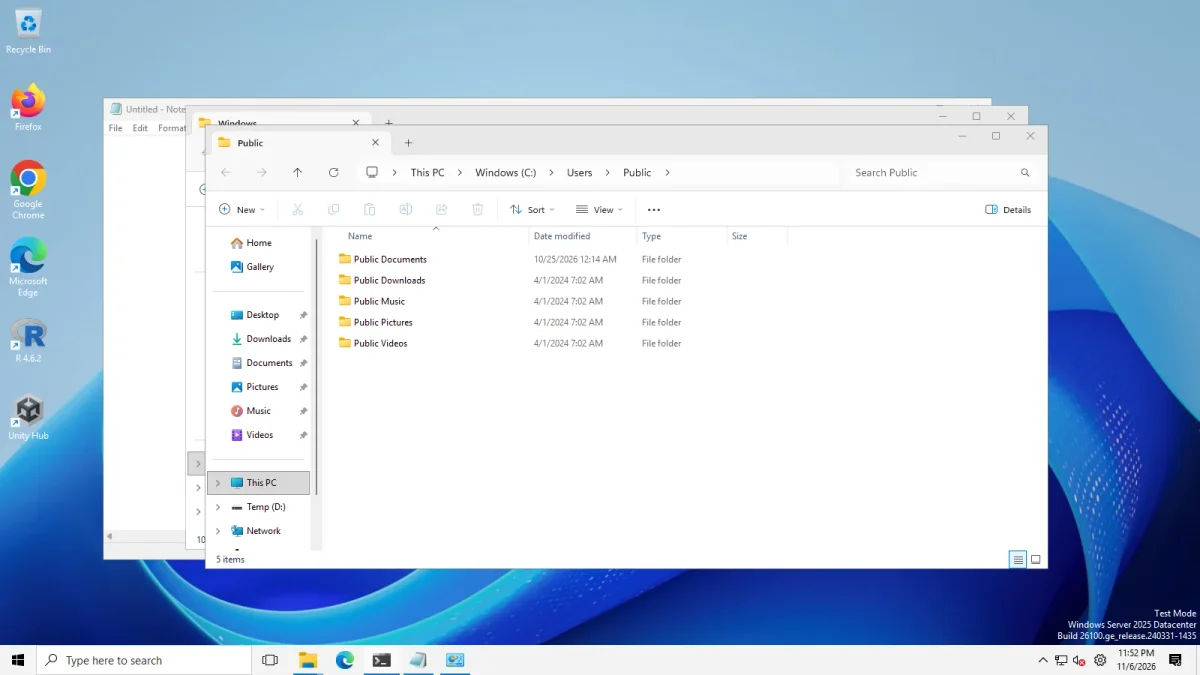
Same machine, four apps open, before and after the taskbar style change · Windows Server 2025 (24H2 shell), x64 26100.33674 · EP 71.1
Drag the handle to compare. The notification in the corner is ExplorerPatcher’s own update message. Both pictures come from Windows Server 2025, which uses the Windows 11 24H2 shell.
What Windows 11 offers natively
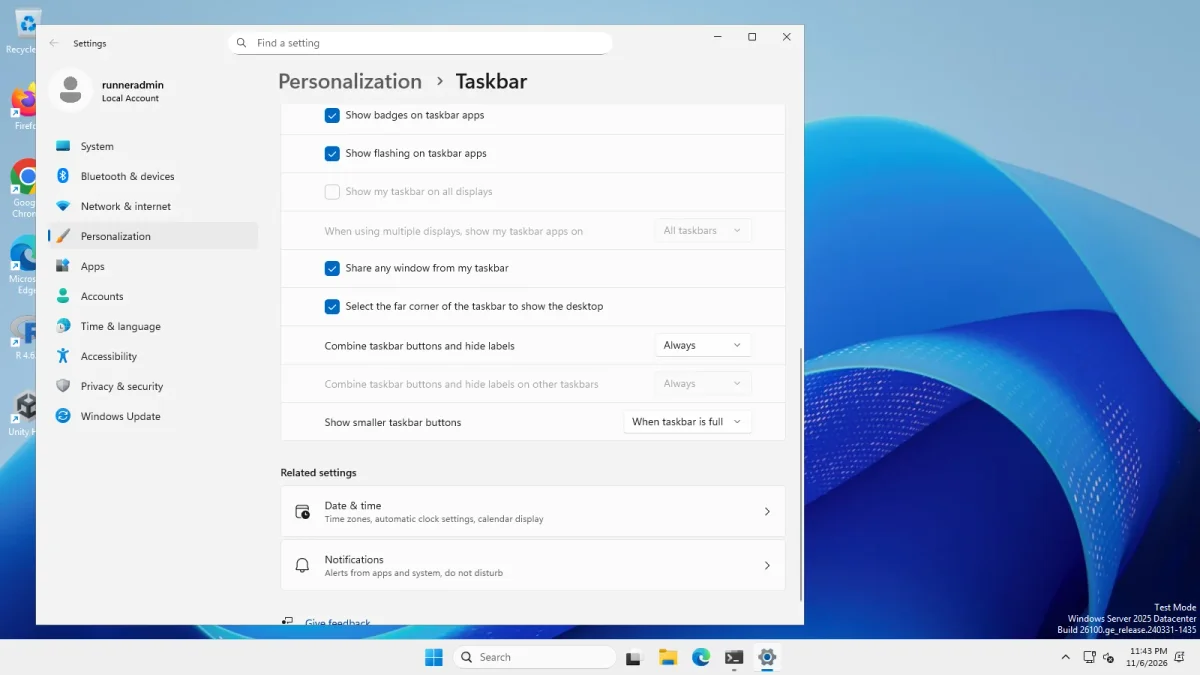
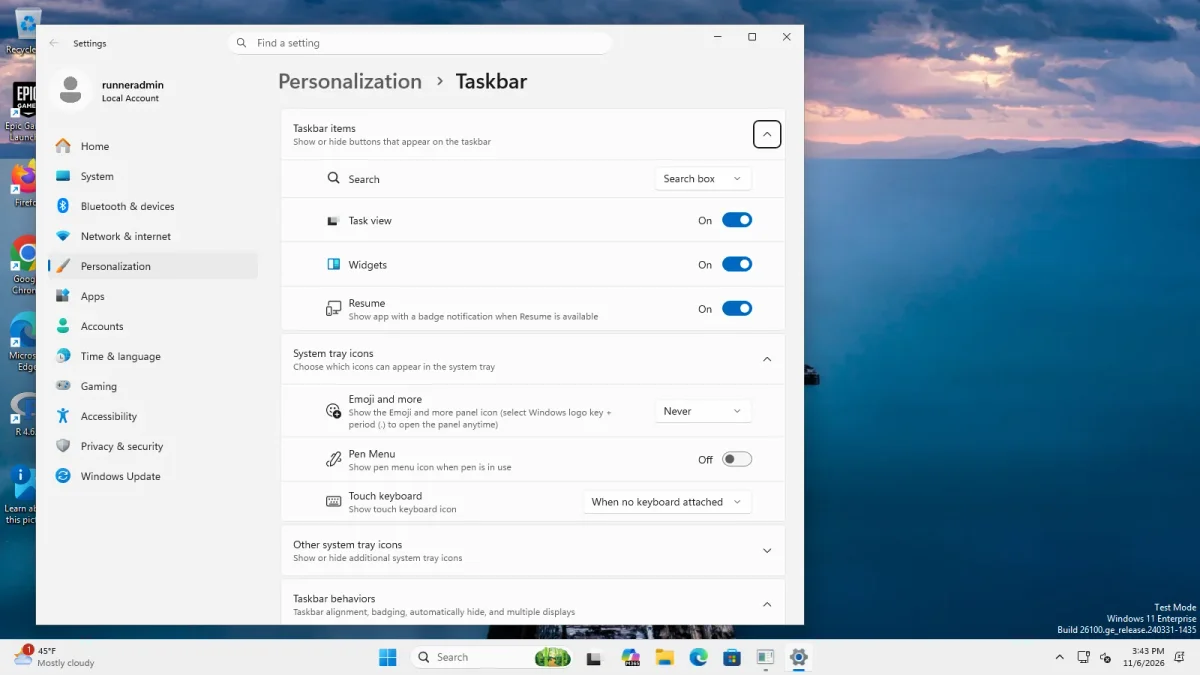
We photographed Settings, Personalization, Taskbar before installing anything.
- Windows Server 2025 (24H2 shell, build 26100.33674). The page lists Taskbar items (Search, Task view), System tray icons and Taskbar behaviors. Inside Taskbar behaviors we saw Combine taskbar buttons and hide labels and Show smaller taskbar buttons, plus options for badges, flashing, multiple displays and showing the desktop corner.
- Windows 11 Enterprise 25H2 (build 26200.9725, Arm64). The page lists Search, Task view, Widgets, Resume, three tray options and Taskbar behaviors. The Taskbar behaviors section stayed collapsed in our photos, so we cannot say what was inside on this build.
The Taskbar behaviors description reads “Taskbar alignment, badging, automatically hide, and multiple displays”. It names no screen position, and we saw none in the rows we photographed. What Windows cannot give you is the Windows 10 look: the flag Start button, the wide labelled buttons with a search box, or a taskbar on the left or right. See never combine and labels, small taskbar and moving the taskbar for each native option in detail.
The three taskbar styles in ExplorerPatcher
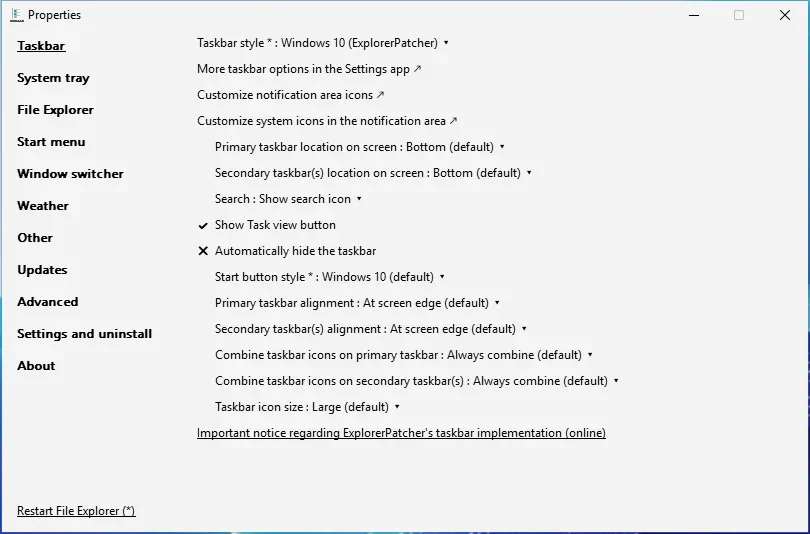
The setting is Taskbar style in Properties, Taskbar. It has three choices, and most other taskbar settings depend on it. After you install, the default is the third one.
| Choice in the app | What it does on 24H2 and 25H2 | Height we measured |
|---|---|---|
| Windows 11 (default) | Keeps the stock Windows 11 taskbar | 48 px |
| Windows 10 | Asks Windows for its own Windows 10 taskbar, which no longer exists, so nothing changes | 48 px |
| Windows 10 (ExplorerPatcher) | Loads ExplorerPatcher’s re-creation of the Windows 10 taskbar | 40 px |
We measured the same numbers on Windows Server 2025 and on Windows 11 25H2 Arm64, on a 1600 by 900 screen at 100 % scaling. On Windows Server 2022, which has the real Windows 10 shell, all three choices gave the stock 40 px Windows 10 taskbar.



Upstream’s FAQ says the same: in 24H2 Microsoft removed the Windows 10 taskbar, so ExplorerPatcher ships its own implementation. Our compatibility table lists which Windows builds each taskbar file supports, and Windows 11 24H2 and 25H2 have the details for those versions. If the taskbar stays the Windows 11 one after installing, read taskbar not changing.
Step by step
- Prepare. Use a personal PC. Read Install ExplorerPatcher and the black screen guide. Turn Smart App Control off first, as upstream’s release notes tell you to.
- Download from GitHub only. Use the download page to pick the right file and check its hash.
- Run the setup. It took 5.2 to 8.6 seconds on our machines, and the taskbar changed at the same moment.
- Open Properties. Right-click the taskbar and choose Properties. If it is missing, search Start for Properties (ExplorerPatcher).
- Set the style. In Taskbar, set Taskbar style to Windows 10 (ExplorerPatcher). The asterisk after the name means the change needs a File Explorer restart.
- Restart File Explorer. Click Restart File Explorer (*) at the bottom of the window.
Make it look like Windows 10
These settings sit in the same Taskbar section. Names are exactly as the app shows them, and each links to its entry in our taskbar settings list.
| Setting | Choices | What we saw |
|---|---|---|
| Start button style * | Windows 10 (default), Windows 11 | Windows 11 swaps the flag for the Windows 11 Start icon on the 40 px taskbar |
| Primary taskbar alignment | At screen edge (default), Centered, Centered with Start button, and edge-when-full variants | Centered and Centered with Start button both worked |
| Combine taskbar icons on primary taskbar | Always combine (default), Combine when taskbar is full, Never combine | Never combine gave one labelled button per window |
| Search | Hidden, Show search icon, Show search box | Show search box gave the wide “Type here to search” box |
| Show Task view button | On, Off | Off removed the icon |
| Taskbar icon size | Small, Large (default) | Small measured 30 px high instead of 40 px |
How we tested these: we set each value in the registry, where the Properties window stores it, restarted Explorer and took a screenshot. We did not click through the Properties window for each one.




For the whole look, including the Start menu, File Explorer and right-click menu, follow make Windows 11 look like Windows 10.
What is different from the real Windows 10 taskbar
From upstream’s wiki:
- It is a re-creation, “mostly based on the code present in Windows 11 22H2”, so it does not cover every feature of the original. Upstream names Assigned Access as missing.
- A Windows update can break it until a fix is released. Upstream tells you to switch back to the default taskbar if it becomes a nuisance.
- Other taskbar tweakers are not guaranteed to work. TranslucentTB, T-Clock Redux and TaskbarX are listed as compatible. 7+ Taskbar Tweaker is listed as incompatible.
- Perks that the real Windows 10 taskbar did not have: Snap Groups, a virtual desktop switcher when docked at the bottom, the Windows 11 animated Start, Search and Task View icons, and End Task.
From our own observations on 71.1:
- It is 40 px high on a 1600 by 900 screen. We did not measure it against a real Windows 10 install.
- The Windows 10 Start menu opens in the middle of the screen, as the Windows 11 one does, unless you change its position setting. See the Start menu page.
- Explorer restarts took 2 to 3.7 seconds in our measurements, with or without ExplorerPatcher.
Known problems reported upstream (we have not tried to reproduce them): issue 5130, open, is titled “The Windows 10-style taskbar is not available on Windows Server 2025”, although the style worked on our Server 2025 image. Issues 5209 and 5221 report Explorer crashes in Windows 11 Beta builds 26220.9757 and 26220.9836. The 71.1 release notes say the taskbar now checks that it is compatible with the running Windows version and falls back to the stock taskbar instead of crashing. Read each issue on GitHub before you rely on it.
Other ways
| Tool | What it does | Price (from our alternatives list) |
|---|---|---|
| StartAllBack | Restores a Windows 10 or 7 style taskbar, Start menu, ribbon and classic context menus | Paid; third-party reviews quote about $5 per PC, which we did not verify |
| Windhawk | Mods that change the Windows 11 taskbar (labels, vertical taskbar and more) instead of restoring the Windows 10 one | Free, GPL-3.0 |
| RetroBar | A separate replacement taskbar with Windows 95 to Vista themes | Free, Apache-2.0 |
We have not tested these on our machines yet. Compare them on ExplorerPatcher vs StartAllBack, ExplorerPatcher vs Windhawk and the alternatives chooser.
Common questions
Why does the "Windows 10" taskbar style do nothing on Windows 11 24H2?
That option asks Windows for its own Windows 10 taskbar, and Microsoft removed that code from builds 26002 and later. We measured 48 px, the Windows 11 height, on both of our machines. Choose "Windows 10 (ExplorerPatcher)" instead.
Is the ExplorerPatcher taskbar the real Windows 10 taskbar?
No. It is a re-creation that upstream built mostly from Windows 11 22H2 code. It looks and behaves like the Windows 10 taskbar, but a Windows update can break it until a new release arrives, so upstream says not to use it on work or mission-critical PCs.
Do I need ExplorerPatcher just for labels or a smaller taskbar?
Maybe not. Settings on our Windows Server 2025 image listed Combine taskbar buttons and hide labels and Show smaller taskbar buttons. Read our pages on never combining and small taskbars to see what Windows offers before you install anything.
Does it work on Windows 10?
ExplorerPatcher installs on Windows 10 1809 and later, but Windows 10 already has its own taskbar. On our Windows Server 2022 test (Windows 10 shell) all three taskbar styles showed the stock 40 px taskbar.