ExplorerPatcher vs StartAllBack
Both tools gave us a 40 px taskbar, a classic Start menu list, a File Explorer ribbon and the classic right-click menu on Windows Server 2025 (24H2 shell). ExplorerPatcher is free, open source and unsigned. StartAllBack is paid, closed source and has a valid signature. Pick StartAllBack if you want to pay for a signed installer, ExplorerPatcher if you want the Windows 10 Start menu and Alt+Tab for free.
Checked against ExplorerPatcher 71.1 (26100.9711.71.1) on Windows Server 2025 (24H2 shell) 26100.33674 · Nov 6, 2026On this page
The verdict in one box
We ran the StartAllBack 3.9.28 trial installer on 7 Nov 2026. Our ExplorerPatcher 71.1 evidence comes from the run the day before, on the same Windows Server 2025 image. A server is not a Windows 11 client PC, so see how we test for what that means.
Side by side on the same machine
Left: StartAllBack with four apps open. Right: ExplorerPatcher’s “Windows 10 (ExplorerPatcher)” taskbar style in the same arrangement. Both taskbars are 40 px high. StartAllBack keeps a “Search” box and a task view button next to its Start button; ExplorerPatcher shows the Windows 10 “Type here to search” box and a Task View button.
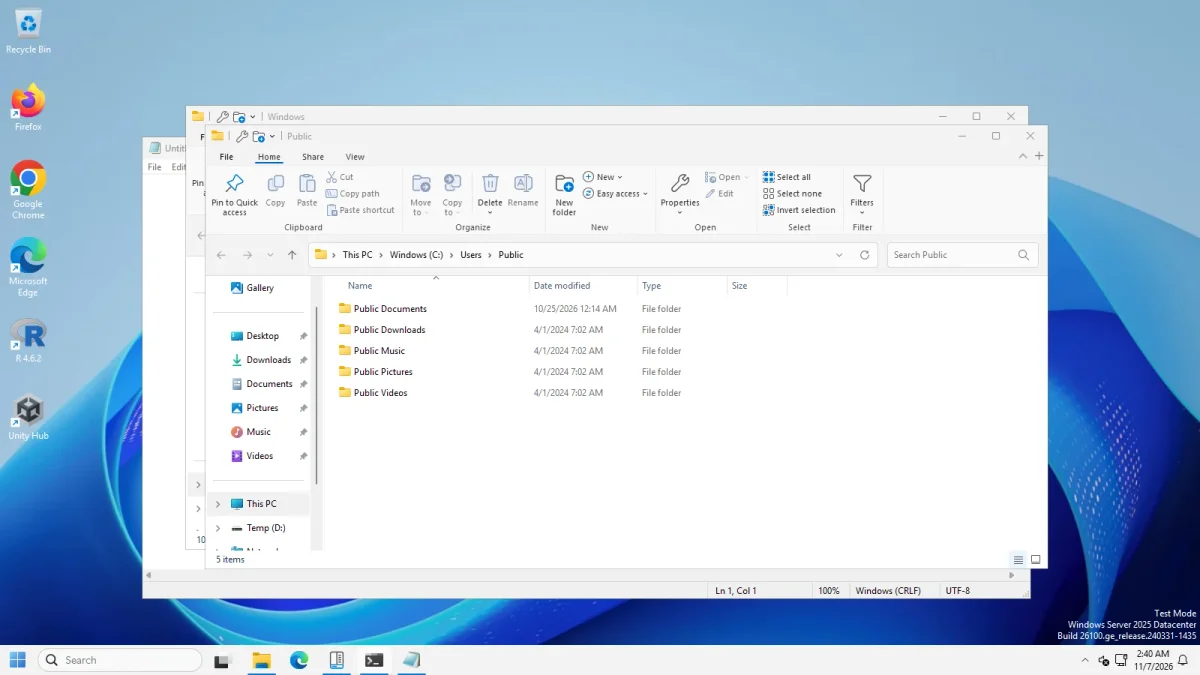
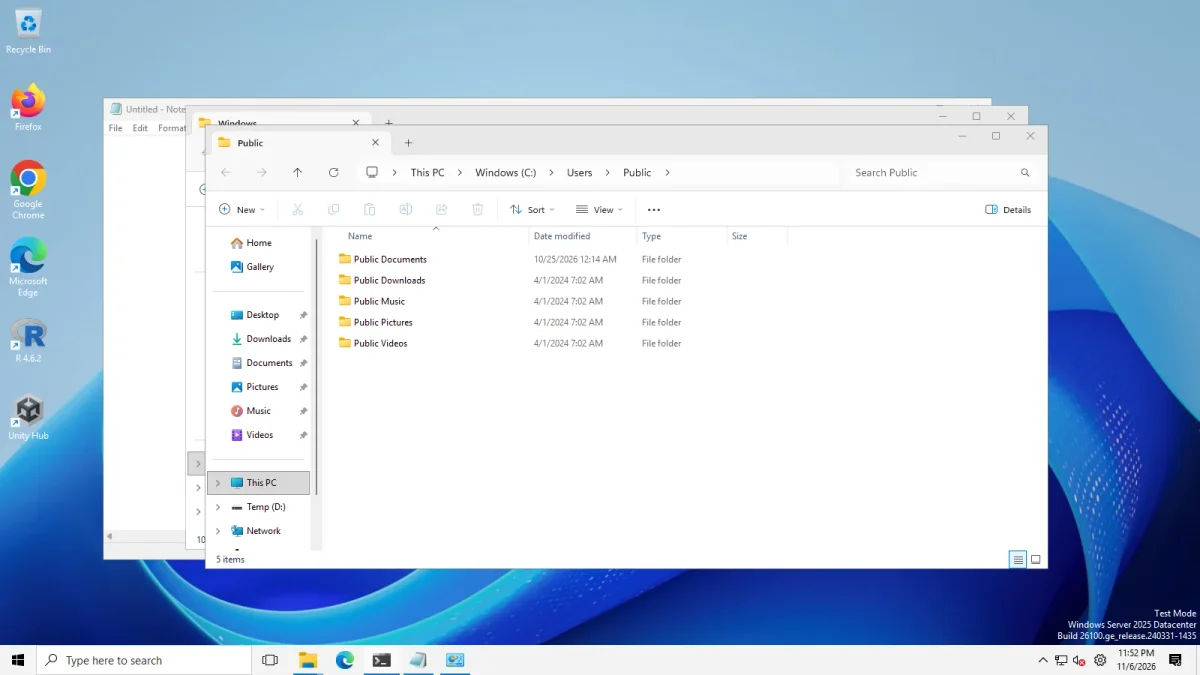
To see what changed from stock Windows 11, drag the slider below. On the right is Windows 11 as it came, with a centred Start button and the Windows 11 command bar in File Explorer.
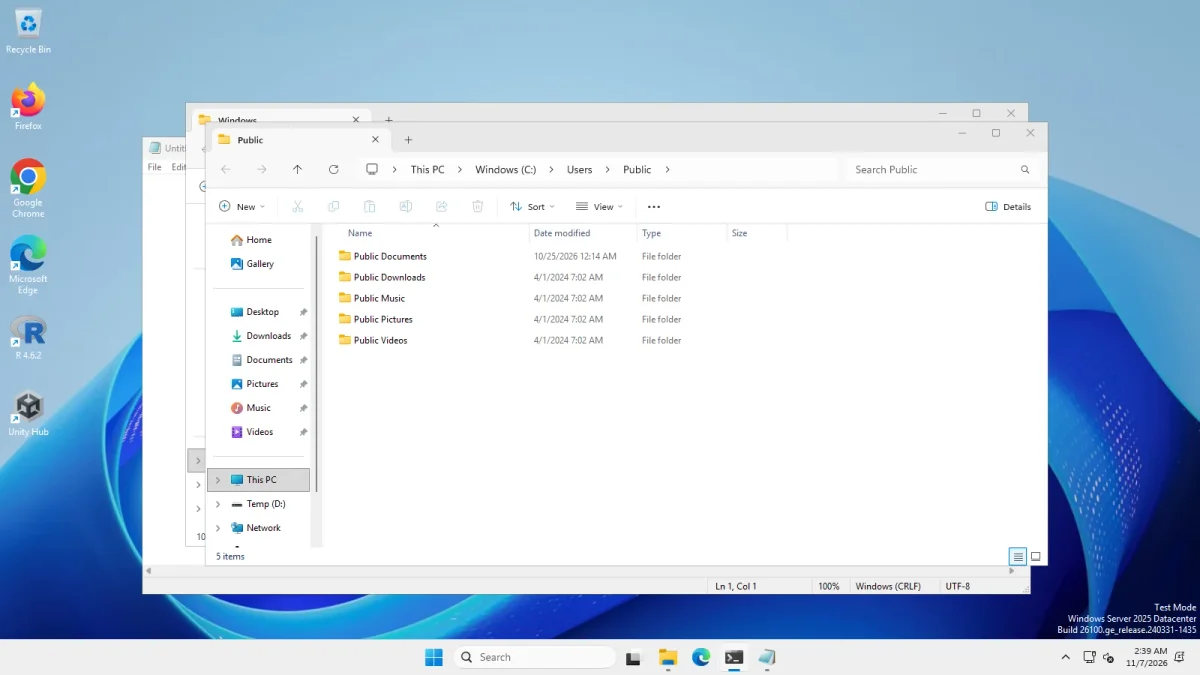 With StartAllBack 3.9.28Windows 11 before StartAllBack
The same machine before and after the StartAllBack install · Windows Server 2025 (24H2 shell), x64 26100.33674 · EP 71.1
Taskbar
| Windows 11 as shipped | StartAllBack 3.9.28 | ExplorerPatcher 71.1 | |
|---|---|---|---|
| Taskbar height | 48 px | 40 px (all three styles) | 40 px |
| Start button | Centred | Left | Left |
| After uninstall | Stock | 48 px again | 48 px again (Windows 11 taskbar back) |
We applied each of StartAllBack’s three styles, which our run log calls remastered-7, kinda-10 and proper-11. The height was 40 px in every one. The strips below show the first two.


ExplorerPatcher’s taskbar options are in Settings: Taskbar. We tested never combine (labelled buttons), small icons (30 px), seconds in the clock and top, left and right positions. StartAllBack’s site lists labels, position and size too, but we did not test them. The full ExplorerPatcher walk-through is on Windows 10 taskbar on Windows 11.
Start menu
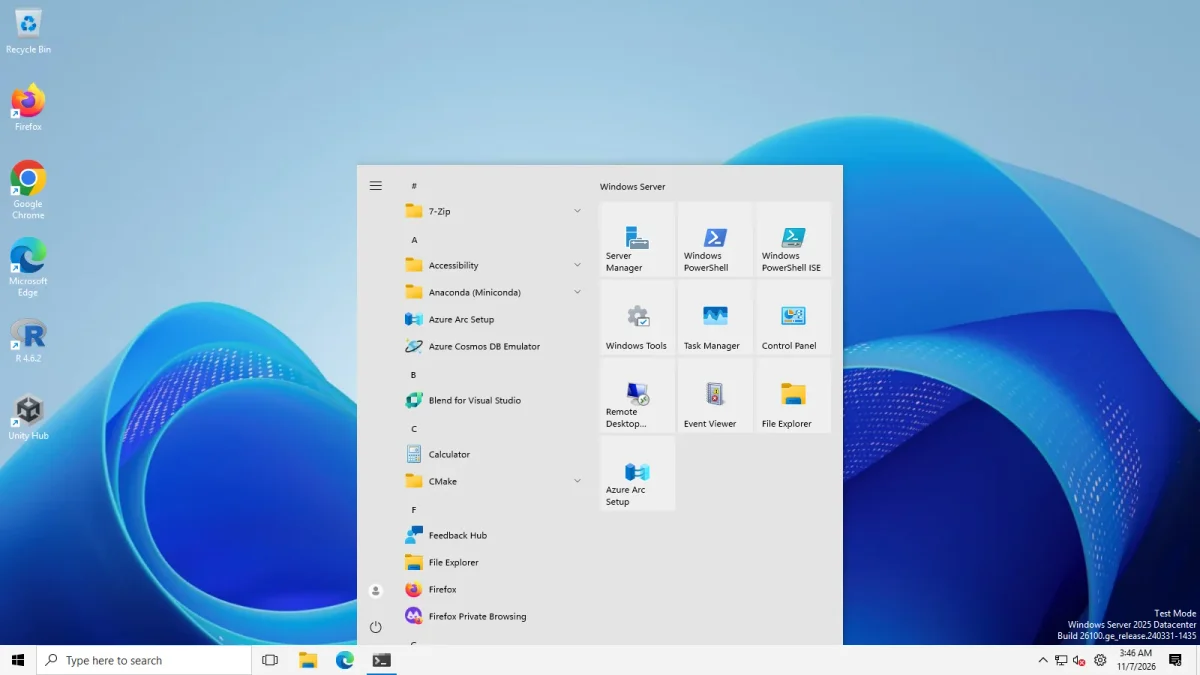
Stock Windows 11 opened its centred menu with pinned apps. After StartAllBack the menu opened at the left as a two-column list: recent apps on the left with All Programs and a Search programs and files box below, and user folders, Control Panel, Settings, Run and Sign out on the right. We saw the same layout in all three styles. We did not see tiles.
ExplorerPatcher’s Windows 10 Start menu is a different design: an app list on the left and a tile area on the right. We tested it on both taskbar styles.
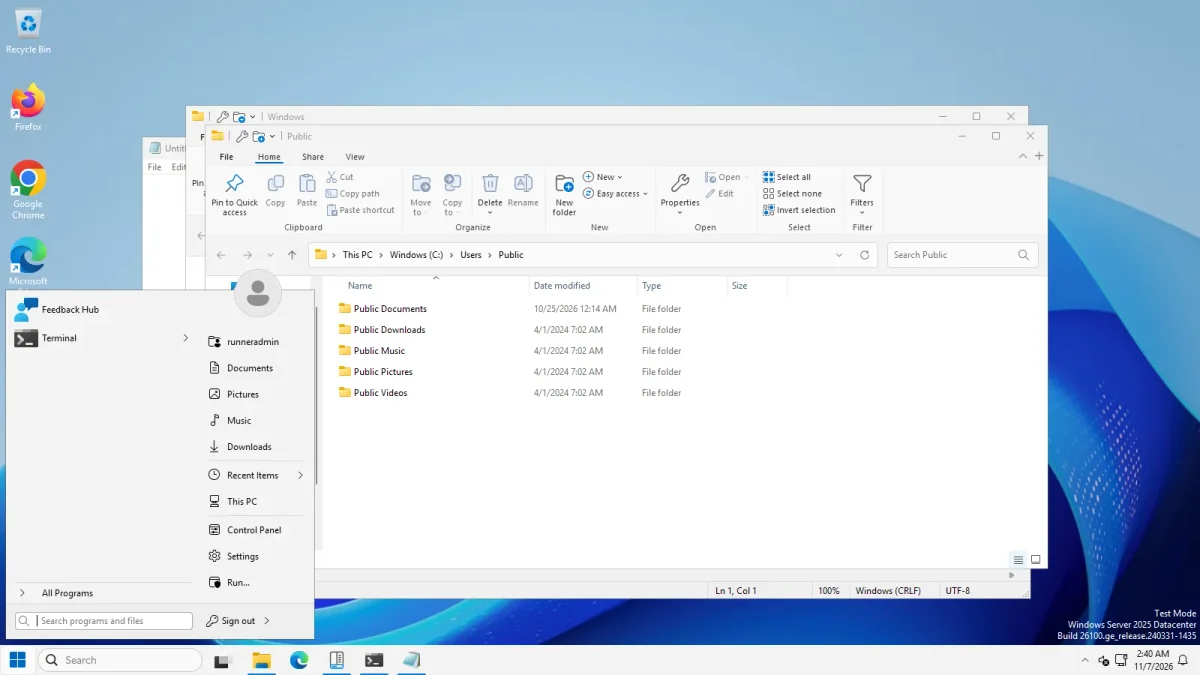
File Explorer and the context menu
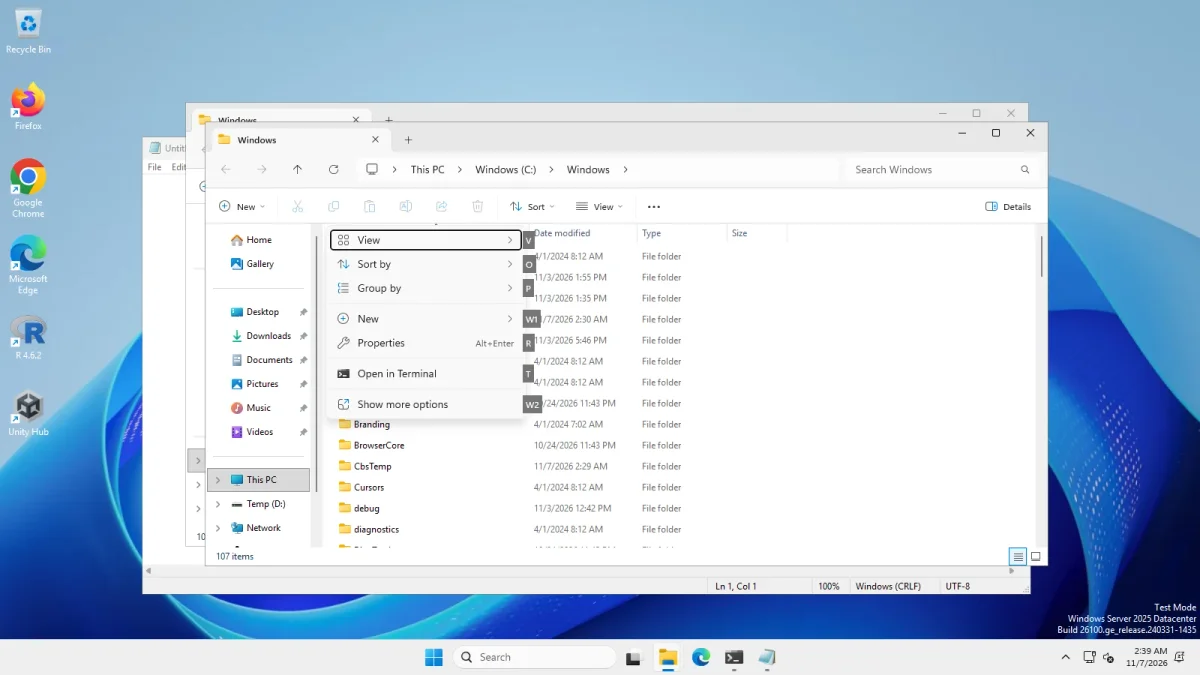
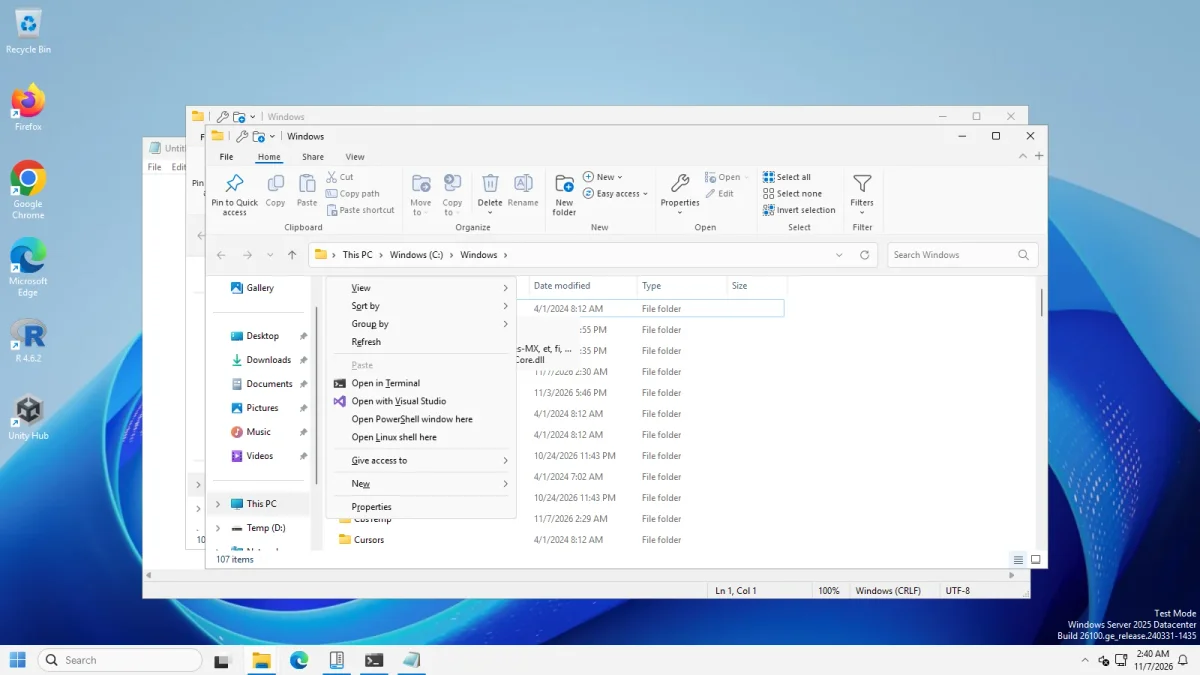
StartAllBack changed File Explorer according to its style: the default style and kinda-10 showed the ribbon (File, Home, Share, View), remastered-7 showed a Windows 7 style command bar (Organize, Give access to, New folder), and proper-11 kept the Windows 11 command bar. ExplorerPatcher’s File Explorer options gave us the Windows 10 ribbon and a Windows 7 command bar, as described under File Explorer ribbon.
Right-clicking an empty area in a folder gave the short Windows 11 menu with “Show more options” on stock Windows. With StartAllBack the full classic menu opened at once, in all three styles. ExplorerPatcher does the same when “Disable the Windows 11 context menu” is on. See also classic context menu, which works without either tool.
Feature table
Only facts we saw or read are in this table. A dash means we did not test it, not that the tool cannot do it.
| ExplorerPatcher 71.1 | StartAllBack 3.9.28 | |
|---|---|---|
| Windows 10 style taskbar | Yes, 40 px (tested) | A left-aligned 40 px taskbar (tested) |
| Taskbar labels, position, size | Tested: never combine, small icons, top/left/right | Listed on its site; not tested |
| Start menu | Windows 10 menu with tiles (tested) | Classic two-column list (tested), no tiles seen |
| File Explorer | Windows 10 ribbon, Windows 7 command bar (tested) | Ribbon, Windows 7 command bar, Windows 11 command bar by style (tested) |
| Classic context menu | Yes, one setting (tested) | Yes, in all three styles (tested) |
| Alt+Tab, tray flyouts, weather | Yes (tested) | Not tested |
| Windows versions | Our tests: 24H2 shell, 25H2 on Arm64, Windows 10 shell | Ran on our 24H2 shell; its site names 25H2 since 3.9.15 and 26H2 since 3.9.26 |
| Where it ran | Windows Server 2025, Server 2022, Windows 11 25H2 Arm64 | Windows Server 2025 only |
Price, licence and signing
| ExplorerPatcher | StartAllBack | |
|---|---|---|
| Price | Free | Paid. Third-party reviews quote about $5 per PC; we did not verify the official price |
| Licence | GPL-2.0 for the main program. The taskbar DLL ships as a binary | Closed source |
| Installer size | 11.8 MB (x64) | 2.1 MB (3.9.28 trial installer) |
| Code signing | Not signed (we checked every setup file) | Signature Valid. Signer: IP Zinukhov Stanislav Igorevich, Moscow, RU |
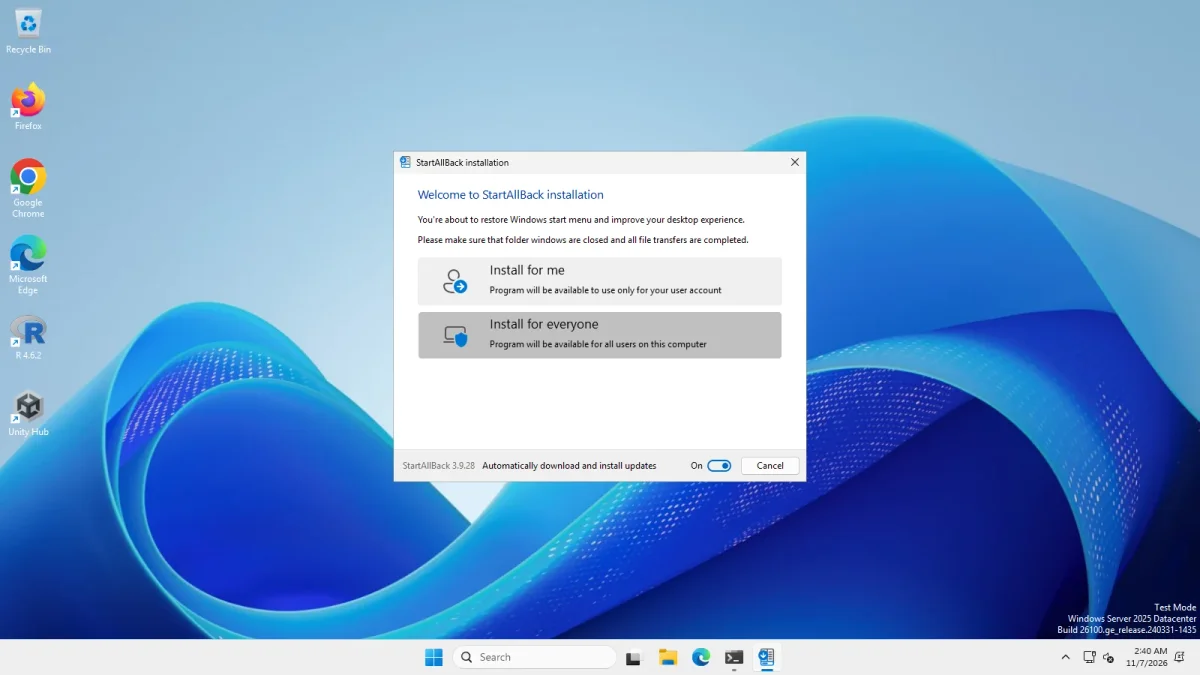
| Updates | Notifies by default; you run the new setup | The installer showed “Automatically download and install updates” switched On |
A valid signature shows that the file has not been changed since it was signed and names who signed it. It does not tell you the program is safe or unsafe, and we did not audit StartAllBack. For ExplorerPatcher’s own risks, which are different, read Is ExplorerPatcher safe?. In 2024 Tom’s Hardware reported that Microsoft’s 24H2 setup blocked customisation tools, which affected both kinds of program.
Install, uninstall and speed
| Measured on Windows Server 2025 | StartAllBack 3.9.28 | ExplorerPatcher 71.1 |
|---|---|---|
| Install time | 2.3 s after the click on “Install for everyone” | 5 to 9 s |
| Uninstall | StartAllBackCfg.exe /uninstall /silent: exit code 0, files gone after 12.1 s, taskbar back to 48 px |
15 to 22 s, Windows 11 taskbar back, settings key left behind |
| Files on disk | 56 files, 5.8 MB in C:\Program Files\StartAllBack, plus 3 files, 0.5 MB in %LOCALAPPDATA%\StartAllBack |
About 20 files, about 23 MB in C:\Program Files\ExplorerPatcher |
| Explorer memory | 145 MB before, 108 MB after (threads 57 to 51) | 145 MB before, 153 MB with the Windows 11 taskbar, 111 MB with EP’s taskbar |
How to read it:
- Install time. The StartAllBack figure starts at the click, so it leaves out the download and the time we spent waiting before the click. The ExplorerPatcher figure may not start from the same point. Read the two as “both are quick”, not as a ranking.
- Uninstall. For StartAllBack we waited until its files were gone. We have no registry check, so we make no claim about what it leaves there. For ExplorerPatcher’s settings key, see uninstall.
- Explorer memory. These are single samples on a virtual machine, taken with different methods. They show no memory cost for either tool, and we cannot explain the drops.
- Footprint. StartAllBack is about 6.3 MB in 59 files in the two places we measured. ExplorerPatcher is about 23 MB in 20 files.
Using both together
We did not test running them together. ExplorerPatcher’s wiki lists compatible tweak programs and does not name StartAllBack. Both tools change the taskbar, Start menu and File Explorer, so run one at a time and uninstall the first before you try the second.
When to choose which
Choose StartAllBack if you are fine paying, want a signed installer, or want a classic Start menu and Explorer without the risks that come with ExplorerPatcher’s taskbar replacement. Check its price on its own site first.
Choose ExplorerPatcher if you want it free and open source, want the Windows 10 tile Start menu or Windows 10 Alt+Tab, and accept an unsigned installer and the chance that a Windows update breaks it for a day. Learn the black screen recovery before you start, and do not use it on a work PC. Download it only from GitHub.
If you cannot decide, the alternatives page compares every tool we looked at, including Windhawk.
Common questions
Is StartAllBack better than ExplorerPatcher?
It depends on what you value. StartAllBack is paid, closed source and its installer is signed, while ExplorerPatcher is free and open source but unsigned. In our run both restored a 40 px taskbar, a classic Start menu and the classic context menu, so the visible gap was small.
Is there a free alternative to StartAllBack?
ExplorerPatcher is free (GPL-2.0) and covers the same four areas we looked at: taskbar, Start menu, File Explorer and context menu. It costs you a different kind of trust, because its setup files are not code-signed and it can break after a Windows update.
Can I run ExplorerPatcher and StartAllBack together?
We did not test running them together, and ExplorerPatcher's wiki does not list StartAllBack as compatible. Both change the taskbar, Start menu and File Explorer, so the safe course is to uninstall one before trying the other.
Does StartAllBack uninstall cleanly?
On our Windows Server 2025 machine, StartAllBackCfg.exe /uninstall /silent exited with code 0 and its files were gone after 12.1 seconds. The 48 px Windows 11 taskbar came back. We did not check the registry, and this is one run.
Does StartAllBack work on Windows 11 24H2?
Version 3.9.28 installed and changed the taskbar, Start menu, Explorer and context menu on our Windows Server 2025 machine, which uses the 24H2 shell (build 26100.33674). We did not test a Windows 11 client PC.