Taskbar settings in ExplorerPatcher
The Taskbar section has 15 entries in our data: 14 on Windows 11 and a Cortana button on Windows 10. The first one, Taskbar style, decides how many of the rest you see. Pick Windows 10 (ExplorerPatcher) for position, alignment, Start button style and small icons. The plain Windows 10 choice does nothing on 24H2 and 25H2.
Checked against ExplorerPatcher 71.1 (26100.9711.71.1) on Windows Server 2025 (24H2 shell) 26100.33674 and Windows 11 Enterprise 25H2 26200.9725 · Nov 6, 2026On this page
What the section looks like
Our screenshots are from Windows 11 25H2 on Arm64 (build 26200.9725) with ExplorerPatcher 26100.9711.71.1. Windows Server 2025 (24H2 shell) showed the same rows. The same section lists different options for each taskbar style, so we photographed both.
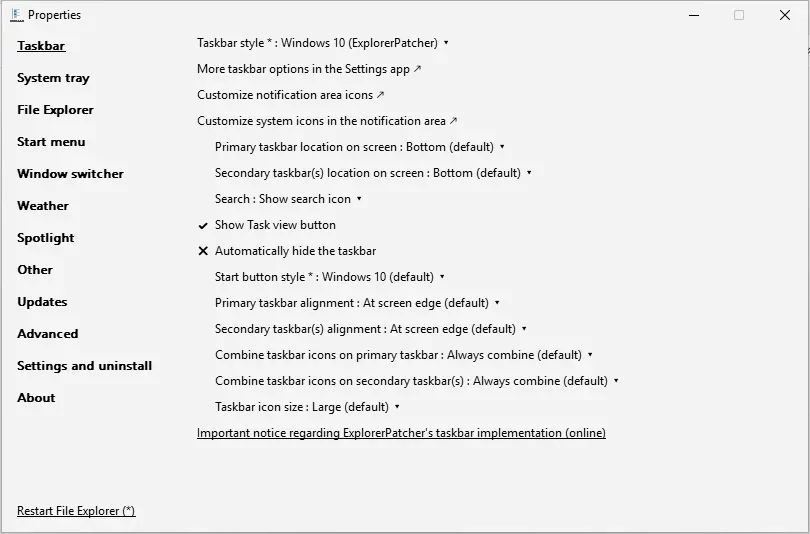
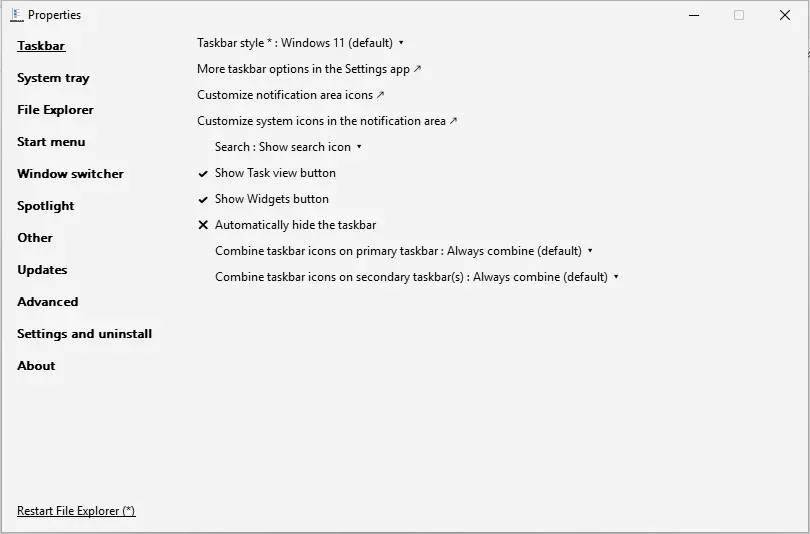
The left picture is the Windows 10 (ExplorerPatcher) taskbar with eleven settings under the style box. The right one is the Windows 11 taskbar with only six, including Widgets. This section is first in a Properties window that has up to 12 sections; the settings hub lists them all.
With the Windows 11 taskbar the window offers search, Task view, Widgets, auto-hide and the two combine boxes, and nothing else. There is no location box, no alignment, no Start button style and no icon size, because ExplorerPatcher is not drawing that taskbar. With ExplorerPatcher’s taskbar the window adds location (primary and secondary), alignment (primary and secondary), Start button style and icon size, and drops Widgets. The three link lines under the style box open Windows’ own Settings pages, and the notice link at the bottom opens an online note about ExplorerPatcher’s taskbar implementation.
Overview
| Setting | Default | Restart | Windows 10 |
|---|---|---|---|
| Taskbar style | Windows 10 (ExplorerPatcher) | yes | yes |
| Primary taskbar location on screen | Bottom (default) | no | yes |
| Secondary taskbar(s) location on screen | Bottom (default) | no | yes |
| Extra button should be | Hidden (default) | no | no |
| Search | Show search icon | no | yes |
| Show Task view button | On | no | yes |
| Show Widgets button | On | no | no |
| Automatically hide the taskbar | Off | no | yes |
| Start button style | Windows 10 (default) | yes | yes |
| Primary taskbar alignment | At screen edge (default) | no | yes |
| Secondary taskbar(s) alignment | At screen edge (default) | no | yes |
| Combine taskbar icons on primary taskbar | Always combine (default) | no | yes |
| Combine taskbar icons on secondary taskbar(s) | Always combine (default) | no | yes |
| Taskbar icon size | Large (default) | no | yes |
| Show Cortana button | Off | no | yes |
All taskbar settings
Taskbar style Choice list
Chooses which taskbar Explorer shows. "Windows 11" is the stock taskbar. "Windows 10" asks Windows for its own Windows 10 taskbar, which Microsoft removed in 24H2. "Windows 10 (ExplorerPatcher)" is ExplorerPatcher's own re-creation of the Windows 10 taskbar and is the default after installing. Most other taskbar settings depend on this choice.
- Default
- Windows 10 (ExplorerPatcher)
- Registry
HKCU\Software\ExplorerPatchervalueOldTaskbar- Section
- Taskbar
Options and stored values (3)
| Option in the app | Stored value |
|---|---|
| Windows 11 (default) | 0 |
| Windows 10 | 1 |
| Windows 10 (ExplorerPatcher) | 2 |
Our test: Server 2025 (24H2), Windows 11 25H2 Arm64: "Windows 10 (ExplorerPatcher)" gives a 40 px taskbar with the Windows 10 look; "Windows 10" and "Windows 11" both leave the 48 px Windows 11 taskbar. On Server 2022 (Windows 10 shell) all three show the stock 40 px Windows 10 taskbar.


Primary taskbar location on screen Choice list
Where the main taskbar sits: bottom, top, left or right. The Windows 11 taskbar only supports top and bottom, and the Properties window refuses left or right for it. ExplorerPatcher's taskbar supports all four edges. The window moves the taskbar live; the value itself lives in Windows' own StuckRectsLegacy data, not in ExplorerPatcher's key.
Appears when: you are not on Windows 11 22H2+ with the Windows 11 taskbar.
- Default
- Bottom (default)
- Registry
HKCU\Software\ExplorerPatchervalueVirtualized_{D17F1E1A-5919-4427-8F89-A1A8503CA3EB}_TaskbarPosition(pseudo value: EP's Properties window maps it to Windows' own storage)- Section
- Taskbar
Options and stored values (4)
| Option in the app | Stored value |
|---|---|
| Bottom (default) | 3 |
| Top | 1 |
| Left | 0 |
| Right | 2 |
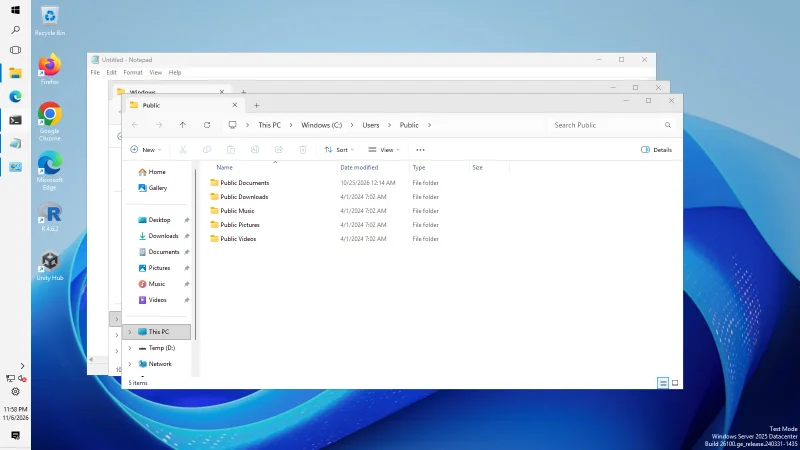
Our test: With the Windows 10 (ExplorerPatcher) taskbar the taskbar moved to the top (1600 × 40 px), left and right (62 px wide) on both Windows 11 machines.

Secondary taskbar(s) location on screen Choice list
The same position choice for the taskbars on your other monitors.
Appears when: you are not on Windows 11 22H2+ with the Windows 11 taskbar.
- Default
- Bottom (default)
- Registry
HKCU\Software\ExplorerPatchervalueVirtualized_{D17F1E1A-5919-4427-8F89-A1A8503CA3EB}_MMTaskbarPosition(pseudo value: EP's Properties window maps it to Windows' own storage)- Section
- Taskbar
Options and stored values (4)
| Option in the app | Stored value |
|---|---|
| Bottom (default) | 3 |
| Top | 1 |
| Left | 0 |
| Right | 2 |
Extra button should be Choice list
On Windows 11 builds older than 22H2 only: the extra button next to Start can be hidden, show Widgets, or show Cortana.
Appears when: Windows 11 is older than 22H2.
- Default
- Hidden (default)
- Registry
HKCU\Software\Microsoft\Windows\CurrentVersion\Explorer\AdvancedvalueTaskbarDa- Section
- Taskbar
Options and stored values (3)
| Option in the app | Stored value |
|---|---|
| Hidden (default) | 0 |
| Shown and open Cortana | 2 |
| Shown and open Widgets | 1 |
Search Choice list
Search on the taskbar: hidden, an icon, or the full search box. It writes Windows' own Search key.
- Default
- Show search icon
- Registry
HKCU\Software\Microsoft\Windows\CurrentVersion\SearchvalueSearchboxTaskbarMode- Section
- Taskbar
Options and stored values (3)
| Option in the app | Stored value |
|---|---|
| Hidden | 0 |
| Show search icon | 1 |
| Show search box | 2 |
Our test: With the Windows 10 (ExplorerPatcher) taskbar, "Show search box" produced the wide "Type here to search" box.

Show Task view button Switch
Shows or hides the Task View button (the two overlapping rectangles) on the taskbar.
- Default
- On
- Registry
HKCU\Software\Microsoft\Windows\CurrentVersion\Explorer\AdvancedvalueShowTaskViewButton- Section
- Taskbar
Our test: With the button off, the strip lost the Task View icon.

Show Widgets button Switch
Shows or hides the Widgets button on the Windows 11 taskbar. It is stored in Windows' own Advanced key (TaskbarDa), which is why the same value name appears twice in ExplorerPatcher's data.
Appears when: Windows 11 is 22H2 or newer; you use the Windows 11 taskbar style.
- Default
- On
- Registry
HKCU\Software\Microsoft\Windows\CurrentVersion\Explorer\AdvancedvalueTaskbarDa- Section
- Taskbar
Automatically hide the taskbar Switch
Hides the taskbar until you point at its screen edge. Like the taskbar position, it is a pseudo value: the Properties window maps it onto Windows' own taskbar state.
- Default
- Off
- Registry
HKCU\Software\ExplorerPatchervalueVirtualized_{D17F1E1A-5919-4427-8F89-A1A8503CA3EB}_AutoHideTaskbar(pseudo value: EP's Properties window maps it to Windows' own storage)- Section
- Taskbar
Start button style Choice list
Start button style for the Windows 10 taskbars: the Windows 10 flag, or the Windows 11 animated Start icon.
Appears when: you use a Windows 10 taskbar style (Windows 10 or Windows 10 (ExplorerPatcher)).
- Default
- Windows 10 (default)
- Registry
HKCU\Software\ExplorerPatchervalueOrbStyle- Section
- Taskbar
Options and stored values (2)
| Option in the app | Stored value |
|---|---|
| Windows 10 (default) | 0 |
| Windows 11 | 1 |
Our test: "Windows 11" replaced the flag with the Windows 11 Start icon on the 40 px taskbar.

Primary taskbar alignment Choice list
Where the buttons sit on the main taskbar: at the screen edge like Windows 10, centred, centred but moving to the edge when full, or centred together with the Start button (plus an edge-when-full variant of each).
Appears when: you use a Windows 10 taskbar style (Windows 10 or Windows 10 (ExplorerPatcher)).
- Default
- At screen edge (default)
- Registry
HKCU\Software\ExplorerPatchervalueOldTaskbarAl- Section
- Taskbar
Options and stored values (5)
| Option in the app | Stored value |
|---|---|
| At screen edge (default) | 0 |
| Centered | 1 |
| Centered, at screen edge when full | 5 |
| Centered with Start button | 3 |
| Centered with Start button, at screen edge when full | 7 |
Our test: "Centered" and "Centered with Start button" both worked.

Secondary taskbar(s) alignment Choice list
The same alignment choice for taskbars on other monitors.
Appears when: you use a Windows 10 taskbar style (Windows 10 or Windows 10 (ExplorerPatcher)).
- Default
- At screen edge (default)
- Registry
HKCU\Software\ExplorerPatchervalueMMOldTaskbarAl- Section
- Taskbar
Options and stored values (5)
| Option in the app | Stored value |
|---|---|
| At screen edge (default) | 0 |
| Centered | 1 |
| Centered, at screen edge when full | 5 |
| Centered with Start button | 3 |
| Centered with Start button, at screen edge when full | 7 |
Combine taskbar icons on primary taskbar Choice list
How the main taskbar combines buttons of the same app: always (icons only), only when the taskbar is full, or never (one labelled button per window). Windows 11 23H2 and later also have a native "Never combine" option; this setting keeps working on the ExplorerPatcher taskbar.
- Default
- Always combine (default)
- Registry
HKCU\Software\Microsoft\Windows\CurrentVersion\Explorer\AdvancedvalueTaskbarGlomLevel- Section
- Taskbar
Options and stored values (3)
| Option in the app | Stored value |
|---|---|
| Always combine (default) | 0 |
| Combine when taskbar is full | 1 |
| Never combine | 2 |
Our test: "Never combine" gave one labelled button per window. "Combine when taskbar is full" looked the same with five windows open because there was still room; icons only appear once the taskbar fills.

Combine taskbar icons on secondary taskbar(s) Choice list
The same combine choice for taskbars on other monitors.
- Default
- Always combine (default)
- Registry
HKCU\Software\Microsoft\Windows\CurrentVersion\Explorer\AdvancedvalueMMTaskbarGlomLevel- Section
- Taskbar
Options and stored values (3)
| Option in the app | Stored value |
|---|---|
| Always combine (default) | 0 |
| Combine when taskbar is full | 1 |
| Never combine | 2 |
Taskbar icon size Choice list
Large or small taskbar buttons. Small icons make the taskbar shorter.
Appears when: you use a Windows 10 taskbar style (Windows 10 or Windows 10 (ExplorerPatcher)).
- Default
- Large (default)
- Registry
HKCU\Software\Microsoft\Windows\CurrentVersion\Explorer\AdvancedvalueTaskbarSmallIcons- Section
- Taskbar
Options and stored values (2)
| Option in the app | Stored value |
|---|---|
| Small | 1 |
| Large (default) | 0 |
Our test: Large: 40 px high. Small: 30 px high.

Show Cortana button Switch
Windows 10 Properties only: shows or hides the Cortana button on the taskbar.
- Default
- Off
- Registry
HKCU\Software\Microsoft\Windows\CurrentVersion\Explorer\AdvancedvalueShowCortanaButton- Section
- Taskbar
What to change first
- Taskbar style. After a normal install the box already reads “Windows 10 (ExplorerPatcher)”, and our test machines showed a 40 px taskbar. If yours reads “Windows 11”, you are looking at the stock taskbar and most options on this page will be missing. Change it, then click Restart File Explorer (*) at the bottom left.
- Alignment and Start button style. The defaults give a Windows 10 taskbar with icons at the left edge and the Windows 10 flag. Centring and the Windows 11 Start icon both worked in our tests (see the cards).
- Combine and icon size. These are the two most asked-for changes: labels on buttons and a smaller bar.



Combinations and traps
The stock Windows 10 choice is a trap on new Windows. The middle strip above is what “Windows 10” gave us on Windows Server 2025 and on Windows 11 25H2: the same 48 px Windows 11 taskbar. It only makes sense on builds that still contain Windows’ own Windows 10 taskbar. On Windows Server 2022, which has a Windows 10 shell, all three choices showed the stock 40 px Windows 10 taskbar. If the bar does not change, read taskbar not changing before you touch anything else.
Labels need the right combine setting. Set “Combine taskbar icons on primary taskbar” to Never combine to get a labelled button per window. With “Combine when taskbar is full” we saw no difference with five windows open, because the bar still had room. If labels leave large gaps around pinned items, two options in the Advanced section change that: “Pinned items act as quick launch” and “When the taskbar shows button labels, remove the extra gap around pinned items”. Both only appear with a Windows 10 taskbar style. The full walk-through is on the labels page.
Small icons change the height, not just the icons. Large gave a 40 px bar and Small gave 30 px in our tests. We did not test small icons together with the wide search box, so check that pairing on your own screen. See small taskbar.
Search box and the Start menu. Upstream’s FAQ says the search box can vanish when you open Start or Search on Windows 11, because Microsoft changed search and the code the box relied on is gone. Using the search icon, or hiding search, avoids it. We saw “Show search box” produce the wide “Type here to search” box, but we did not test what happens when Start opens.
Position. Top, left and right worked with ExplorerPatcher’s taskbar (top: 1600 by 40 px, left and right: 62 px wide). With the Windows 11 taskbar on 22H2 or newer the location boxes are hidden, and upstream’s code refuses left and right for that taskbar because it breaks it. See moving the taskbar.
Several monitors. The secondary taskbar options exist for position, alignment and combining. We have not tested multi-monitor setups, so we cannot confirm how they behave.
If you keep the Windows 11 taskbar
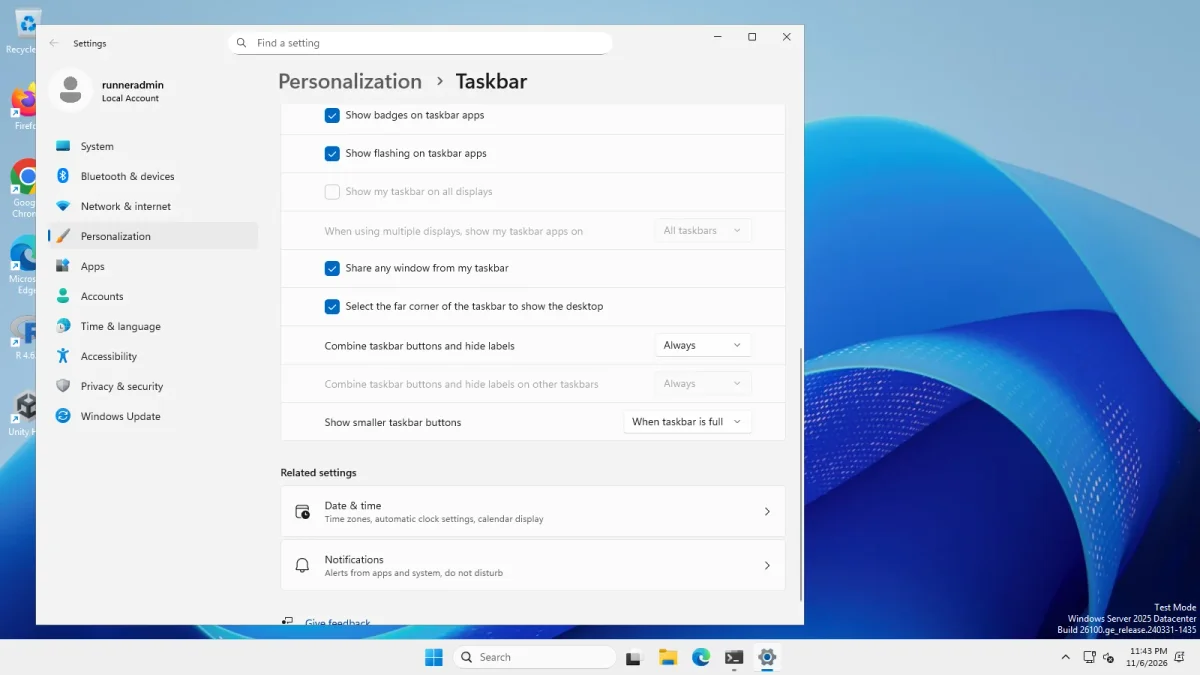
You do not need ExplorerPatcher for every taskbar change. We photographed Windows’ own Taskbar settings page on the same build, and it already has combine boxes, smaller buttons, badges and the Show desktop corner. Its “Taskbar behaviors” group also holds alignment and auto-hide.
Use ExplorerPatcher when you want the Windows 10 layout. The overview of what changes and what stays is on Windows 10 taskbar on Windows 11, and the registry background is on the settings hub. For the options that follow the taskbar into the Start menu, see the Start menu section. To plan a whole setup before you click anything, use the Configurator.
Common questions
Why does Windows 10 as the taskbar style change nothing?
Microsoft removed the Windows 10 taskbar in 24H2. On Windows Server 2025 (24H2 shell) and Windows 11 25H2 we set the Windows 10 style and still got the 48 px Windows 11 taskbar. Choose Windows 10 (ExplorerPatcher), which is the default after installing, instead.
How do I move the taskbar to the top or the sides?
Use the Windows 10 (ExplorerPatcher) taskbar style, then set Primary taskbar location on screen. We moved it to the top, left and right on both Windows 11 machines. The Windows 11 taskbar does not offer the box and refuses left and right.
Do these settings need a File Explorer restart?
Only the ones marked with an asterisk in the window: Taskbar style and Start button style. Click Restart File Explorer at the bottom left after changing them. The other options carry no asterisk.
Where is the Cortana button option?
It is only listed for Windows 10, where the Cortana button still exists. Windows 11 has no Cortana button, and its Widgets button has separate entries in this section.