ExplorerPatcher vs Open-Shell
They overlap only on the Start menu. Open-Shell replaces Windows 11's Start menu with its own classic menu and does not change the taskbar: ours stayed 48 px. ExplorerPatcher brings back the Windows 10 Start menu with tiles and a 40 px Windows 10 taskbar. Both are free. In two of Open-Shell's three styles we photographed its menu, a two-pane list with the user's folders on a blue right-hand side.
Checked against ExplorerPatcher 71.1 (26100.9711.71.1) on Windows Server 2025 (24H2 shell) 26100.33674 · Nov 6, 2026On this page
The verdict in one box
We ran the Open-Shell 4.4.198 setup on 7 Nov 2026. Our ExplorerPatcher 71.1 evidence comes from the run the day before on the same Windows Server 2025 image. A server is not a Windows 11 client PC, see how we test.
The Start menu is the whole comparison
Open-Shell and ExplorerPatcher both answer “I want my old Start menu back”, but they do it in opposite ways.
- Open-Shell installs its own Start menu and takes over the Start button. According to our alternatives notes it is “a classic Start menu replacement, plus classic File Explorer additions” and does not change the taskbar.
- ExplorerPatcher keeps Microsoft’s Start menu and switches it to the Windows 10 layout: an app list on the left, tiles on the right. The how-to is on Windows 10 Start menu on Windows 11, and the setting is Start menu style.
Left: the stock Windows 11 Start menu on our machine before the Open-Shell install, for reference. Right: ExplorerPatcher’s Windows 10 Start menu. The Open-Shell menus follow below.
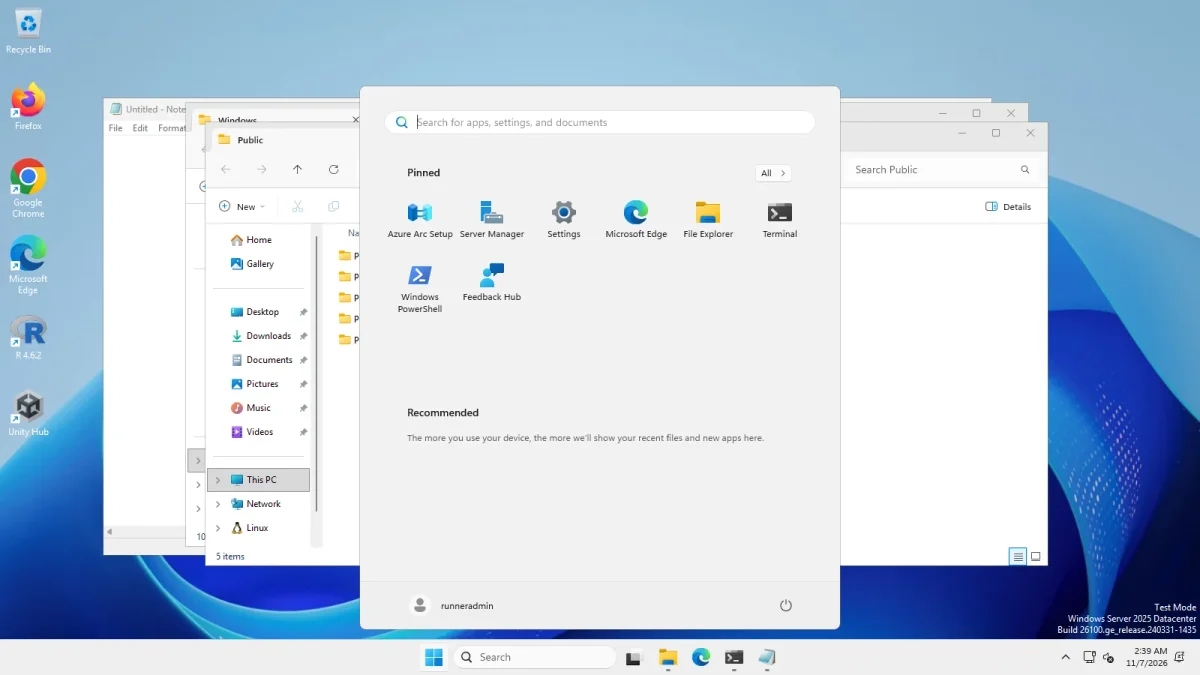
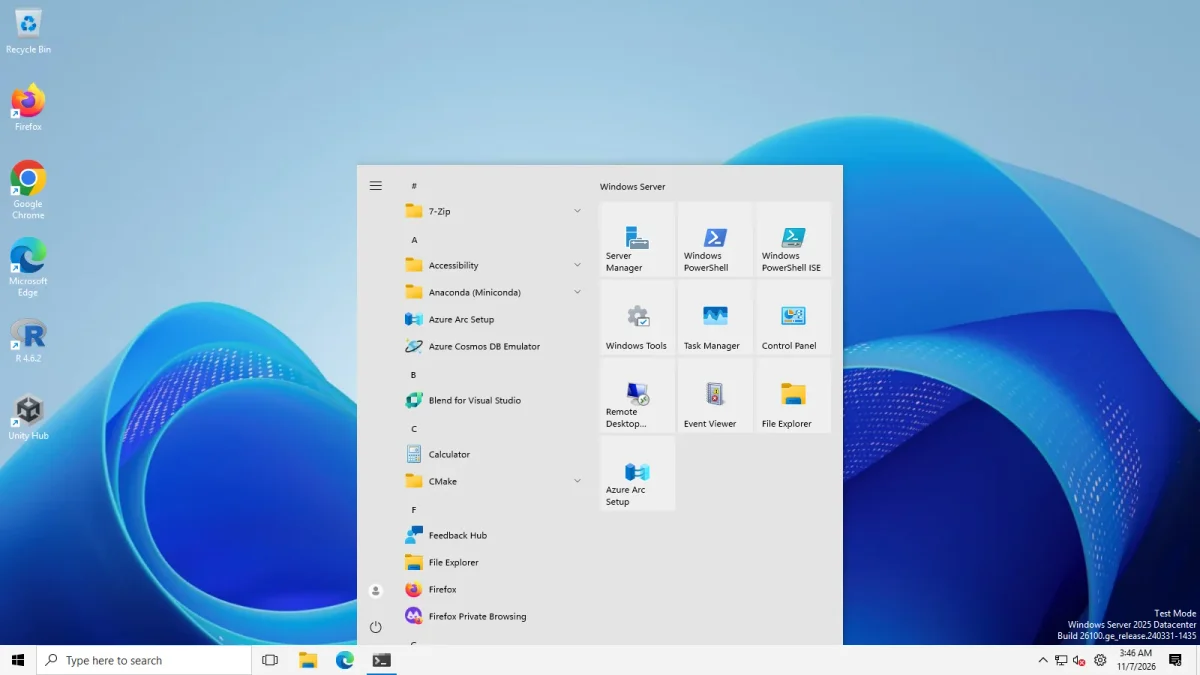
Here are the two Open-Shell menus we can show. Both open above the centred Start button on the unchanged Windows 11 taskbar.
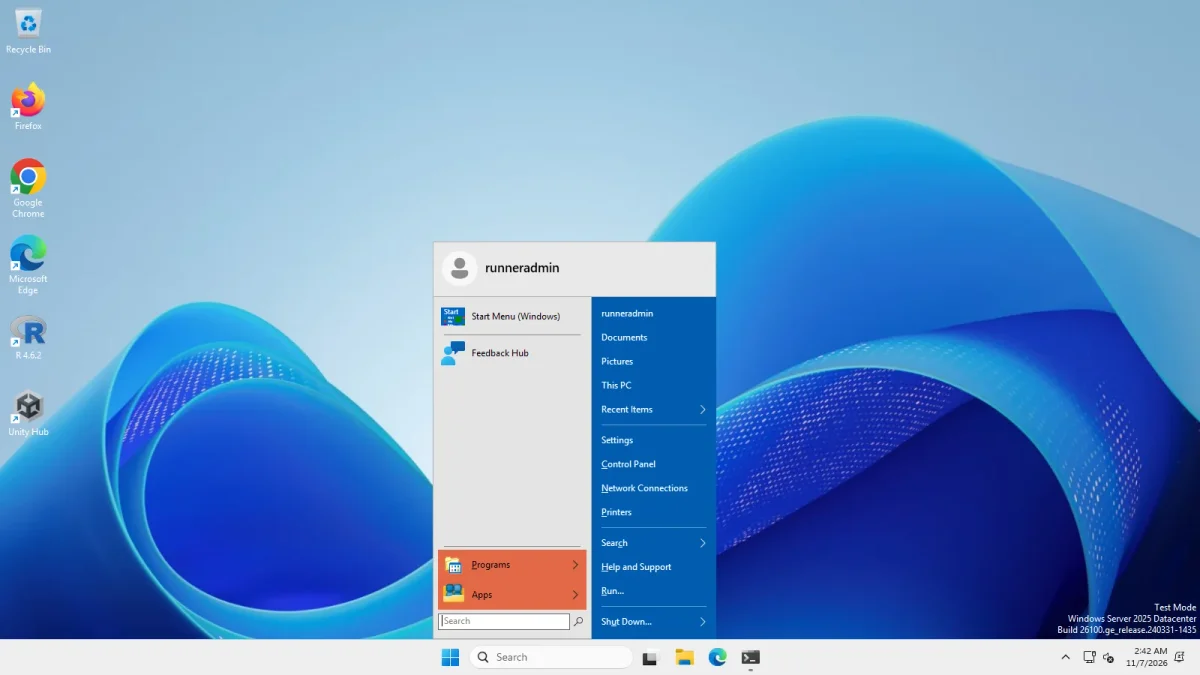
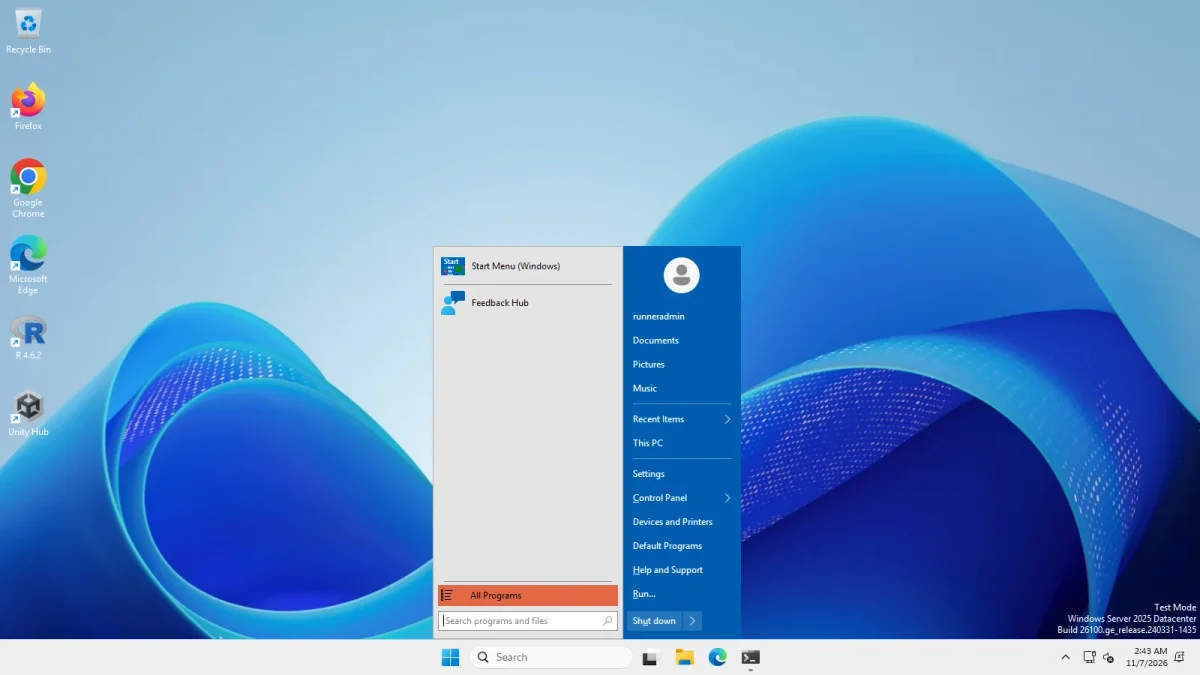
- Classic with two columns. A header with the user name (
runneradmin) sits on top. The left column lists Start Menu (Windows) and Feedback Hub, then orange rows for Programs and Apps and a Search box. The blue right column lists the user name, Documents, Pictures, This PC, Recent Items, Settings, Control Panel, Network Connections, Printers, Search, Help and Support, Run and Shut Down. - Windows 7 style. The left column lists Start Menu (Windows) and Feedback Hub, then an orange All Programs row and a Search programs and files box. The blue right column has the user picture, then runneradmin, Documents, Pictures, Music, Recent Items, This PC, Settings, Control Panel, Devices and Printers, Default Programs, Help and Support, Run and a Shut down button.
- Classic style. No menu in our photo, and we do not describe it.
Both menus show no tiles. The Start Menu (Windows) entry in the left column appears to lead to Microsoft’s own menu; we did not click it. We did not test search, pinning or any other Open-Shell setting. For those, go to the Open-Shell project on GitHub. If you want tiles, only ExplorerPatcher’s side of this comparison has them.
Taskbar, File Explorer and context menu
Here the two tools differ most. Drag the slider: it is the same machine before and after the Open-Shell install, and the taskbar is the same.
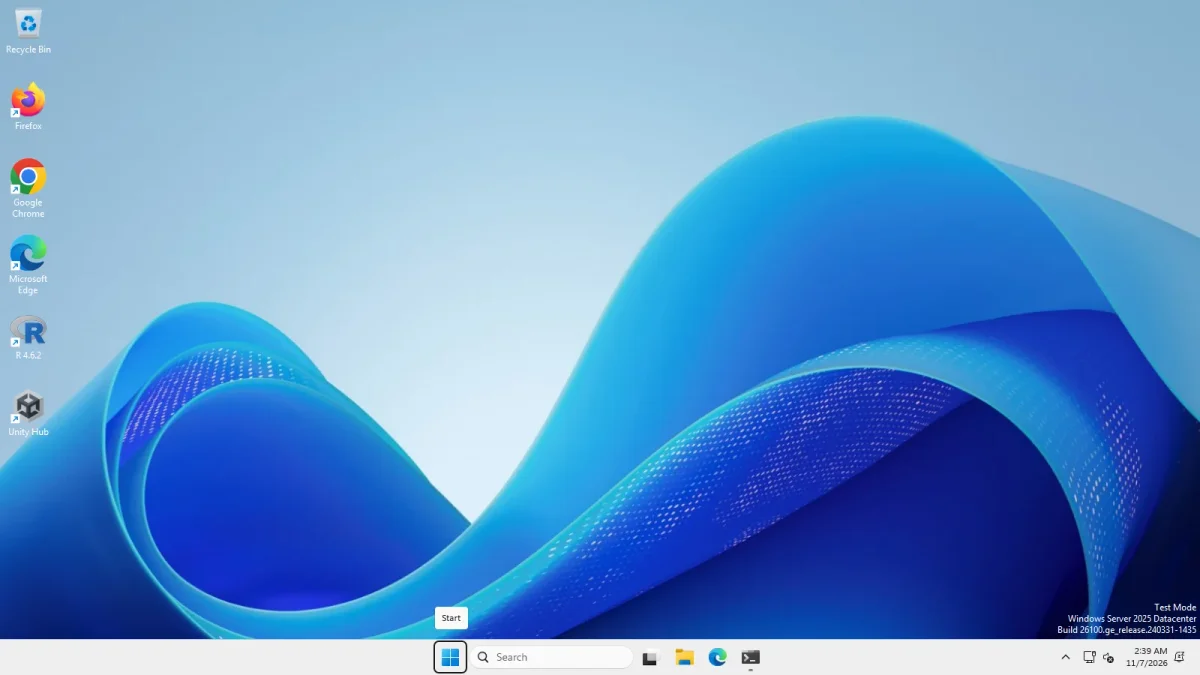 Open-Shell 4.4.198 installedWindows 11 before Open-Shell
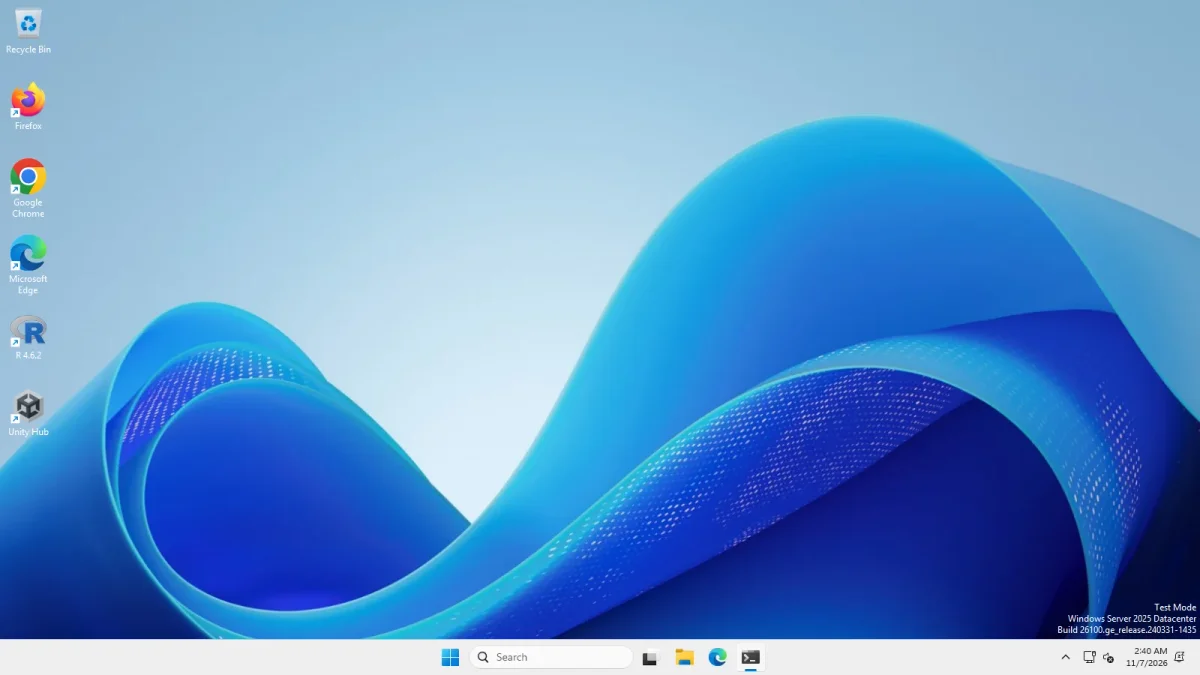
The taskbar before and after installing Open-Shell: 48 px, centred Start button, same icons · Windows Server 2025 (24H2 shell), x64 26100.33674 · EP 71.1
| Windows 11 as shipped | After Open-Shell 4.4.198 | ExplorerPatcher 71.1 | |
|---|---|---|---|
| Taskbar height | 48 px | 48 px | 40 px |
| Start button | Centred, Windows logo | Centred, Windows logo | Left |
| File Explorer command bar | Windows 11 | Windows 11 (unchanged in our photo) | Windows 10 ribbon or Windows 7 bar, see File Explorer ribbon |
| Right-click menu | Short menu, “Show more options” | Short menu, “Show more options” | Full classic menu with one setting, see classic context menu |
The Open-Shell File Explorer and context menu photos show the Windows 11 look.
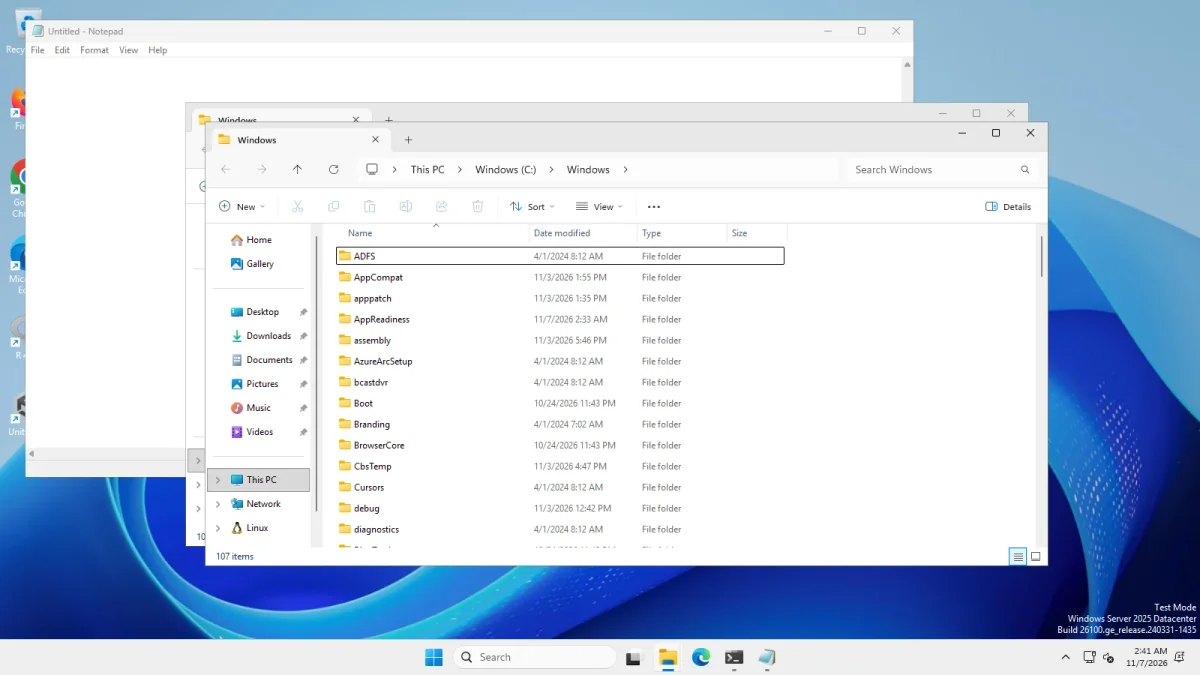
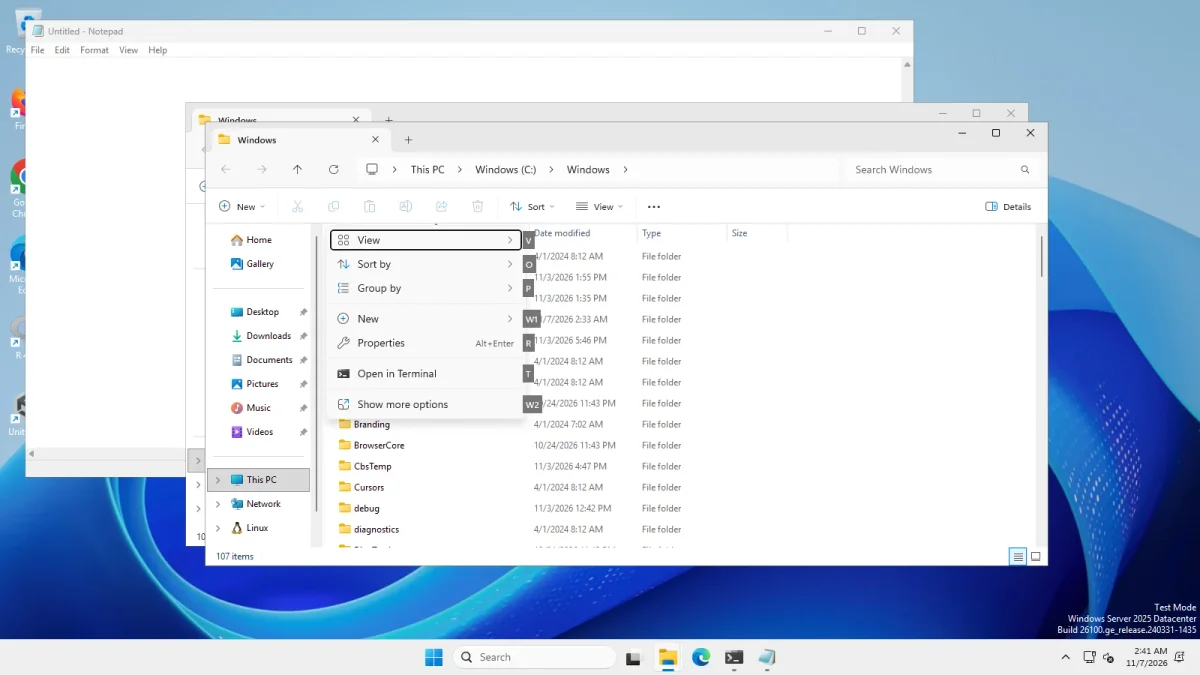
Open-Shell is said to add “classic File Explorer additions”. We did not turn them on, so we cannot say what they do. We saw only the default after install.
Feature table
Only facts we saw or read are in this table. A dash means we did not test it, not that the tool cannot do it.
| ExplorerPatcher 71.1 | Open-Shell 4.4.198 | |
|---|---|---|
| Replaces the Start menu | Windows 10 menu with tiles (tested) | Its own menu (tested, photographed in two styles) |
| Start menu styles | Windows 11 or Windows 10 (tested) | Classic with two columns and Windows 7 style photographed; Classic style gave no menu in our photo |
| Taskbar | Windows 10 style, 40 px (tested) | Unchanged, 48 px (tested) |
| File Explorer | Windows 10 ribbon, Windows 7 command bar (tested) | Unchanged by default (tested); “additions” listed, not tested |
| Classic context menu | Yes, one setting (tested) | Not changed by default (tested) |
| Alt+Tab, tray flyouts, weather | Yes (tested) | Not tested |
| Windows versions | 24H2 shell, 25H2 on Arm64, Windows 10 shell (tested) | Ran on our 24H2 shell. Release notes we read: 4.4.195 fixed modern settings on 24H2 and later, 4.4.196 added Arm64 |
| Where it ran | Server 2025, Server 2022, Windows 11 25H2 Arm64 | Windows Server 2025 only |
Price, licence and signing
| ExplorerPatcher | Open-Shell | |
|---|---|---|
| Price | Free | Free |
| Licence | GPL-2.0 for the main program. The taskbar DLL ships as a binary | MIT |
| Version we checked | 26100.9711.71.1 | v4.4.198 stable, v4.4.202 pre-release |
| Installer | ep_setup.exe, 11.8 MB (x64) | OpenShellSetup_4_4_198.exe, 9.9 MB |
| Code signing | Not signed (we checked every setup file) | Not signed (Authenticode: NotSigned) |
An unsigned file has no signature to check, so compare its hash or download it only from the project’s own GitHub releases. That holds for both tools. For ExplorerPatcher’s own risks, which we do not claim Open-Shell shares, read Is ExplorerPatcher safe?.
Install, footprint and speed
| Measured on Windows Server 2025 | Open-Shell 4.4.198 | ExplorerPatcher 71.1 |
|---|---|---|
| Install time | 9.2 s | 5 to 9 s |
| Uninstall | msiexec /x: 4.5 s, exit code 0, taskbar still 48 px |
15 to 22 s, Windows 11 taskbar back, settings key left behind |
| Files on disk | 25 files, 9.3 MB in C:\Program Files\Open-Shell, plus 1 small file in %APPDATA%\OpenShell |
About 20 files, about 23 MB in C:\Program Files\ExplorerPatcher |
| Loaded into Explorer | StartMenuHelper64.dll (a Windows system32 copy name) and Open-Shell’s StartMenuDLL.dll |
EP’s loader dxgi.dll (see how it works) |
| Explorer memory | 145 MB before, 153 MB after | 145 MB before, 153 MB with the Windows 11 taskbar, 111 MB with EP’s taskbar |
How to read it:
- Both tools put a DLL into
explorer.exe. That is how they work, and it is why a Windows update can break either. - The memory numbers are single samples on a virtual machine, and the threads went from 59 to 69 for Open-Shell. They show no large cost, and they do not prove there is none.
- Uninstall. We removed Open-Shell with
msiexec /x. It exited with code 0 after 4.5 seconds and the taskbar stayed 48 px. We did not check what it leaves in the registry or in%APPDATA%\OpenShell. For ExplorerPatcher see uninstall.
Using both together
We did not test running them together. ExplorerPatcher’s wiki has no compatibility list for Open-Shell, unlike its list of Windhawk mods. Its issue tracker has open reports that name both programs, for example issue 5042 (Open-Shell’s “Taskbar texture” feature broken under Windows 11 25H2), issue 3456 and issue 2908. We read the titles only and did not reproduce them.
Both can change what the Start button opens. Our advice is not a test result: run one at a time, and uninstall the first before you try the other. Know the black screen recovery before you try anything that touches the shell.
When to choose which
Choose Open-Shell if you want only a classic Start menu, you are happy with the Windows 11 taskbar and File Explorer, and you want an MIT-licensed project. We photographed two of its three styles, so look at its GitHub page for the rest before you decide.
Choose ExplorerPatcher if you want the Windows 10 Start menu with tiles, plus the Windows 10 taskbar, Alt+Tab and File Explorer options, and you accept an unsigned setup and the chance that a Windows update breaks it for a day. Do not use it on a work PC. Download it only from GitHub.
Other tools are on the alternatives page, including StartAllBack and Windhawk.
Common questions
Is Open-Shell better than ExplorerPatcher?
They do different jobs. Open-Shell only replaces the Start menu and, in our run, left the taskbar, File Explorer and context menu alone. ExplorerPatcher changes all four. Open-Shell's licence is MIT, ExplorerPatcher's main program is GPL-2.0, and neither setup file was code-signed in our check.
Does Open-Shell change the Windows 11 taskbar?
No. After installing Open-Shell 4.4.198 the taskbar on our Windows Server 2025 machine was still the 48 px Windows 11 taskbar with a centred Start button. Our alternatives list also notes that Open-Shell does not change the taskbar.
Can I use Open-Shell and ExplorerPatcher together?
We did not test running them together. ExplorerPatcher's wiki has no Open-Shell compatibility list, and its issue tracker has open reports that mention both programs. Both can change what the Start button opens, so use one at a time.
Is Open-Shell free?
Yes. Open-Shell is free and MIT licensed, according to its GitHub project. The stable version we checked is v4.4.198, and v4.4.202 is a pre-release. ExplorerPatcher is free too, under GPL-2.0.
Does Open-Shell uninstall cleanly?
We removed Open-Shell 4.4.198 with msiexec /x on Windows Server 2025. It took 4.5 seconds, exited with code 0 and the taskbar was still 48 px. We did not check what it leaves in the registry or in %APPDATA%.
Is the Open-Shell installer signed?
The OpenShellSetup_4_4_198.exe file we ran was not code-signed: Windows reported its Authenticode status as NotSigned. ExplorerPatcher's setup files are not signed either, so neither tool gives you a signature to check.