Weather widget settings and privacy in ExplorerPatcher
ExplorerPatcher's weather widget shows a cropped Google weather page inside a Microsoft WebView2 window on the taskbar. It only works with a Windows 10 style taskbar and is off by default. Its browser data lives in %APPDATA%\ExplorerPatcher\ep_weather_host. In our test it showed an icon, a temperature and a description on all three machines, with different weather on each.
Checked against ExplorerPatcher 71.1 (26100.9711.71.1) on Windows 11 Enterprise 25H2 26200.9725 and Windows Server 2025 (24H2 shell) 26100.33674 and Windows Server 2022 (Windows 10 21H2 shell) 20348.5773 · Nov 6, 2026On this page
What the section looks like
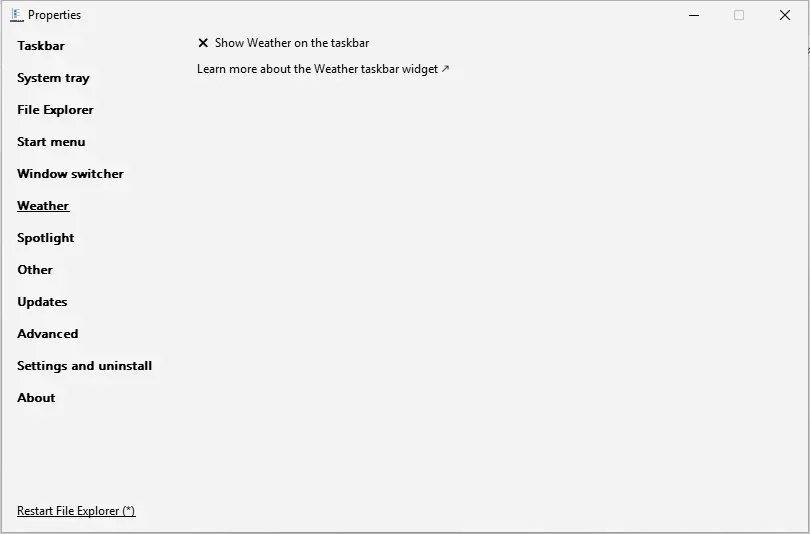
The picture is Windows 11 25H2 on Arm64 with ExplorerPatcher’s taskbar and the widget switched off. The section shows only “Show Weather on the taskbar” and a link to upstream’s weather page. Once you tick the switch, the other options in the table below appear, plus the time of the last update and two links: Update weather now and Clear weather widget local data. With the Windows 11 taskbar the Properties window on our two Windows 11 machines had no Weather entry in the left-hand list at all (see the settings hub for the full section lists), because the widget is built for the Windows 10 style taskbar. Our Windows Server 2022 machine, which has a Windows 10 shell, kept the Weather entry in both of our views.
Overview
| Setting | Default | Restart | Windows 10 |
|---|---|---|---|
| Show Weather on the taskbar | Off | no | yes |
| Location | empty | no | yes |
| Layout | Icon and description (default) | no | yes |
| Widget size | Automatic (fit contents) (default) | no | yes |
| Widget position | Right / bottom (default) | no | yes |
| Update frequency | Every 20 minutes (default) | no | yes |
| Temperature unit | Celsius (default) | no | yes |
| Language | empty | no | yes |
| Color scheme | Follow system setting (default) | no | yes |
| Corner preference | Rounded (default) | no | no |
| Icon pack | Microsoft (default) | no | yes |
| Display widget contents | On a single line (default) | no | yes |
| Zoom | 100 % (default) | no | yes |
All weather settings
Show Weather on the taskbar Switch
Shows the weather widget on the Windows 10 taskbars. The switch is Windows' own People\PeopleBand value. The widget is a small WebView2 browser showing a cropped Google weather page, so it needs internet access and the WebView2 runtime.
Appears when: you use a Windows 10 taskbar style (Windows 10 or Windows 10 (ExplorerPatcher)).
- Default
- Off
- Registry
HKCU\Software\ExplorerPatchervalueVirtualized_{D17F1E1A-5919-4427-8F89-A1A8503CA3EB}_PeopleBand(pseudo value: EP's Properties window maps it to Windows' own storage)- Section
- Weather
Our test: With the weather switched on, the taskbar showed "5 °C Partly sunny" with an icon next to the tray.

Location Text box
A place name for the forecast. Leave it empty to use the location derived from your IP address.
Appears when: you use a Windows 10 taskbar style (Windows 10 or Windows 10 (ExplorerPatcher)); the weather widget is switched on.
- Default
- empty
- Registry
HKCU\Software\ExplorerPatchervalueWeatherLocation- Section
- Weather
Layout Choice list
What the taskbar shows: icon and description, icon and temperature, icon only, temperature only, or temperature and description.
Appears when: you use a Windows 10 taskbar style (Windows 10 or Windows 10 (ExplorerPatcher)); the weather widget is switched on.
- Default
- Icon and description (default)
- Registry
HKCU\Software\ExplorerPatchervalueWeatherViewMode- Section
- Weather
Options and stored values (5)
| Option in the app | Stored value |
|---|---|
| Icon and description (default) | 0 |
| Icon and temperature | 3 |
| Icon only | 1 |
| Temperature only | 4 |
| Temperature and description | 5 |
Widget size Choice list
Widget width: automatic, automatic with a threshold, or fixed.
Appears when: you use a Windows 10 taskbar style (Windows 10 or Windows 10 (ExplorerPatcher)); the weather widget is switched on.
- Default
- Automatic (fit contents) (default)
- Registry
HKCU\Software\ExplorerPatchervalueWeatherFixedSize- Section
- Weather
Options and stored values (3)
| Option in the app | Stored value |
|---|---|
| Automatic (fit contents) (default) | 0 |
| Automatic (fit contents) with threshold | 2 |
| Fixed | 1 |
Widget position Choice list
Which end of the taskbar holds the widget: right/bottom (default) or left/top.
Appears when: you use a Windows 10 taskbar style (Windows 10 or Windows 10 (ExplorerPatcher)); the weather widget is switched on.
- Default
- Right / bottom (default)
- Registry
HKCU\Software\ExplorerPatchervalueWeatherToLeft- Section
- Weather
Options and stored values (2)
| Option in the app | Stored value |
|---|---|
| Right / bottom (default) | 0 |
| Left / top | 1 |
Update frequency Choice list
How often the weather refreshes in the background, from every minute to every couple of hours. Default every 20 minutes.
Appears when: you use a Windows 10 taskbar style (Windows 10 or Windows 10 (ExplorerPatcher)); the weather widget is switched on.
- Default
- Every 20 minutes (default)
- Registry
HKCU\Software\ExplorerPatchervalueWeatherContentUpdateMode- Section
- Weather
Options and stored values (7)
| Option in the app | Stored value |
|---|---|
| Every minute | 60 |
| Every 5 minutes | 300 |
| Every 15 minutes | 900 |
| Every 20 minutes (default) | 1200 |
| Every half an hour | 1800 |
| Every hour | 3600 |
| Every couple of hours | 7200 |
Temperature unit Choice list
Celsius (default) or Fahrenheit.
Appears when: you use a Windows 10 taskbar style (Windows 10 or Windows 10 (ExplorerPatcher)); the weather widget is switched on.
- Default
- Celsius (default)
- Registry
HKCU\Software\ExplorerPatchervalueWeatherTemperatureUnit- Section
- Weather
Options and stored values (2)
| Option in the app | Stored value |
|---|---|
| Celsius (default) | 0 |
| Fahrenheit | 1 |
Language Text box
Two-letter language code for the weather text (for example en, de, fr). Empty follows the system.
Appears when: you use a Windows 10 taskbar style (Windows 10 or Windows 10 (ExplorerPatcher)); the weather widget is switched on.
- Default
- empty
- Registry
HKCU\Software\ExplorerPatchervalueWeatherLanguage- Section
- Weather
Color scheme Choice list
Colour scheme of the weather flyout: follow the system, light or dark.
Appears when: you use a Windows 10 taskbar style (Windows 10 or Windows 10 (ExplorerPatcher)); the weather widget is switched on.
- Default
- Follow system setting (default)
- Registry
HKCU\Software\ExplorerPatchervalueWeatherTheme- Section
- Weather
Options and stored values (3)
| Option in the app | Stored value |
|---|---|
| Follow system setting (default) | 0 |
| Light | 1 |
| Dark | 2 |
Corner preference Choice list
Corner style of the weather flyout: rounded, small rounded or square.
Appears when: you use a Windows 10 taskbar style (Windows 10 or Windows 10 (ExplorerPatcher)); the weather widget is switched on.
- Default
- Rounded (default)
- Registry
HKCU\Software\ExplorerPatchervalueWeatherWindowCornerPreference- Section
- Weather
Options and stored values (3)
| Option in the app | Stored value |
|---|---|
| Rounded (default) | 2 |
| Small rounded | 3 |
| Not rounded | 1 |
Icon pack Choice list
Which weather icons to use: Microsoft or Google.
Appears when: you use a Windows 10 taskbar style (Windows 10 or Windows 10 (ExplorerPatcher)); the weather widget is switched on.
- Default
- Microsoft (default)
- Registry
HKCU\Software\ExplorerPatchervalueWeatherIconPack- Section
- Weather
Options and stored values (2)
| Option in the app | Stored value |
|---|---|
| Microsoft (default) | 0 |
1 |
Display widget contents Choice list
Show the widget text on one line or on two lines when there is room.
Appears when: you use a Windows 10 taskbar style (Windows 10 or Windows 10 (ExplorerPatcher)); the weather widget is switched on.
- Default
- On a single line (default)
- Registry
HKCU\Software\ExplorerPatchervalueWeatherContentsMode- Section
- Weather
Options and stored values (2)
| Option in the app | Stored value |
|---|---|
| On a single line (default) | 0 |
| On 2 lines, if possible | 1 |
Zoom Choice list
Zoom of the cropped web page inside the widget, from 25 % to 100 %.
Appears when: you use a Windows 10 taskbar style (Windows 10 or Windows 10 (ExplorerPatcher)); the weather widget is switched on.
- Default
- 100 % (default)
- Registry
HKCU\Software\ExplorerPatchervalueWeatherZoomFactor- Section
- Weather
Options and stored values (17)
| Option in the app | Stored value |
|---|---|
| 25 % | 25 |
| 33 % | 33 |
| 50 % | 50 |
| 67 % | 67 |
| 75 % | 75 |
| 80 % | 80 |
| 90 % | 90 |
| 100 % (default) | 0 |
| 110 % | 110 |
| 125 % | 125 |
| 150 % | 150 |
| 175 % | 175 |
| 200 % | 200 |
| 250 % | 250 |
| 300 % | 300 |
| 400 % | 400 |
| 500 % | 500 |
How the widget works
According to upstream’s wiki and source, the widget sits at the right end of the task list, where the old People button was. It runs in a separate COM surrogate process, not inside Explorer. That process opens a Microsoft WebView2 window, loads a Google search page for “weather” plus your location, and shows only the weather box from it. A click opens a larger panel with the forecast, which is the same box Google shows in its search results. ExplorerPatcher cuts the page down to the box and picks the layout you chose: icon and description, icon and temperature, icon only, temperature only, or temperature and description.
We turned it on with the Windows 10 (ExplorerPatcher) taskbar on all three machines and waited about 70 seconds before the screenshot. The widget showed an icon, a temperature and a description next to the tray each time, but the weather differed per machine, probably because, with the location box empty, Google picks the place from the machine’s IP address (upstream’s description). Windows Server 2025 showed “23 °C Mostly sunny”, Windows 11 25H2 (Arm64) showed “7 °C Mostly cloudy” and Windows Server 2022 showed “24 °C Mostly sunny”.



What it loads and where your data goes
This is what upstream’s code and wiki say. We have not captured the widget’s network traffic ourselves, so none of this is a measurement.
- It needs WebView2. WebView2 is a Microsoft component separate from the Edge browser. If it is missing, you see the regular People button instead of the widget, and ExplorerPatcher itself keeps working.
- It contacts Google. The page it loads is
www.google.com/searchwith a weather query, your language code and your location text. With the location box empty, Google picks the place from your IP address, as upstream’s wiki describes. Google’s own cookies and privacy terms apply to that page. - Icons can come from GitHub. The default icon pack, Microsoft, replaces Google’s icons with images that the widget script downloads from
user-images.githubusercontent.com, GitHub’s image host. Choosing the Google icon pack in the settings removes that step. - Geolocation is refused by default. The widget answers the page’s browser location request with “deny” unless a hidden value,
WeatherLocationType, is non-zero. See hidden settings. - Data folder. The WebView2 profile is stored in
%APPDATA%\ExplorerPatcher\ep_weather_host. The Clear weather widget local data link asks for confirmation, then removes that folder and keeps your preferences. - No telemetry in ExplorerPatcher itself. Upstream’s wiki says the project has no built-in telemetry. That does not cover Google or GitHub, which see requests like any website would.
If you do not want a Google page loading on every login, leave the widget off. It is off by default.
What to change first
- Taskbar style. Use Windows 10 (ExplorerPatcher) in the Taskbar section and restart File Explorer.
- Switch it on in the Weather section. The widget appears next to the tray.
- Location. Leave it empty for an IP-based guess, or type a place the way Google understands it. Upstream’s advice: if “weather in Bucharest” works in a normal search, type just “Bucharest”. For a ZIP code, “weather in zip 90210” works, so type “zip 90210”.
- Layout, unit and frequency. The defaults are icon and description, Celsius and an update every 20 minutes. A shorter interval means more requests, so we would keep the default.
Combinations and traps
Language is a two-letter code. Type en, de, fr and so on in the Language box. It changes the text Google returns, not Windows’ language.
It depends on Google’s page. The widget reads the weather box out of a page that Google controls. The script throws “Google weather icon not found; page layout may have changed” if the icon is missing, so a change on Google’s side can break the widget until ExplorerPatcher is updated. If it shows an error or stays blank, try Update weather now, then Clear weather widget local data, then see weather not working.
If the desktop breaks after you switch it on. Upstream’s recovery steps: press Ctrl+Alt+Delete, open Task Manager, choose File, Run new task and start regedit.exe with administrator rights. Go to HKEY_CURRENT_USER\Software\Microsoft\Windows\CurrentVersion\Explorer\Advanced\People, set PeopleBand to 0, then start Explorer again from Task Manager. The weather switch is Windows’ own PeopleBand value, not an ExplorerPatcher value. We did not need these steps. If you cannot reach the desktop at all, use the black screen guide.
Corner preference is Windows 11 only. It is hidden on Windows 10.
Debug mode. Upstream documents a hidden value, WeatherDevMode, that turns on browser developer tools for the widget. It is only useful for tracking layout bugs, see hidden settings.
The widget is one of several things that ExplorerPatcher adds beyond the Windows 10 look, so for the wider picture see how it works and is ExplorerPatcher safe.
Common questions
Does the ExplorerPatcher weather widget work with the Windows 11 taskbar?
No. Upstream says it only supports the Windows 10 style taskbar, and our Properties window with the Windows 11 taskbar had no Weather section at all. Switch the taskbar style to Windows 10 (ExplorerPatcher) first, then restart File Explorer.
Where does the weather data come from?
According to upstream's wiki and source, the widget loads Google's weather box from a Google search page inside a WebView2 window and crops it. You can type any place Google can show weather for, and a blank location lets Google pick one from your IP address.
How do I stop the weather widget loading?
Untick Show Weather on the taskbar in the Weather section. If the desktop will not load, set PeopleBand to 0 under HKCU\Software\Microsoft\Windows\CurrentVersion\Explorer\Advanced\People, then restart File Explorer. That is upstream's recovery procedure.
What is the Clear weather widget local data button?
It deletes the widget's local browser data folder after a confirmation, and keeps your preferences. Upstream's text says it may fix a widget that does not load data or has layout problems.