Start menu settings in ExplorerPatcher
The Start menu section has 10 entries in our data. Start menu style is the key one: Windows 11 or Windows 10. The Windows 10 Start menu opened on Windows Server 2025 and Windows 11 25H2 with both taskbars. Open Start in All apps by default and Disable the Recommended section both worked on Server 2025. The 25H2 client has no Recommended block to remove.
Checked against ExplorerPatcher 71.1 (26100.9711.71.1) on Windows Server 2025 (24H2 shell) 26100.33674 and Windows 11 Enterprise 25H2 26200.9725 · Nov 6, 2026On this page
What the section looks like
Our screenshots come from two machines, because the section differs between them. Both ran ExplorerPatcher 26100.9711.71.1 with the Windows 11 Start menu selected, and the rows were the same with the Windows 11 taskbar and with ExplorerPatcher’s taskbar.
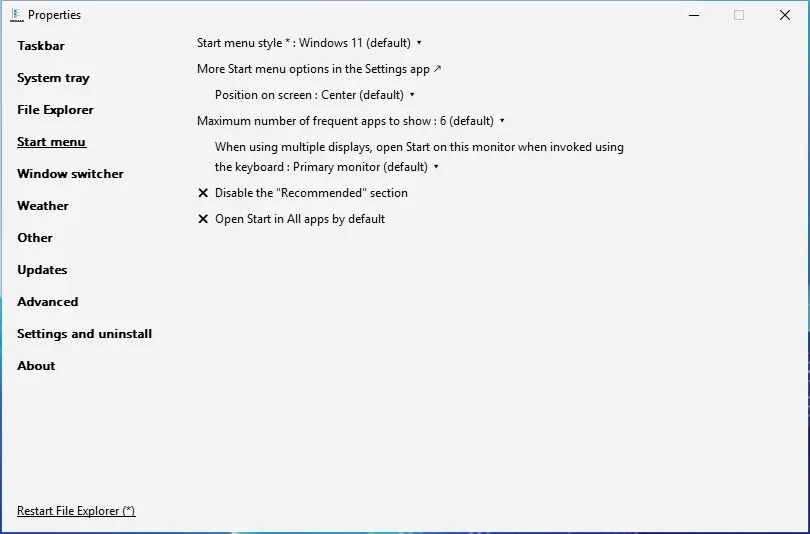
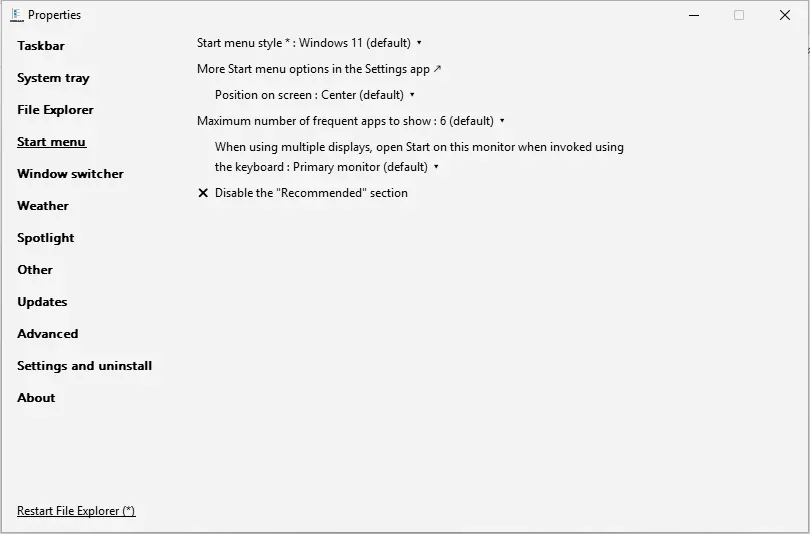
The left picture is Windows Server 2025 (24H2 shell, build 26100.33674). The right one is Windows 11 25H2 on Arm64 (build 26200.9725). The only difference is the last row: “Open Start in All apps by default” is listed on Server 2025 and missing on the 25H2 client, where Windows’ newer redesigned Start menu is active. That matches the rule on its setting card.
With “Start menu style” on Windows 11 the window lists the style box, a link to Windows’ own Start settings, Position on screen, Maximum number of frequent apps, the monitor box for the Windows key, Disable the “Recommended” section and, on builds without the redesigned Start, Open Start in All apps by default. According to the rules in upstream’s settings file, choosing Windows 10 replaces the Recommended and All apps rows with Show more tiles, Corner preference, Display mode and App list, which are Windows 10 Start options. We did not photograph the section in that state. Our Windows Server 2022 machine, which has a Windows 10 shell, has no style box at all: its section starts with the link to Windows’ Start settings and lists position, frequent apps, monitor, corner preference, display mode and app list.
Overview
| Setting | Default | Restart | Windows 10 |
|---|---|---|---|
| Start menu style | Windows 11 (default) | yes | no |
| Position on screen | Center (default) | no | yes |
| Maximum number of frequent apps to show | 6 (default) | no | yes |
| the keyboard | Primary monitor (default) | no | yes |
| Disable the "Recommended" section | Off | no | no |
| Open Start in All apps by default | Off | no | no |
| Show more tiles | Off | no | no |
| Corner preference | Not rounded | no | yes |
| Display mode | Default | no | yes |
| App list | Display | no | yes |
All Start menu settings
Start menu style Choice list
Chooses the Start menu: the Windows 11 Start or the Windows 10 Start with its tile layout. EP 71.1 ships its own tile layout engine for the Windows 10 Start because Microsoft removed that code from builds 26xxx.8474 and later; the notes for 70.2 and later say the restoration is partial and tiles can overlap.
Appears when: the build still contains the Windows 10 Start menu.
- Default
- Windows 11 (default)
- Registry
HKCU\Software\Microsoft\Windows\CurrentVersion\Explorer\AdvancedvalueStart_ShowClassicMode- Section
- Start menu
Options and stored values (2)
| Option in the app | Stored value |
|---|---|
| Windows 11 (default) | 0 |
| Windows 10 | 1 |
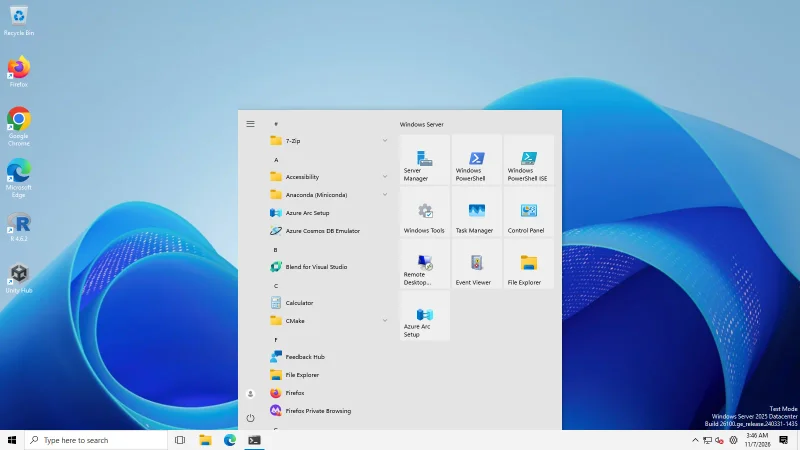
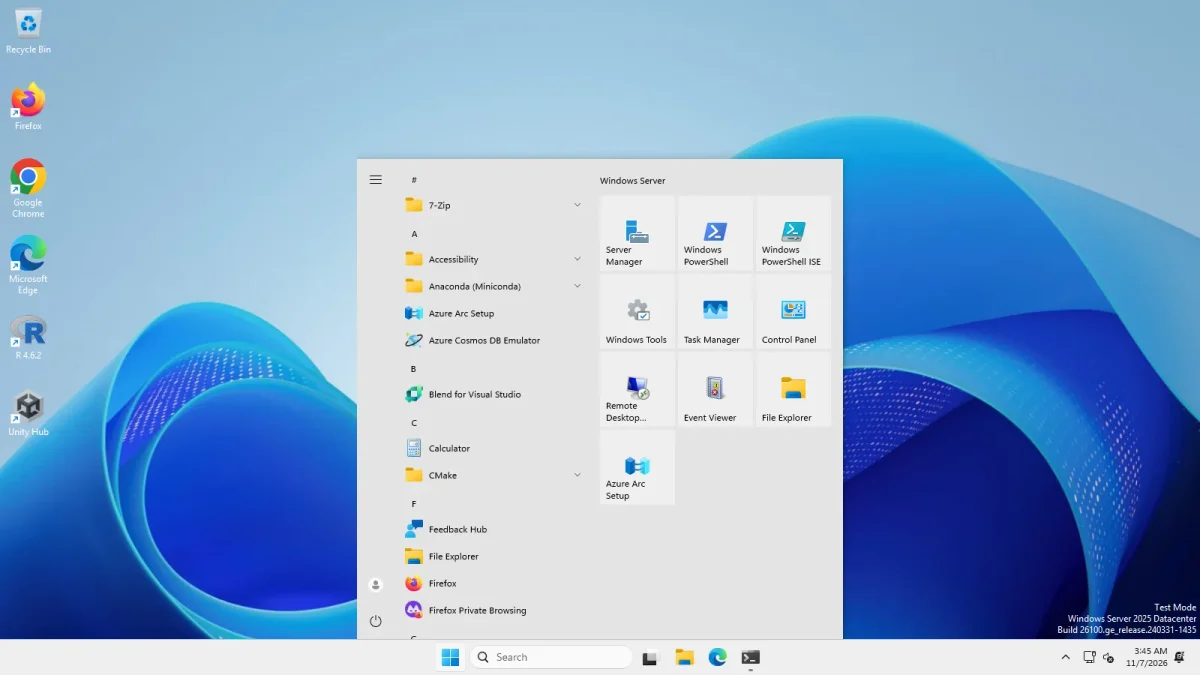
Our test: The Windows 10 Start menu (app list on the left, tiles on the right) opened on Server 2025 24H2 and Windows 11 25H2 Arm64, with both the Windows 11 and the ExplorerPatcher taskbar.
Position on screen Choice list
Where the Windows 11 Start menu appears: centred or at the screen edge. It uses Windows' own taskbar alignment value.
- Default
- Center (default)
- Registry
HKCU\Software\Microsoft\Windows\CurrentVersion\Explorer\AdvancedvalueTaskbarAl- Section
- Start menu
Options and stored values (2)
| Option in the app | Stored value |
|---|---|
| At screen edge | 0 |
| Center (default) | 1 |
Our test: We set the Windows value to left; the Start menu opened at the left edge.
Maximum number of frequent apps to show Choice list
How many frequently used apps the Start menu may show, from none to a higher number. Default 6.
- Default
- 6 (default)
- Registry
HKCU\Software\ExplorerPatchervalueVirtualized_{D17F1E1A-5919-4427-8F89-A1A8503CA3EB}_Start_MaximumFrequentApps(pseudo value: EP's Properties window maps it to Windows' own storage)- Section
- Start menu
Options and stored values (22)
| Option in the app | Stored value |
|---|---|
| None | 0 |
| 1 | 1 |
| 2 | 2 |
| 3 | 3 |
| 4 | 4 |
| 5 | 5 |
| 6 (default) | 6 |
| 7 | 7 |
| 8 | 8 |
| 9 | 9 |
| 10 | 10 |
| 11 | 11 |
| 12 | 12 |
| 13 | 13 |
| 14 | 14 |
| 15 | 15 |
| 16 | 16 |
| 17 | 17 |
| 18 | 18 |
| 19 | 19 |
| 20 | 20 |
| Unlimited | 99999 |
the keyboard Choice list
Which monitor Start opens on when you press the Windows key: the primary monitor (default), the monitor containing the mouse pointer, or a numbered monitor.
- Default
- Primary monitor (default)
- Registry
HKCU\Software\Microsoft\Windows\CurrentVersion\Explorer\StartPagevalueMonitorOverride- Section
- Start menu
Options and stored values (10)
| Option in the app | Stored value |
|---|---|
| Primary monitor (default) | 1 |
| Monitor containing the cursor | 0 |
| Monitor #2 | 2 |
| Monitor #3 | 3 |
| Monitor #4 | 4 |
| Monitor #5 | 5 |
| Monitor #6 | 6 |
| Monitor #7 | 7 |
| Monitor #8 | 8 |
| Monitor #9 | 9 |
Disable the "Recommended" section Switch
Hides the Recommended section in the Windows 11 Start menu so the pinned apps get the space.
Appears when: the Windows 11 Start menu is selected.
- Default
- Off
- Registry
HKCU\Software\ExplorerPatchervalueVirtualized_{D17F1E1A-5919-4427-8F89-A1A8503CA3EB}_StartDocked_DisableRecommendedSection(pseudo value: EP's Properties window maps it to Windows' own storage)- Section
- Start menu
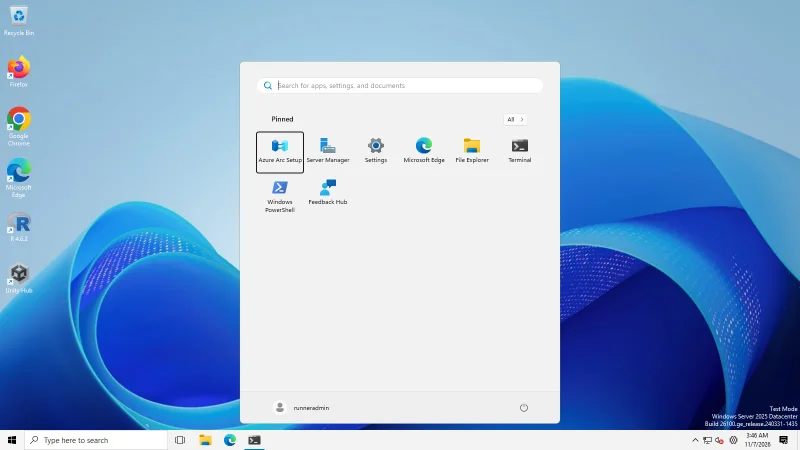
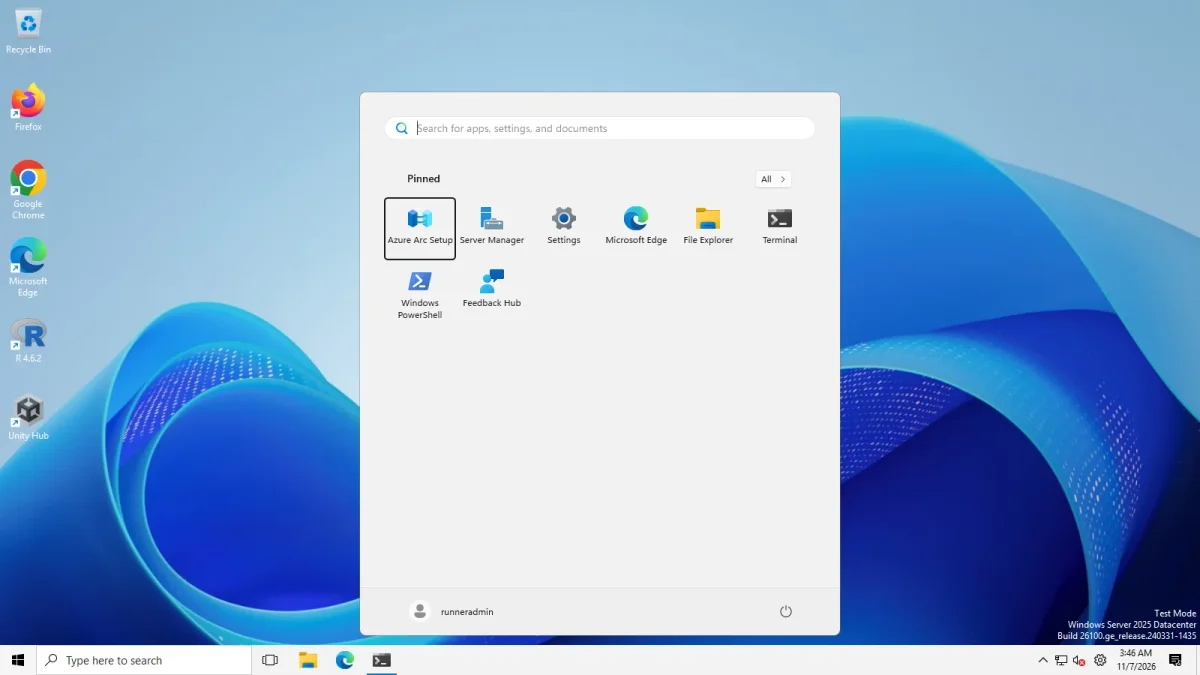
Our test: Windows Server 2025 (24H2 shell): with the option on, Start opened without the Recommended block (before and after pair on the same taskbar). On Windows 11 25H2 (Arm64) we have no matched before-and-after pair, so we cannot show it there. The Properties window stores the value in two places (the ExplorerPatcher key and an older Explorer\ExplorerPatcher key); our first test wrote the wrong one.
Open Start in All apps by default Switch
Opens the Windows 11 Start menu on the All apps list instead of the pinned page. Hidden when the new redesigned Windows 11 Start menu is active.
Appears when: the Windows 11 Start menu is selected; the Windows 11 Start menu is not the newer redesigned one.
- Default
- Off
- Registry
HKCU\Software\Microsoft\Windows\CurrentVersion\Explorer\StartPagevalueMakeAllAppsDefault- Section
- Start menu
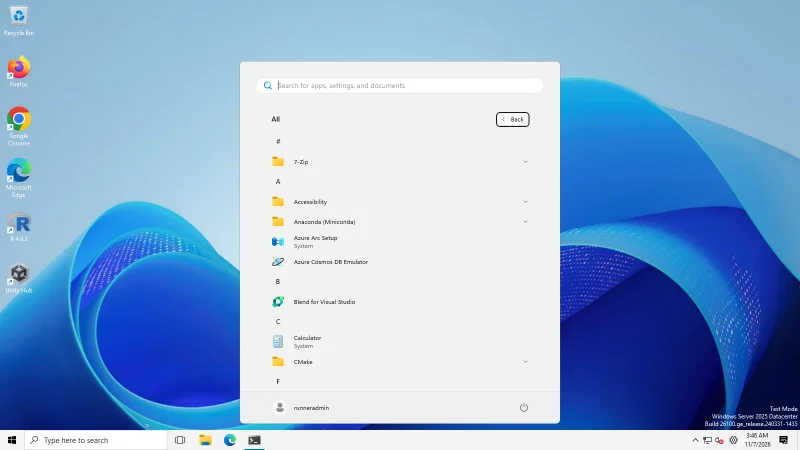
Our test: Windows Server 2025 (24H2 shell): Start opened on the All apps list with the option on. On Windows 11 25H2 (Arm64) the new Start layout already shows the app list on its first page, so the option cannot be shown there. The value is stored under Windows' own StartPage key.
Show more tiles Switch
Windows 10 Start only: adds an extra column so more tiles fit.
Appears when: the Windows 10 Start menu is selected.
- Default
- Off
- Registry
HKCU\Software\ExplorerPatchervalueVirtualized_{D17F1E1A-5919-4427-8F89-A1A8503CA3EB}_StartUI_ShowMoreTiles(pseudo value: EP's Properties window maps it to Windows' own storage)- Section
- Start menu
Corner preference Choice list
Windows 10 Start only: corner style of the menu: not rounded, rounded floating menu, or rounded docked menu.
Appears when: the Windows 10 Start menu is selected.
- Default
- Not rounded
- Registry
HKCU\Software\ExplorerPatchervalueVirtualized_{D17F1E1A-5919-4427-8F89-A1A8503CA3EB}_StartUI_EnableRoundedCorners(pseudo value: EP's Properties window maps it to Windows' own storage)- Section
- Start menu
Options and stored values (3)
| Option in the app | Stored value |
|---|---|
| Rounded corners, floating menu | 1 |
| Rounded corners, docked menu | 2 |
| Not rounded | 0 |
Display mode Choice list
Windows 10 Start only: the display mode: default, a normal Start menu, or full-screen Start.
Appears when: the Windows 10 Start menu is selected.
- Default
- Default
- Registry
HKCU\Software\ExplorerPatchervalueVirtualized_{D17F1E1A-5919-4427-8F89-A1A8503CA3EB}_ForceStartSize(pseudo value: EP's Properties window maps it to Windows' own storage)- Section
- Start menu
Options and stored values (3)
| Option in the app | Stored value |
|---|---|
| Default | 0 |
| Start menu | 1 |
| Full screen Start | 2 |
App list Choice list
Windows 10 Start only: whether the app list is displayed, hidden or disabled.
Appears when: the Windows 10 Start menu is selected.
- Default
- Display
- Registry
HKCU\Software\ExplorerPatchervalueVirtualized_{D17F1E1A-5919-4427-8F89-A1A8503CA3EB}_NoStartMenuMorePrograms(pseudo value: EP's Properties window maps it to Windows' own storage)- Section
- Start menu
Options and stored values (3)
| Option in the app | Stored value |
|---|---|
| Display | 0 |
| Hide | 3 |
| Disable | 1 |
What to change first
- Start menu style. Windows 11 is the default. Choose Windows 10 if you want the app list on the left and tiles on the right, then press Restart File Explorer (*). Reopen the window, because the rows below the box change.
- Position on screen. This is Windows’ own taskbar alignment value, shown here because it moves the Windows 11 Start menu with it. We set it to left and Start opened at the left edge.
- The rest. Recommended and All apps for the Windows 11 Start, tile options for the Windows 10 Start.
What the two Windows 11 Start switches did in our run
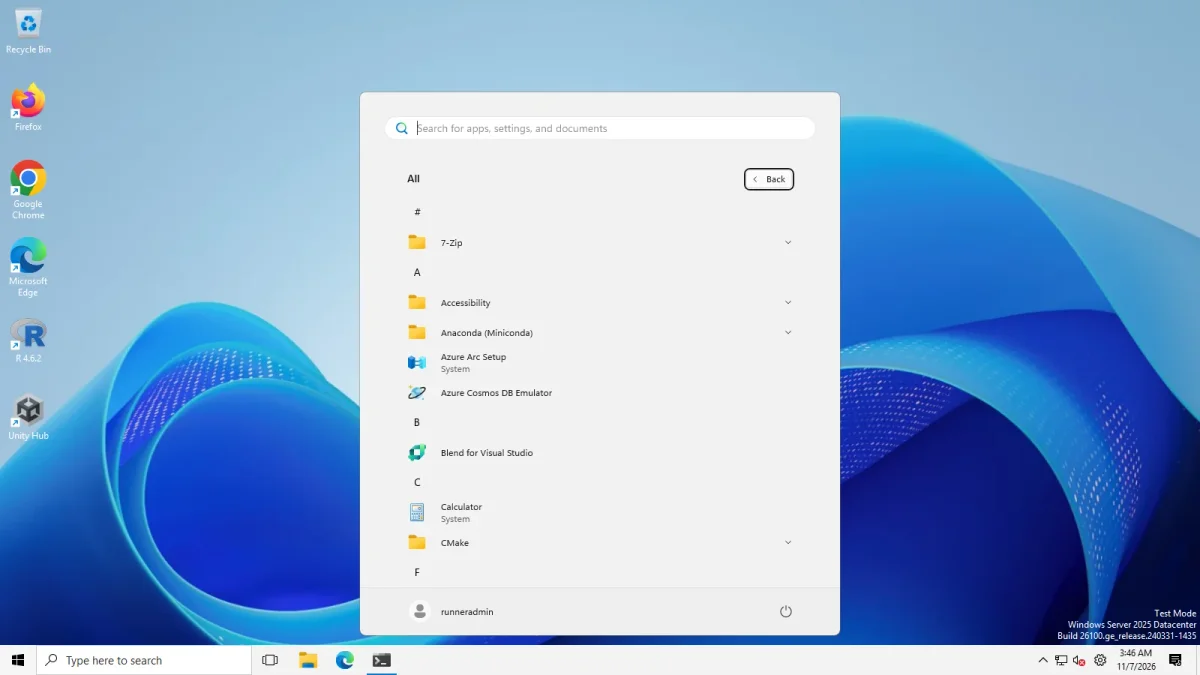
Open Start in All apps by default worked on Windows Server 2025 (24H2 shell). With it on, Start opened on the alphabetical All apps list, with a Back button where the “All” button normally sits. On Windows 11 25H2 (Arm64) the new Start layout already shows the app list on its first page and the option is not listed, so we could not demonstrate it there. The value lives in Windows’ own StartPage key, not in ExplorerPatcher’s.
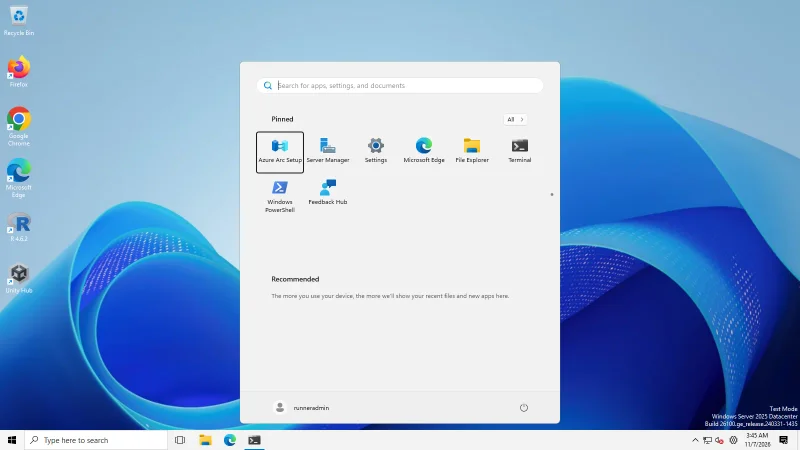
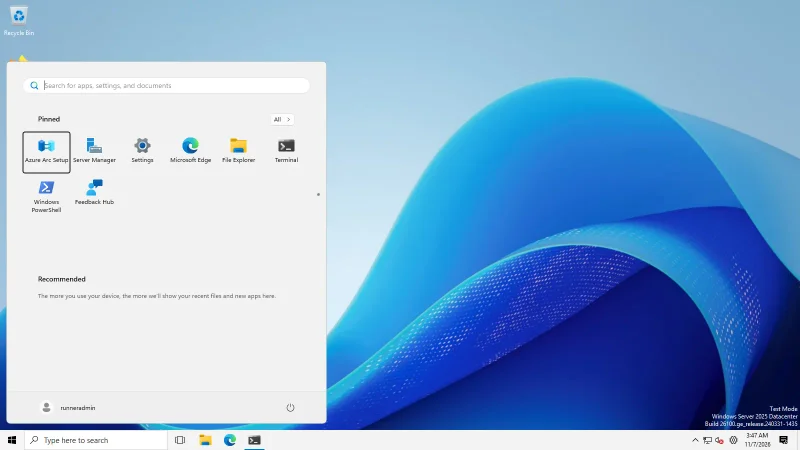
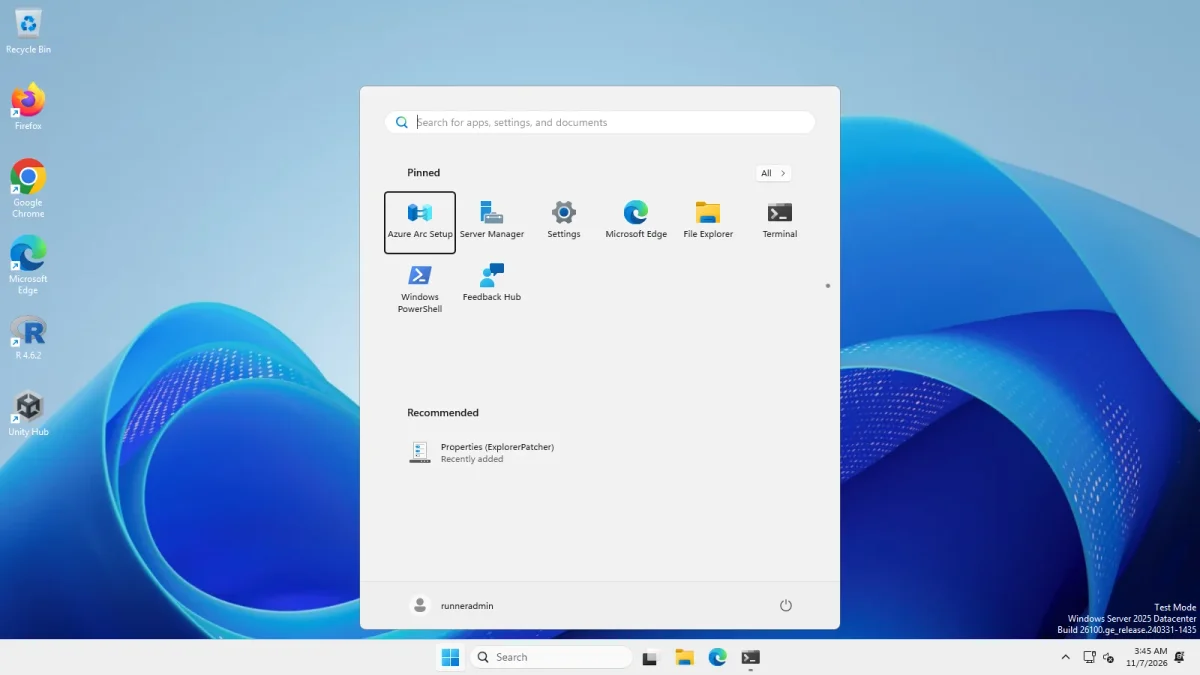
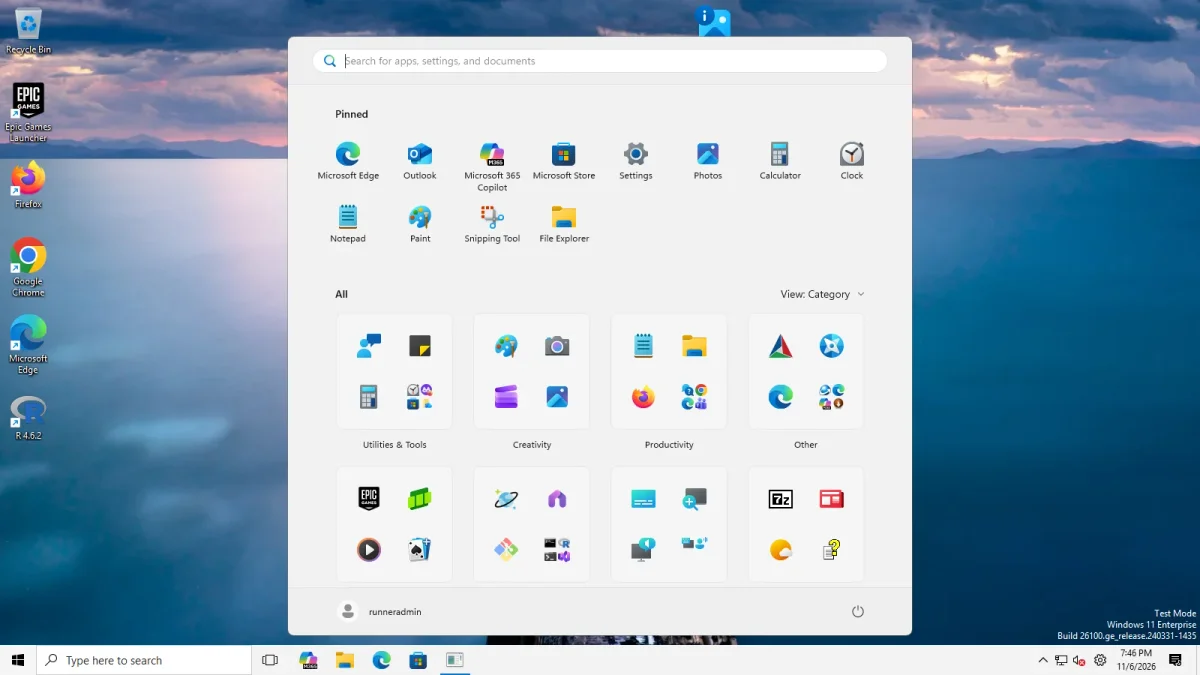
Disable the “Recommended” section worked on Windows Server 2025 (24H2 shell). With it on, Start opened with the Pinned list and no Recommended block, as the second picture shows. Our first run wrote the value to the wrong registry key and showed no change, which we have corrected: the Properties window stores it in two places. On the 25H2 client (Arm64) the new Start has no Recommended block to begin with, so the option cannot be demonstrated there.
For comparison, this is the Windows 11 Start on the 25H2 client with the option on. It looks the same as it does with the option off, because there is no Recommended block to hide:
Combinations and traps
Two different taskbars, one Start menu choice. The Start menu style is independent of the taskbar style. We tried the Windows 10 Start with both the Windows 11 taskbar (above) and ExplorerPatcher’s taskbar, on both Windows 11 machines, and it opened in each case. The pairing you want depends on whether you also want a Windows 10 taskbar, see Windows 10 Start menu on Windows 11.
The Windows 10 Start is a rebuild, not a restore. Microsoft removed that code from newer builds. ExplorerPatcher 71.1 ships its own tile layout engine, and the release notes for 70.2 and later call the restoration partial, with tiles that can overlap. If something looks wrong, check Start menu not working and the status page before you assume your settings are at fault. Upstream’s FAQ also says that “Pin to start” in the Windows 10 Start can stop working after a Windows change, and that only an ExplorerPatcher update fixes that.
Missing rows are normal. Recommended and All apps by default belong to the Windows 11 Start; extra tile columns, corners, display mode and the app list belong to the Windows 10 Start. The cards say which is which. “Open Start in All apps by default” is also hidden when Windows’ redesigned Start menu is active.
Search box on a Windows 10 style taskbar. Upstream’s FAQ says the taskbar search box can disappear when you open Start or Search, because Windows 11’s search no longer provides what the box needs. The search icon avoids it. We did not test that case.
Several monitors. The monitor box decides which screen Start opens on when you press the Windows key. We have not tested multiple monitors, so we cannot say how it behaves.
Uninstalling. Your Start settings stay in the registry after an uninstall, like every other ExplorerPatcher setting. See the settings hub for where they live.
To plan a whole setup before you change anything, use the Configurator.
Common questions
How do I get the Windows 10 Start menu back?
Open the Start menu section, set Start menu style to Windows 10 and restart File Explorer. In our tests it worked on Windows Server 2025 (24H2 shell) and Windows 11 25H2 Arm64, with the Windows 11 taskbar and with ExplorerPatcher's taskbar.
Why do I not see Disable the Recommended section?
That option only appears while the Windows 11 Start menu is selected. With the Windows 10 Start menu, the window shows tile options instead. On Windows Server 2025 (24H2 shell) Start opened without the Recommended block with the option on. On our Windows 11 25H2 Arm64 machine the new Start has no Recommended block at all, so the option cannot be shown there.
Can I make Start open on All apps?
Yes, tick Open Start in All apps by default while the Windows 11 Start menu is selected. On Windows Server 2025 (24H2 shell) Start then opened on the All apps list. The option is hidden when the newer redesigned Start menu is active, as on our Windows 11 25H2 machine.
Why is the Windows 10 Start option missing?
The box only shows when the Windows build still contains the Windows 10 Start code. ExplorerPatcher 71.1 ships its own tile engine for builds where Microsoft removed it, and upstream says the restoration is partial, so tiles can overlap.