ExplorerPatcher on Windows 10
ExplorerPatcher works on Windows 10 1809 to 22H2, but it adds less there than on Windows 11: the Properties window shows about 20 fewer settings than on Windows 11, and the taskbar and Start menu stay Windows' own. We tested on Windows Server 2022, which has the Windows 10 21H2 shell. It is a server edition, not a Windows 10 PC.
Checked against ExplorerPatcher 71.1 (26100.9711.71.1) on Windows Server 2022 (Windows 10 21H2 shell) 20348.5773 · Nov 6, 2026On this page
What to do on Windows 10
- Check that your build is 17763 (version 1809) or newer in
winver. Older versions are not supported: see compatibility. - Download the same
ep_setup.exethat Windows 11 uses from GitHub. There is one file per CPU type, not one per Windows version. - Open Properties (right-click the taskbar, or search for “Properties (ExplorerPatcher)” in Start) and look through the sections. A Windows 10 PC shows fewer options than the settings pages describe.
- Know your recovery step before you start: black screen after ExplorerPatcher.
What our Windows Server 2022 test shows
Results from 6 Nov 2026:
- Install: 70.3 installed in 5.4 seconds, and 71.1 installed over it in 5.1 seconds. The settings we changed before the update survived. Microsoft Defender found nothing in the setup file or the installed files.
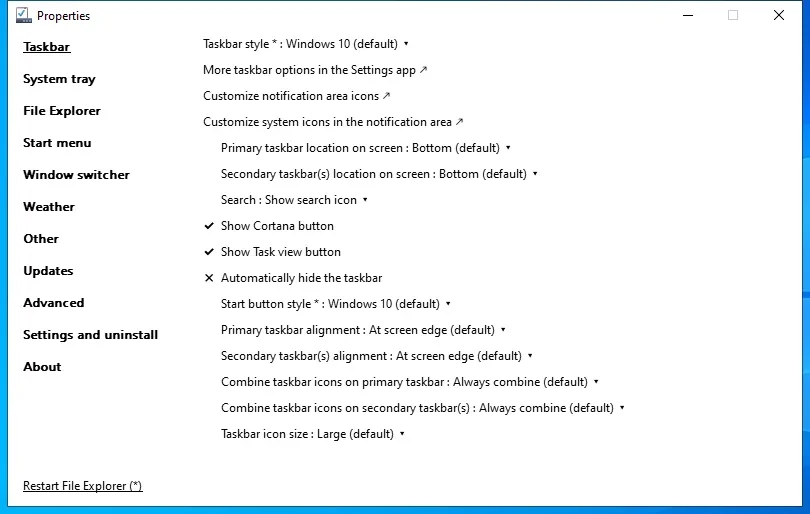
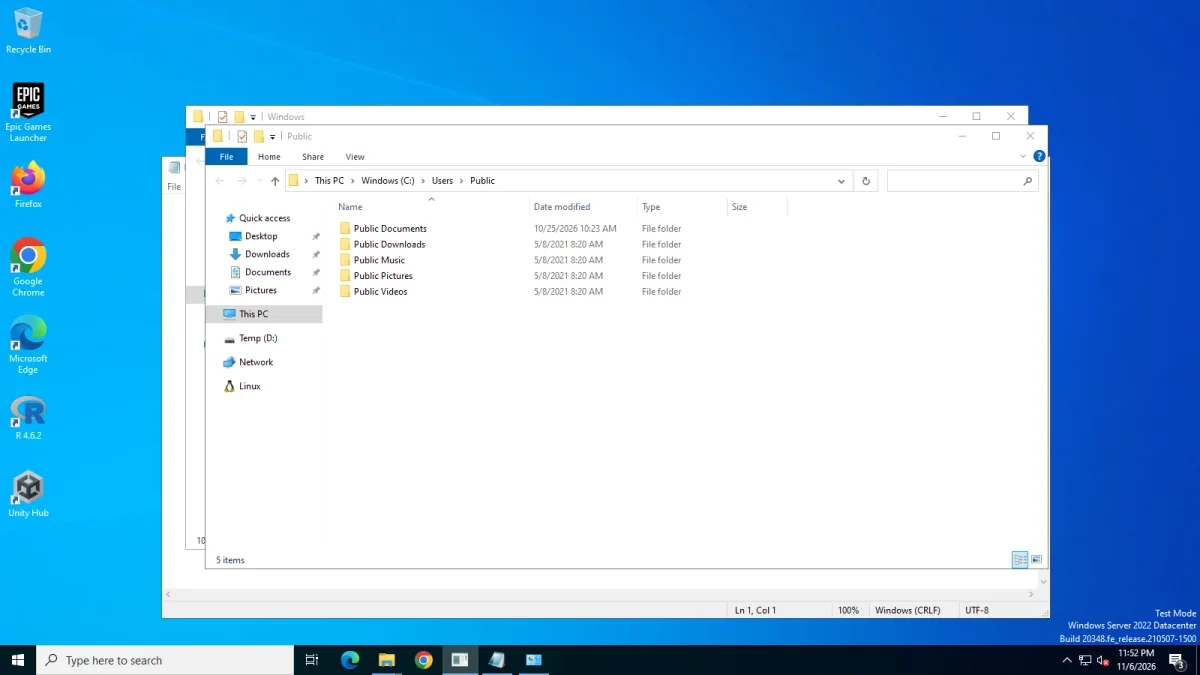
- Taskbar: the stock Windows 10 taskbar, 40 px high, in every taskbar style we tried (0, 1 and 2). The style setting changes nothing visible on this shell.
- Taskbar options that worked: never combine (labels), small icons (30 px), centred icons, the search box, seconds in the clock, hiding the Task View button, and top, left and right positions (62 px wide on the sides).
- File Explorer already has the ribbon on this shell.
- Alt+Tab: the style box reads “Windows 10 (default)”, because the shell is Windows 10. Simple Window Switcher showed its grid of large thumbnails on a dark surface. The Windows NT style showed no switcher in our photo, and we did not look into why.
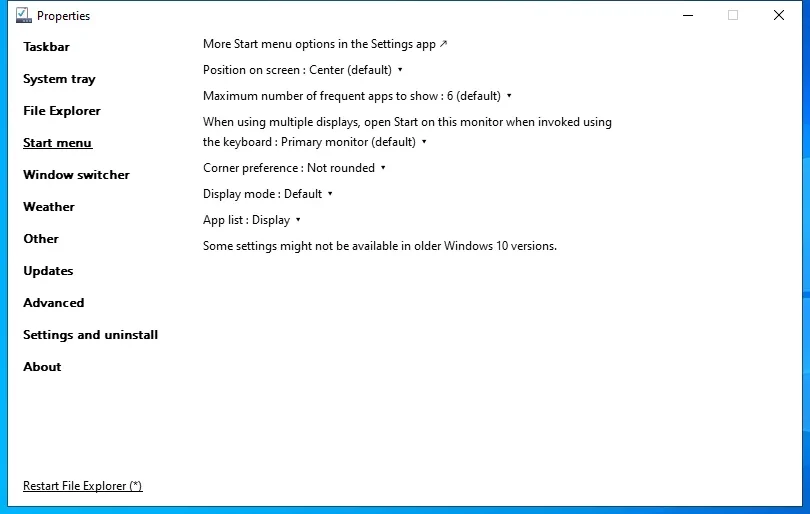
- Properties window: 11 sections (Taskbar, System tray, File Explorer, Start menu, Window switcher, Weather, Other, Updates, Advanced, Settings and uninstall, About) and no Spotlight section. The Windows 10 (ExplorerPatcher) and Windows 11 taskbar views looked the same, because the taskbar style changes nothing on this shell. The Start menu section has no style box and the Taskbar section has a Cortana button.
- Memory: Explorer settled at 89 MB before ExplorerPatcher and 93 to 94 MB with it, with idle CPU near 0 %.
- Symbols: within 120 seconds ExplorerPatcher had downloaded two symbol files (
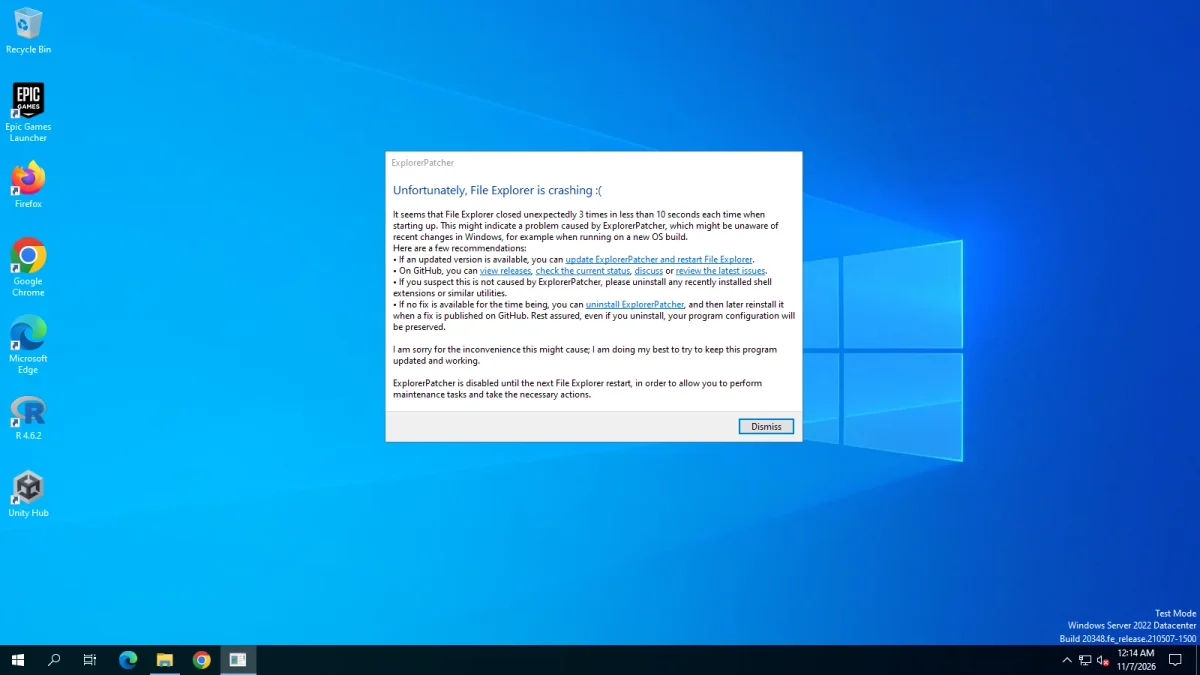
StartUI.pdbandtwinui.pcshell.pdb), about 55 MB in total. - Recovery: the Ctrl+Alt+Shift method shows the same “Unfortunately, File Explorer is crashing” dialog as on Windows 11. This confirms on the Windows 10 shell that the dialog is expected.
- Uninstall: 14.9 seconds, with
HKCU\Software\ExplorerPatcherleft behind.
Fewer settings than on Windows 11
Upstream ships one settings file for Windows 11 (117 settings) and one for Windows 10. We parsed both into our settings data: 119 entries, 117 of them on Windows 11, 21 flagged as absent on Windows 10 and 98 present there. The counts do not match one to one because a few settings appear in two variants and Windows 10 has two settings of its own, so treat 21 and 98 as our data’s figures, not an official count. Comparing setting names, 19 exist only in the Windows 11 file and 2 only in the Windows 10 file.
Only on Windows 11 (19 settings):
- Taskbar: the extra button (Widgets) choice.
- System tray: the Control Center button, the hidden icons pop-up style and the language switcher style.
- File Explorer: disabling the Windows 11 context menu and the title bar choice.
- Start menu: the Start menu style (Windows 10 or Windows 11), disabling the Recommended section, opening Start in All apps and showing more tiles.
- Window switcher and weather: the window corner preference (one in each section).
- Spotlight: the three Windows Spotlight settings, which are a section of their own on Windows 11.
- Other: the Win+X shortcut to Properties, disabling rounded corners, disabling snap quadrants and the Snap Assist style.
Only on Windows 10 (2 settings): the Cortana button on the taskbar, and Command Prompt instead of PowerShell in the Win+X menu.
Our reading: Windows 10 already has the Windows 10 Start menu, taskbar and context menu, so there is nothing to switch to. The settings reference marks which settings apply to Windows 10.
Windows 10 and the Start menu fixes
Upstream’s recent Start menu fixes (builds 26xxx.8474 and later) concern Windows 11. Those builds removed the tile engine behind the Windows 10 Start menu, which ExplorerPatcher then rebuilt. On Windows 10 the “Start menu style” setting does not exist (it appears only in the Windows 11 settings file), so those reports do not apply to a normal Windows 10 PC. If you read about Start menu failures, see Start menu not working and check that the report names your Windows version.
Common questions
Does ExplorerPatcher work on Windows 10?
Yes, according to upstream's compatibility table for Windows 10 1809 to 22H2. Our test ran on Windows Server 2022 (Windows 10 21H2 shell, build 20348.5773): version 71.1 installed in 5.1 seconds and uninstalled with only the settings key left behind.
How many settings does ExplorerPatcher have on Windows 10?
Fewer than the 117 on Windows 11. Our settings data has 119 entries and marks 21 of them as Windows 11 only, which leaves 98 on Windows 10. Examples of Windows 11 only settings are the Start menu style and rounded corners.
Do I need the Windows 10 taskbar option on Windows 10?
No. On Windows 10 the taskbar is already Windows' own Windows 10 taskbar. On our Windows Server 2022 test machine the taskbar stayed the stock 40 px one in every taskbar style, and ExplorerPatcher only adds options to it.
Can I trust the Windows Server 2022 result for my Windows 10 PC?
Only partly. Server 2022 runs the Windows 10 21H2 shell code that ExplorerPatcher's Windows 10 settings file targets, but it is a server edition on a virtual machine. Treat it as a sign that the code path works, and keep a recovery plan.