How to install ExplorerPatcher
Run ep_setup.exe (or ep_setup_arm64.exe on Snapdragon PCs) and accept the Windows permission prompt. On our test machines the installer finished in 5 to 9 seconds, and the taskbar came back at that same moment with ExplorerPatcher's Windows 10 style. Read the checklist below first: Smart App Control, SentinelOne and work PCs are the cases where installing can go wrong.
Checked against ExplorerPatcher 71.1 (26100.9711.71.1) on Windows Server 2025 (24H2 shell) 26100.33674 and Windows 11 Enterprise 25H2 26200.9725 and Windows Server 2022 (Windows 10 21H2 shell) 20348.5773 · Nov 6, 2026On this page
Before you install
Before you install ExplorerPatcher (often searched as “Explorer Patcher”), go through this list once. It takes two minutes and covers every case where we, or the developers, know the install can go wrong.
- Your Windows build is supported. The release notes of 71.1 name the builds the developers tested. Look yours up in the compatibility checker and read the status page if a Windows update arrived recently.
- Smart App Control is off. Upstream’s 71.1 release notes say to verify this first, because with it on “explorer.exe would not start up” on new versions. We could not test this: Smart App Control was off on our Windows 11 test machine and does not exist on Windows Server, and Windows cannot switch it back on later.
- SentinelOne is not installed. Upstream says not to install ExplorerPatcher on machines with SentinelOne, because it “can hold EP’s files hostage, preventing uninstallation”. We have not tested it.
- It is your own PC. We advise against installing on a PC that an employer or school manages. Managed PCs often run security software that guards system files, and your IT team may not allow it. ExplorerPatcher replaces parts of the shell, so it sits closer to the system than a normal app.
- You know the way out. Read the black screen recovery once before you start. The Ctrl+Alt+Shift method starts Explorer without ExplorerPatcher, and we tested it.
- You have a restore point or backup. Create a Windows restore point or a backup of anything you cannot lose. We have not tested whether a restore point removes ExplorerPatcher cleanly, so treat it as a general safety net.
- Third-party antivirus. Windows Defender found nothing in the setup or in the installed files in our tests (0 detections on all three machines). Upstream says other security software may need exclusions for the ExplorerPatcher folders; see antivirus and ExplorerPatcher.
Step 1: Download the file
Get the setup from the GitHub releases page only. The download page explains which file fits your CPU, shows the SHA-256 hashes we computed, and has a verifier that checks your file in the browser. The x64 file is 11.8 MB and the Arm64 file is 11.5 MB for version 71.1.
If you run the x64 file on an Arm64 PC, the setup program (per its source code) shows a message telling you to use the Arm64 version, then exits.
Step 2: Run ep_setup.exe
Double-click the file. Upstream’s description is short: the setup “will automatically prompt for elevation, after which it will close explorer.exe and install the necessary files”. That is all there is to the interface.
On our machines we saw no Windows permission (UAC) prompt and no SmartScreen warning, even with a Mark of the Web added to the file the way a browser download would. That is a limit of the test, not a promise: the test account is already an administrator, so we do not claim you will never see either prompt. Expect a UAC prompt on a normal PC, and if Windows shows a SmartScreen warning, compare the hash on the download page before you continue. The setup file is not code-signed, so a warning is plausible.

Step 3: Explorer restarts
The setup closes File Explorer, copies its files, and starts it again. The desktop and taskbar disappear for a few seconds. Our timings run from the start of the setup to the moment it exits, and the taskbar was back at the same moment.
| Machine | First install (70.3) | Then 71.1 over it |
|---|---|---|
| Windows Server 2025, x64 (build 26100.33674) | 5.4 to 10.7 s (3 runs) | 5.2 to 5.5 s (3 runs) |
| Windows 11 25H2, Arm64 (build 26200.9725) | 8.6 s (2 runs) | 6.6 to 6.7 s (2 runs) |
| Windows Server 2022, Windows 10 shell (build 20348.5773) | 5.4 s | 5.1 s |
These are single runs on throwaway cloud machines with 4 cores, so a PC with many startup programs may take longer. After the desktop returns, a Windows notification can appear. When we installed an older version first, ExplorerPatcher announced “Version 26100.9711.71.1 is available” with an “Update now” button; that is the update notification, not part of the install.
About 30 seconds after the install, ExplorerPatcher starts downloading Microsoft debug symbol files into %APPDATA%\ExplorerPatcher. In our runs that was 3 files and 65 MB on Arm64, 4 files and 92 MB on Server 2025, and 2 files and 54 MB on Server 2022. According to upstream, ExplorerPatcher uses them to locate functions inside Windows files, for example for the Win+X menu and the Windows 10 Alt+Tab. Until they arrive, some features may not work yet; see taskbar not changing.
Step 4: Choose your taskbar
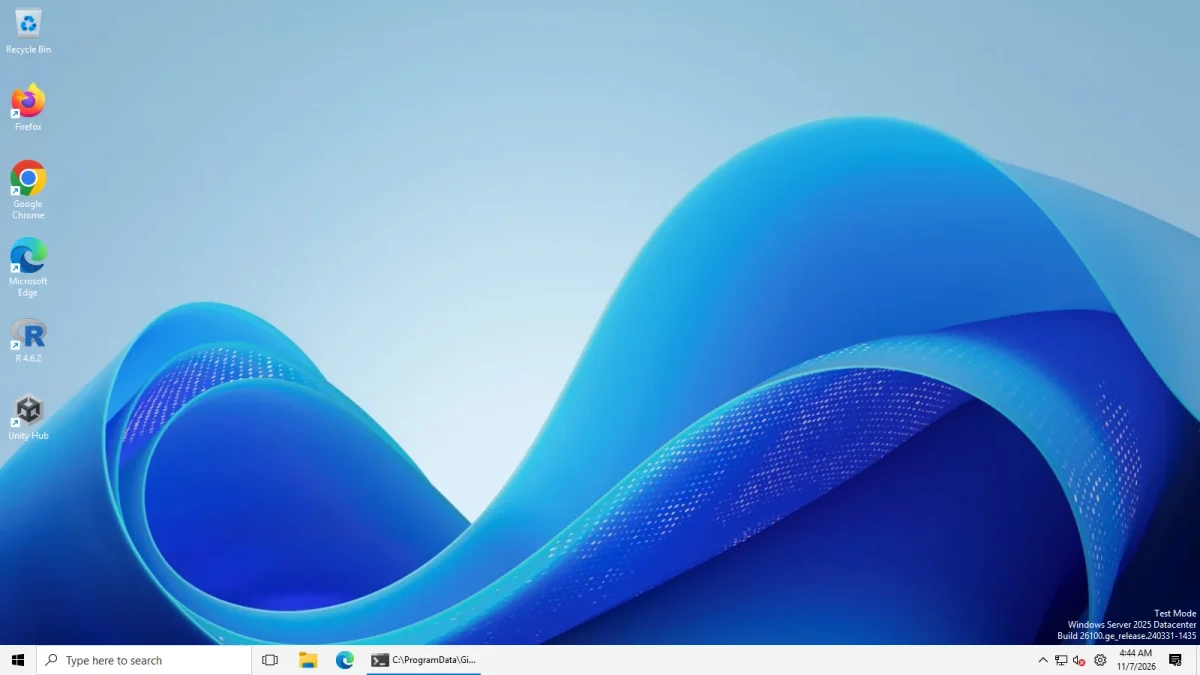
After installing, the taskbar is Windows 10 (ExplorerPatcher). It measured 40 px high in our tests, against 48 px for the Windows 11 taskbar. To change it, right-click the taskbar and choose Properties, then open the Taskbar section and change Taskbar style. Taskbar style needs a File Explorer restart, which the Properties window offers at the bottom (the how to use guide shows where).
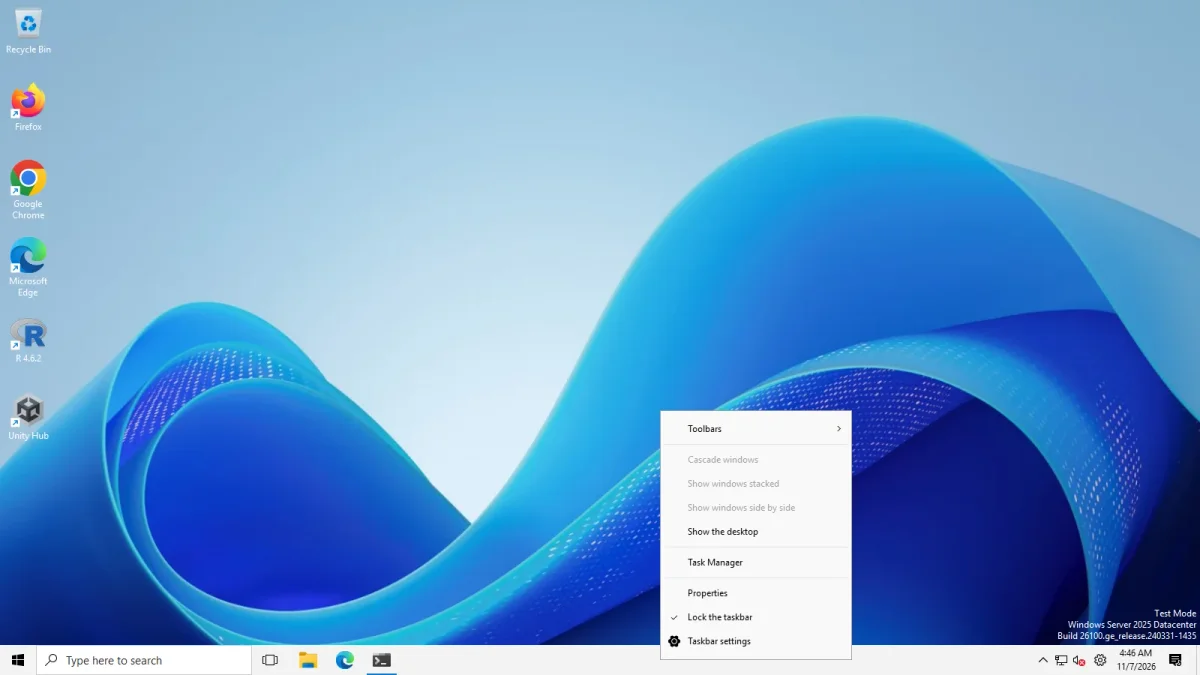
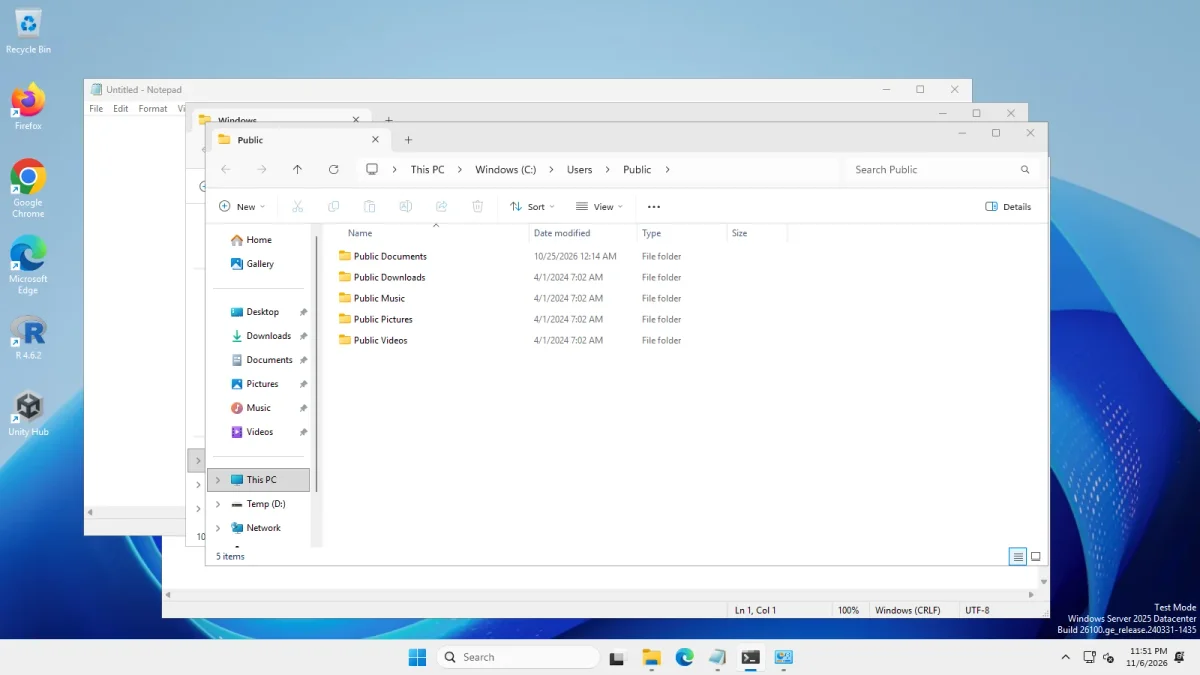 With ExplorerPatcherWindows 11 as shipped
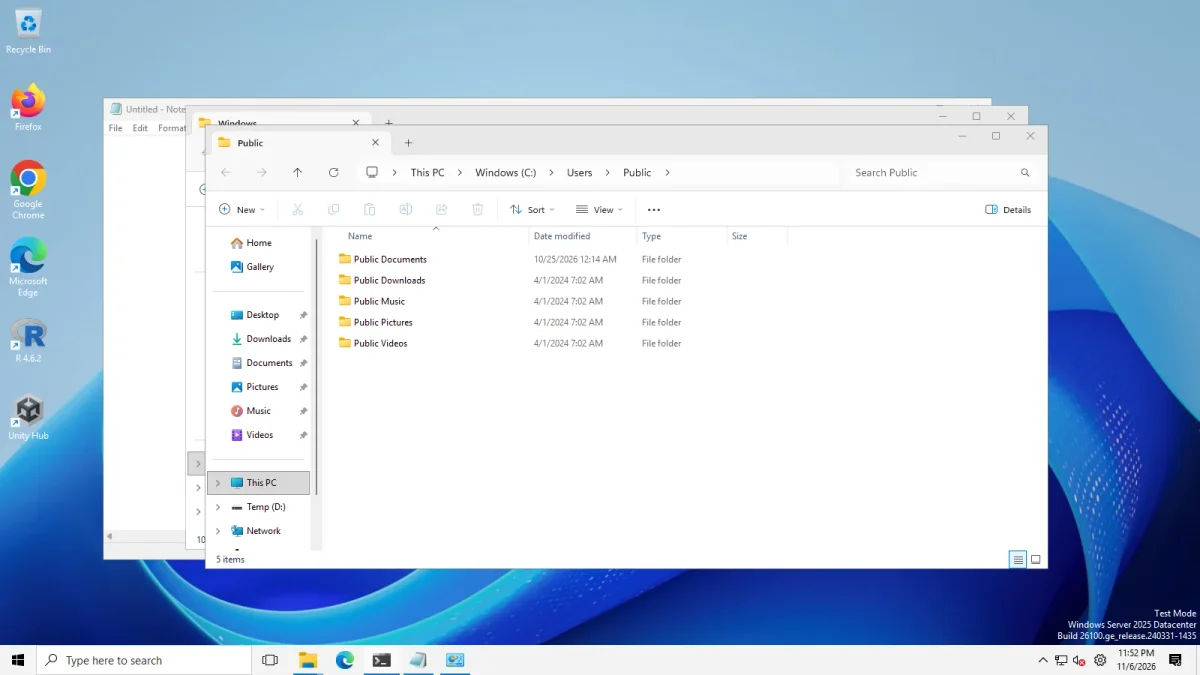
Taskbar style "Windows 11", four apps open → Taskbar style "Windows 10 (ExplorerPatcher)", four apps open · Windows Server 2025 (24H2 shell), x64 26100.33674 · EP 71.1
Drag the slider: left is the Windows 11 taskbar, right is “Windows 10 (ExplorerPatcher)” with four apps open. One trap: the separate style called plain Windows 10 does nothing on Windows 11 24H2 and 25H2. We set it and still got the 48 px Windows 11 taskbar. Only the “(ExplorerPatcher)” style changes the taskbar there. The Windows 10 taskbar guide and the taskbar settings page cover the rest.
What the installer changed on your PC
We took before and after lists of files, registry keys, services and scheduled tasks on each machine. Nothing here is an assumption.
| Where | What we found |
|---|---|
C:\Program Files\ExplorerPatcher |
About 20 files, roughly 23 MB, including a copy of the setup itself (ep_setup.exe, 12.3 MB on x64) used later for uninstall |
C:\Windows\dxgi.dll |
ExplorerPatcher’s loader; Explorer loads it at start |
StartMenuExperienceHost and ShellExperienceHost folders under C:\Windows\SystemApps |
A copy of dxgi.dll in each, plus StartUI_.dll, JumpViewUI_.dll and wincorlib.dll copies for the Windows 10 Start menu |
%APPDATA%\ExplorerPatcher |
The symbol files described above |
| Registry | HKCU\Software\ExplorerPatcher (your settings), two COM class entries on x64, and an uninstall entry for Apps |
| Services, scheduled tasks, Run entries | None added |
For how these pieces fit together, read how ExplorerPatcher works. The network traffic we saw during install and first start was GitHub’s release download host and Microsoft endpoints, nothing unexpected.
Silent and scripted installs
The winget package valinet.ExplorerPatcher installs the x64 file with the /S switch. Its manifest lists /S for both the silent and silent-with-progress modes:
winget install valinet.ExplorerPatcherThree things to know before you script it:
- We did not test
/Sor winget installs ourselves. On 6 Nov 2026 winget offered 26100.9711.71.1, but only for x64. There is no Arm64 entry. - The installer has no wizard to silence. In the setup source, the only switches we found are
/extract,/uninstall,/uninstall_silentand/update_silent. We found no code that reads/S, so we expect the file to behave the same with or without it. It still asks Windows for administrator rights, so run the command from an elevated prompt to avoid the prompt. - The screen restarts. Every install closes and restarts File Explorer. Do not run it on a PC while someone is working.
Upstream also documents ep_setup.exe /extract C:\folder, which unpacks the files without installing. We have not tried it. We advise against rolling ExplorerPatcher out to managed PCs with Intune or similar tools: it patches the shell, it is not code-signed, and upstream tells SentinelOne users to avoid it.
Installing over an older version
Run the new ep_setup.exe over the old install. We tested this path on all three machines: version 70.3 first, two settings changed (ToolbarSeparators set to 1, TaskbarGlomLevel set to 2), then 71.1 installed over it. Both settings were still there afterwards, and the install took 5 to 7 seconds. The update guide has the rest, including the built-in updater.
If the screen goes black
If the screen stays black or the taskbar never returns, do not reinstall. Press Ctrl+Shift+Esc, choose Run new task, type explorer.exe, and press Enter while holding Ctrl+Alt+Shift. That starts Explorer without ExplorerPatcher; it worked on all three of our machines. Follow the black screen guide for the full steps and the dialog you will see, and the uninstall guide when you want ExplorerPatcher gone.
More short answers are in the ExplorerPatcher FAQ.
Common questions
Does the ExplorerPatcher installer have a wizard?
No. In our tests there was no wizard, licence page or folder choice. You run the file, accept the Windows permission prompt, the screen goes dark for a moment, and the desktop returns with the new taskbar.
Do I need to restart the PC after installing?
We did not need to. The setup restarts File Explorer itself, and the taskbar was back in 5 to 9 seconds on every machine we tested. If you later register ExplorerPatcher as a shell extension, upstream's uninstall flow may ask for a restart.
Can I install ExplorerPatcher without the Windows 10 taskbar?
Yes. The setup always applies its default, which is the Windows 10 (ExplorerPatcher) taskbar. Right-click the taskbar, open Properties, and set Taskbar style to Windows 11 to go back to the stock taskbar while keeping the other options.
Is it safe to install over a newer or older version?
Running a newer setup over an older install is the normal update path, and our test kept the settings we changed. We did not test installing an older setup over a newer one, so we cannot say what happens.