Why your taskbar still looks like Windows 11
Open Properties, Taskbar, and set Taskbar style to 'Windows 10 (ExplorerPatcher)', then restart File Explorer. On Windows 11 24H2 and 25H2 the style called 'Windows 10' does nothing, because Microsoft removed that taskbar: we measured the Windows 11 taskbar at 48 pixels with it and the ExplorerPatcher taskbar at 40 pixels.
Checked against ExplorerPatcher 71.1 (26100.9711.71.1) on Windows Server 2025 (24H2 shell) 26100.33674 and Windows 11 Enterprise 25H2 26200.9725 · Nov 6, 2026On this page
The fix
- Right-click the taskbar and choose Properties. If the entry is missing, search Start for Properties (ExplorerPatcher).
- Open Taskbar. At the top, set Taskbar style to Windows 10 (ExplorerPatcher). Do not pick plain “Windows 10”.
- Click Restart File Explorer at the bottom of the window. The setting needs a restart.
That is all that is needed on a normal install. The three choices behave like this on 24H2 and 25H2:



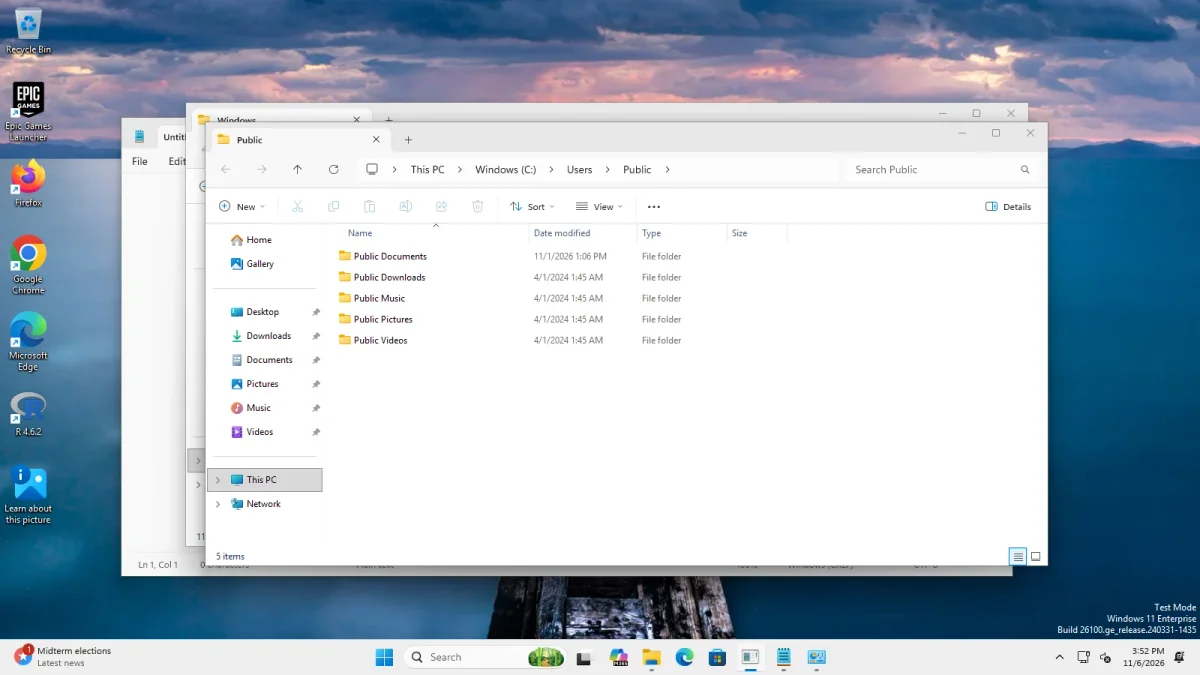 With ExplorerPatcherWindows 11 as shipped
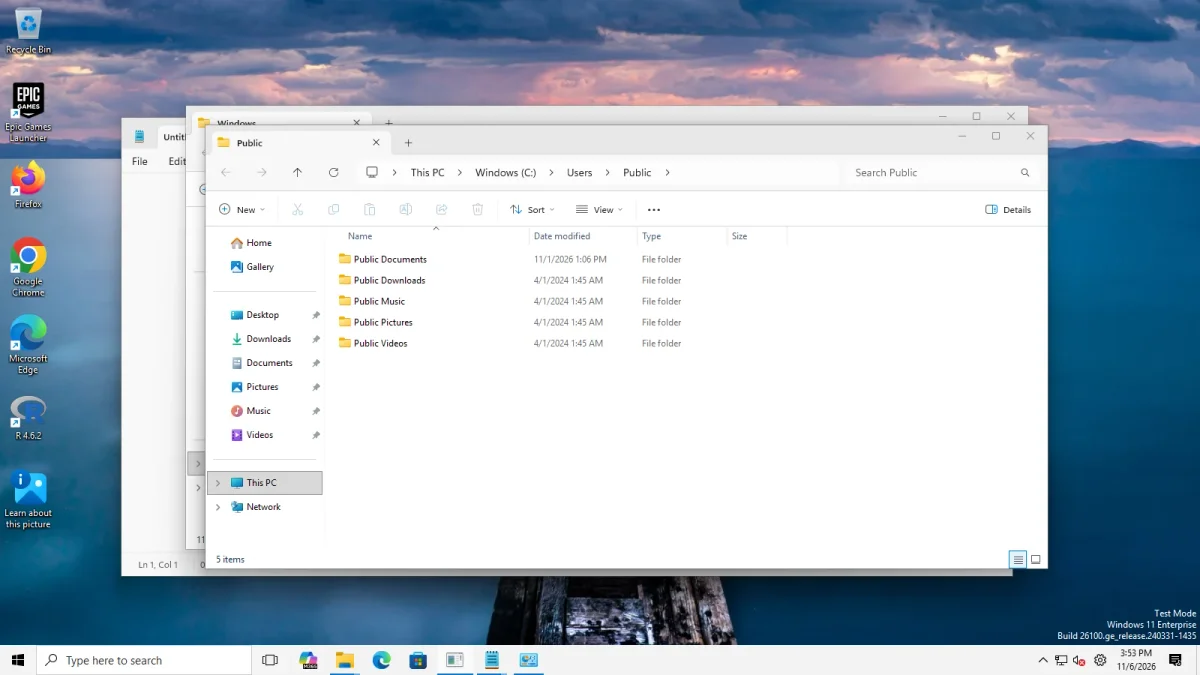
Taskbar style "Windows 10", four apps open → Taskbar style "Windows 10 (ExplorerPatcher)", four apps open · Windows 11 Enterprise 25H2, Arm64 26200.9725 · EP 71.1
The slider shows Windows 11 25H2 (Arm64) with the style “Windows 10” on the left and “Windows 10 (ExplorerPatcher)” on the right.
Why “Windows 10” does nothing
ExplorerPatcher offers three taskbar styles. “Windows 11” is the stock taskbar. “Windows 10” asks Windows for its own Windows 10 taskbar, which exists only up to Windows 11 22H2 and 23H2; Microsoft removed it in 24H2. “Windows 10 (ExplorerPatcher)” is ExplorerPatcher’s own re-creation of the Windows 10 taskbar. According to upstream’s FAQ, new installs on 24H2 and later may show the Windows 11 taskbar until you enable ExplorerPatcher’s own, because the developers did not want to make it the default for compatibility reasons. In our tests it was already the default.
The ExplorerPatcher source agrees with this. On a Windows 11 build that has no stock Windows 10 taskbar, style “Windows 10” loads nothing, and only styles 2 and higher load ExplorerPatcher’s own taskbar file.
Other causes, in order of likelihood
1. ExplorerPatcher switched itself off (crash counter). If Explorer exited within 10 seconds of starting three times, or you started it with Ctrl+Alt+Shift, ExplorerPatcher is off until the next File Explorer restart, and you see the Windows 11 taskbar with a crash dialog. Restart File Explorer normally. If the dialog returns, see Explorer keeps crashing.
2. A Windows build that ExplorerPatcher does not support yet. The source picks the taskbar file by Windows build number, and 71.1’s release notes say the taskbar now checks interface compatibility and falls back to the stock taskbar instead of crashing. If a new Windows update arrived, look at the status page and the Build Checker. We have not tested any Insider build; read the Insider section of the compatibility page first.
3. Symbols are still downloading, or failed. ExplorerPatcher downloads Microsoft’s symbol files for your build in the background. In our tests the files appeared within 30 seconds: three files (65 MB) on Arm64 and four files (92 MB) on Server 2025, and the taskbar had changed by the end of the install, after 5 to 9 seconds. So symbols are not what holds the taskbar back. Upstream’s symbols page says they are needed for the Win+X menu, some context-menu skinning, the Windows 10 Alt+Tab and two Start menu options. Messages you may see:
- “Downloading symbols for OS build”: wait, and keep the internet connection on.
- “Successfully downloaded symbols for OS build”: restart File Explorer when asked.
- “Downloaded some symbols for OS build” or “Failed to download symbols for OS build”: often a Windows build that is too new for Microsoft’s symbol server. Try later and check the status page. Microsoft usually publishes no symbols for Beta and Release Preview Insider builds or for optional preview updates, according to upstream.
4. The setting did not save, or another tool changed the taskbar. Check that “Taskbar style” still shows the ExplorerPatcher choice after a restart. Upstream says other taskbar tweak tools are not guaranteed to work with ExplorerPatcher’s taskbar, and 7+ Taskbar Tweaker is incompatible.
5. You are on Windows 10 or an older Windows 11. On Windows 10 the taskbar is already Windows’ own, and the style changes nothing visible (our Server 2022 test). On Windows 11 22H2 and 23H2 the plain “Windows 10” style works, because those builds still contain the stock Windows 10 taskbar.
If nothing works
Start Explorer without ExplorerPatcher (black screen guide), update to the newest release from GitHub, and report your Windows build and what you see to the project: see troubleshooting. If you want to remove ExplorerPatcher, follow the uninstall guide.
Common questions
Why does the taskbar style 'Windows 10' do nothing?
It asks Windows for its own Windows 10 taskbar, and Microsoft removed that taskbar in 24H2. In our tests on the 24H2 shell (Windows Server 2025) and on Windows 11 25H2 (Arm64) the taskbar stayed the 48 px Windows 11 taskbar with that style.
Which taskbar style should I choose on 24H2 or 25H2?
Choose 'Windows 10 (ExplorerPatcher)'. It is ExplorerPatcher's own re-creation of the Windows 10 taskbar and the default after installing. On both of our machines it gave a 40 px high taskbar instead of the 48 px Windows 11 one.
Do I have to wait for symbols to download?
Not for the taskbar itself. In our tests the taskbar changed within about 5 to 9 seconds of installing, while symbol files were still arriving. Missing symbols affect other features such as the Win+X menu and the Windows 10 Alt+Tab, according to upstream.
Why did my taskbar go back to Windows 11 after an update?
ExplorerPatcher may have switched itself off. If Explorer exits quickly three times, a crash counter disables ExplorerPatcher until the next restart, and ExplorerPatcher 71.1 also falls back to the stock taskbar when it detects an incompatible Windows build. Check the status page.