Other settings in ExplorerPatcher
The Other section has 20 entries in our data: 16 general options, three Windows Spotlight options and one that exists only on Windows 10. The Spotlight options sit in a section of their own on our Windows 11 client. The Win+X shortcut worked in our test; the rounded corners switch needs a service and administrator rights, and we could not demonstrate it.
Checked against ExplorerPatcher 71.1 (26100.9711.71.1) on Windows 11 Enterprise 25H2 26200.9725 and Windows Server 2025 (24H2 shell) 26100.33674 and Windows Server 2022 (Windows 10 21H2 shell) 20348.5773 · Nov 6, 2026On this page
What the section looks like
Our screenshots are from Windows 11 25H2 on Arm64 (build 26200.9725) with ExplorerPatcher’s taskbar. The section is listed with both taskbars. On that machine it comes after Spotlight, and on the two Windows Server machines it follows Weather.
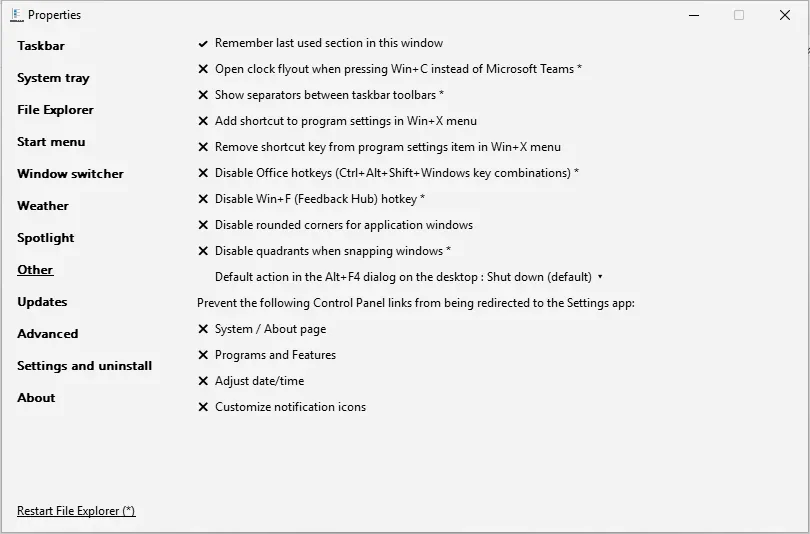
The window shows 14 rows here: remember the last section, the Win+C clock flyout, toolbar separators, the Win+X shortcut and its accelerator option, the Office and Win+F hotkeys, rounded corners, snap quadrants, the Alt+F4 default, and the four Control Panel redirects. Everything is off except “Remember last used section in this window”, which is the default. The logon, logoff and shutdown sounds row from our data is not listed on this build.
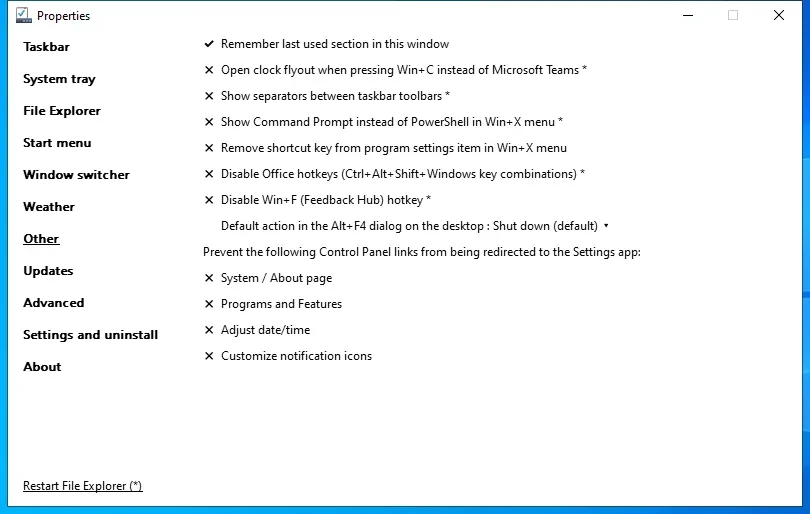
On Windows Server 2022, which has a Windows 10 shell, the section is different: it has the Command Prompt instead of PowerShell option for the Win+X menu and lacks the Win+X shortcut, rounded corners and snap options, as the list on the settings hub says.
The Spotlight section
Our data files three Windows Spotlight options under Other, but the app shows them in a section of their own, called Spotlight. It appeared on our Windows 11 client only, because that machine used a Spotlight wallpaper (the desktop in our Alt+Tab photos has the “Learn about this picture” icon). The Windows Server machines had no Spotlight section. The section holds “Hide the ‘Learn about this picture’ icon”, “Desktop context menu items” and “Update frequency”, then the picture’s title and credit and three links named %SPOTLIGHTNEXT%, %SPOTLIGHTLIKE% and %SPOTLIGHTDISLIKE%, which our screenshot shows with their raw placeholder names.
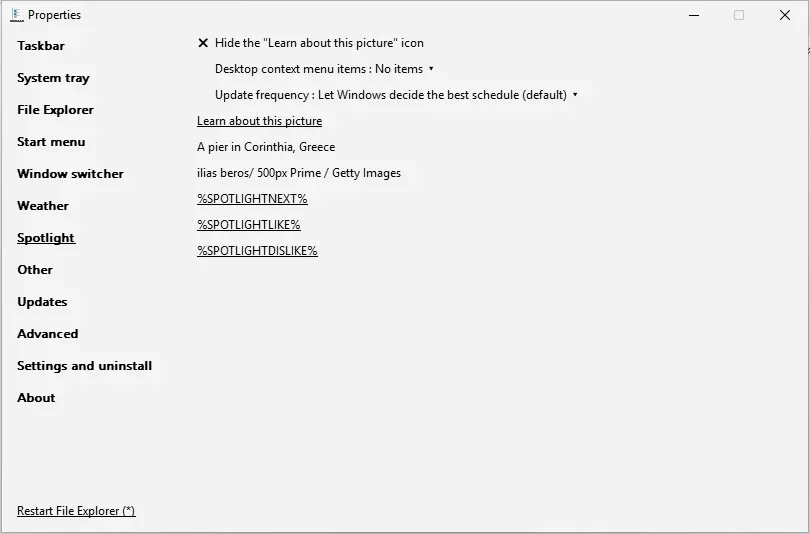
All three were at their defaults in our picture: the hide-icon box was unticked, “Desktop context menu items” read “No items” and “Update frequency” read “Let Windows decide the best schedule (default)”. We did not test what they change.
Overview
All other settings
Hide the "Learn about this picture" icon Switch
Hides the "Learn about this picture" icon on the desktop when Windows Spotlight is your wallpaper. Only offered on builds that support Spotlight when it is turned on.
Appears when: the Windows build supports Spotlight; Windows Spotlight is your wallpaper.
- Default
- Off
- Registry
HKCU\Software\ExplorerPatchervalueSpotlightDisableIcon- Section
- Spotlight
Desktop context menu items Choice list
Chooses which Spotlight entries appear in the desktop right-click menu: none, switch to the next picture, info, copyright, learn about, or all.
Appears when: the Windows build supports Spotlight; Windows Spotlight is your wallpaper.
- Default
- No items
- Registry
HKCU\Software\ExplorerPatchervalueSpotlightDesktopMenuMask- Section
- Spotlight
Options and stored values (8)
| Option in the app | Stored value |
|---|---|
| No items | 0 |
| Switch to the next picture | 32 |
| Learn about and switch to next picture | 48 |
| Info and switch to next picture | 288 |
| Info, copyright, and switch to next picture | 800 |
| Info, learn about, and switch to next picture | 304 |
| Info, copyright, learn about, and switch to next picture | 816 |
| All items | 1008 |
Update frequency Choice list
How often the Spotlight picture changes: let Windows decide, or every minute up to every couple of hours.
Appears when: the Windows build supports Spotlight; Windows Spotlight is your wallpaper.
- Default
- Let Windows decide the best schedule (default)
- Registry
HKCU\Software\ExplorerPatchervalueSpotlightUpdateSchedule- Section
- Spotlight
Options and stored values (11)
| Option in the app | Stored value |
|---|---|
| Let Windows decide the best schedule (default) | 0 |
| Every minute | 60 |
| Every 5 minutes | 300 |
| Every 15 minutes | 900 |
| Every 20 minutes | 1200 |
| Every half an hour | 1800 |
| Every hour | 3600 |
| Every couple of hours | 7200 |
| Every 6 hours | 21600 |
| Every 12 hours | 43200 |
| Once a day | 86400 |
Remember last used section in this window Switch
Opens the Properties window on the section you used last.
- Default
- Off
- Registry
HKCU\Software\ExplorerPatchervalueLastSectionInProperties- Section
- Other
Open clock flyout when pressing Win+C instead of Microsoft Teams Switch
Makes Win+C open the clock flyout instead of Microsoft Teams chat.
- Default
- Off
- Registry
HKCU\Software\ExplorerPatchervalueClockFlyoutOnWinC- Section
- Other
Show separators between taskbar toolbars Switch
Shows thin separators between the taskbar's toolbars (for example the Desktop toolbar).
- Default
- Off
- Registry
HKCU\Software\ExplorerPatchervalueToolbarSeparators- Section
- Other
Our test: We set it to 1, then installed 71.1 over 70.3: the value survived the update.
Add shortcut to program settings in Win+X menu Switch
Adds a shortcut to ExplorerPatcher's Properties window to the Win+X menu.
- Default
- Off
- Registry
HKCU\Software\ExplorerPatchervaluePropertiesInWinX- Section
- Other
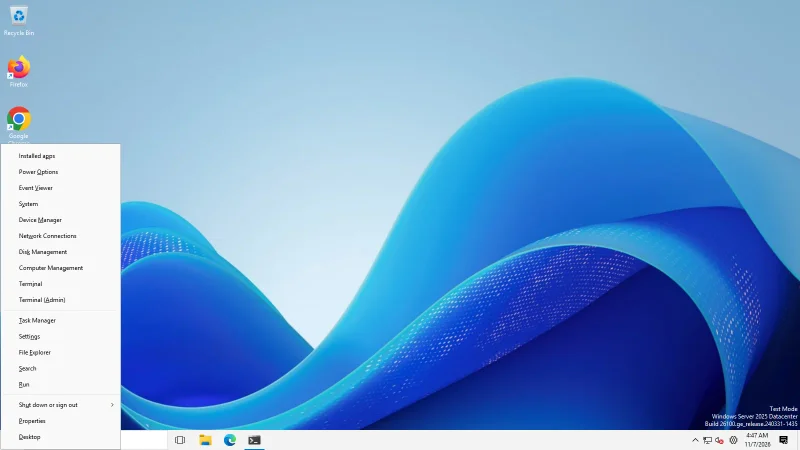
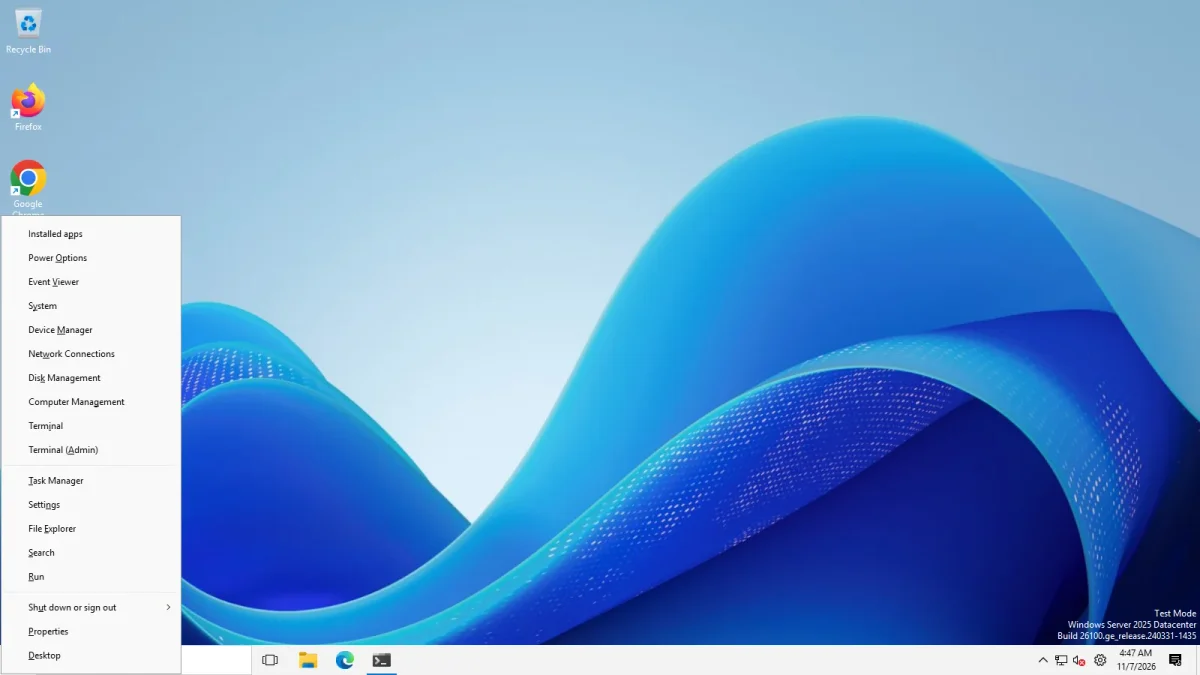
Our test: The Win+X menu showed the extra entry.
Remove shortcut key from program settings item in Win+X menu Switch
Removes the keyboard accelerator letter from that Win+X Properties entry.
- Default
- Off
- Registry
HKCU\Software\ExplorerPatchervalueNoMenuAccelerator- Section
- Other
Disable Office hotkeys (Ctrl+Alt+Shift+Windows key combinations) Switch
Disables the Ctrl+Alt+Shift+Windows-key combinations Windows reserves for Microsoft 365 apps.
- Default
- Off
- Registry
HKCU\Software\ExplorerPatchervalueDisableOfficeHotkeys- Section
- Other
Disable Win+F (Feedback Hub) hotkey Switch
Disables Win+F, which opens the Feedback Hub.
- Default
- Off
- Registry
HKCU\Software\ExplorerPatchervalueDisableWinFHotkey- Section
- Other
Disable rounded corners for application windows Switch
Turns off the rounded corners of app windows on Windows 11. ExplorerPatcher installs a small service (ep_dwm_svc) for this, and it asks for administrator rights.
- Default
- Off
- Registry
HKCU\Software\ExplorerPatchervalueVirtualized_{D17F1E1A-5919-4427-8F89-A1A8503CA3EB}_DisableRoundedCorners(pseudo value: EP's Properties window maps it to Windows' own storage)- Section
- Other
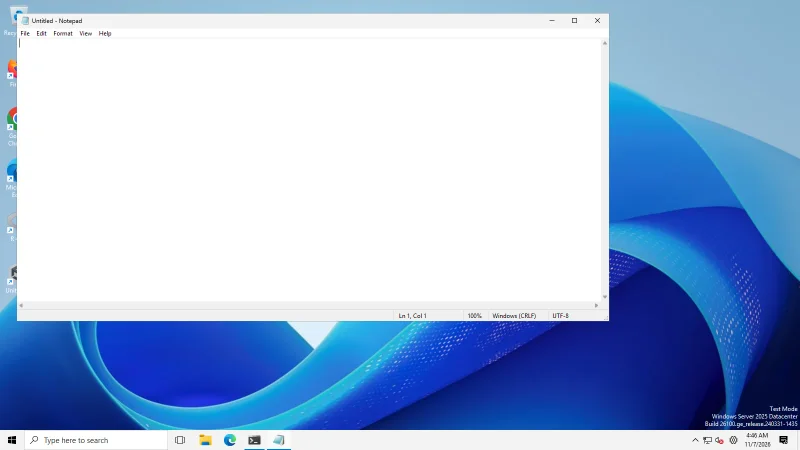
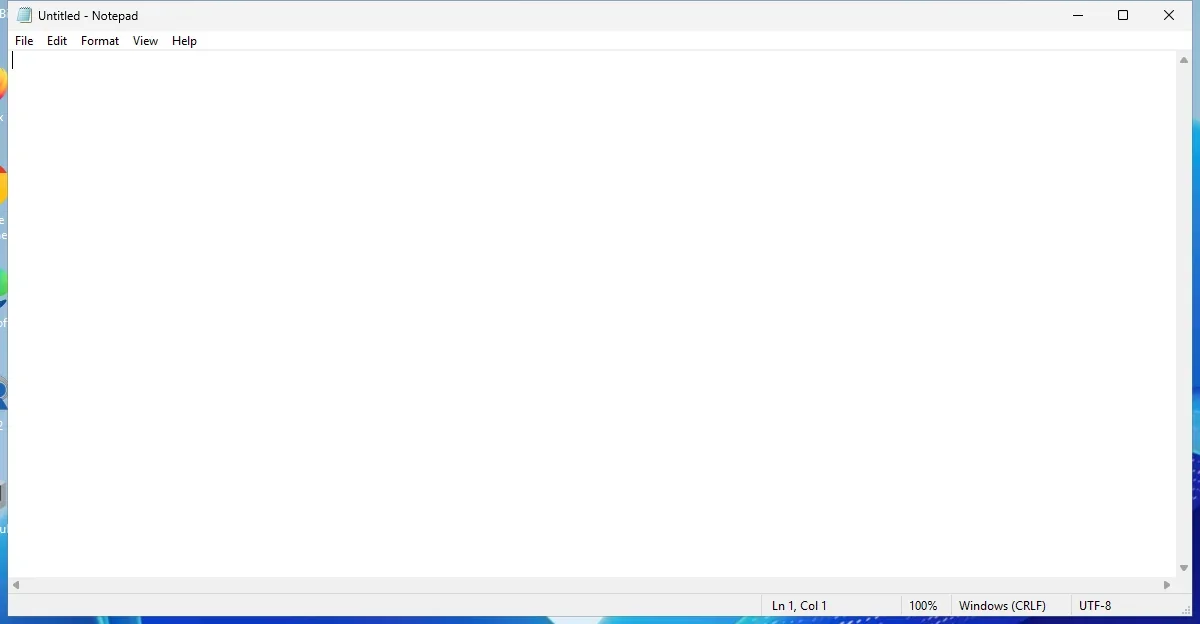
Our test: Not demonstrable on our machines: the Notepad window corners were already square before the change on Windows Server 2025, so there was nothing to remove. We created the same service the Properties window creates, but did not record whether it started. We do not claim the corner change.
Disable quadrants when snapping windows Switch
Disables the four-corner quadrant layout when snapping windows by dragging.
- Default
- Off
- Registry
HKCU\Software\ExplorerPatchervalueDisableAeroSnapQuadrants- Section
- Other
Snap Assist style Choice list
Snap Assist style: the Windows 11 layouts flyout or the Windows 10 behaviour. Not offered on Windows 11 22H2 and later.
Appears when: Windows 11 is older than 22H2.
- Default
- Windows 11 (default)
- Registry
HKCU\Software\ExplorerPatchervalueSnapAssistSettings- Section
- Other
Options and stored values (2)
| Option in the app | Stored value |
|---|---|
| Windows 11 (default) | 0 |
| Windows 10 | 3 |
Default action in the Alt+F4 dialog on the desktop Choice list
The default action in the Alt+F4 dialog when the desktop has focus: switch user, sign out, sleep, hibernate, shut down (default) or restart.
- Default
- Shut down (default)
- Registry
HKCU\Software\Microsoft\Windows\CurrentVersion\Explorer\AdvancedvalueStart_PowerButtonAction- Section
- Other
Options and stored values (6)
| Option in the app | Stored value |
|---|---|
| Switch user | 256 |
| Sign out | 1 |
| Sleep | 16 |
| Hibernate | 64 |
| Shut down (default) | 2 |
| Restart | 4 |
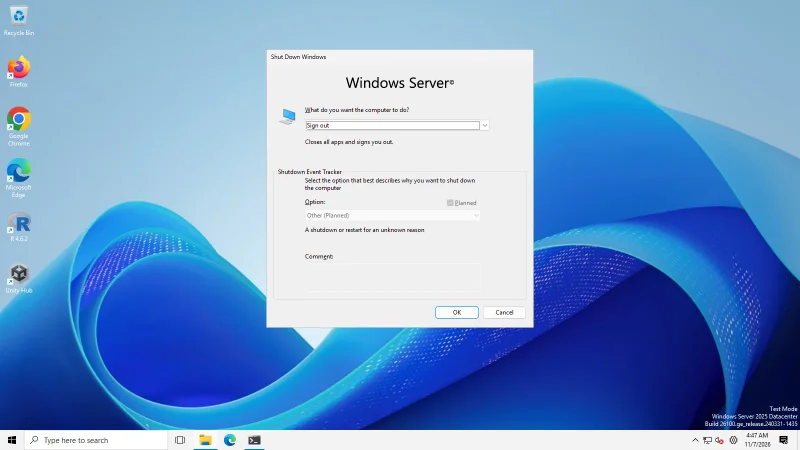
Our test: The Alt+F4 dialog opened with the "Shut Down Windows" classic dialog.
Enable logon, logoff, and shutdown sounds Switch
Plays the logon, logoff and shutdown sounds again. Only shown on builds where those sounds are available.
Appears when: the build provides the logon, logoff and shutdown sounds.
- Default
- Off
- Registry
HKCU\Software\ExplorerPatchervalueLogonLogoffShutdownSounds- Section
- Other
System / About page Switch
Opens the classic System / About Control Panel page instead of redirecting to the Settings app.
- Default
- Off
- Registry
HKCU\Software\ExplorerPatchervalueDoNotRedirectSystemToSettingsApp- Section
- Other
Programs and Features Switch
Opens classic Programs and Features instead of redirecting to Settings > Apps.
- Default
- Off
- Registry
HKCU\Software\ExplorerPatchervalueDoNotRedirectProgramsAndFeaturesToSettingsApp- Section
- Other
Adjust date/time Switch
Opens the classic Date and Time dialog instead of the Settings app.
- Default
- Off
- Registry
HKCU\Software\ExplorerPatchervalueDoNotRedirectDateAndTimeToSettingsApp- Section
- Other
Customize notification icons Switch
Opens the classic "Customize notification icons" window instead of Settings.
- Default
- Off
- Registry
HKCU\Software\ExplorerPatchervalueDoNotRedirectNotificationIconsToSettingsApp- Section
- Other
Show Command Prompt instead of PowerShell in Win+X menu Switch
Windows 10 Properties only: shows Command Prompt instead of PowerShell in the Win+X menu.
- Default
- Off
- Registry
HKCU\Software\Microsoft\Windows\CurrentVersion\Explorer\AdvancedvalueDontUsePowerShellOnWinX- Section
- Other
What to change first
- Win+X shortcut. Add the Properties entry to the Win+X menu. It is a second way to open the window, and it protects you if you ever hide the taskbar menu item.
- Alt+F4 default. If you shut down with Alt+F4 on the desktop, choose the action you want. This is a Windows value, not an ExplorerPatcher one.
- The rest is taste. Separators between toolbars, Win+C opening the clock, snap quadrants and logon sounds are small changes you can try one at a time.
Combinations and traps
Do not lock yourself out of Properties. The Advanced section has a switch that removes “Properties” from the taskbar’s right-click menu. If you turn that on without the Win+X entry, press Win+R and run rundll32 C:\Windows\dxgi.dll,ZZGUI, which upstream’s wiki gives as the way to open the window by hand.
Rounded corners is a service, not a value. According to the source, the setting creates and starts a Windows service (named ep_dwm_ plus a CLSID, running ep_dwm_svc.exe) with elevation, so it asks for administrator rights. We could not demonstrate the corner change: the Notepad window corners were already square before the change, after it and after undoing it on Windows Server 2025, so there was nothing to remove. We created the same service from a batch file but did not record whether it started, so we do not claim the change. Use the Properties checkbox if you try it.
The rounded corners guide has the steps. If you import a settings file that contains this value, Windows asks for approval for the service, which upstream’s wiki lists among the prompts to expect.
The Win+X accelerator. “Remove shortcut key from program settings item” only matters if the entry is added. It removes the underlined letter you can press once the menu is open.
Hotkeys. Disabling the Office hotkeys (the Ctrl+Alt+Shift+Windows key combinations Windows reserves for Microsoft 365 apps) and Win+F (Feedback Hub) needs a File Explorer restart. The Win+C option, which opens the clock flyout instead of Teams, needs one as well. We have not tested these hotkey options.
The Control Panel redirects. Four switches open the classic System, Programs and Features, Date and Time, and notification icon pages instead of sending you to Settings. They are plain on and off values, and we did not test them.
Snap options. “Disable quadrants when snapping windows” needs a restart and “Snap Assist style” is only offered on Windows 11 builds before 22H2. On Windows 11 24H2 and 25H2 you will not see the second one.
Windows 10. Four of the entries here do not appear on Windows 10 (Win+X shortcut, rounded corners, snap quadrants, Snap Assist style) and one appears only there: Show Command Prompt instead of PowerShell in the Win+X menu. The list for every section is on the settings hub.
Settings survive. In our update test, a value in this section (ToolbarSeparators) kept its setting when we updated from 70.3 to 71.1. See how to use for the day-to-day steps and the Configurator to plan a full setup.
Common questions
How do I add ExplorerPatcher Properties to the Win+X menu?
Tick Add shortcut to program settings in Win+X menu in the Other section. The Win+X menu showed an extra Properties entry in our test. This is a Windows 11 option and is not listed on Windows 10, and it is the safest way to keep a way into the window if you hide the taskbar item.
Does the rounded corners switch work?
We could not show it. According to the source, the Properties window creates and starts a small service, ep_dwm_svc, with administrator rights. Our test windows already had square corners before the change, so nothing was left to remove, and we did not record whether the service started.
Why is there no Spotlight entry in the left-hand list?
The Spotlight section only shows when your build supports Windows Spotlight and Spotlight is your wallpaper. Our Windows 11 25H2 machine used Spotlight and listed it between Weather and Other. The two Windows Server machines did not, and had no Spotlight entry.
Can I change what the Alt+F4 dialog does on the desktop?
Yes. Default action in the Alt+F4 dialog on the desktop can be Switch user, Sign out, Sleep, Hibernate, Shut down or Restart. On our test machine the dialog opened with the classic Shut Down Windows choice.