Advanced and hidden settings in ExplorerPatcher
The Advanced section has 10 settings plus the Language box that our data files with it. Properties itself says to read the documentation before changing them. One of them, Pinned items act as quick launch, worked in our test. Below the cards we list registry values that ExplorerPatcher reads but Properties never shows. We have not tested any of those.
Checked against ExplorerPatcher 71.1 (26100.9711.71.1) on Windows 11 Enterprise 25H2 26200.9725 and Windows Server 2025 (24H2 shell) 26100.33674 · Nov 6, 2026On this page
- What the section looks like
- Overview
- All advanced settings
- One switch our data does not list
- What to change first
- Combinations and traps
- Hidden settings
- Crash protection
- Start menu and taskbar behaviour
- Window switcher (under HKCU\Software\ExplorerPatcher\sws)
- Weather widget
- Read but with no effect we could find
- Internal values you may see
- Common questions
- Related guides
What the section looks like
We photographed the section with both taskbars on Windows 11 25H2 on Arm64 (build 26200.9725), ExplorerPatcher 26100.9711.71.1. Windows Server 2025 showed the same rows.
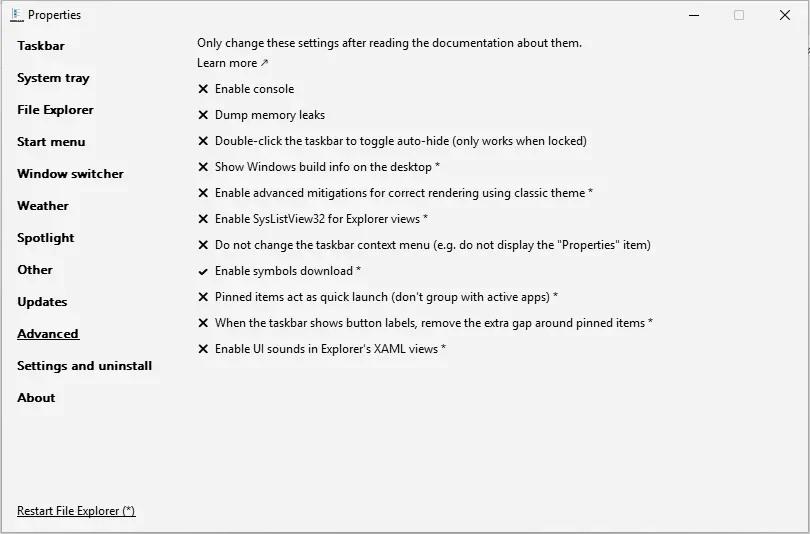
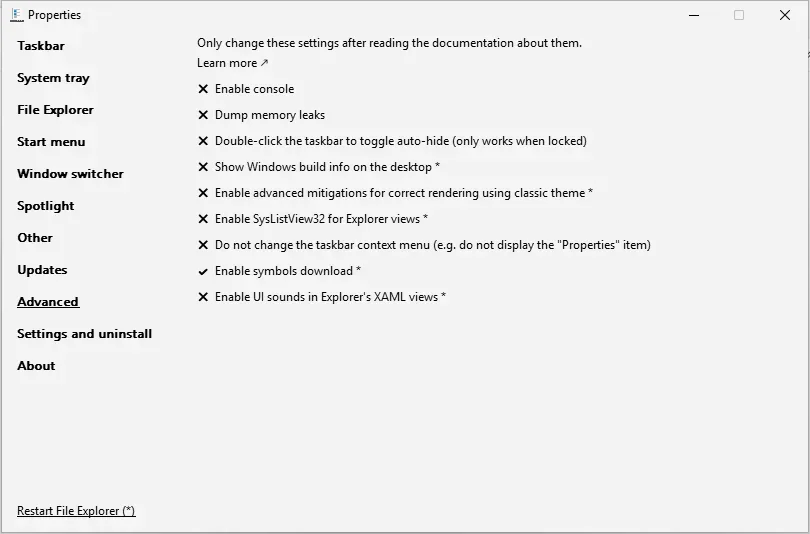
The left picture is ExplorerPatcher’s taskbar with eleven options, the right one the Windows 11 taskbar with nine. The window opens with “Only change these settings after reading the documentation about them.” With the Windows 11 taskbar, two options are missing: “Pinned items act as quick launch” and “When the taskbar shows button labels, remove the extra gap around pinned items”, because they only apply to Windows 10 style taskbars. The Language box is not in this section in the app: it sits in Settings and uninstall, but our data files it under Advanced, so its card is below.
Overview
All advanced settings
Enable console Switch
Opens a console window that shows ExplorerPatcher's debug output. For developers and bug reports.
- Default
- Off
- Registry
HKCU\Software\ExplorerPatchervalueAllocConsole- Section
- Advanced
Dump memory leaks Switch
Reports memory leaks in the debug console. For developers.
- Default
- Off
- Registry
HKCU\Software\ExplorerPatchervalueMemcheck- Section
- Advanced
Double-click the taskbar to toggle auto-hide (only works when locked) Switch
Double-clicking an empty part of the taskbar toggles auto-hide. Works only when the taskbar is locked.
- Default
- Off
- Registry
HKCU\Software\ExplorerPatchervalueTaskbarAutohideOnDoubleClick- Section
- Advanced
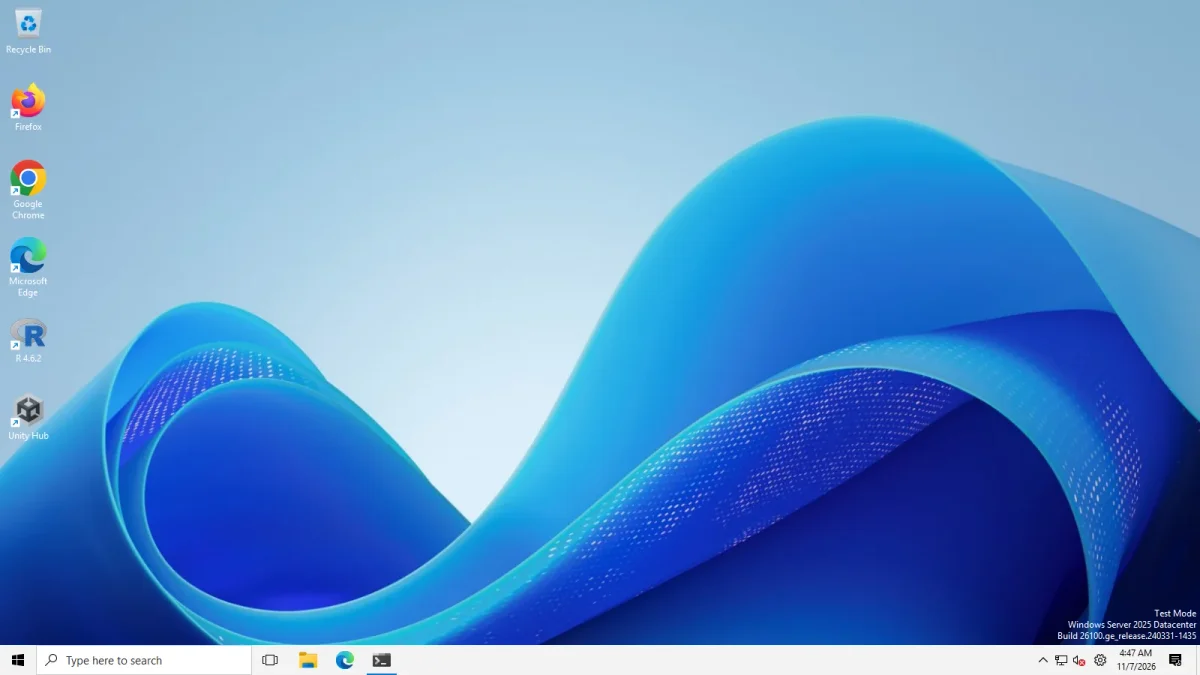
Show Windows build info on the desktop Switch
Paints the Windows build information in the bottom-right corner of the desktop, as on Insider builds.
- Default
- Off
- Registry
HKCU\Control Panel\DesktopvaluePaintDesktopVersion- Section
- Advanced
Our test: Not demonstrable on our machines: the Server and runner images already paint the build string (bottom right of every screenshot), so the switch shows no difference there.
Enable advanced mitigations for correct rendering using classic theme Switch
Fixes drawing problems when you run Windows' real Classic theme. Turn it off on normal themes: the upstream FAQ shows a broken-looking taskbar when it is on by mistake.
- Default
- Off
- Registry
HKCU\Software\ExplorerPatchervalueClassicThemeMitigations- Section
- Advanced
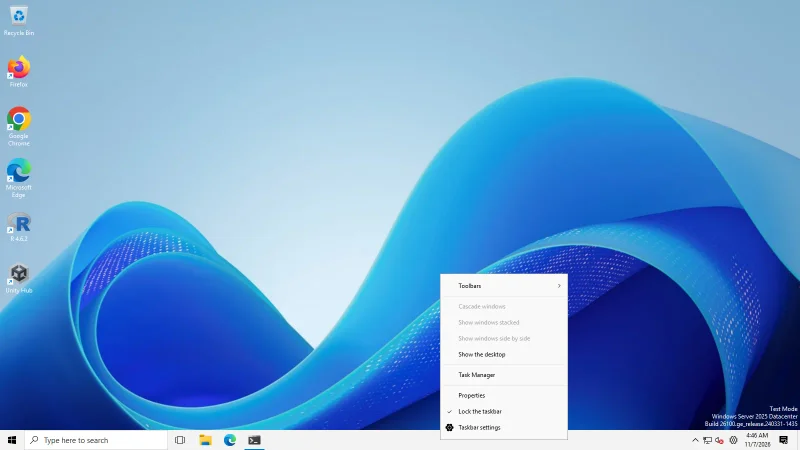
Do not change the taskbar context menu (e.g. do not display the "Properties" item) Switch
Leaves the taskbar right-click menu alone, so it does not get the "Properties" entry for ExplorerPatcher. Reach the window through Start or Win+X instead.
- Default
- Off
- Registry
HKCU\Software\ExplorerPatchervalueNoPropertiesInContextMenu- Section
- Advanced
Our test: By default the taskbar menu does show "Properties".
Enable symbols download Switch
Lets ExplorerPatcher download Microsoft's public symbol files for your Windows build. It needs them to find functions inside explorer.exe and the Start menu. On by default.
- Default
- On
- Registry
HKCU\Software\ExplorerPatchervalueEnableSymbolDownload- Section
- Advanced
Our test: About 30 seconds after installing, three to four .pdb files (65–92 MB) were in %APPDATA%\ExplorerPatcher.
Pinned items act as quick launch (don't group with active apps) Switch
Pinned apps stay as separate buttons instead of merging with the open window of the same app, like the old Quick Launch. Windows 10 taskbars only.
Appears when: you use a Windows 10 taskbar style (Windows 10 or Windows 10 (ExplorerPatcher)).
- Default
- Off
- Registry
HKCU\Software\ExplorerPatchervaluePinnedItemsActAsQuickLaunch- Section
- Advanced
Our test: With it on and labels shown, pinned apps stayed separate.

When the taskbar shows button labels, remove the extra gap around pinned items Switch
When the taskbar shows button labels, removes the extra space around pinned items.
Appears when: you use a Windows 10 taskbar style (Windows 10 or Windows 10 (ExplorerPatcher)).
- Default
- Off
- Registry
HKCU\Software\ExplorerPatchervalueRemoveExtraGapAroundPinnedItems- Section
- Advanced
Enable UI sounds in Explorer's XAML views Switch
Plays Windows' sounds for interactions in XAML parts of Explorer.
- Default
- Off
- Registry
HKCU\Software\Microsoft\Windows\CurrentVersion\Explorer\ExplorerPatchervalueXamlSounds- Section
- Advanced
Language Choice list
The language of the Properties window and ExplorerPatcher's messages. "Follow system setting" is the default. The project ships 20 languages: English plus 19 translations.
- Default
- 0
- Registry
HKCU\Software\ExplorerPatchervalueLanguage- Section
- Settings and uninstall
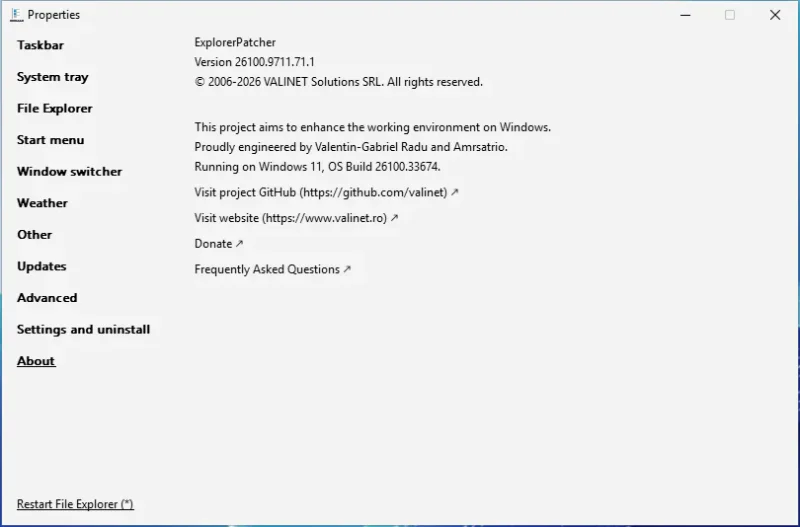
Our test: The Settings and uninstall section also holds Import settings, Export current settings, Restore default settings and Uninstall ExplorerPatcher.
One switch our data does not list
Enable SysListView32 for Explorer views is in the window (marked with an asterisk, so it needs a File Explorer restart) but not in our data. Upstream’s wiki describes it as enabling the legacy list control File Explorer used to show folders: deprecated, with less padding, a better fit for the classic theme, and known problems with the dark theme. According to upstream’s settings file it is stored as a registry key under HKCU\Software\Classes\CLSID\{1eeb5b5a-06fb-4732-96b3-975c0194eb39}\InprocServer32 with an empty default value, not as a value in the ExplorerPatcher key. We have not tested it.
What to change first
Nothing, unless you have a reason. The one option most people come for is Pinned items act as quick launch, together with the extra-gap option, if you use a labelled Windows 10 taskbar. In our test, with it on and labels shown, pinned apps stayed separate. The recipe is on the labels guide.
If a taskbar problem sends you here, change one option, restart File Explorer, and look. Do not tick several at once.
Combinations and traps
Console. “Enable console” opens a debug window for Explorer. Upstream warns that closing that window restarts File Explorer; untick the option first, then close the window. Keep it off day to day.
Dump memory leaks. Upstream says it only prints something in debug builds, resets itself after one use and shows nothing with the release build you download. Skip it.
Double-click the taskbar to toggle auto-hide. Upstream says it does not work as intended: on the Windows 10 taskbar it only works on the primary taskbar and only when the taskbar is locked. It may be removed.
Classic theme mitigations. Meant for people who run Windows with themes turned off. On a normal setup it can make the taskbar look wrong, see upstream’s “My taskbar looks broken” entry in its FAQ.
Show Windows build info on the desktop. Paints the build string like an Insider build. We could not demonstrate it: our test machines already paint the build text at the bottom right of every screenshot, so the switch shows no difference there.
Hide Properties from the taskbar menu. “Do not change the taskbar context menu” removes the Properties item. If you turn it on, add the Win+X shortcut in the Other section or run rundll32 C:\Windows\dxgi.dll,ZZGUI from Win+R, which is the command upstream gives.
Enable symbols download. Keep it on unless you know why you would not. Upstream says ExplorerPatcher needs Microsoft’s symbol data for your Windows build and downloads it when it is missing, which is typical right after a new Windows release. Turning it off can leave ExplorerPatcher without data for a new build. See how it works and taskbar not changing.
XAML sounds. A novelty. Upstream says it will never fix problems related to it.
Hidden settings
These are registry values that ExplorerPatcher’s code reads but that the Properties window does not show. We got the list by searching upstream’s source for registry reads and writes (version 26100.9711.71.1) and comparing the names with the settings in the window. That found 135 value names, 40 of which are not in Properties. The table covers the ones whose effect we could read from the code. The rest are internal bookkeeping or unclear.
Crash protection
When ExplorerPatcher starts inside Explorer it adds 1 to CrashCounter and clears it again after the time below. If the counter has reached the threshold when it starts, ExplorerPatcher resets the counter, can show its “File Explorer is crashing” dialog and does not take over: you get the stock Windows taskbar. Holding Ctrl, Shift and Alt at that moment takes the same path, which is why our Ctrl+Alt+Shift test showed that dialog even though nothing crashed.
| Value | Default in the code | What the code does |
|---|---|---|
CrashCounterDisabled |
0 (anything other than 0 or 1 counts as 0) | 1 turns the crash counter off. The Ctrl+Alt+Shift check is inside the same branch, so we expect it to turn that recovery off as well |
CrashCounterShowMessage |
1 | 0 hides the dialog. ExplorerPatcher still stands down. A value other than 0 or 1 counts as 0 |
CrashCounterThreshold |
3 | How many counted starts trigger the stand-down. Only 2 to 9 are accepted; 1 or less, and 10 or more, fall back to 3 |
CrashThresholdTime |
10000 | Milliseconds before the counter is cleared. Only 100 to 60000 are accepted; other values fall back to 10000 |
CrashCounter |
0 | The live counter. ExplorerPatcher writes it, so do not edit it |
Start menu and taskbar behaviour
| Value | Default in the code | What the code does |
|---|---|---|
OpenAtLogon |
0 | When non-zero, a startup thread opens the Start menu on the primary monitor after logon |
UndeadStartCorner |
0 | Only used with the Windows 10 taskbar when icons are centred with the Start button. It decides what a left click in the extreme screen corner does: 0 swallows the click, any other value opens Start, and 2 also sets Windows’ own TaskbarAl value to 0 first |
UpdateTimeout |
600 | Read by the updater and passed to its update check. The code does not state the unit |
Window switcher (under HKCU\Software\ExplorerPatcher\sws)
ScrollWheelInvert, MaxWidthAbs, MaxHeightAbs and AlwaysUseWindowTitleAndIcon are read from the sws subkey. The code that acts on them is in the Simple Window Switcher library, which is not part of the source tree we read, so we cannot say what they do. The names suggest a reversed scroll direction, absolute size limits and a window title and icon choice, but that is a guess. See the window switcher settings.
Weather widget
| Value | Default in the code | What it does |
|---|---|---|
WeatherDevMode |
0 | From upstream’s wiki: 1 turns on developer mode for the widget: context menus, F12 developer tools, F5, script pop-ups, and a freely movable and resizable widget that shows the whole page instead of a crop |
WeatherLocationType |
0 | In the code, a non-zero value makes ExplorerPatcher answer “allow” to the page’s browser location request. 0 answers “deny” |
Upstream’s example for the first one:
[HKEY_CURRENT_USER\SOFTWARE\ExplorerPatcher]
"WeatherDevMode"=dword:00000001
See the weather page for what the widget loads.
Read but with no effect we could find
ArchiveMenu (default 0) is read; when non-zero the code starts a helper thread that creates a hidden window called “ArchiveMenuWindowExplorer”. We could not tell what it is for. HookStartMenu is read (default 1 in the code), but the code that would use it is commented out.
Internal values you may see
IsUpdatePending, OpenPropertiesAtNextStart, MigratedFromOldSettings and SymbolsLastNotifiedOSBuild are bookkeeping that ExplorerPatcher writes. The registry export from our Windows Server 2025 test machine shows CrashCounter, MigratedFromOldSettings, OpenPropertiesAtNextStart and SymbolsLastNotifiedOSBuild, plus subkeys that hold hashes and function offsets. Leave them alone.
If you change any of these and Explorer stops starting, the black screen steps come first. For crashes, see Explorer crashing.
Common questions
What should I change in the Advanced section?
Usually nothing. The window warns you to read the documentation first. The two options people look for are Pinned items act as quick launch and the extra-gap option for taskbars with labels. Both only show with a Windows 10 style taskbar.
What does Enable symbols download do?
It lets ExplorerPatcher fetch Microsoft's symbol files when it needs them for your Windows build. About 30 seconds after installing, three or four .pdb files of 65 to 92 MB were in %APPDATA%\ExplorerPatcher on our machines. It is on by default and marked for a restart.
My taskbar looks broken after I changed something here. What now?
Upstream says that Enable advanced mitigations for correct rendering using classic theme changes the taskbar's metrics and can make the Windows 10 taskbar look broken. Turn it off and restart File Explorer. Use Restore default settings if you are not sure what you changed.
Are the hidden registry values safe to edit?
We do not know. We read them from upstream's source and have not changed any of them on a test machine. Export your settings first, change one value at a time, and know the Ctrl+Alt+Shift recovery from the black screen guide.