How to disable rounded corners in Windows 11
ExplorerPatcher has a switch called Disable rounded corners for application windows in Properties, Other. According to upstream and its source code, switching it on asks for administrator approval and creates a small Windows service that restores square corners. We could not demonstrate the change: our Server 2025 and Windows 11 25H2 Arm64 test machines both show square corners before and after, so there was nothing to remove, and we did not record whether the service started.
Checked against ExplorerPatcher 71.1 (26100.9711.71.1) on Windows Server 2025 (24H2 shell) 26100.33674 and Windows 11 Enterprise 25H2 26200.9725 · Nov 6, 2026On this page
What upstream says it does
The wiki entry is short: “Allows you to restore sharp window corners as in Windows 10.” The setting is Disable rounded corners for application windows in Properties, Other. It is listed as a Windows 11 only setting.
From the source code of ExplorerPatcher 71.1 (upstream, not tested by us):
- Switching the setting on starts an elevated command prompt, so Windows shows an administrator approval prompt.
- That command runs
sc createfor a Windows service, with the display name “ExplorerPatcher Desktop Window Manager Service” and the description “Service for managing aspects related to the Desktop Window Manager”. The service starts automatically and runsep_dwm_svc.exefrom the ExplorerPatcher folder. - The Properties window shows the switch as on when the service’s named event exists. The value
DisableRoundedCornersis a pseudo value: the window, not the registry, does the work. - Switching the setting off runs
sc stopandsc deleteon the same service.
The wiki says that importing a settings file raises the same approval prompt, from “Windows Command Processor”, “the helper program that configures the service which restores not rounded corners in the Desktop Window Manager”.
History, from upstream’s release notes and issues: version 68.2 (May 2025) renamed ep_dwm.exe to ep_dwm_svc.exe to get around Windows 11 24H2 upgrade blocks and added 24H2 support for the rounded-corner service. The upgrade block is described in issue 3053 (closed). Issue 5082 (closed, 18 comments, 24 Jun 2026) is titled “Disable Rounded Corners not working after 26100.8457.70.3 update”.
What we did and saw
- The file is installed, the service is not. On Windows Server 2025 the setup copied
ep_dwm_svc.exe(116,736 bytes) intoC:\Program Files\ExplorerPatcher. After install our footprint showed no new services, on both machines. - A registry-only change did nothing. In our first run we set
DisableRoundedCornersto 1 in ExplorerPatcher’s registry key, restarted Explorer and looked for services namedep_dwm*. The list was empty on both machines. That matches the source: the value alone does not create the service. - We then created the service from a script. In a re-run on Windows Server 2025 a batch file created the same service the Properties window creates (name
ep_dwm_plus the ExplorerPatcher CLSID, binaryep_dwm_svc.exe), with elevation. The script’s log has no output and our results file did not record the service state, so we cannot say whether the service started. We did not click the switch in the Properties window. - The corners were square in every photo, on both machines. We photographed a Notepad window before the change, with the change, and after undoing it, and cropped the window to look at the corners. All three photos show square corners on Windows Server 2025, and all three show square corners on Windows 11 25H2 on Arm64. Our working explanation is that the virtual display of these test machines does not draw Windows 11’s rounded corners at all, so there is nothing for the switch to remove. We did not verify that explanation and we did not record the service state, so treat it as a guess. It means neither machine can show the setting working or failing.
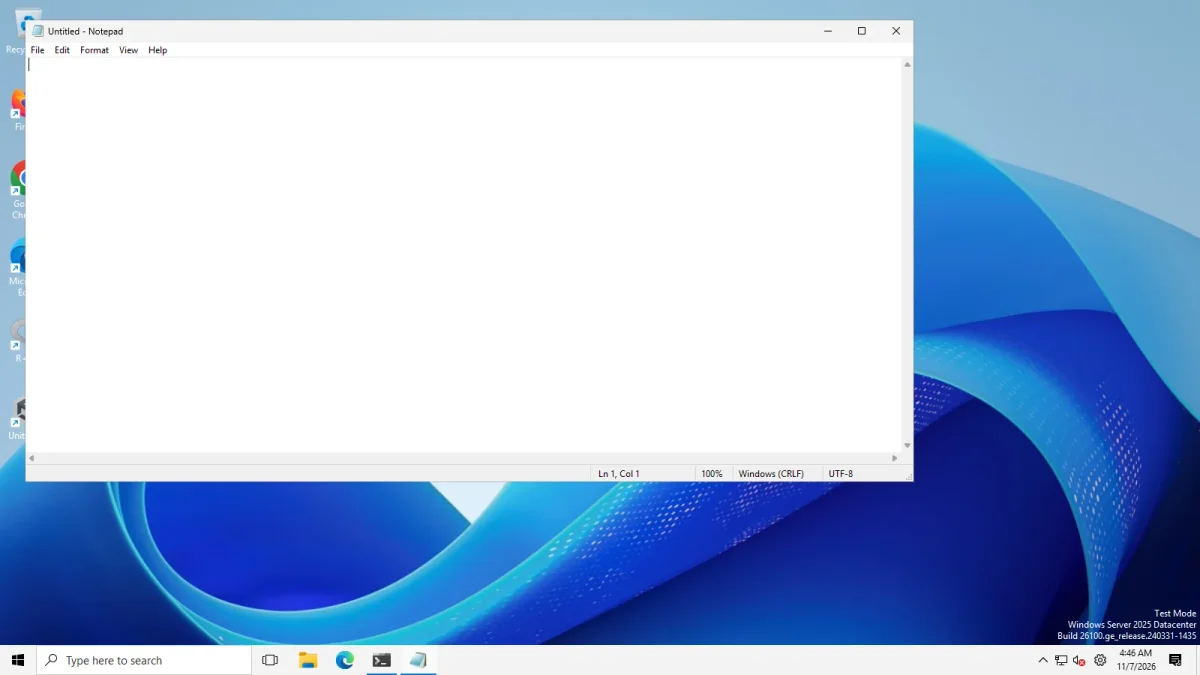
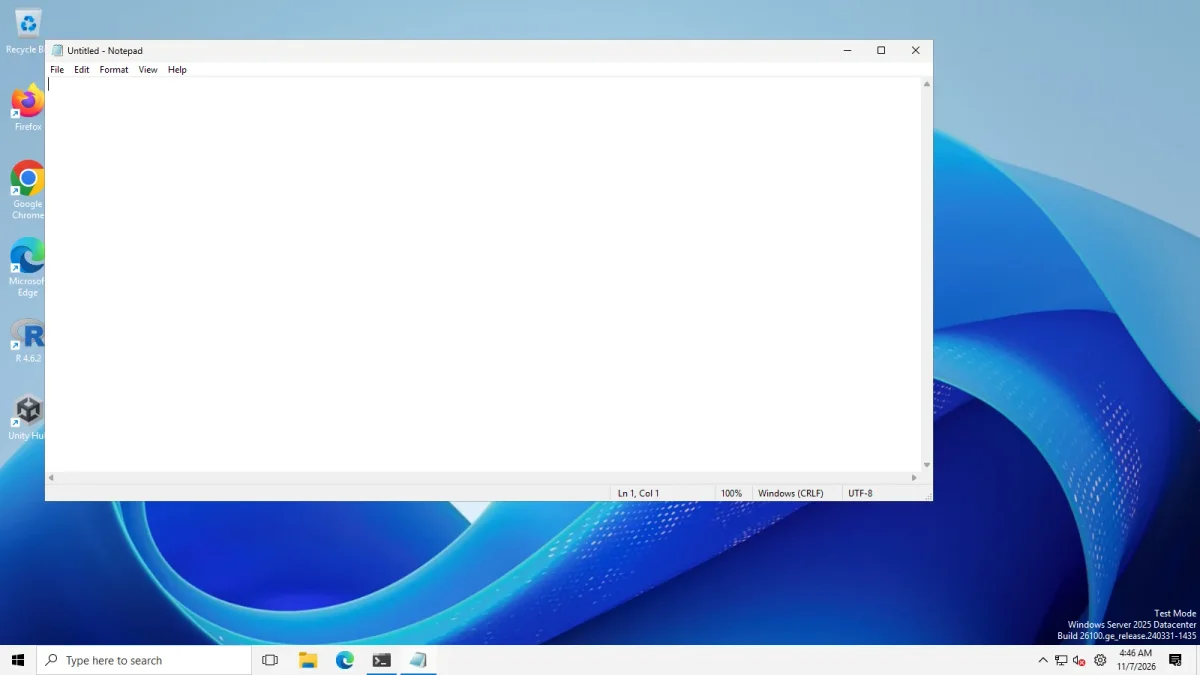
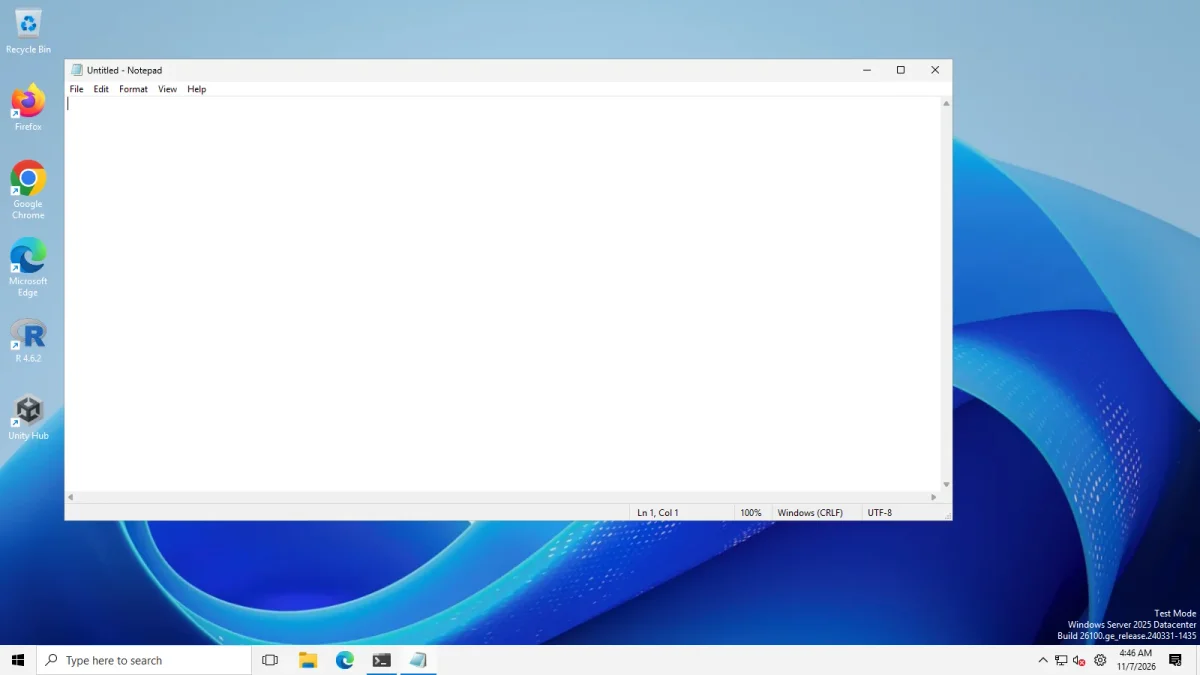
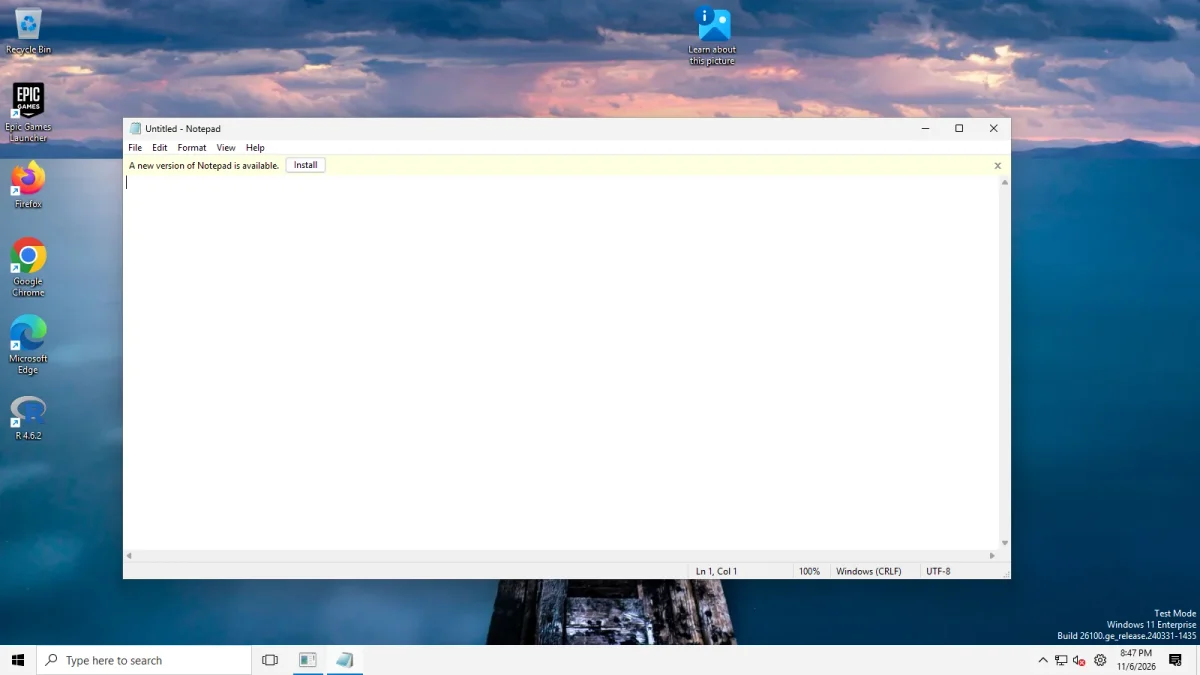
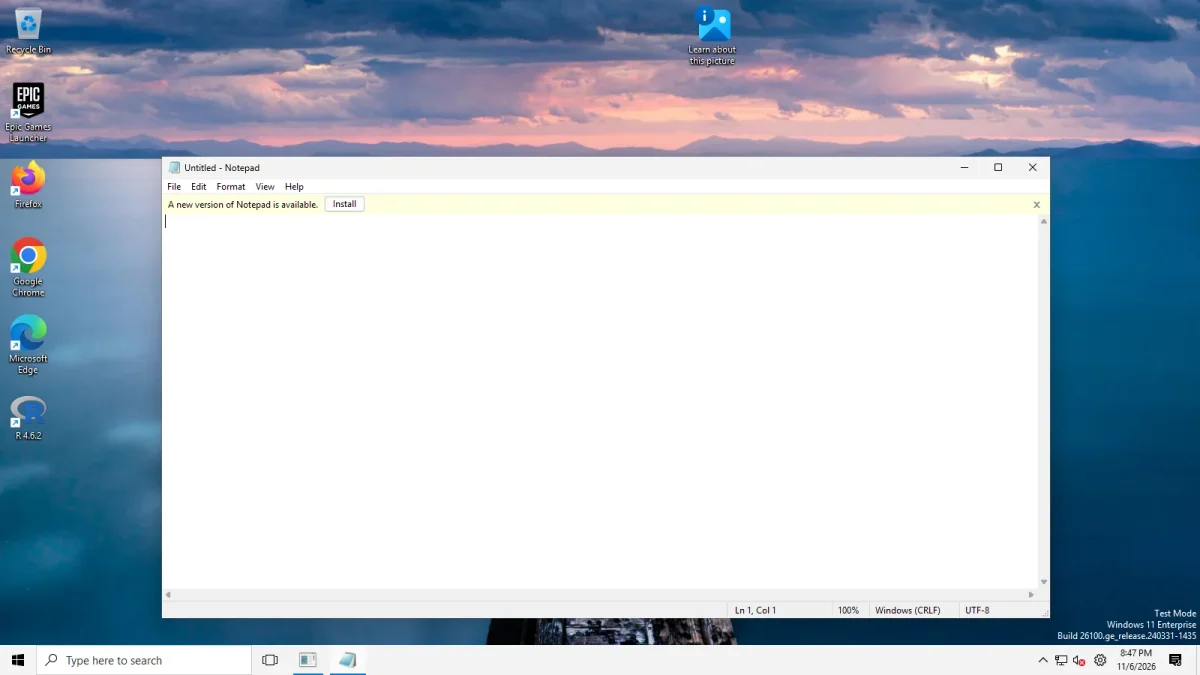
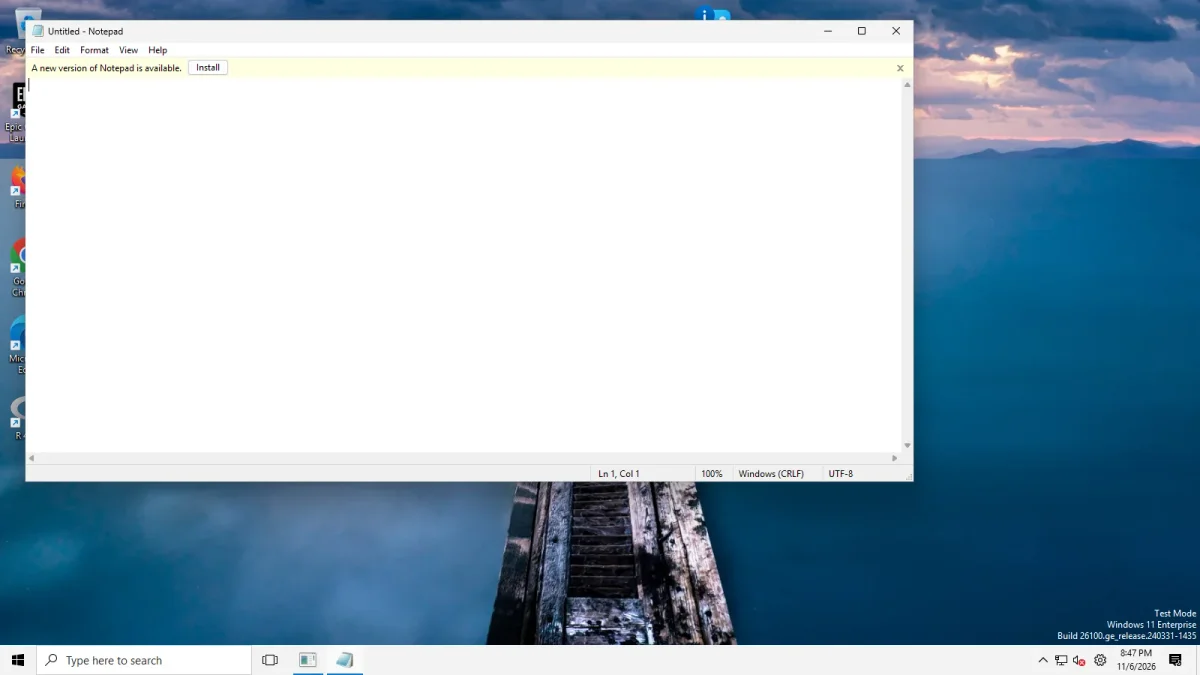
What this means for you: we have no evidence for or against the visual change on 24H2 or 25H2, and we did not record whether the service ran. We have not recorded the service state, so we claim nothing about it. We know the registry value alone does not create the service, and that matches the source code.
How to try it, carefully
This is upstream’s route, not a tested recipe.
- Install ExplorerPatcher from GitHub only, and read the black screen guide first.
- Open Properties and choose Other.
- Tick Disable rounded corners for application windows. Approve the administrator prompt.
- Open a new app window and look at its corners. Tell us if it worked: use the “Report a problem” link at the bottom of this page.
To see whether the service exists, open PowerShell and run:
Get-Service ep_dwm*How to undo it
Untick the same setting in Properties. According to the source, that stops and deletes the service. If you used the setting and then uninstall ExplorerPatcher, check afterwards with Get-Service ep_dwm*. If a service remains, you can remove it from an administrator prompt with sc stop and sc delete, using the name that Get-Service printed. See uninstall for the full clean-up.
Why this one needs more care
Most ExplorerPatcher settings are registry values that Explorer reads. This one installs a service that starts with Windows. Our footprint of a normal install found no services and no scheduled tasks. This setting is the exception, because it creates one. Read how ExplorerPatcher works before you use it on any PC you rely on, and do not use it on a work PC. If you want sharp corners for the Start menu or the Alt+Tab switcher, those are separate settings in the Start menu and window switcher lists, both called Corner preference.
For all the visual changes, see make Windows 11 look like Windows 10.
Common questions
Does ExplorerPatcher really remove rounded corners on Windows 11 24H2 and 25H2?
Upstream documents it and added 24H2 support for the service in version 68.2. We have not seen it work ourselves. Our photos from Windows Server 2025 and from Windows 11 25H2 on Arm64 show square corners before, during and after our test, so neither machine can demonstrate a change.
Does setting the registry value turn the corners off?
Not on its own. In our first run we set DisableRoundedCorners to 1 and restarted Explorer, and no ep_dwm service appeared. In the source code the value is a pseudo setting: the Properties window creates and starts the service, and that service is what changes the corners.
What does the service do and how do I remove it?
According to the source, the Properties window runs an elevated command that creates a service named ExplorerPatcher Desktop Window Manager Service, set to start automatically and run ep_dwm_svc.exe. Switch the setting off in Properties to stop and delete it, or check Get-Service ep_dwm* afterwards.
Is there a risk to the setting?
It adds an auto-start service and needs administrator approval, which is more than most ExplorerPatcher settings do. In 2024 old versions with a differently named file, ep_dwm.exe, were blocked by the Windows 11 24H2 upgrade, so update ExplorerPatcher before a Windows feature update.