How to uninstall ExplorerPatcher
Open Settings, Apps, find ExplorerPatcher, and choose Uninstall, or run ep_setup.exe /uninstall. Confirm the question and wait about 15 seconds on x64 (22 on Arm64): the Windows 11 taskbar returns and the program files are gone. Your settings stay behind in the registry, so a complete removal needs one extra step.
Checked against ExplorerPatcher 71.1 (26100.9711.71.1) on Windows Server 2025 (24H2 shell) 26100.33674 and Windows 11 Enterprise 25H2 26200.9725 and Windows Server 2022 (Windows 10 21H2 shell) 20348.5773 · Nov 6, 2026On this page
- Before you uninstall
- Five ways to uninstall
- Method 1: Properties, Settings and uninstall
- Method 2: Settings, Apps
- Method 3: the command line
- Method 4: rename the setup file
- Method 5: Control Panel
- What you see
- What stays behind
- Remove the leftovers
- What the script does
- If you cannot reach the desktop
- Uninstall blocked by antivirus or SentinelOne
- Common questions
- Related guides
Before you uninstall
Two questions first, because the answer is sometimes not “uninstall”.
Do you only want the Windows 11 taskbar back? Open Properties, go to Taskbar and set Taskbar style to Windows 11, then restart File Explorer. ExplorerPatcher stays installed and your other options keep working. See the how to use guide.
Is Windows broken right now? If the screen is black or Explorer keeps crashing, do not start with the uninstaller. Start Explorer without ExplorerPatcher for this session: Ctrl+Shift+Esc, Run new task, explorer.exe, Enter while holding Ctrl+Alt+Shift. We tested this on all three machines; the stock Windows 11 taskbar (48 px) appeared, and ExplorerPatcher showed its own “File Explorer is crashing” dialog, which is expected. Read the black screen guide, then come back.
If you might reinstall later, open Properties, go to Settings and uninstall and choose Export current settings now. Your settings will stay in the registry anyway, but an exported .reg file is a backup you can carry.
Five ways to uninstall
These are the five methods upstream lists in its README and wiki. They all remove the same files.
Method 1: Properties, Settings and uninstall
Right-click the taskbar, choose Properties, open Settings and uninstall and click Uninstall ExplorerPatcher. The link is visible in our screenshot of that section (see how to use). We did not click it in our tests. Upstream’s older documentation calls the section “Uninstall”.
Method 2: Settings, Apps
Open Settings, Apps, Installed apps, find ExplorerPatcher, open the three-dot menu and choose Uninstall. Control Panel, Programs and Features (Method 5) does the same. Both start the command stored in the uninstall entry. We read that entry on our machines: it is "C:\Program Files\ExplorerPatcher\ep_setup.exe" /uninstall (with ep_setup_arm64.exe on Arm64), and the publisher shows as VALINET Solutions SRL.
Method 3: the command line
This is the method we ran in every test:
"C:\Program Files\ExplorerPatcher\ep_setup.exe" /uninstallOn Arm64 the file is ep_setup_arm64.exe. The setup asks Windows for administrator rights, then shows the confirmation question. According to the setup source there is also /uninstall_silent, which skips the question; the completion message still appears. We did not test /uninstall_silent.
Method 4: rename the setup file
Download the setup again if you no longer have it, rename ep_setup.exe to ep_uninstall.exe and run it. Per the source, a file with that name starts in uninstall mode and shows the confirmation question. This works when the installed copy is missing or damaged. We did not test it.
Method 5: Control Panel
Open Control Panel, Programs and Features, select ExplorerPatcher and click Uninstall. This is the same entry as in Method 2.
What you see
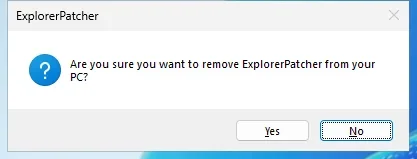
The uninstaller shows two boxes. First the question, with No as the highlighted default button:
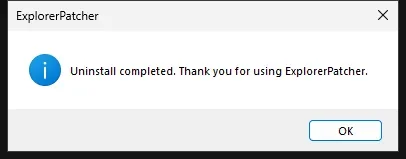
Then the taskbar reloads. The time from running the command to the end:
| Machine | Uninstall time | Taskbar afterwards |
|---|---|---|
| Windows Server 2025 (24H2 shell), x64 | 14.9 to 15 s (2 runs) | Windows 11, 48 px |
| Windows 11 25H2, Arm64 | 21.7 to 22 s (2 runs) | Windows 11, 48 px |
| Windows Server 2022 (Windows 10 shell), x64 | 14.9 s | Stock Windows 10, 40 px |
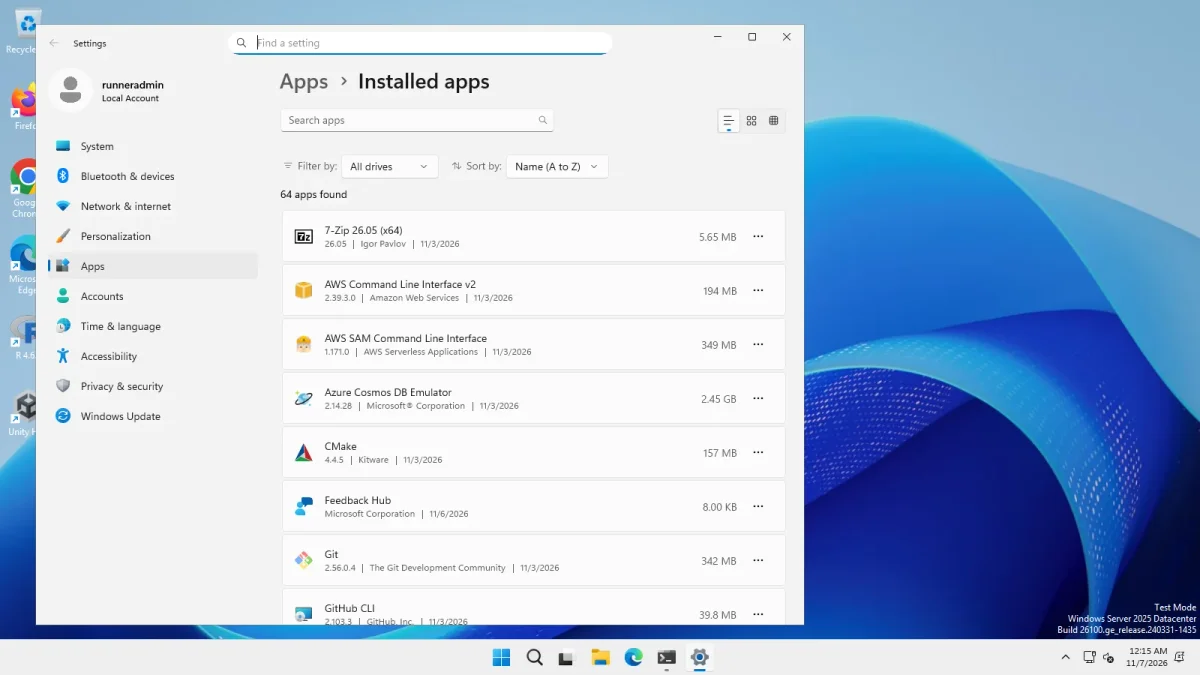
On Arm64 our capture recorded the completion box twice; we do not know why. The program folder C:\Program Files\ExplorerPatcher was gone on all three machines, and the Apps list no longer showed ExplorerPatcher:

If you had registered ExplorerPatcher as a shell extension (File Explorer section), the source says the uninstaller removes that registration and asks you to reboot. We did not test that case.
What stays behind
We compared file, registry, service and scheduled-task lists from before the install, after the install and after the uninstall.
| What | Where | After uninstall in our tests | Cleanup script option |
|---|---|---|---|
| ExplorerPatcher settings | HKCU\Software\ExplorerPatcher |
Left behind on all three machines. 33 values on Server 2025, including every setting we changed | 1 |
| Symbol cache and temporary files | %APPDATA%\ExplorerPatcher |
Gone on both x64 machines (it held 54 to 92 MB). On Arm64 a cleanup folder with one 245 KB .tmp file was left |
2 |
| Program folder | C:\Program Files\ExplorerPatcher |
Gone on all three | 3 |
dxgi.dll and the other copies in C:\Windows and the two SystemApps folders |
C:\Windows, C:\Windows\SystemApps\... |
Gone on all three | none needed |
| Windows’ own taskbar and Start values | HKCU\...\Explorer\Advanced |
Still present on Server 2025, for example TaskbarGlomLevel. Windows writes some of these itself, so we cannot say which ExplorerPatcher changed |
4 (off by default) |
| Apps entry | Uninstall registry key | Gone (Apps list) | none needed |
The source also adds a one-time sign-in entry (RunOnce) that deletes %APPDATA%\ExplorerPatcher. We never signed out in the test, so it did not run. Nothing was left in services, scheduled tasks or Run entries, because the install never added any. If you used the rounded corners switch, ExplorerPatcher sets up a helper service; per the source the uninstaller deletes it, but we did not test that.
If you reinstall, ExplorerPatcher will most likely find the old settings key and use it again. We did not test that either.
Remove the leftovers
Most people can stop here: a few kilobytes of registry values do nothing on their own. If you want a clean slate, the builder below writes a PowerShell script from the boxes you tick.
# ExplorerPatcher cleanup, generated by explorerpatcher.dev
# Run it in PowerShell AFTER you have uninstalled ExplorerPatcher. It only touches the items you chose and says what it did.
$ErrorActionPreference = 'Stop'
$entry = 'HKLM:\SOFTWARE\Microsoft\Windows\CurrentVersion\Uninstall\{D17F1E1A-5919-4427-8F89-A1A8503CA3EB}_ExplorerPatcher'
if (Test-Path $entry) { Write-Host 'ExplorerPatcher is still installed. Uninstall it first (Settings > Apps), then run this script again.' -ForegroundColor Yellow; return }
function Remove-IfThere($path, $what) {
  if (Test-Path -LiteralPath $path) { Remove-Item -LiteralPath $path -Recurse -Force; Write-Host "Removed: $what" } else { Write-Host "Not found (nothing to do): $what" }
}

# ExplorerPatcher settings in the registry
Remove-IfThere 'HKCU:\Software\ExplorerPatcher' 'ExplorerPatcher settings (registry)'

# Symbol cache and temporary files
Remove-IfThere "$env:APPDATA\ExplorerPatcher" 'symbol cache and temporary files'

# Empty program folder
Remove-IfThere "$env:ProgramFiles\ExplorerPatcher" 'program folder'

# Restart File Explorer when finished
Stop-Process -Name explorer -Force; Start-Sleep 3; if (-not (Get-Process explorer -ErrorAction SilentlyContinue)) { Start-Process explorer.exe }
Write-Host "Done."
What the script does
Everything below comes from reading the script above, not from running it:
- It refuses to run while ExplorerPatcher is installed. It looks for the uninstall entry under
HKLM\SOFTWARE\Microsoft\Windows\CurrentVersion\Uninstalland stops with a message if it exists. Uninstall first. - It removes only what you tick, and only if it exists. For each item it prints “Removed” or “Not found (nothing to do)”. It does not touch anything else.
- Settings in the registry (ticked by default). Deletes the key
HKCU\Software\ExplorerPatcherand everything in it. This cannot be undone, so export your settings first if you might want them. - Symbol cache and temporary files (ticked). Deletes the folder
%APPDATA%\ExplorerPatcher. - Program folder (ticked). Deletes
C:\Program Files\ExplorerPatcherif it is still there. It was gone in our runs, so this is normally “Not found”. If the folder does exist, deleting it may need an administrator window. - Windows taskbar and Start values (not ticked). Removes eight Windows values under
HKCU\Software\Microsoft\Windows\CurrentVersion\Explorer\Advancedif present:TaskbarGlomLevel,MMTaskbarGlomLevel,TaskbarSmallIcons,ShowSecondsInSystemClock,ShowTaskViewButton,StartDocked_DisableRecommendedSection,Start_ShowClassicModeandUseWin32TrayClockExperience. Windows then returns to its default for those options, which changes how your taskbar and Start look. - Restart File Explorer (ticked). Force-closes
explorer.exe, waits 3 seconds and starts it again if Windows did not. The taskbar vanishes for a moment.
The script needs no administrator rights for the registry items. To do the same by hand, open Registry Editor, delete HKEY_CURRENT_USER\Software\ExplorerPatcher, and delete the folder %APPDATA%\ExplorerPatcher in File Explorer.
If you cannot reach the desktop
If Explorer will not start or the screen stays black, the order is: start Explorer without ExplorerPatcher (Ctrl+Alt+Shift method above), then uninstall from Settings. If you cannot even open Task Manager, or Windows loops back to the black screen at every sign-in, use the options on the black screen page. It covers Safe Mode and the Windows recovery environment, and tells you which steps we tested and which come only from upstream’s notes.
We have not tested Safe Mode or the recovery environment ourselves. Upstream’s old notes say the last resort is to rename C:\Windows\dxgi.dll to dxgio.dll, start Explorer, and uninstall from Control Panel once it runs. Renaming the file that Explorer loads is a drastic step; try everything on the black screen page first.
If the uninstaller itself shows “An error has occurred while servicing ExplorerPatcher”, the setup’s own advice is: close the Properties window, restart explorer.exe, reboot if you registered the shell extension, and try again. It says a file from an earlier update is usually still in use.
Uninstall blocked by antivirus or SentinelOne
Upstream’s release notes warn that SentinelOne “can hold EP’s files hostage, preventing uninstallation”. We have not tested that, and Windows Defender found nothing in our tests. If a third-party security program blocks the files, upstream’s FAQ lists the folders to exclude: C:\Program Files\ExplorerPatcher, %APPDATA%\ExplorerPatcher, C:\Windows\dxgi.dll and the two SystemApps folders. It also says that if dxgi.dll is blocked from loading, Explorer will not start. See antivirus and ExplorerPatcher, and look at the alternatives if you are leaving because the tool did not suit you.
More short answers are in the ExplorerPatcher FAQ.
Common questions
Does uninstalling ExplorerPatcher delete my settings?
No. In our tests the key HKCU\Software\ExplorerPatcher stayed behind on all three machines, with every setting in it. That helps if you reinstall later. If you want it gone, delete the key or use the cleanup script builder on this page.
Do I need to restart Windows after uninstalling?
We did not have to. The uninstaller restarted File Explorer and the Windows 11 taskbar came back. According to the setup source, if you had registered ExplorerPatcher as a shell extension it asks you to reboot, which we did not test.
How do I uninstall ExplorerPatcher silently?
The setup source accepts ep_setup.exe /uninstall_silent, which skips the confirmation question. It still asks Windows for administrator rights and still shows a completion message. We tested /uninstall, not /uninstall_silent.
What if Windows will not show the desktop at all?
Start Explorer without ExplorerPatcher first: press Ctrl+Shift+Esc, choose Run new task, enter explorer.exe and press Enter while holding Ctrl+Alt+Shift. The black screen guide has every step and the recovery options after that.