How to use ExplorerPatcher
ExplorerPatcher has no app window of its own: you configure it in a Properties window that opens when you right-click the taskbar and choose Properties. On Windows 11 25H2 the window has 12 sections with the Windows 10 (ExplorerPatcher) taskbar and 11 with the Windows 11 taskbar; Windows Server 2025 has one fewer in each case. Changes marked with an asterisk need File Explorer to restart, which the link at the bottom left does in about 3 seconds.
Checked against ExplorerPatcher 71.1 (26100.9711.71.1) on Windows Server 2025 (24H2 shell) 26100.33674 and Windows 11 Enterprise 25H2 26200.9725 and Windows Server 2022 (Windows 10 21H2 shell) 20348.5773 · Nov 6, 2026On this page
- Open the Properties window
- A tour of the Properties sections
- 1. Taskbar
- 2. System tray
- 3. File Explorer
- 4. Start menu
- 5. Window switcher
- 6. Weather
- 7. Spotlight (Windows 11 client only)
- 8. Other
- 9. Updates
- 10. Advanced
- 11. Settings and uninstall
- 12. About
- Restart File Explorer
- Three starting setups
- Save, share and reset your settings
- Languages
- Common questions
- Related guides
Open the Properties window
ExplorerPatcher (people also write Explorer Patcher) installs no program to open. Its window is called Properties. After a fresh install you have three normal ways in, plus one for emergencies.
- Right-click an empty part of the taskbar and choose Properties. This is the way upstream’s own guide gives first. On our test machines the menu showed “Properties” between “Task Manager” and “Lock the taskbar”.
- Start menu, All apps, “Properties (ExplorerPatcher)”. Upstream says the name is shown in your Windows display language. We did not test this route.
- The Win+X menu. Turn on “Add shortcut to program settings in Win+X menu” in the Other section; the entry then appears in Win+X. It is off by default, and in our test the Win+X menu showed the extra entry once we enabled it.
- The run box. Press Win+R and enter
rundll32 C:\Windows\dxgi.dll,ZZGUI. Upstream documents this for people who turned off the taskbar menu entry; the Properties window is the functionZZGUIinside ExplorerPatcher’sdxgi.dll. We did not type this command ourselves.
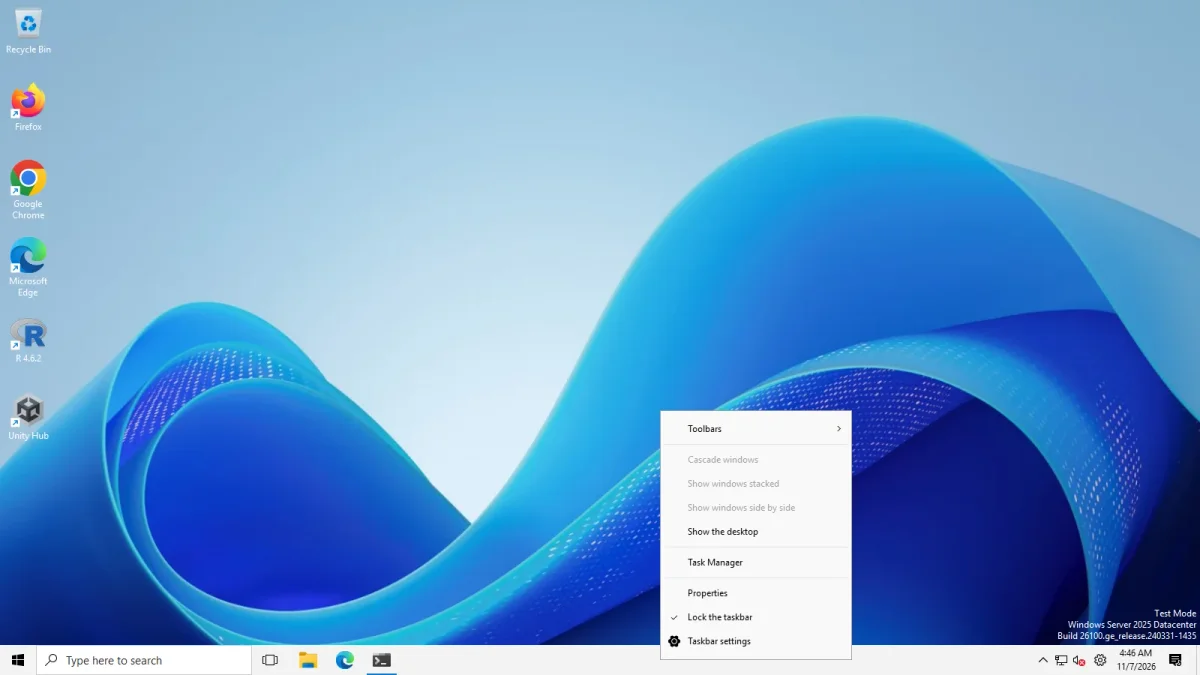
When we launched the window directly, it opened in 0.5 seconds. If you are working on a Windows 11 PC and nothing opens, read the black screen guide before changing anything else.
A tour of the Properties sections
The sections are listed down the left side of the window. We launched the window once per section and photographed each one. On Windows 11 25H2 with the Windows 10 (ExplorerPatcher) taskbar we counted 12: Taskbar, System tray, File Explorer, Start menu, Window switcher, Weather, Spotlight, Other, Updates, Advanced, Settings and uninstall, and About. With the Windows 11 taskbar active, Weather disappears and we counted 11. Windows Server 2025 has no Spotlight section, so it shows 11 with the Windows 10 (ExplorerPatcher) taskbar and 10 with the Windows 11 taskbar. Windows Server 2022, which has a Windows 10 shell, also showed 11 and no Spotlight. Each section has its own page in the settings reference with every option explained.
The screenshots below come from Windows 11 Enterprise 25H2 on Arm64 (build 26200.9725) with the Windows 10 (ExplorerPatcher) taskbar. Where Windows Server 2025 (24H2 shell, build 26100.33674) differs, we say so.
1. Taskbar
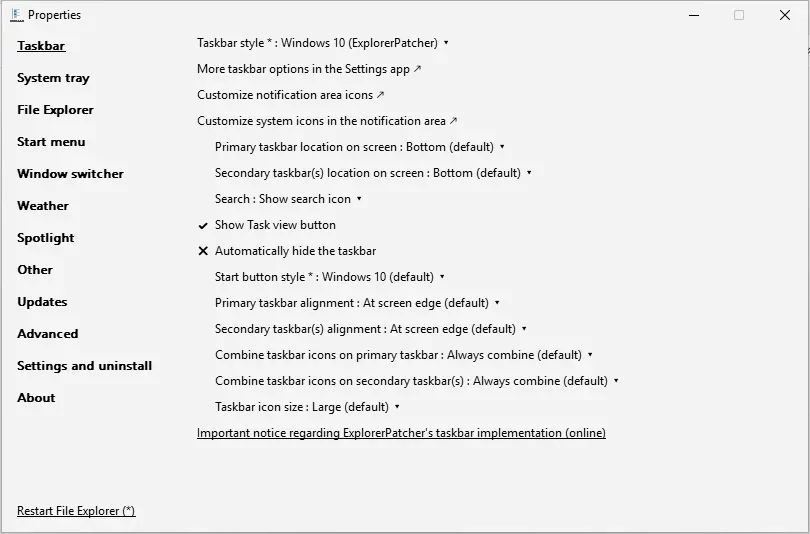
The taskbar style, where the taskbar sits on screen, the search box, Task view button, auto-hide, Start button style, alignment, icon grouping and icon size. Taskbar style and Start button style carry an asterisk. This section shows completely different options with the Windows 11 taskbar. See taskbar settings.
2. System tray
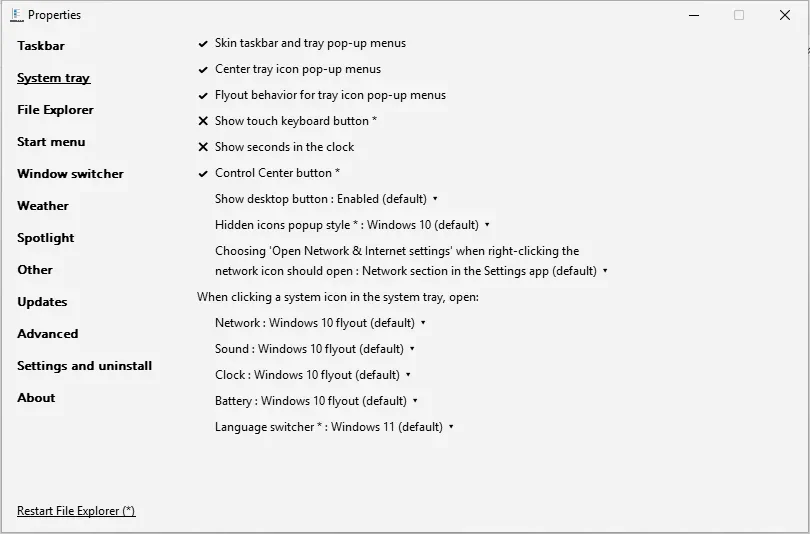
Skinning of tray pop-up menus, the touch keyboard button, seconds in the clock, the Control Center button, the Show desktop button, and which flyout opens when you click Network, Sound, Clock, Battery or the language switcher (Windows 10 or Windows 11). Our run opened the Windows 10 clock and network flyouts; the volume flyout could not be tested because the machines have no audio device. See system tray settings.
3. File Explorer
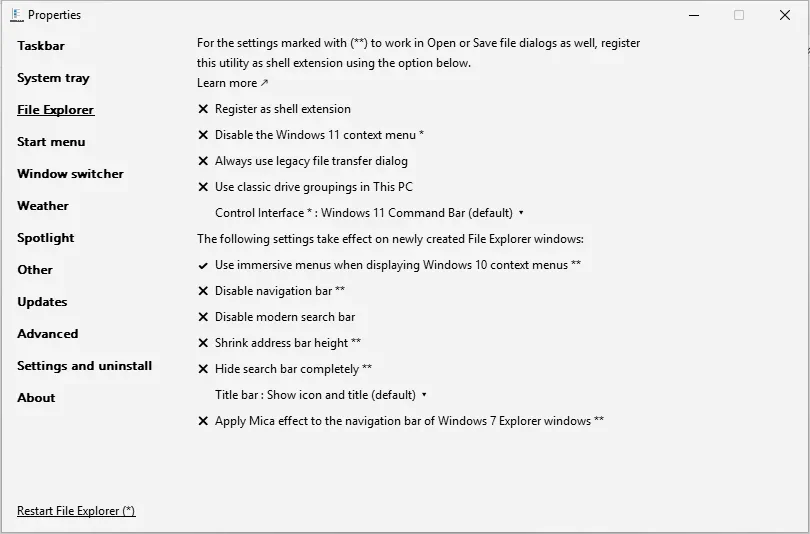
Registering ExplorerPatcher as a shell extension, the classic context menu, the legacy file transfer dialog, classic drive groupings, the command bar style (Windows 11, Windows 10 ribbon, Windows 7), the search bar and title bar. Options marked with two asterisks also apply in Open and Save dialogs once the shell extension is registered, and the ones in the lower block take effect on newly opened Explorer windows. See File Explorer settings.
4. Start menu
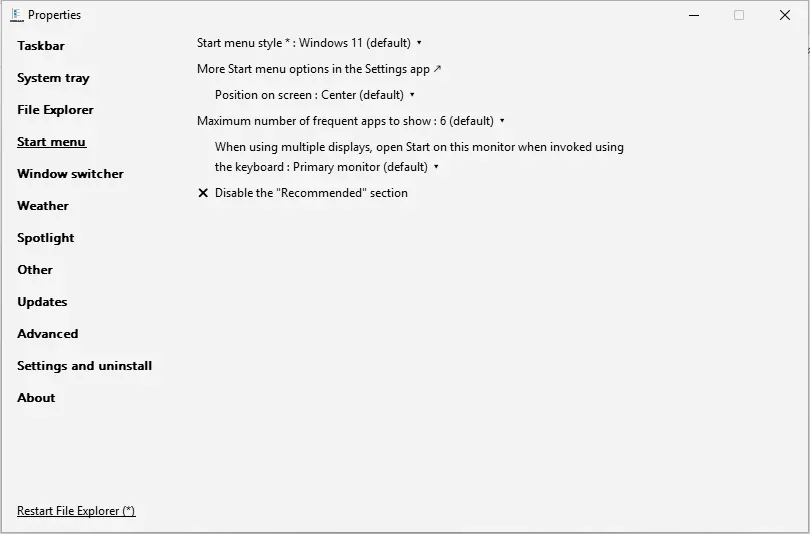
The Start menu style (Windows 11 or Windows 10), its position on screen, the number of frequent apps, which monitor Start opens on and hiding the Recommended section. Open Start in All apps by default is listed on Windows Server 2025 but not on this Windows 11 25H2 machine, because the new Start layout already opens with the app list. In our run the Windows 10 Start menu opened with both taskbars. See Start menu settings.
5. Window switcher
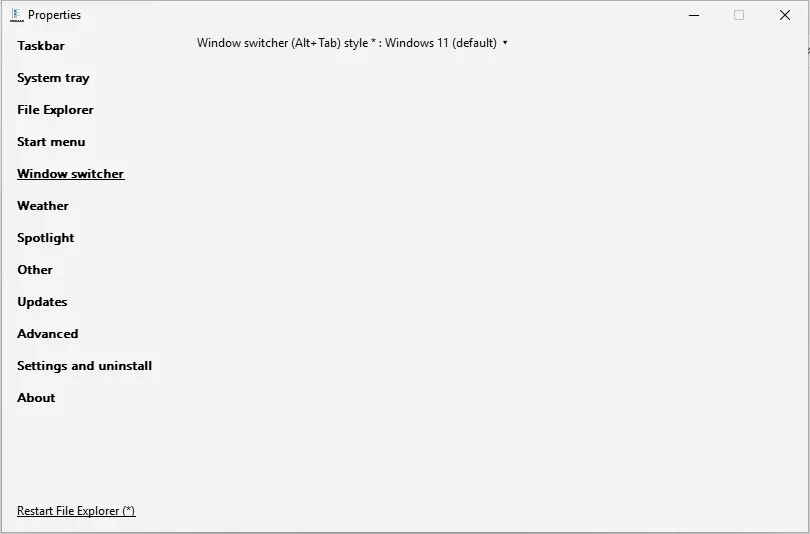
The Alt+Tab style. With the default Windows 11 style this section shows one option. The other 15 options in our data, such as the colour scheme, appear only after you pick Simple Window Switcher. See window switcher settings and the Alt+Tab guide.
6. Weather
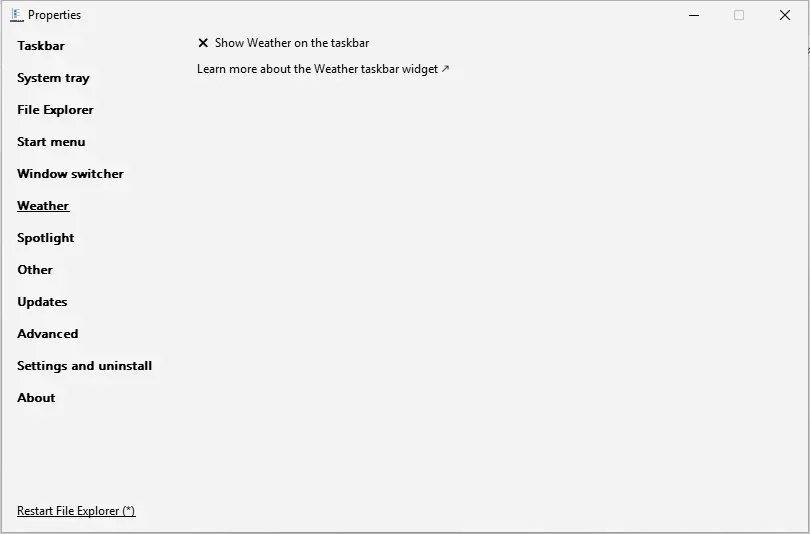
A switch to show weather on the taskbar, plus a link to upstream’s page about it. The section is missing from the list when the Windows 11 taskbar is active. See weather settings.
7. Spotlight (Windows 11 client only)
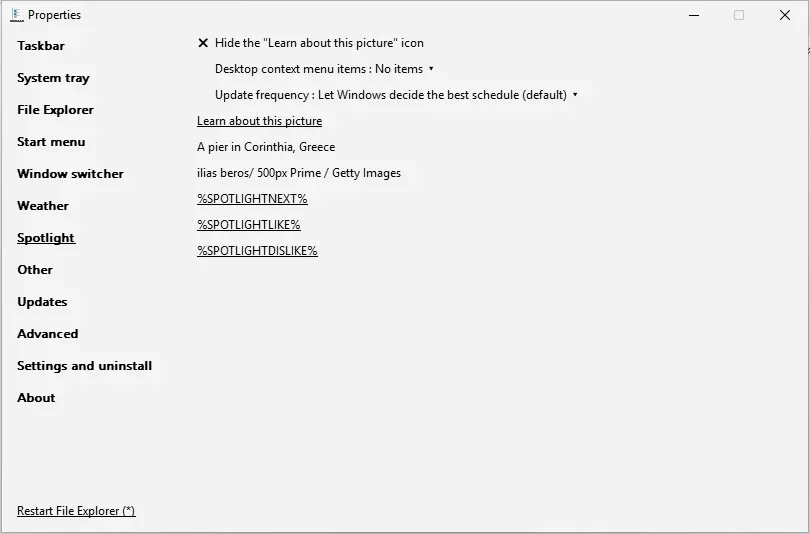
Three options: Hide the “Learn about this picture” icon, Desktop context menu items, and Update frequency (Let Windows decide the best schedule is the default). Below them the section prints the credit of the current Spotlight picture, in our case “A pier in Corinthia, Greece”. In our screenshot the three links at the bottom show as raw placeholders (%SPOTLIGHTNEXT%, %SPOTLIGHTLIKE%, %SPOTLIGHTDISLIKE%). This section was not listed on Windows Server 2025 or Server 2022.
8. Other
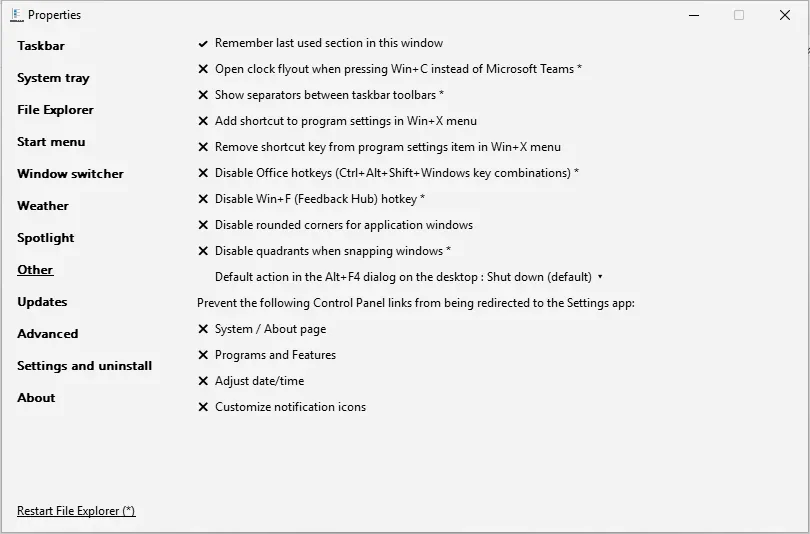
Remember the last used section, the Win+C clock flyout, toolbar separators, the Win+X shortcut entries, Office and Win+F hotkeys, rounded window corners, snap quadrants, the Alt+F4 default action on the desktop, and four Control Panel links that can be kept from redirecting to the Settings app. See Other settings and, for the rounded corners switch, our rounded corners page.
9. Updates
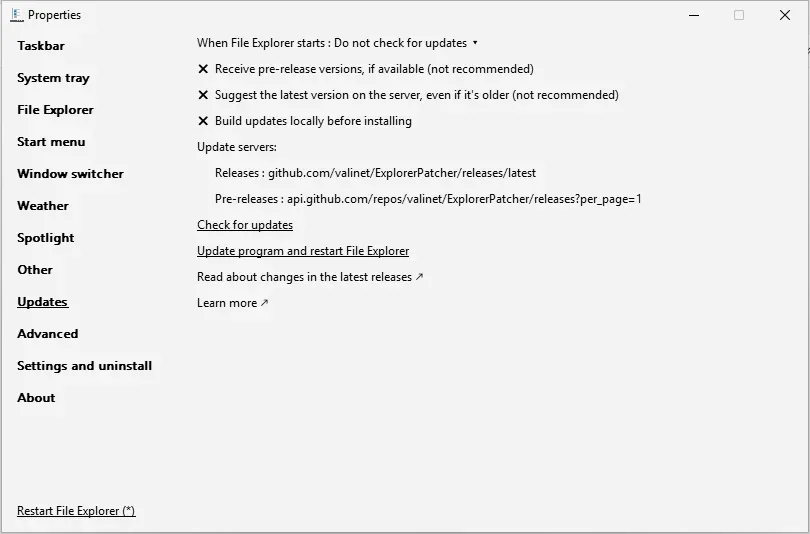
When and whether ExplorerPatcher looks for a new version, plus the Check for updates and Update program buttons. Our screenshot shows “Do not check for updates” because our test harness sets that value to keep update toasts out of the photos; the default is “Notify”. The update guide walks through every line, and the update settings page has the registry values.
10. Advanced
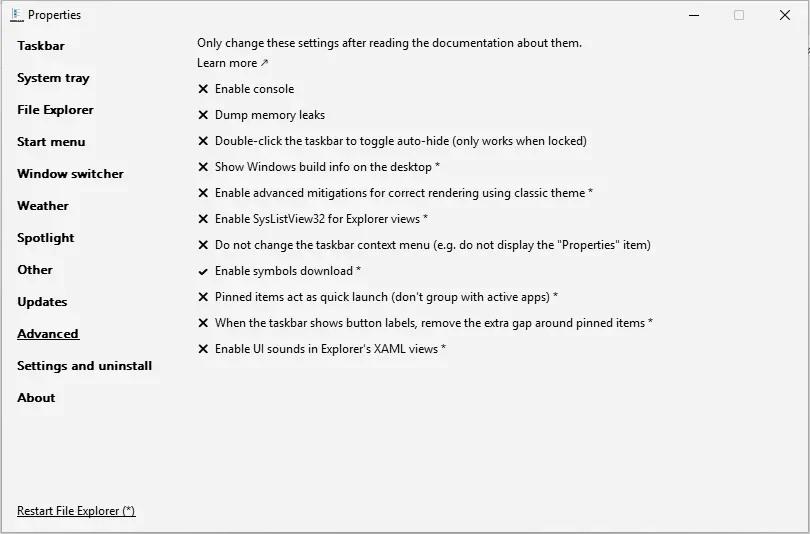
Developer and rescue options: the console, memory-leak dump, build information on the desktop, classic theme mitigations, symbol downloads and quick-launch behaviour. The window itself says to change these only after reading the documentation. See Advanced settings.
11. Settings and uninstall
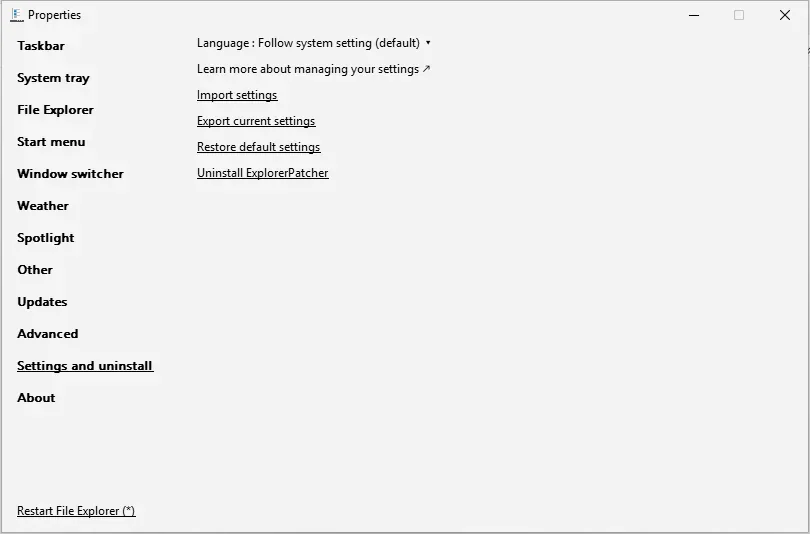
Language, Import settings, Export current settings, Restore default settings and Uninstall ExplorerPatcher. Both topics get their own heading below. Upstream’s older wiki says export and import live in About; in version 71.1 we found them here. Our settings reference files this section under Advanced settings.
12. About
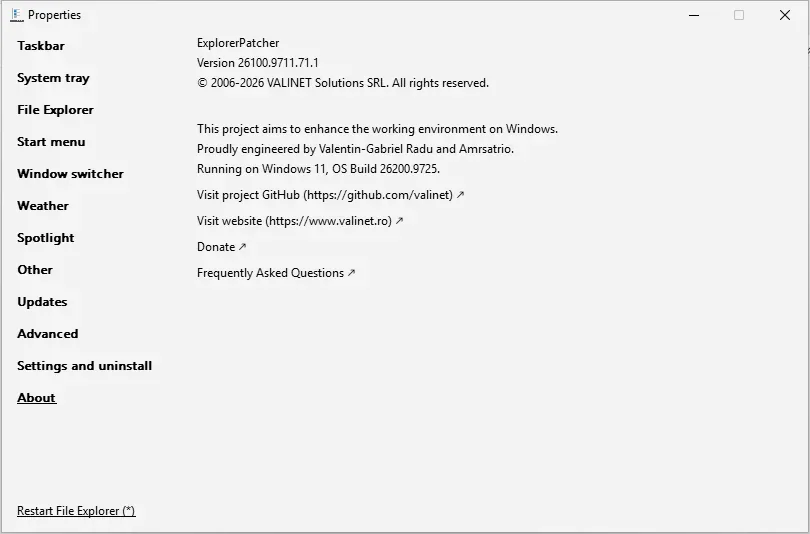
About shows the version (26100.9711.71.1 in our screenshot), the copyright line, the two authors it credits, the Windows build it is running on (26200.9725 here) and links to the project on GitHub, the website, a donation page and the FAQ. It has no settings. On Windows Server 2025 the same window reports “Windows 11” with build 26100.33674.
Restart File Explorer
Some options only apply after Explorer restarts. They carry an asterisk, and the link Restart File Explorer (*) at the bottom left of the window restarts it for you. The taskbar disappears and returns. In our tests Explorer restarts took 2.0 to 3.7 seconds, with or without ExplorerPatcher. If the taskbar does not return, use the recovery steps in the black screen guide.
Three starting setups
You do not have to find options one by one. The Shell Configurator lets you tick options in a copy of the Properties window and download a .reg file that Import settings reads. It starts from three presets:
| Preset | What it sets | What we tested |
|---|---|---|
| Windows 10 look | EP taskbar, Windows 10 Start menu and Alt+Tab, File Explorer ribbon, classic context menu, never combine icons | We tested each of these options on its own (Windows 10 Start, Alt+Tab, ribbon, classic menu, labels) and they worked |
| Windows 11 with a few fixes | Keeps the Windows 11 taskbar and Start; classic context menu, ribbon, no Recommended section | Classic menu and ribbon worked on Server 2025. The no-Recommended option showed no visible change in our run, so it is not confirmed |
| Small, labelled taskbar | EP taskbar with small icons, labels and seconds in the clock | Small icons gave a 30 px taskbar; seconds and labels worked |
We tested importing a file of the Configurator’s shape into Properties on Windows Server 2025 and 2022: the values were applied after two Registry Editor prompts (details on the Configurator page). That test used three plain values and one virtualised value, not a full preset, and not Windows 11 on Arm64, so use Export current settings first as a backup. Upstream’s own quick start is shorter: choose the taskbar style in Taskbar, the Start menu style in Start menu, and the Alt+Tab style in Window switcher.
Save, share and reset your settings
All three actions are in Settings and uninstall:
- Export current settings saves a
.regfile. Upstream says it uses a format Registry Editor reads too, with some pseudo entries that only ExplorerPatcher understands, so merging it by hand may restore your settings only in part. - Import settings reads such a file. In our test Registry Editor asked once to confirm and once reported success. Upstream says Windows may also show permission prompts (the Register Server helper and the Windows Command Processor helper); we saw none, but our accounts are administrators. Restart File Explorer afterwards.
- Restore default settings goes back to the built-in defaults, with the same restart advice.
Upstream says an exported file is “VERY likely” to work across versions but gives no guarantee. Your settings live in HKEY_CURRENT_USER\Software\ExplorerPatcher. They survived an update from 70.3 to 71.1 in our test, and they stay behind after an uninstall.
Languages
Properties follows your Windows language by default, and you can pick another in Settings and uninstall. The project ships 20 languages: English and 19 translations. They are Czech (cs-CZ), German (de-DE), Greek (el-GR), Spanish (es-ES), French (fr-FR), Hungarian (hu-HU), Indonesian (id-ID), Japanese (ja-JP), Korean (ko-KR), Lithuanian (lt-LT), Dutch (nl-NL), Polish (pl-PL), Portuguese, Brazil (pt-BR), Romanian (ro-RO), Russian (ru-RU), Turkish (tr-TR), Ukrainian (uk-UA), Chinese, Simplified (zh-CN) and Chinese, Traditional (zh-TW). Our screenshots are all in English.
More short answers are in the ExplorerPatcher FAQ.
Common questions
I cannot find Properties in the right-click menu. What now?
Open Start, choose All apps and look for Properties (ExplorerPatcher), or press Win+R and run rundll32 C:\Windows\dxgi.dll,ZZGUI. Upstream says the menu entry disappears when the Advanced option 'Do not change the taskbar context menu' is on. We only checked the menu with the Windows 10 (ExplorerPatcher) taskbar.
Why is an option from a guide missing in my Properties window?
Many options only appear after you choose another one. In our screenshots the Window switcher section shows one option with the default Windows 11 style, and the Taskbar section differs completely between the two taskbar styles. Change the parent option first, then look again.
Where do I change the language of ExplorerPatcher?
Open the Settings and uninstall section and set Language, which follows the Windows language by default. The project ships 20 languages: English plus 19 translations, from Czech to Traditional Chinese. The full list is further down this page.
Can I copy my settings to another PC?
Yes. Settings and uninstall has Export current settings, which saves a .reg file, and Import settings, which reads one. Upstream recommends restarting File Explorer after an import so everything loads.