How to update ExplorerPatcher
ExplorerPatcher tells you when a new version exists but does not install it unless you change the setting. To update, run the newer ep_setup.exe from GitHub over the old install, or use Properties, Updates, Update program and restart File Explorer. In our test, updating from 70.3 to 71.1 took 5 to 7 seconds and kept the settings we had changed.
Checked against ExplorerPatcher 71.1 (26100.9711.71.1) on Windows Server 2025 (24H2 shell) 26100.33674 and Windows 11 Enterprise 25H2 26200.9725 and Windows Server 2022 (Windows 10 21H2 shell) 20348.5773 · Nov 6, 2026On this page
Built-in updates
ExplorerPatcher has an update checker. You find it in Properties, in the Updates section.
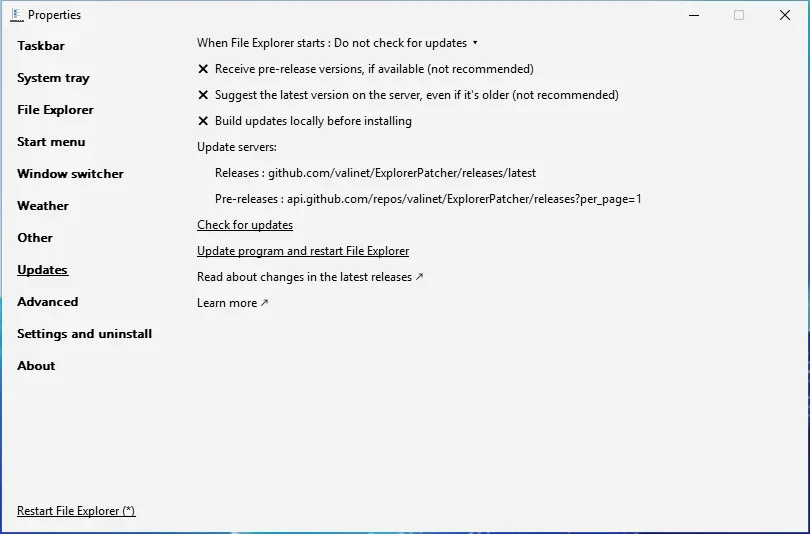
The section has these lines. The registry values are in HKEY_CURRENT_USER\Software\ExplorerPatcher, and the update settings page explains each one in full.
| Line in Properties | Registry value | Default | What it does |
|---|---|---|---|
| When File Explorer starts | UpdatePolicy |
Notify (1) | 1 notifies, 0 offers to install, 2 never checks |
| Receive pre-release versions, if available (not recommended) | UpdatePreferStaging |
Off | Also offers pre-releases |
| Suggest the latest version on the server, even if it’s older (not recommended) | UpdateAllowDowngrades |
Off | Offers the server’s newest version even when it is older than yours |
| Build updates locally before installing | UpdateUseLocal |
Off | Meant for developers |
| Releases (server address) | UpdateURL |
Empty, meaning GitHub | Your own server for releases |
| Pre-releases (server address) | UpdateURLStaging |
Empty, meaning GitHub | Your own server for pre-releases |
Below those lines the window lists the two servers it uses, Check for updates, Update program and restart File Explorer, and links to read about the changes. The defaults are github.com/valinet/ExplorerPatcher/releases/latest for releases and api.github.com/repos/valinet/ExplorerPatcher/releases?per_page=1 for pre-releases.
The three policies
The first line, When File Explorer starts, has three choices:
- Notify about available updates (default). When the main Explorer process starts (mostly at sign-in) and the PC is online, ExplorerPatcher checks GitHub. If a newer release exists, a notification appears. Otherwise nothing happens.
- Prompt to install available updates. The same check, but the update downloads and installs by itself. With User Account Control on, Windows asks for permission first. File Explorer then reloads with the new version. Our test did not use this mode.
- Do not check for updates. No automatic check. You can still check by hand.
Here is the notification we saw. It appeared on our Windows 11 25H2 Arm64 machine while version 70.3 was installed and 71.1 was the newest release:

If no notification appears, check that Windows notifications are switched on. Upstream also names the Group Policy “Turn off toast notifications” as a common cause on managed PCs.
What the checker sends
Upstream’s wiki says ExplorerPatcher has no telemetry. The check downloads the first few bytes of the newest ep_setup.exe, which hold a hash of the program inside it, and compares that hash with your installed copy. That is why GitHub’s public download counter goes up for every check. The pre-release check asks the GitHub API, which allows 60 requests per hour without a login. We did not capture the traffic of the update check itself. In our install tests the network names we saw were GitHub’s release asset host and Microsoft endpoints.
Update by hand
This is the method we tested, and the one upstream’s README lists next to the built-in updater.
- Download the newer
ep_setup.exe(orep_setup_arm64.exe) from the GitHub releases page. The download page helps you pick the file and compare its hash. - Run it. You do not uninstall first. File Explorer restarts and the new version loads.
If you use winget, winget install valinet.ExplorerPatcher installs the newest version it knows, which on 6 Nov 2026 was 26100.9711.71.1 for x64 only. Details are in the install guide.
Windows update first or ExplorerPatcher first?
ExplorerPatcher patches code inside Windows, and new Windows builds can move that code. Look at the 71.1 release notes: they list fixes that start at particular builds, such as “on 26100.9343+”, “28000.3032+” and “29683+”. Each names a Windows build where something had changed and ExplorerPatcher needed a fix. So the safest order, from the evidence we have, is this:
- Check the status page for the Windows build you are about to install. It lists the builds and whether ExplorerPatcher worked on them.
- Update ExplorerPatcher to the latest stable release before the Windows update, so you start from the newest compatibility fixes.
- Install the Windows update, then check for an ExplorerPatcher update again. If the taskbar breaks, a newer release is the first thing to try.
- Know your recovery steps. The black screen guide explains how to start Explorer without ExplorerPatcher.
This is our advice, based on upstream’s release notes. We have not run a Windows cumulative update on a test machine that had ExplorerPatcher installed. Upstream says 71.1 also checks that its taskbar is compatible before it activates and falls back to the stock taskbar if it is not. We did not test that fallback.
We do not suggest skipping Windows security updates for ExplorerPatcher. If an update breaks something, uninstalling or waiting for a new release is less risky than staying unpatched.
Pre-releases
A pre-release is an automatic build of the latest code, published on GitHub before the developers promote it to a stable release. GitHub lists 301 releases for the project: 103 stable and 198 pre-releases. The newest pre-release in our 6 Nov 2026 snapshot is 26100.8457.70.4 from 6 Jul 2026, which is older than the current stable 71.1, so nothing newer than stable is on offer at the moment.
What upstream says about them:
- They contain the newest commits, and some commits break things for a while.
- They suit people who want a specific fix early and can report problems.
- They are built on GitHub Actions on clean machines, the same way as stable releases.
- A pre-release that has settled is promoted to a stable release and then reaches everyone.
To opt in, tick Receive pre-release versions, if available (not recommended) in Updates. You still receive stable releases too: you get the newest build of either kind. See all releases for the full list.
Going back. Untick the box and the checker offers stable releases only. Since version 22000.434.41.12 it only suggests a version with a bigger number than yours, so it will not push you back by itself. Upstream’s advice is to turn the checker off until a stable release catches up. We have not tested installing an older setup over a newer one, so we cannot tell you what happens to your settings.
Turn off update checks
In Properties, open Updates and set When File Explorer starts to Do not check for updates. That sets UpdatePolicy to 2. You can also set it from a command prompt:
reg add "HKCU\Software\ExplorerPatcher" /v UpdatePolicy /t REG_DWORD /d 2 /fChecking by hand with Check for updates keeps working. If you switch the checks off, bookmark the releases page or the status page so that you notice new versions yourself.
Common questions
Does ExplorerPatcher update itself automatically?
Not by default. The default setting, Notify about available updates, shows a notification when File Explorer starts and a newer release exists. Only the setting Prompt to install available updates downloads and installs a release for you.
Will updating reset my settings?
No. We installed 71.1 over 70.3 on three test machines after changing two settings, and both values were still set afterwards. Your settings live in the registry, and the setup does not clear them.
Should I update Windows or ExplorerPatcher first?
Update ExplorerPatcher to the latest stable release first, then check the status page for your Windows build before you install a Windows update. After the Windows update, check for a newer ExplorerPatcher again. We have not tested a Windows cumulative update on a machine with ExplorerPatcher installed.
How do I stop the update notifications?
Open Properties, go to Updates and set When File Explorer starts to Do not check for updates. ExplorerPatcher then never checks on its own, and you can still press Check for updates when you want to.