Independent guide · checked against ExplorerPatcher 71.1 · Nov 6, 2026
ExplorerPatcher, tested and explained
ExplorerPatcher restores the Windows 10 taskbar, Start menu, Alt+Tab, File Explorer ribbon and right-click menu on Windows 11. We installed it on GitHub-hosted Windows machines (Windows 11 25H2 on Arm64, Windows Server 2025 and Windows Server 2022), photographed the Properties window section by section and measured what it does.
ExplorerPatcher (many people search for it as "Explorer Patcher") is a free, open-source program by valinet. The current version is 26100.9711.71.1 (Oct 29, 2026). It works on Windows 11 24H2 and 25H2 and on Windows 10. Download it only from GitHub.
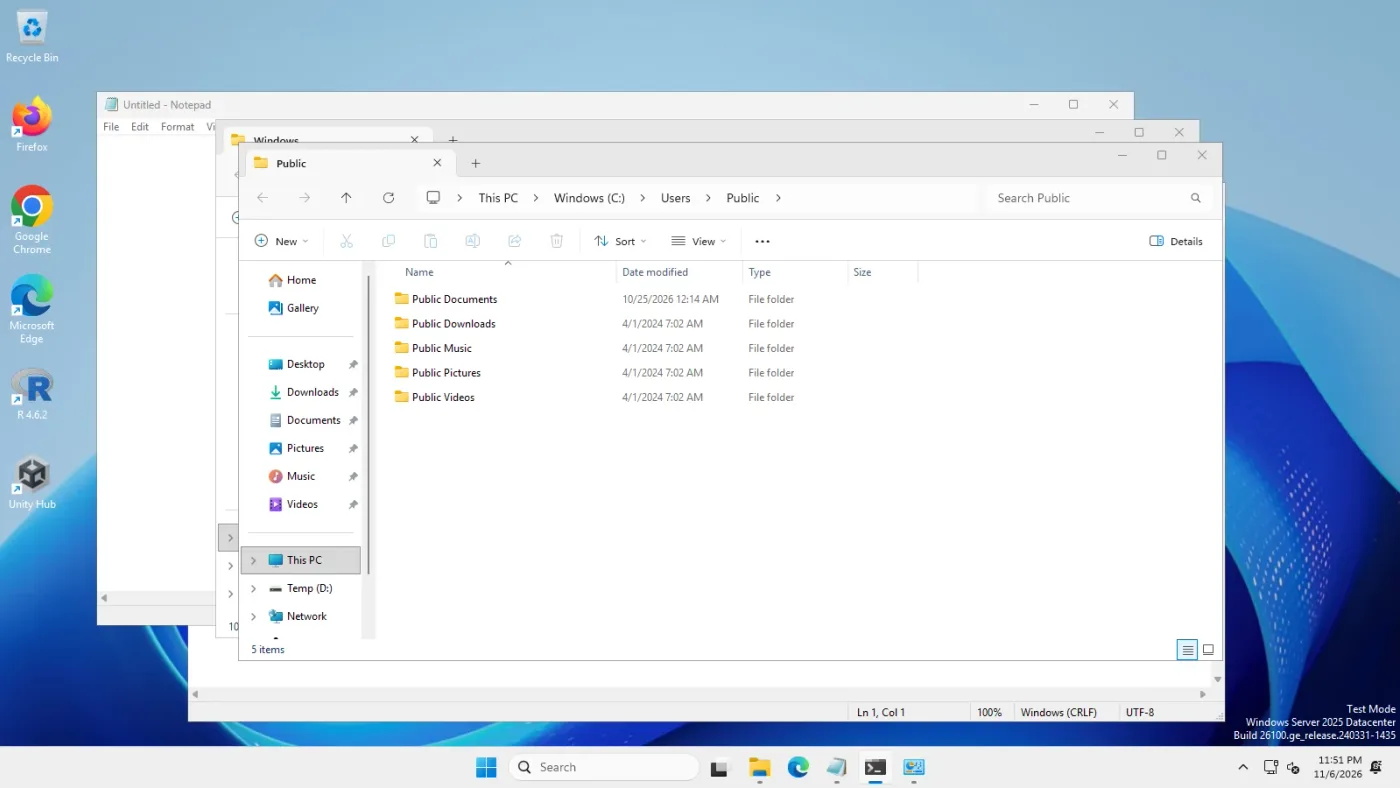 With ExplorerPatcherWindows 11 as shipped
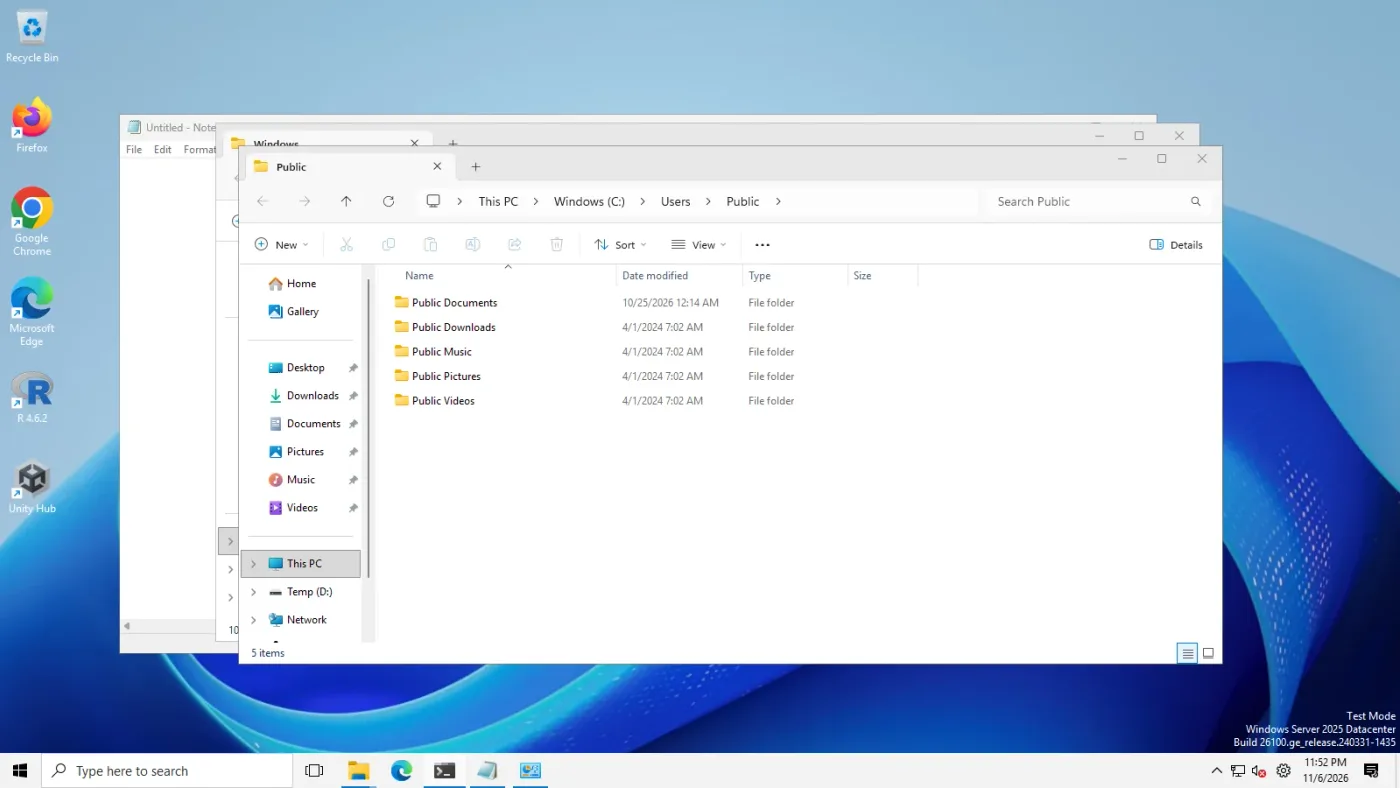
Taskbar: Taskbar style "Windows 11", four apps open → Taskbar style "Windows 10 (ExplorerPatcher)", four apps open. Windows Server 2025 (24H2 shell) 26100.33674, ExplorerPatcher 71.1. Real screenshots from our test runs.
- Latest version
- 71.1
- Released
- Oct 29, 2026
- Settings
- 117
- CPUs
- x64 and Arm64
- Licence
- GPL-2.0, free
- GitHub stars
- 34,245
What ExplorerPatcher changes
 TaskbarThe Windows 10 taskbar on Windows 11, with labels, small icons and any screen edge.
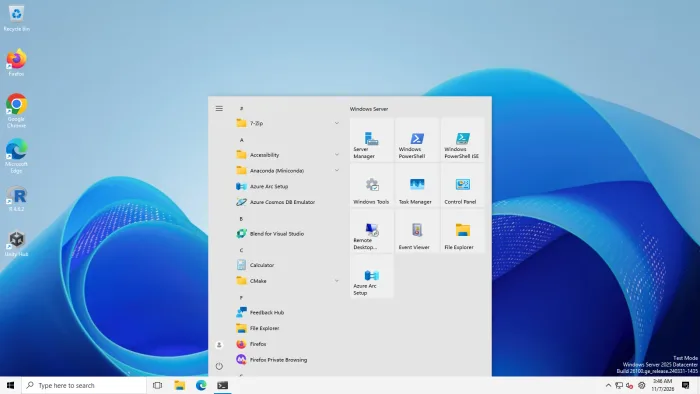 Start menuThe Windows 10 Start menu with tiles, rebuilt for the newest Windows 11 builds.
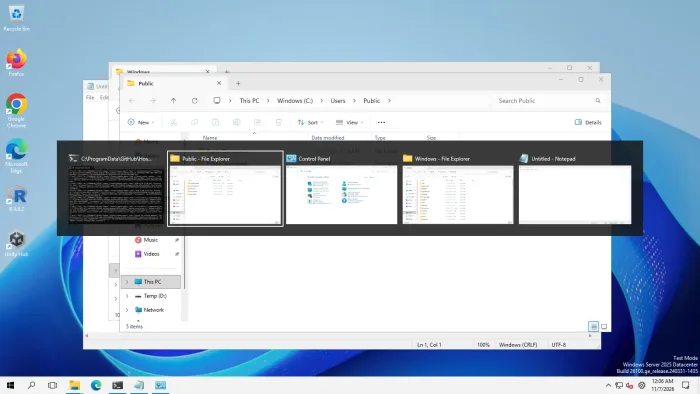 Alt+TabWindows 10 Alt+Tab or the Simple Window Switcher, both tested. The Windows NT style shows nothing on 24H2 and 25H2.
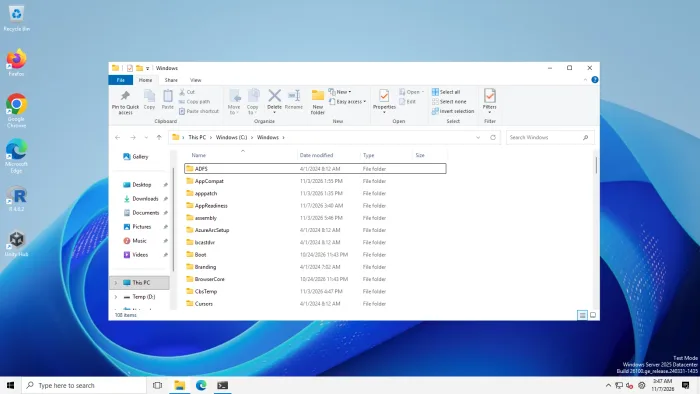 File ExplorerThe Windows 10 ribbon or the Windows 7 command bar. The search box and drive group switches showed no visible change in our run.
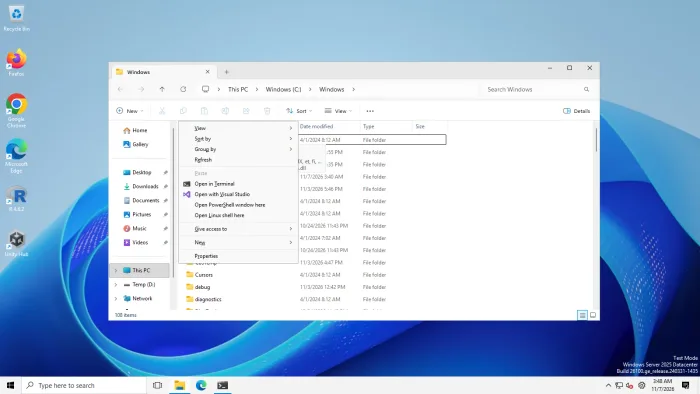 Context menuThe full right-click menu straight away, without "Show more options".
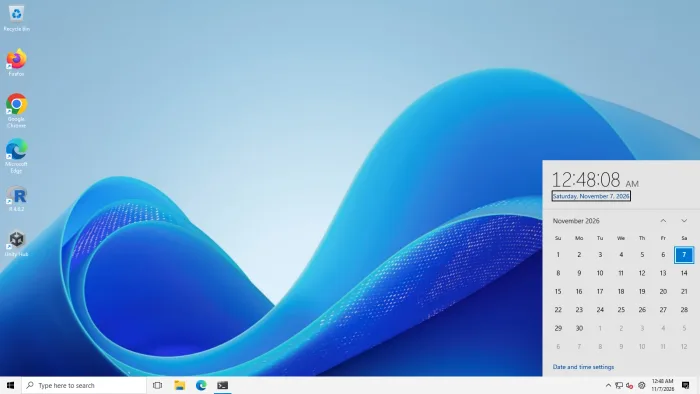 System trayThe Windows 10 clock, network and battery flyouts, and a Windows 10 style tray.
What it does not change
It does not replace the Settings app, Windows Update, window title bars or the Windows 11 look of other apps, and it does not patch Windows files on disk: it loads into three running Windows processes (Explorer, the Start menu host and the shell host). The how it works page shows exactly which files it adds.
Will it work on your PC?
Windows updates are what break ExplorerPatcher. Type your Windows build to see the support level, whether it was tested, and what users reported. Full compatibility table
Not sure? Press Win+R, type winver, press Enter, and copy the line that says "OS Build".
Type a build to see which taskbar ExplorerPatcher uses on it, whether it was tested, and what users reported.
Get started in four steps
- Check your build and read the warnings.Windows 10 1809 or newer, or Windows 11 22H2 or newer. Turn off Smart App Control first and do not use it on a work PC. Before you install
- Download from GitHub.Choose
ep_setup.exefor Intel and AMD orep_setup_arm64.exefor Snapdragon, then verify the file. - Run it.Setup took 5 to 9 seconds on our machines. Explorer restarts and you see the Windows 10 taskbar. Install guide with screenshots
- Right-click the taskbar, choose Properties.Pick styles in up to 12 sections, or build a settings file in the Configurator. How to use it
Is it safe?
It is open source and the releases are built on GitHub, but the setup is not code-signed and ExplorerPatcher patches Explorer's memory, so a Windows update can break it. In our runs Defender found nothing, the install left no services or scheduled tasks, and Explorer's memory use stayed within normal range. Lookalike sites exist, and one of them serves its own setup file. Read the full answer · Antivirus warnings · If your screen goes black
Free tools in your browser
Browse every guide
Install and use
Features
- ExplorerPatcher features
- How to get the Windows 10 taskbar on Windows 11
- How to get the Windows 10 Start menu on Windows 11
- How to get the classic context menu in Windows 11
- How to get the File Explorer ribbon back in Windows 11
- How to change the Alt+Tab style in Windows 11
- How to show taskbar labels and never combine buttons
- How to move the taskbar in Windows 11
- How to make the taskbar smaller in Windows 11
- How to disable rounded corners in Windows 11
- How to make Windows 11 look like Windows 10
Settings
- ExplorerPatcher settings reference
- Taskbar settings in ExplorerPatcher
- System tray settings in ExplorerPatcher
- File Explorer settings in ExplorerPatcher
- Start menu settings in ExplorerPatcher
- Window switcher (Alt+Tab) settings in ExplorerPatcher
- Weather widget settings and privacy in ExplorerPatcher
- Other settings in ExplorerPatcher
- Update settings in ExplorerPatcher
- Advanced and hidden settings in ExplorerPatcher
Compatibility
Fix problems
- ExplorerPatcher problems and fixes
- Black screen after ExplorerPatcher: how to get your desktop back
- File Explorer keeps crashing after a Windows update
- Why your taskbar still looks like Windows 11
- Start menu or search not working with ExplorerPatcher
- ExplorerPatcher weather widget not working
- ExplorerPatcher and antivirus warnings
Safety and how it works
Compare
Common questions
What is ExplorerPatcher?
A free, open-source program by Valentin-Gabriel Radu (valinet) that patches Windows Explorer so Windows 11 can look and behave like Windows 10: taskbar, Start menu, Alt+Tab, File Explorer ribbon, context menu and tray flyouts. It has 117 settings on Windows 11.
Is ExplorerPatcher safe?
It is open source and built on GitHub, but it injects code into Explorer and its setup is not code-signed, so it can break after a Windows update. In our runs Microsoft Defender found nothing in the setup or the installed files. Use it on personal PCs only, download it from GitHub only, and learn the recovery keys first.
Does it work on Windows 11 24H2 and 25H2?
Yes. We installed 71.1 on Windows Server 2025 (24H2 shell, build 26100.33674) and Windows 11 25H2 (build 26200.9725, Arm64) and the Windows 10 taskbar, Start menu and Alt+Tab (Windows 10 and Simple Window Switcher styles) worked on both. The File Explorer ribbon worked on Server 2025; our Arm64 captures of that step are unusable. The Windows NT Alt+Tab style shows no switcher on 24H2 and 25H2. The taskbar option must be "Windows 10 (ExplorerPatcher)".
Where do I download it?
Only from github.com/valinet/ExplorerPatcher/releases/latest. Several lookalike sites exist and one hosts its own setup file under a version number that never existed. Our download page can check your file against the official hashes in your browser.
How do I uninstall it?
Settings, Apps, ExplorerPatcher, Uninstall (or ep_setup.exe /uninstall). It takes about 15 to 22 seconds and brings the Windows 11 taskbar back, but it keeps your settings in the registry on purpose.
What if my screen goes black?
Press Ctrl+Shift+Esc, choose Run new task, type explorer.exe and press Enter while holding Ctrl+Alt+Shift. That starts Explorer without ExplorerPatcher. You will see a crash message; that is expected.
About this guide
explorerpatcher.dev is independent. We are not the ExplorerPatcher developers and we never host their files. We test on GitHub-hosted Windows machines (Windows 11 25H2 Arm64, Windows Server 2025 and Windows Server 2022), publish the raw results and credit the people who make the software. About · How we test · Corrections