Update settings in ExplorerPatcher
The Updates section has 6 entries. The one that matters is "When File Explorer starts": notify (the default), prompt to install, or do not check. Pre-releases and downgrades are off and marked not recommended. Updating means running the new setup over the old one, and in our test every setting survived the move from 70.3 to 71.1.
Checked against ExplorerPatcher 71.1 (26100.9711.71.1) on Windows 11 Enterprise 25H2 26200.9725 and Windows Server 2025 (24H2 shell) 26100.33674 · Nov 6, 2026On this page
What the section looks like
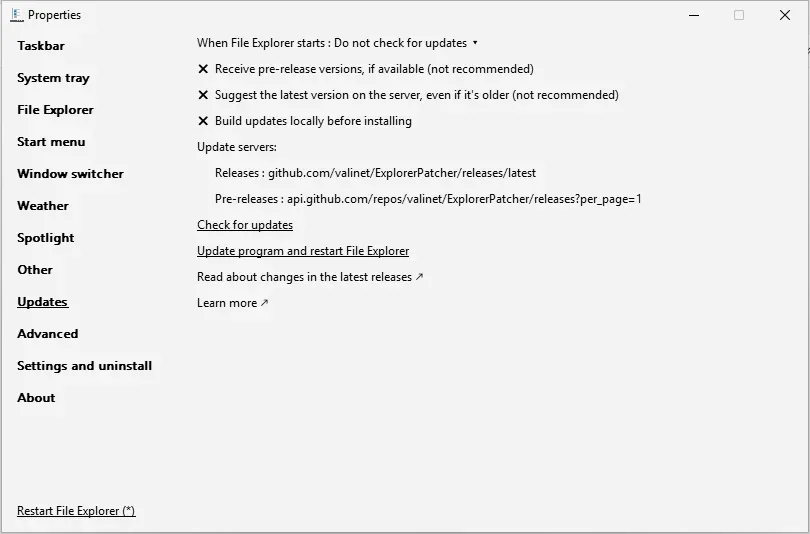
This is Windows 11 25H2 on Arm64 with ExplorerPatcher’s taskbar. Windows Server 2025 showed the same section, and it looked the same with the Windows 11 taskbar. From the top it has the policy box, three switches (pre-release versions, newer-than-installed suggestion, build updates locally), the two update server addresses, and links: Check for updates, Update program and restart File Explorer, Read about changes in the latest releases and Learn more.
Overview
| Setting | Default | Restart | Windows 10 |
|---|---|---|---|
| When File Explorer starts | Notify about available updates (default) | no | yes |
| Receive pre-release versions, if available (not recommended) | Off | no | yes |
| Suggest the latest version on the server, even if it's older (not recommended) | Off | no | yes |
| Build updates locally before installing | Off | no | yes |
| Releases | empty | no | yes |
| Pre-releases | empty | no | yes |
All update settings
When File Explorer starts Choice list
What happens when File Explorer starts: show a notification when an update exists (default), offer to install it, or never check. The check downloads a few bytes from GitHub and no personal data, according to the wiki.
- Default
- Notify about available updates (default)
- Registry
HKCU\Software\ExplorerPatchervalueUpdatePolicy- Section
- Updates
Options and stored values (3)
| Option in the app | Stored value |
|---|---|
| Notify about available updates (default) | 1 |
| Prompt to install available updates | 0 |
| Do not check for updates | 2 |
Our test: With the default, the 70.3 install showed "Version 26100.9711.71.1 is available" with an "Update now" button. Our later test steps set the value to "Do not check for updates" to avoid pop-ups, so our Updates screenshot shows that value, not the default.
Receive pre-release versions, if available (not recommended) Switch
Also offer pre-releases. Upstream marks this as not recommended.
- Default
- Off
- Registry
HKCU\Software\ExplorerPatchervalueUpdatePreferStaging- Section
- Updates
Suggest the latest version on the server, even if it's older (not recommended) Switch
Offer the newest version on the update server even when it is older than the one installed. Not recommended.
- Default
- Off
- Registry
HKCU\Software\ExplorerPatchervalueUpdateAllowDowngrades- Section
- Updates
Build updates locally before installing Switch
Build the update on your own machine before installing. For developers.
- Default
- Off
- Registry
HKCU\Software\ExplorerPatchervalueUpdateUseLocal- Section
- Updates
Releases Text box
Your own update server address for releases. Empty uses ExplorerPatcher's default GitHub location.
- Default
- empty
- Registry
HKCU\Software\ExplorerPatchervalueUpdateURL- Section
- Updates
Pre-releases Text box
Your own update server address for pre-releases.
- Default
- empty
- Registry
HKCU\Software\ExplorerPatchervalueUpdateURLStaging- Section
- Updates
How updating works
According to upstream’s wiki, each setup file starts with the hash of the ExplorerPatcher file inside it. The updater downloads the first few bytes of the newest setup file from GitHub, compares that hash with the one it has installed, and offers an update if they differ. Version numbers are not compared, because several commits can share one version. The default addresses are the GitHub releases page for stable builds and GitHub’s API for pre-releases, and the section shows both as text.
With the default policy, our test showed a Windows notification reading “Version 26100.9711.71.1 is available” with an Update now button, on a machine that had version 70.3 installed. Updating this way is the same as running the new setup yourself, which is what the update guide describes.
What to change first
- Pick a policy. Leave it on Notify if you want to hear about releases. Choose Do not check if you prefer to update by hand, for example because a Windows update just broke something and you want to wait.
- Leave the two “not recommended” switches off. “Receive pre-release versions” and “Suggest the latest version on the server, even if it’s older” are both off by default.
- Use the manual links. Check for updates and Update program and restart File Explorer work whatever the policy is.
Combinations and traps
Prompt to install is automatic. According to upstream, with “Prompt to install available updates” the update is downloaded and installed when File Explorer starts. User Account Control still asks for approval if it is on, and File Explorer reloads when the update finishes. If you do not want a change at logon, choose Notify.
Pre-releases and downgrades pull in newer code or older code. Upstream says pre-releases contain the latest code and may break things for a while, and that GitHub allows only 60 unauthenticated pre-release requests an hour. Since version 22000.434.41.12 the updater only suggests a bigger version number, so the downgrade switch is for the rare case where you deliberately want the server’s version.
Build updates locally. Upstream’s wiki does not describe this switch. In the source, when it is on the updater starts powershell.exe instead of saving the downloaded setup file. We have not tested it, and we would only turn it on if you know what that path does.
Custom update servers. The two address boxes correspond to UpdateURL and UpdateURLStaging. Upstream says the first must serve the setup file directly and the second must return JSON like the GitHub API. Point them at a server you do not control and you decide who supplies the file your PC installs. We have not tested custom servers.
No notifications? Make sure Windows notifications are on. Upstream’s wiki also notes that if the “Some settings are managed by your organization” message appears, a Group Policy setting may be blocking toasts.
Update checks are visible to GitHub. Upstream states that ExplorerPatcher has no telemetry, but that GitHub counts a download each time the updater fetches those first bytes, and GitHub itself can collect usual connection data. In our install test the network lookups were GitHub release assets and Microsoft update endpoints, and nothing else stood out. See is ExplorerPatcher safe for the wider picture, and note that our checks found the setup files are not code-signed, so compare file hashes on the download page if you update by hand.
Keep an eye on the releases page before you move to a new version, and use the settings hub to see where the policy value is stored.
Common questions
Does ExplorerPatcher update itself?
By default it checks when File Explorer starts and shows a notification if a new release exists. It does not install anything unless you choose Prompt to install available updates or click the update link yourself. You can also set it to never check.
How do I turn off update notifications?
In the Updates section, set When File Explorer starts to Do not check for updates. You can still check by hand with the Check for updates link in the same section. Our own test script set it that way to avoid update pop-ups, so our screenshot shows that choice, not the default.
Are pre-releases safe to install?
The window itself marks them not recommended. Upstream says pre-releases contain the latest code and may break things until a later commit fixes them. Leave Receive pre-release versions off unless you want to help test.
Do my settings survive an update?
Yes in our test. We set two values on version 70.3, ran the 71.1 setup over it, and both values were still there afterwards on Windows Server 2025 and Windows 11 25H2 Arm64. Updating is just running the new setup file.